Why Can’t I Connect to My VPN? Common Causes and Fixes
Find out why your VPN won’t connect and follow practical steps to troubleshoot network, app, account, and device issues.
If you’re asking, “Why can’t I connect to my VPN?”, the cause is usually a temporary network issue, an overloaded or blocked VPN server, incorrect app settings, or an outdated VPN app. Start by checking that your internet works without the VPN, then restart the app and try a different server. These simple steps fix many connection problems without changing your device’s security settings.

Editor's pick: NordVPN — fast, secure VPN — Strong encryption, a no-logs policy and apps for every device. 30-day money-back guarantee. Get NordVPN →
VPN connection symptoms and likely fixes
| What you notice | Possible cause | What to check | First fix |
|---|---|---|---|
| VPN will not connect | Internet is offline | Open a website without the VPN | Restore internet access |
| VPN will not connect | Account issue | Check login and subscription status | Sign in or renew |
| Connection attempt stalls | Server issue | Try another server | Choose a different location |
| Connection fails on one network | Protocol blocked | Try another VPN protocol | Switch protocols |
| VPN works on mobile data only | Network restriction | Compare Wi-Fi and mobile data | Check router or network rules |
| VPN disconnects repeatedly | Conflicting settings | Review firewall or other VPN apps | Temporarily disable conflicts |
| App behaves unexpectedly | Outdated app | Check for an available update | Update the VPN app |
| Problem continues after changes | App configuration issue | Try a reset option | Reset app settings |
Compiled November 2026; check the provider's site for current details.
| VPN | Obfuscation | From / month | Plan | Free plan | Refund | Alipay | UnionPay | Crypto | Website opens in China | Trustpilot | |
|---|---|---|---|---|---|---|---|---|---|---|---|
 ZoogVPN | Turn on manually Shadow | $2.49/mo | 27 months: $59.99 | Yes | 7 days | ✓ | ✓ | ✓ | ✓ | Official site blocked; our special link opens (4.4 s) | 4.2/5 (195 reviews) |
 NordVPN | Turn on manually Obfuscated Servers / NordWhisper | $3.49/mo | 27 months: $94.23 | No | 30 days | ? | ✗ | ✓ | ✓ | ✗ Blocked | 4.2/5 (51,628 reviews) |
 ExpressVPN | ✓ On by default all servers | $3.00/mo | 28 months: $84 | No | 30 days | ✗ | ✗ | ✓ | ✗ | ✗ Blocked | 4.4/5 (29,706 reviews) |
 Surfshark | ✓ On by default Camouflage, with OpenVPN | See site | See site | No | 30 days | ✗ | ✗ | ✗ | ✓ | ✗ Blocked | 4.3/5 (31,823 reviews) |
 Proton VPN | Turn on manually Stealth, free plan too | $2.99/mo | 12 months: $35.88 | Yes | 30 days | ✗ | ✗ | ✗ | ✓ | ✗ Blocked | 2.1/5 (1,040 reviews) |
 Astrill VPN | Turn on manually StealthVPN / OpenWeb | $12.50/mo | 24 months: $300 | No | See site | ✗ | ✗ | ✗ | ✓ | ✗ Blocked | 1.3/5 (110 reviews) |
 Private Internet Access | Turn on manually Shadowsocks, OpenVPN only | $2.03/mo | 40 months: $81.2 | No | 30 days | ✗ | ✗ | ✗ | ✗ | ✗ Blocked | 4.2/5 (11,033 reviews) |
 CyberGhost | Turn on manually selected servers | $2.19/mo | 28 months: $61.32 | No | 45 days | ✗ | ✗ | ✗ | ✓ | ✗ Blocked | 4.0/5 (24,178 reviews) |
 PureVPN | Turn on manually switch to OpenVPN | $1.69/mo | 60 months: $101.55 | No | 31 days | ? | ? | ✗ | ✓ | ✗ Blocked | 4.4/5 (17,994 reviews) |
 AdGuard VPN | ✓ On by default TrustTunnel | $2.99/mo | 24 months: $71.76 | Yes | 30 days | ✓ | ✗ | ✓ | ✓ | Official site blocked; our special link opens (3.7 s) | 4.3/5 (290 reviews) |
 Mullvad | Turn on manually QUIC / Shadowsocks / LWO | $5.61/mo | €5/mo | No | 14 days | ✗ | ✗ | ✗ | ✓ | ✗ Blocked | 3.2/5 (192 reviews) |
 Windscribe | Turn on manually Stealth / WStunnel | $5.75/mo | 12 months: $69 | Yes | See site | ✗ | ✗ | ✗ | ✓ | ✗ Blocked | 4.7/5 (13,355 reviews) |
 StrongVPN | Turn on manually Scramble, OpenVPN TCP | See site | See site | No | 30 days | ✓ | ✗ | ✗ | ✗ | ✗ Blocked | 4.4/5 (2,695 reviews) |
 LightXtreme 闪连 | Not listed | $7.08/mo | 12 months: $84.99 | Yes | 30 days | ✓ | ✓ | ✓ | ✓ | ✓ Yes (3.5 s) | No page |
Prices checked 2026-11-10 on each vendor's pricing page (cheapest long plan, USD). Check the vendor's checkout for the final price.
Obfuscation checked 2026-11-14 on each vendor's site and help center: "on by default" = nothing to set; "turn on manually" = switch protocol or mode in settings; "not listed" = the vendor describes no obfuscation.
Payment methods checked 2026-11-10 on each vendor's payment pages: all 14 take cards and PayPal; ✗ = not listed, ? = the vendor's own pages disagree.
China access: whether the official website opens from mainland China networks (tests the website only, not the VPN connection). Last checked 2026-11-18 01:02 Beijing time.
Trustpilot score and review count checked 2026-11-10.
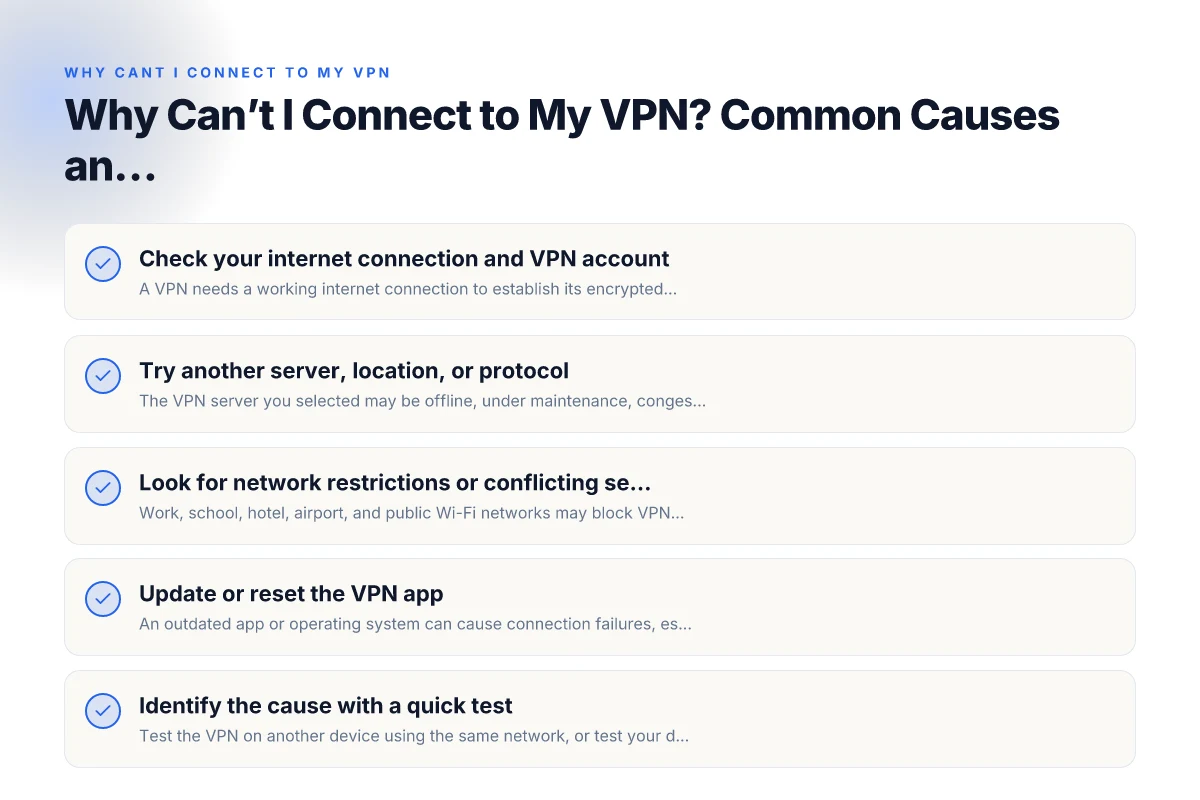
Check your internet connection and VPN account
A VPN needs a working internet connection to establish its encrypted tunnel. Disconnect from the VPN and try loading a few websites. If they don’t load, troubleshoot your Wi-Fi, mobile data, router, or internet service before changing VPN settings.
If regular internet access works, check whether your VPN subscription is active and whether you’re signed in to the correct account. Some services limit simultaneous connections, so another device using your account may have reached the limit.
Try these quick checks:
- Turn Wi-Fi off and back on, or switch between Wi-Fi and mobile data.
- Restart your device and, if practical, your router.
- Sign out of the VPN app and sign back in.
- Check your account status and active-device limit.
- Confirm your device’s date and time are set automatically.
Incorrect system time can interfere with the certificates used to establish secure connections. Setting the clock automatically may help if the VPN fails to authenticate. Free VPN That Allows You to Choose Location: What to Know
Try another server, location, or protocol
The VPN server you selected may be offline, under maintenance, congested, or blocked by the network you’re using. Choose a different server in the same country first. If that fails, try a nearby country or a server specifically labeled for streaming, gaming, or another relevant use.
Your VPN protocol, the method the app uses to create its connection, can also make a difference. Some networks restrict certain protocols, while others handle one protocol more reliably than another. In your VPN app’s settings, try a different available option, such as WireGuard, OpenVPN, or IKEv2. Names and options vary by provider.
| Symptom | What to try first |
|---|---|
| VPN stays on “connecting” | Select a different server or protocol |
| It connects but websites won’t load | Try another server and check DNS settings |
| It works on mobile data but not Wi-Fi | Restart the router or check network restrictions |
| Connection drops repeatedly | Try a closer server and a more stable protocol |
| Only one website or app fails | Test it without the VPN and check the service’s restrictions |
Don’t assume a server is faulty just because one location fails. Testing a second server helps distinguish a local server problem from an issue with your device or connection.
Look for network restrictions or conflicting settings
Work, school, hotel, airport, and public Wi-Fi networks may block VPN traffic or require you to accept a sign-in page first. Open a browser and check whether the network needs you to agree to terms or enter access details. Then try connecting to the VPN again. Which Is Faster, NordVPN or Surfshark? A Practical Speed Comparison
Some networks deliberately restrict VPN protocols. If changing protocols doesn’t help, contact the network administrator or try a different trusted network. Avoid trying to bypass rules on a managed work or school device. The organization may require a particular VPN or configuration.
Other apps or settings can interfere, too. Check whether you have:
- Another VPN app or proxy running.
- A firewall or security app blocking the VPN.
- A custom DNS setting that causes connection problems.
- Battery-saving settings that stop the VPN app in the background.
- A restricted network profile or device-management policy.
Temporarily disabling a conflicting app can help identify the cause, but don’t leave your firewall or security protection turned off. If you use a managed device, ask your IT team before changing its configuration.
Quick tests to narrow down a VPN connection problem Xforticlientvpnsetup_7.2.10.1217_x64.exe: Download and Install Guide
| Test | What to compare | If it works | If it fails |
|---|---|---|---|
| Check internet without VPN | VPN off versus VPN on | Focus on VPN settings | Fix internet access first |
| Try another server | Current server versus another | Current server may be unavailable | Test another cause |
| Try another location | Nearby versus different location | Location may be restricted | Continue troubleshooting |
| Switch protocol | Current versus alternative protocol | Original protocol may be blocked | Check network or app |
| Change networks | Wi-Fi versus mobile data | Wi-Fi may restrict VPN traffic | Check account or app |
| Review conflicting settings | VPN alone versus other security tools | A conflict may be involved | Check other causes |
| Update the app | Current version versus updated version | An update may resolve the issue | Try resetting the app |
| Reset app settings | Existing settings versus reset | Configuration may have been the cause | Seek further support |
Compiled November 2026; check the provider's site for current details.
Update or reset the VPN app
An outdated app or operating system can cause connection failures, especially after a security update or change to the VPN service. Install available updates for the VPN app and your device, then restart the device and try again.
If the app still won’t connect, review its settings for options such as “kill switch,” “always-on VPN,” or custom DNS. A kill switch blocks internet access when the VPN disconnects. This protects your privacy, but it can make the device appear offline until the VPN reconnects. Follow your provider’s instructions before changing these options.
You can also try these steps: Whats My IP NordVPN: How to Check Your IP Address
- Force-close the app, then reopen it.
- Remove the VPN profile from your device and let the app create it again.
- Clear the app’s cache, if your device offers that option.
- Uninstall and reinstall the app from the official app store or VPN provider.
- Check the provider’s service-status page for outages or maintenance.
Reinstalling may remove saved preferences, so make sure you know your login details before doing it. Download the app only from a trusted source.
Identify the cause with a quick test
Test the VPN on another device using the same network, or test your device on a different network. These comparisons can narrow down the problem:
- If the VPN fails on multiple devices on one Wi-Fi network, the network or router may be blocking it.
- If it fails on one device across several networks, the app or device settings are more likely responsible.
- If only one server fails, the problem may be limited to that server.
- If the VPN connects but a particular service won’t work, that service may restrict VPN traffic.
If nothing works, contact your VPN provider’s support team. Include your device model, operating-system version, VPN app version, the server and protocol you tried, and any error message. Don’t send your password or other sensitive account information.
Choosing the next VPN troubleshooting step What Is an.ovpn File? How to Use and Troubleshoot It
| Situation | Best next step | What it checks | When to move on |
|---|---|---|---|
| No websites load with VPN off | Restore internet | Basic connectivity | Once internet works |
| Internet works, but VPN does not | Check account status | Login or subscription | If account is in good standing |
| Only one server fails | Select another server | Server availability | If other servers also fail |
| VPN fails on one location | Try another location | Location-specific limits | If the problem persists |
| VPN works on one network only | Compare network connections | Network restrictions | If switching networks does not help |
| VPN conflicts with other security tools | Temporarily check settings | Conflicting software or rules | If no conflict is found |
| App is not up to date | Install an available update | App-version issue | If updating changes nothing |
| Other checks do not help | Reset the VPN app | App configuration | If the connection still fails |
Compiled November 2026; check the provider's site for current details.
Recommendation
Start with the simplest checks: confirm your internet works, verify your VPN account, restart the app, and try another server. If the problem continues, switch protocols, check for network restrictions, and update or reinstall the app. Contact your VPN provider if the VPN still fails across multiple networks or shows a persistent error.