What Is My VPN Location? How to Check It and What It Means
Learn how to check the location your VPN displays, why it may differ from your real location, and how to fix leaks or mismatches.
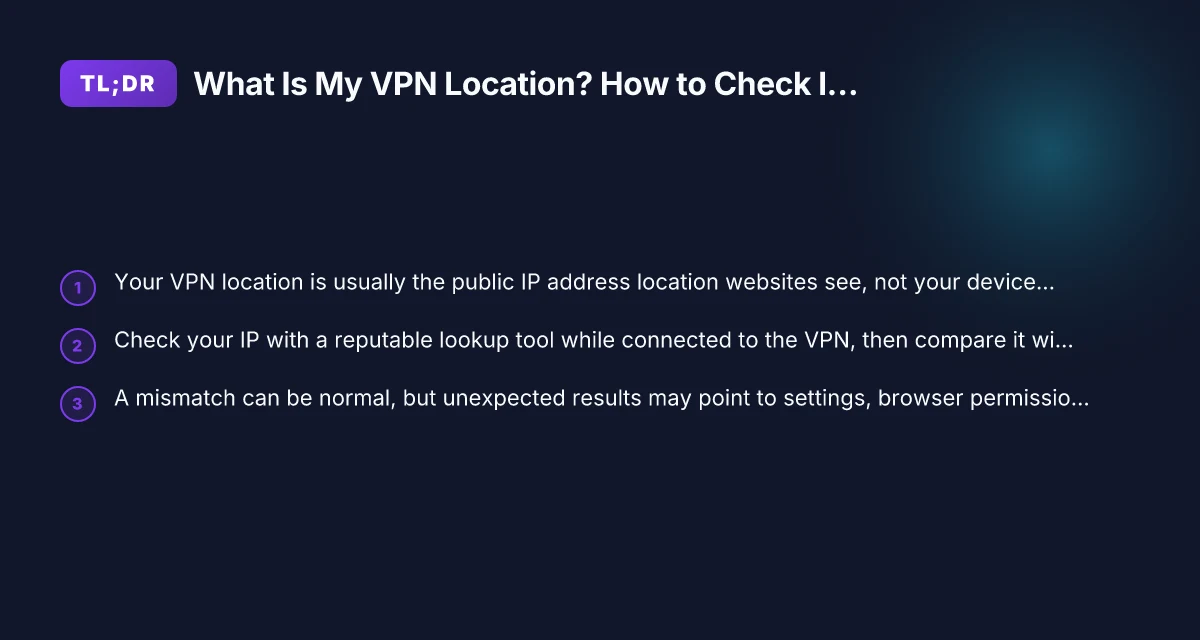
If you’re asking, “What is my VPN location?”, it’s generally the location associated with the public IP address your VPN presents to websites and apps. To check it, connect to your VPN, visit an IP lookup website, and note the country, region, or city shown. That result may differ from your actual location because VPN servers route your traffic through other places, and IP databases don’t always pinpoint a server accurately.

Editor's pick: NordVPN — fast, secure VPN — Strong encryption, a no-logs policy and apps for every device. 30-day money-back guarantee. Get NordVPN →
VPN location check methods
| Method | What it shows | What to check | Best for |
|---|---|---|---|
| IP lookup website | Public IP and estimated region | Country and city shown | Quick location check |
| VPN app | Selected server and connection status | Connected server location | Confirming VPN connection |
| DNS leak test | DNS resolver location | Whether the resolver matches expectations | Checking DNS leaks |
| WebRTC leak test | IP details exposed by the browser | Whether your real IP appears | Checking browser leaks |
| Browser location prompt | Location based on device or browser signals | Whether location access is allowed | Understanding site location results |
| Search results | Location inferred by the search engine | Whether results reflect the VPN region | Checking personalized results |
Compiled November 2026; check the provider's site for current details.
| VPN | Obfuscation | From / month | Plan | Free plan | Refund | Alipay | UnionPay | Crypto | Website opens in China | Trustpilot | |
|---|---|---|---|---|---|---|---|---|---|---|---|
 ZoogVPN | Turn on manually Shadow | $2.49/mo | 27 months: $59.99 | Yes | 7 days | ✓ | ✓ | ✓ | ✓ | Official site blocked; our special link opens (4.4 s) | 4.2/5 (195 reviews) |
 NordVPN | Turn on manually Obfuscated Servers / NordWhisper | $3.49/mo | 27 months: $94.23 | No | 30 days | ? | ✗ | ✓ | ✓ | ✗ Blocked | 4.2/5 (51,628 reviews) |
 ExpressVPN | ✓ On by default all servers | $3.00/mo | 28 months: $84 | No | 30 days | ✗ | ✗ | ✓ | ✗ | ✗ Blocked | 4.4/5 (29,706 reviews) |
 Surfshark | ✓ On by default Camouflage, with OpenVPN | See site | See site | No | 30 days | ✗ | ✗ | ✗ | ✓ | ✗ Blocked | 4.3/5 (31,823 reviews) |
 Proton VPN | Turn on manually Stealth, free plan too | $2.99/mo | 12 months: $35.88 | Yes | 30 days | ✗ | ✗ | ✗ | ✓ | ✗ Blocked | 2.1/5 (1,040 reviews) |
 Astrill VPN | Turn on manually StealthVPN / OpenWeb | $12.50/mo | 24 months: $300 | No | See site | ✗ | ✗ | ✗ | ✓ | ✗ Blocked | 1.3/5 (110 reviews) |
 Private Internet Access | Turn on manually Shadowsocks, OpenVPN only | $2.03/mo | 40 months: $81.2 | No | 30 days | ✗ | ✗ | ✗ | ✗ | ✗ Blocked | 4.2/5 (11,033 reviews) |
 CyberGhost | Turn on manually selected servers | $2.19/mo | 28 months: $61.32 | No | 45 days | ✗ | ✗ | ✗ | ✓ | ✗ Blocked | 4.0/5 (24,178 reviews) |
 PureVPN | Turn on manually switch to OpenVPN | $1.69/mo | 60 months: $101.55 | No | 31 days | ? | ? | ✗ | ✓ | ✗ Blocked | 4.4/5 (17,994 reviews) |
 AdGuard VPN | ✓ On by default TrustTunnel | $2.99/mo | 24 months: $71.76 | Yes | 30 days | ✓ | ✗ | ✓ | ✓ | Official site blocked; our special link opens (3.7 s) | 4.3/5 (290 reviews) |
 Mullvad | Turn on manually QUIC / Shadowsocks / LWO | $5.61/mo | €5/mo | No | 14 days | ✗ | ✗ | ✗ | ✓ | ✗ Blocked | 3.2/5 (192 reviews) |
 Windscribe | Turn on manually Stealth / WStunnel | $5.75/mo | 12 months: $69 | Yes | See site | ✗ | ✗ | ✗ | ✓ | ✗ Blocked | 4.7/5 (13,355 reviews) |
 StrongVPN | Turn on manually Scramble, OpenVPN TCP | See site | See site | No | 30 days | ✓ | ✗ | ✗ | ✗ | ✗ Blocked | 4.4/5 (2,695 reviews) |
 LightXtreme 闪连 | Not listed | $7.08/mo | 12 months: $84.99 | Yes | 30 days | ✓ | ✓ | ✓ | ✓ | ✓ Yes (3.5 s) | No page |
Prices checked 2026-11-10 on each vendor's pricing page (cheapest long plan, USD). Check the vendor's checkout for the final price.
Obfuscation checked 2026-11-14 on each vendor's site and help center: "on by default" = nothing to set; "turn on manually" = switch protocol or mode in settings; "not listed" = the vendor describes no obfuscation.
Payment methods checked 2026-11-10 on each vendor's payment pages: all 14 take cards and PayPal; ✗ = not listed, ? = the vendor's own pages disagree.
China access: whether the official website opens from mainland China networks (tests the website only, not the VPN connection). Last checked 2026-11-18 01:02 Beijing time.
Trustpilot score and review count checked 2026-11-10.
How to check your VPN location
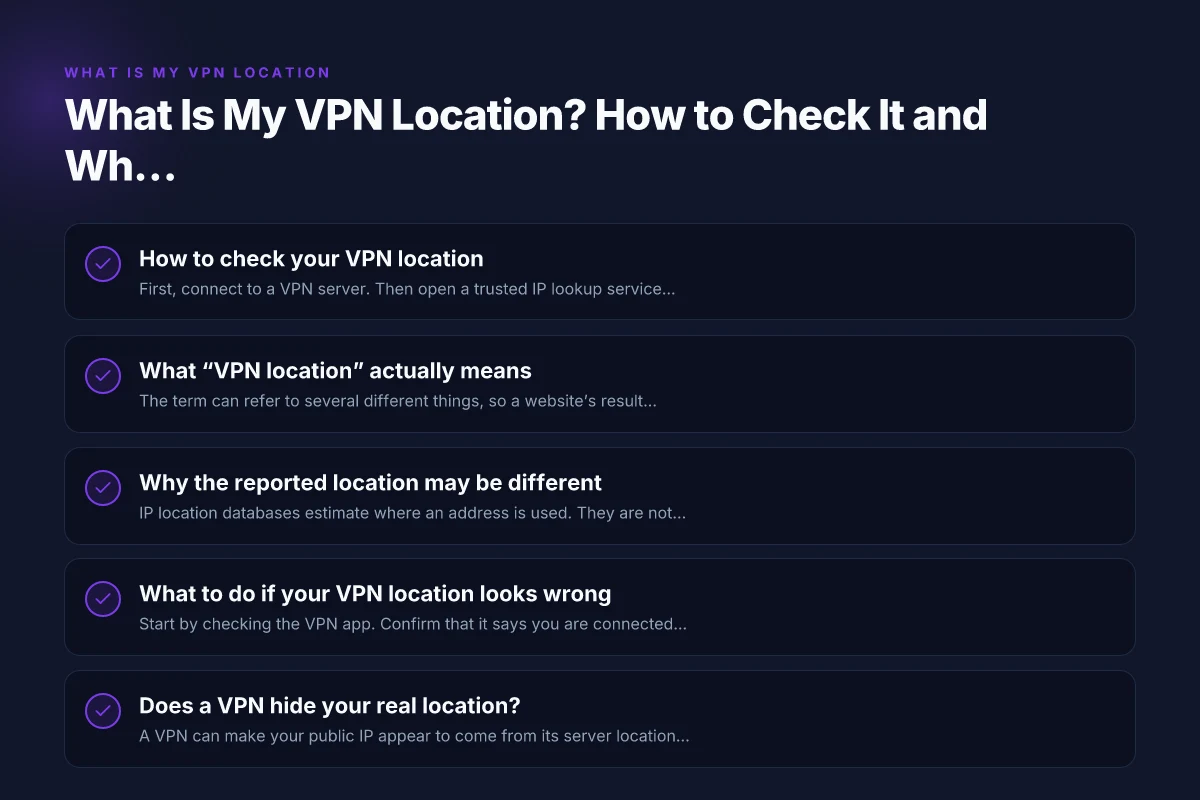
First, connect to a VPN server. Then open a trusted IP lookup service in your browser and check the public IP address and its reported location. The service is showing where your internet traffic appears to come from, based on the IP address it detects.
For a useful comparison, repeat the check twice:
- Check your IP while connected to the VPN.
- Disconnect from the VPN and check again.
- Compare the displayed IP addresses and locations.
The IP address should usually change when the VPN is active. If you selected a server in another country, the lookup should generally report an IP associated with that country. The city may be different from the server’s advertised city, however.
You can also check whether your browser is revealing other location information. A website may request permission to use your device’s location, which can be estimated through GPS, nearby Wi-Fi networks, or other signals. That is separate from an IP lookup. Resuming the FortiClient VPN Setup Wizard: How to Fix an Interrupted Installation
What “VPN location” actually means
The term can refer to several different things, so a website’s result may not tell the whole story.
- IP address location: The country, region, or city associated with the public IP address visible to a website.
- VPN server location: The location where the VPN provider says the server is based.
- Physical device location: Where your phone or computer actually is, potentially determined through device location services.
- Account or billing location: Information linked to your account, payment method, or profile.
For most people checking what websites can see, the IP address location is the relevant one. A VPN encrypts your internet traffic between your device and the VPN server and typically substitutes the server’s IP address for your own. A website can therefore see the VPN’s public IP instead of your usual one.
That does not mean a VPN changes every location signal on your device. If you allow a website to access precise location, use an app that relies on GPS, or share location information in your account, the VPN may not hide those details.
Why your reported VPN location may differ V2Ray iOS Download: How to Choose and Set Up a Client
| Cause | What may appear | Does it mean the VPN failed? | What to check |
|---|---|---|---|
| IP geolocation database | An outdated city or region | Not necessarily | Compare several IP lookup services |
| Server location | A nearby city or data-center region | No | Check the server selected in the app |
| DNS routing | A different resolver location | Not necessarily | Run a DNS leak test |
| Browser location access | Your device’s estimated location | No | Review browser location permissions |
| WebRTC exposure | Your real or local IP details | Possibly | Run a WebRTC leak test |
| Cached site data | A previously detected location | No | Clear site data or open a private window |
Compiled November 2026; check the provider's site for current details.
Why the reported location may be different
IP location databases estimate where an address is used. They are not live tracking systems, and different databases can give different answers for the same IP.
A location mismatch may happen because:
- The VPN provider routes traffic through a server in a nearby city or a different region.
- The IP address was recently reassigned and location databases have not caught up.
- The lookup service has incomplete or outdated records.
- A provider uses virtual locations, where a server assigned to one country is physically hosted elsewhere.
- Your browser or app has permission to share your device’s location.
- Another network setting, such as a proxy or a second VPN, is affecting your connection.
For example, you might connect to a VPN server labeled “London” and see an IP lookup result for another city in the United Kingdom. That does not automatically mean the VPN is malfunctioning. The country is often more reliable than the city, though even country-level records can occasionally be wrong. iPhone VPN V2Ray: How to Choose and Set It Up
| What you check | What it tells you | Common limitation |
|---|---|---|
| Public IP lookup | The IP and approximate location websites may see | City-level results can be inaccurate |
| VPN app | The server or location you selected | The label may not match the server’s physical site |
| Browser location permission | Whether a site can request device location | A VPN does not necessarily change GPS or Wi-Fi location |
| DNS or leak test | Whether some requests bypass the VPN tunnel | Results depend on the test and your network setup |
What to do if your VPN location looks wrong
Start by checking the VPN app. Confirm that it says you are connected to the server and country you intended to use. Disconnect, reconnect, or choose another server in the same country, then check your IP again.
If the displayed country still seems unexpected, try these steps:
- Compare results on two reputable IP lookup services.
- Close and reopen the browser, or test in a private window.
- Check whether a proxy, browser extension, or other VPN is active.
- Review your browser’s location permissions and deny access if you do not want a website to use device location.
- Run a DNS or WebRTC leak test from a reputable provider.
- Contact your VPN provider if the public IP appears to be yours or the result keeps showing the wrong country.
A WebRTC check is particularly relevant in some browser configurations, where network information may be exposed outside the expected VPN route. Modern browsers and VPN apps often include protections, but settings and behavior vary. A leak test can help identify a problem. It does not guarantee that every app or website uses your connection in the same way.
If a site continues to show your old location, it may also be using stored data, account details, cookies, or app permissions rather than relying only on your IP. Clear the site’s location permission or check its privacy settings if appropriate. Show Crypto IKEv2 SA: How to Check Cisco IKEv2 Security Associations
What to do when your VPN location looks wrong
| What you notice | First step | Next check | If it persists |
|---|---|---|---|
| IP lookup shows the wrong country | Confirm the selected VPN server | Check another IP lookup service | Reconnect to a different server |
| City differs but country is right | Check the VPN server’s listed location | Compare results across lookup services | Choose another server in the same country |
| Real IP appears | Reconnect to the VPN | Run a WebRTC leak test | Disable browser WebRTC or contact VPN support |
| DNS location seems unexpected | Check VPN DNS settings | Run a DNS leak test | Enable the VPN’s DNS leak protection |
| Website uses your device location | Review browser permissions | Check device location settings | Block location access for that site |
| Results remain inconsistent | Clear cookies and site data | Test in a private window | Contact VPN support with test results |
Compiled November 2026; check the provider's site for current details.
Does a VPN hide your real location?
A VPN can make your public IP appear to come from its server location, but it is not a complete location-disguise tool. Your device may still reveal location through GPS, Wi-Fi, Bluetooth, mobile network data, browser permissions, or information you provide to a service.
A VPN also does not make you anonymous by itself. Websites can recognize you through logged-in accounts, cookies, browser fingerprinting, or other identifiers. Use a VPN as one part of a privacy approach, not as a guarantee that every online service will see only the VPN location. Status Code 407 Proxy Authentication Required GitLab: Causes and Fixes
If location privacy matters, review location permissions on your device, limit unnecessary account details, and keep your VPN and browser updated. Choose a provider with clear privacy practices and leak protection, and make sure the VPN is connected before accessing the sites or apps you want to use through it.
Recommendation
To find your VPN location, connect to the VPN and check your public IP on a reputable lookup service. Treat the country as a useful estimate and the city as a rough clue, not a precise measurement. If the result shows your normal public IP or an unexpected country, reconnect, check for leaks and location permissions, and contact your provider if the mismatch persists.