Resuming the FortiClient VPN Setup Wizard: How to Fix an Interrupted Installation

Learn how to safely retry a FortiClient VPN installation after the setup wizard ends prematurely or fails.
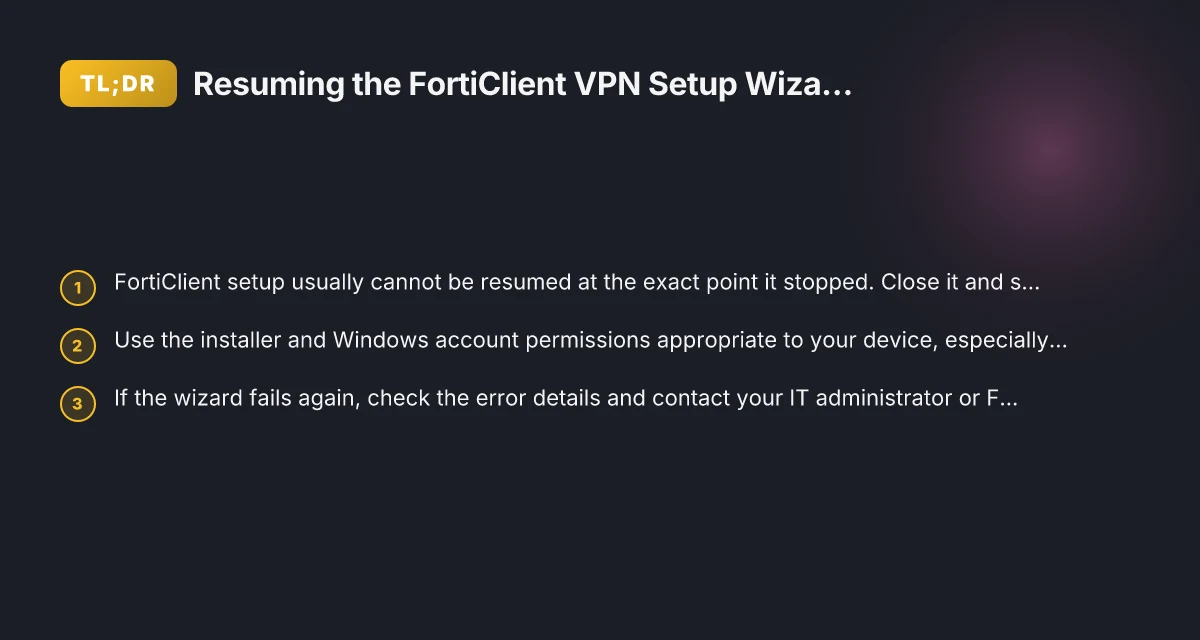
If you’re looking for a way of resuming the FortiClient VPN setup wizard, the practical answer is to close the failed installer and run setup again rather than continue from where it stopped. A failed attempt may leave temporary files or partial installation components, so first restart Windows and then retry using the correct FortiClient installer. If setup ends prematurely again, troubleshoot the specific error instead of repeatedly launching the same installer.

Editor's pick: NordVPN — fast, secure VPN — Strong encryption, a no-logs policy and apps for every device. 30-day money-back guarantee. Get NordVPN →
Choose the next step based on what happened
| Situation | First option | When to use it | Expected result | Next step if it fails |
|---|---|---|---|---|
| Setup was interrupted | Resume the setup wizard | The installer offers a resume option | Setup continues from its saved state | Retry with the right permissions |
| Installer is still open | Continue in the wizard | The current setup window is responsive | Installation proceeds | Close it and start setup again |
| Setup stopped before completion | Retry installation | No completed installation is available | A fresh attempt begins | Repair or remove an earlier installation |
| Permission was denied | Run setup with appropriate permissions | The account can access the required permissions | Setup can continue past the restriction | Ask an administrator for help |
| An earlier installation remains | Repair the existing installation | FortiClient appears to be installed but may be incomplete | Existing setup is repaired | Remove it before reinstalling |
| Repair does not resolve the issue | Remove and reinstall | The earlier installation is unusable | Setup starts without the old installation | Seek administrator or support help |
| Installation succeeds | Verify FortiClient opens | The wizard reports completion | The installation is confirmed | Address any issue shown in the app |
Compiled November 2026; check the provider's site for current details.
| VPN | Obfuscation | From / month | Plan | Free plan | Refund | Alipay | UnionPay | Crypto | Website opens in China | Trustpilot | |
|---|---|---|---|---|---|---|---|---|---|---|---|
 ZoogVPN | Turn on manually Shadow | $2.49/mo | 27 months: $59.99 | Yes | 7 days | ✓ | ✓ | ✓ | ✓ | Official site blocked; our special link opens (4.4 s) | 4.2/5 (195 reviews) |
 NordVPN | Turn on manually Obfuscated Servers / NordWhisper | $3.49/mo | 27 months: $94.23 | No | 30 days | ? | ✗ | ✓ | ✓ | ✗ Blocked | 4.2/5 (51,628 reviews) |
 ExpressVPN | ✓ On by default all servers | $3.00/mo | 28 months: $84 | No | 30 days | ✗ | ✗ | ✓ | ✗ | ✗ Blocked | 4.4/5 (29,706 reviews) |
 Surfshark | ✓ On by default Camouflage, with OpenVPN | See site | See site | No | 30 days | ✗ | ✗ | ✗ | ✓ | ✗ Blocked | 4.3/5 (31,823 reviews) |
 Proton VPN | Turn on manually Stealth, free plan too | $2.99/mo | 12 months: $35.88 | Yes | 30 days | ✗ | ✗ | ✗ | ✓ | ✗ Blocked | 2.1/5 (1,040 reviews) |
 Astrill VPN | Turn on manually StealthVPN / OpenWeb | $12.50/mo | 24 months: $300 | No | See site | ✗ | ✗ | ✗ | ✓ | ✗ Blocked | 1.3/5 (110 reviews) |
 Private Internet Access | Turn on manually Shadowsocks, OpenVPN only | $2.03/mo | 40 months: $81.2 | No | 30 days | ✗ | ✗ | ✗ | ✗ | ✗ Blocked | 4.2/5 (11,033 reviews) |
 CyberGhost | Turn on manually selected servers | $2.19/mo | 28 months: $61.32 | No | 45 days | ✗ | ✗ | ✗ | ✓ | ✗ Blocked | 4.0/5 (24,178 reviews) |
 PureVPN | Turn on manually switch to OpenVPN | $1.69/mo | 60 months: $101.55 | No | 31 days | ? | ? | ✗ | ✓ | ✗ Blocked | 4.4/5 (17,994 reviews) |
 AdGuard VPN | ✓ On by default TrustTunnel | $2.99/mo | 24 months: $71.76 | Yes | 30 days | ✓ | ✗ | ✓ | ✓ | Official site blocked; our special link opens (3.7 s) | 4.3/5 (290 reviews) |
 Mullvad | Turn on manually QUIC / Shadowsocks / LWO | $5.61/mo | €5/mo | No | 14 days | ✗ | ✗ | ✗ | ✓ | ✗ Blocked | 3.2/5 (192 reviews) |
 Windscribe | Turn on manually Stealth / WStunnel | $5.75/mo | 12 months: $69 | Yes | See site | ✗ | ✗ | ✗ | ✓ | ✗ Blocked | 4.7/5 (13,355 reviews) |
 StrongVPN | Turn on manually Scramble, OpenVPN TCP | See site | See site | No | 30 days | ✓ | ✗ | ✗ | ✗ | ✗ Blocked | 4.4/5 (2,695 reviews) |
 LightXtreme 闪连 | Not listed | $7.08/mo | 12 months: $84.99 | Yes | 30 days | ✓ | ✓ | ✓ | ✓ | ✓ Yes (3.5 s) | No page |
Prices checked 2026-11-10 on each vendor's pricing page (cheapest long plan, USD). Check the vendor's checkout for the final price.
Obfuscation checked 2026-11-14 on each vendor's site and help center: "on by default" = nothing to set; "turn on manually" = switch protocol or mode in settings; "not listed" = the vendor describes no obfuscation.
Payment methods checked 2026-11-10 on each vendor's payment pages: all 14 take cards and PayPal; ✗ = not listed, ? = the vendor's own pages disagree.
China access: whether the official website opens from mainland China networks (tests the website only, not the VPN connection). Last checked 2026-11-18 01:02 Beijing time.
Trustpilot score and review count checked 2026-11-10.
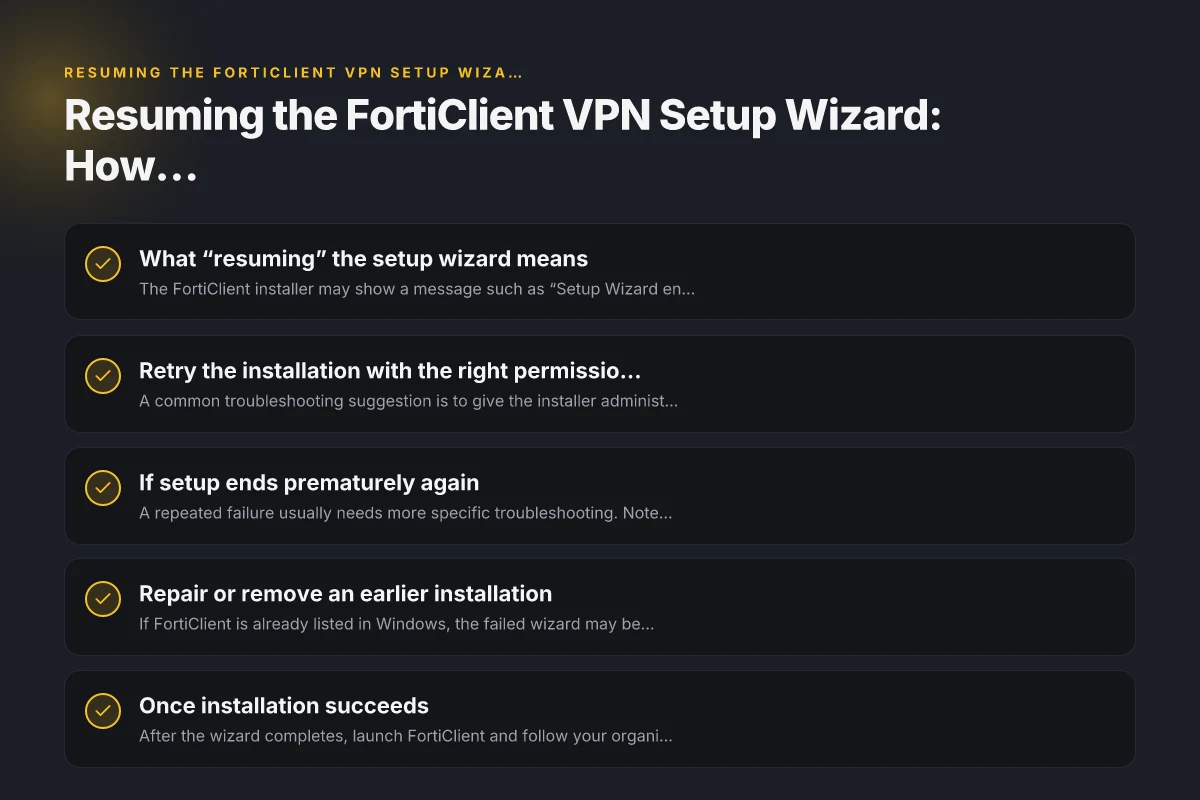
What “resuming” the setup wizard means
The FortiClient installer may show a message such as “Setup Wizard ended prematurely because of an error” or say that the system has not been modified. This means installation did not finish successfully. It does not generally provide a reliable “resume” option for continuing from the interrupted step.
Before trying again:
- Close the wizard and any FortiClient installer windows.
- Restart the computer to clear processes that may still be running.
- Confirm that you have the FortiClient VPN installer supplied by your organization or obtained from Fortinet.
- If this is a work-managed device, check with IT before removing files or changing system settings.
Avoid deleting FortiClient folders or making registry changes as a first step. Those actions can affect other Fortinet components or a managed installation.
Retry the installation with the right permissions
A common troubleshooting suggestion is to give the installer administrator access. On Windows, sign in with an account that is allowed to install software, then right-click the installer and choose Run as administrator. Follow the prompts and allow Windows to approve any permissions request. V2Ray iOS Download: How to Choose and Set Up a Client
Use the installer package that matches your device and Windows version. In particular, installation problems have been reported when installing FortiClient on Windows ARM with an unsuitable package or method. If you have an ARM-based computer, such as a Surface device, confirm that the version and installer type are supported for that system. Do not assume that an installer intended for a different processor architecture will work.
| Situation | What to check before retrying |
|---|---|
| Standard Windows computer | Use the installer approved for your organization or downloaded from Fortinet |
| Work-managed computer | Ask IT whether administrator access or a managed deployment is required |
| Windows ARM device | Verify that the specific FortiClient release and installer support Windows ARM |
| Existing FortiClient installation | Ask IT whether the old installation must be repaired or removed first |
After a successful installation, restart Windows if the installer requests it. Then open FortiClient and check whether the VPN profile is available. Installation alone does not necessarily configure a connection: your organization may need to provide the server address, authentication method, and other VPN settings.
Compare ways to retry an interrupted installation
| Option | Best for | What to do | Advantage | Consideration |
|---|---|---|---|---|
| Resume the wizard | A saved setup is available | Select the resume option | Continues existing setup | Only applies when offered |
| Retry the installer | Setup ended prematurely | Start the installer again | Simple fresh attempt | May repeat the same interruption |
| Use appropriate permissions | A permissions issue blocked setup | Run setup with an authorized account | Addresses access restrictions | Administrator access may be needed |
| Repair FortiClient | An earlier installation is present | Choose the repair option if available | Preserves the existing installation | May not fix a damaged setup |
| Remove and reinstall | Repair is unavailable or unsuccessful | Uninstall, then run setup again | Clears the earlier installation | Requires another installation attempt |
| Ask an administrator | Required permissions are unavailable | Request help with setup | Avoids unauthorized changes | Depends on administrator availability |
Compiled November 2026; check the provider's site for current details. iPhone VPN V2Ray: How to Choose and Set It Up
If setup ends prematurely again
A repeated failure usually needs more specific troubleshooting. Note the exact error text, the FortiClient version, your Windows version, and whether the device uses an ARM processor. These details can help distinguish a permissions issue from an installer compatibility or system problem.
Try these safe checks:
- Download a fresh installer from the official source or your organization’s software portal. Avoid third-party download sites.
- Make sure the file has finished downloading before opening it.
- Close other installation programs and restart Windows before retrying.
- Check whether Windows reports that the installer is blocked or requires approval.
- If security software or company policies may be preventing installation, ask your IT administrator to review the situation rather than disabling protection yourself.
If the wizard reports that the system was not modified, treat the installation as unsuccessful. Do not rely on FortiClient being ready simply because some files or shortcuts appear. Open the application and confirm that it launches and that the required VPN configuration is present.
Repair or remove an earlier installation
If FortiClient is already listed in Windows, the failed wizard may be interacting with an earlier installation. Ask your administrator whether to use Windows’ installed-app options to modify or uninstall it before trying again. On a managed computer, FortiClient may be deployed or configured by your organization, and removing it yourself could disrupt VPN access or other security software. Show Crypto IKEv2 SA: How to Check Cisco IKEv2 Security Associations
If you are authorized to uninstall it:
- Close FortiClient and disconnect from any active VPN session.
- Use Windows’ normal app removal process.
- Restart the computer.
- Run the correct installer with the required permissions.
If uninstalling fails or an error persists, stop and share the message with IT or Fortinet Support. Avoid unofficial cleanup utilities and manual registry edits unless support provides instructions for your exact case.
Decide what to do after setup ends prematurely again
| Check | What you find | Recommended action | Avoid | Goal |
|---|---|---|---|---|
| Setup progress | Wizard is still open and responsive | Continue or resume setup | Starting a second installer at the same time | Let the current attempt finish |
| Permission status | Setup lacked required permissions | Retry with appropriate permissions | Repeating the same restricted attempt | Allow setup to proceed |
| Existing installation | FortiClient is already listed or present | Try repair | Installing over an incomplete copy | Restore the existing setup |
| Repair result | Repair completes successfully | Open FortiClient to verify it | Removing a working installation | Confirm the app launches |
| Repair result | Repair fails or is unavailable | Remove the earlier installation, then reinstall | Repeated repair attempts without progress | Start with a clean setup |
| Removal status | Earlier installation is removed | Run the installer again | Interrupting setup again | Complete installation |
| Installer result | Setup reports success | Open FortiClient and check it works | Assuming success without verification | Confirm readiness |
| Permissions remain unavailable | You cannot run setup with authorization | Contact an administrator | Changing settings without approval | Get authorized assistance |
Compiled November 2026; check the provider's site for current details. Status Code 407 Proxy Authentication Required GitLab: Causes and Fixes
Once installation succeeds
After the wizard completes, launch FortiClient and follow your organization’s connection instructions. If no VPN profile appears, the setup may have installed the client without configuring the connection. Contact your IT team for the correct VPN details. Do not guess the server address or authentication settings.
If the VPN client opens but cannot connect, that is a separate issue from the installation failure. Record the connection error and ask your organization’s support team to check the profile, account access, and VPN service.
Recommendation
You generally cannot resume a FortiClient VPN setup wizard from its failed step. Restart Windows, retry with the correct installer and administrator permissions, and verify ARM compatibility where relevant. If the wizard fails again, or the device is managed, stop repeated attempts and give the exact error and system details to your IT administrator or Fortinet Support.