Status Code 407 Proxy Authentication Required GitLab: Causes and Fixes

Learn why GitLab or Git returns HTTP 407 and how to check proxy authentication, Git settings, and network access.
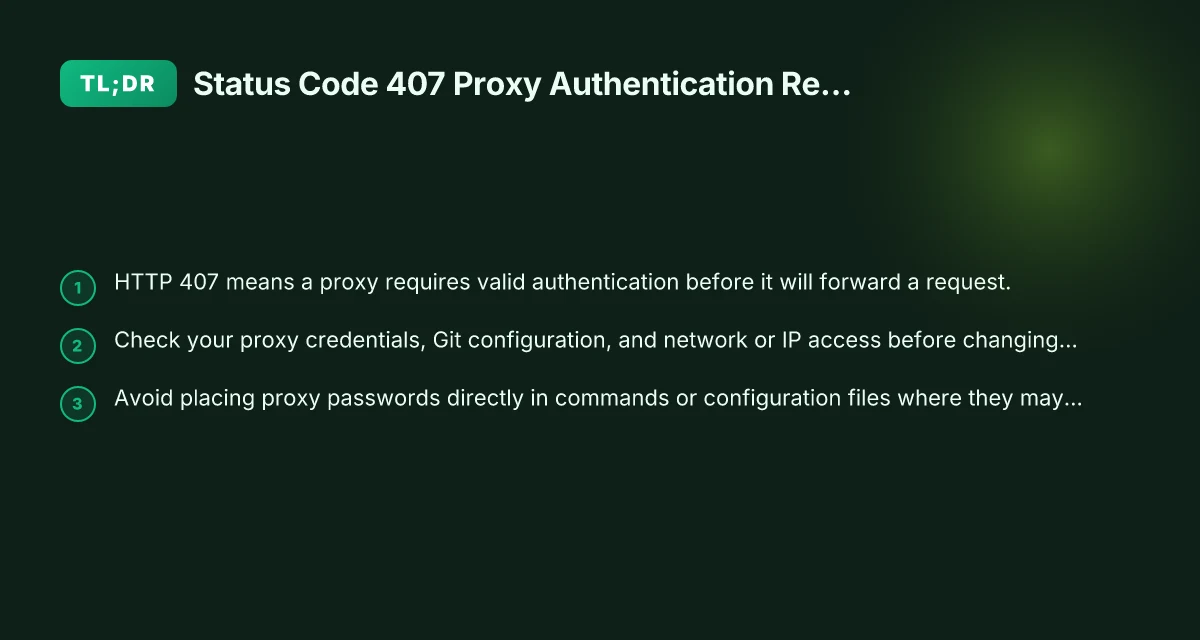
A status code 407 Proxy Authentication Required when using GitLab usually means your request is being stopped by a proxy between your computer and GitLab. The proxy is asking for authentication, but the request did not include credentials it accepts, or the proxy is applying another access rule. This is generally a network or proxy configuration issue, not a GitLab account-password problem.

Editor's pick: NordVPN — fast, secure VPN — Strong encryption, a no-logs policy and apps for every device. 30-day money-back guarantee. Get NordVPN →
Quick checks to find out whether a proxy is causing the 407 error
| Check | What to try | What a failure suggests | Next step |
|---|---|---|---|
| Direct network access | Retry on a trusted network without the proxy | Proxy may be blocking authentication | Review proxy settings |
| Other websites | Open a non-GitLab site | Broader proxy or network issue | Contact network support |
| GitLab in a browser | Sign in to the GitLab web interface | Git access may use different proxy settings | Check Git’s configuration |
| Another Git operation | Try a fetch or clone | Issue may affect Git traffic generally | Inspect proxy credentials |
| Another repository | Access a different GitLab repository | Repository-specific access may be involved | Verify project permissions |
| Proxy status | Ask whether the proxy requires authentication | Proxy may reject missing or stale credentials | Obtain approved credentials |
| Network changes | Compare results on and off a VPN | VPN or network policy may affect the proxy route | Check VPN and proxy policies |
Compiled November 2026; check the provider's site for current details.
What HTTP 407 means
A proxy handles requests between a client, such as Git or a web browser, and a destination server. Before it forwards a request, the proxy may require authentication. HTTP 407 indicates that the proxy did not accept the authentication presented, or that none was supplied.
You might see a message such as:
Received HTTP code 407 from proxy after CONNECT
Git uses the CONNECT method to establish a tunnel for HTTPS traffic through a proxy. A 407 at this stage means the proxy denied the tunnel before Git could complete its connection to GitLab. It does not, by itself, show that GitLab rejected your credentials.
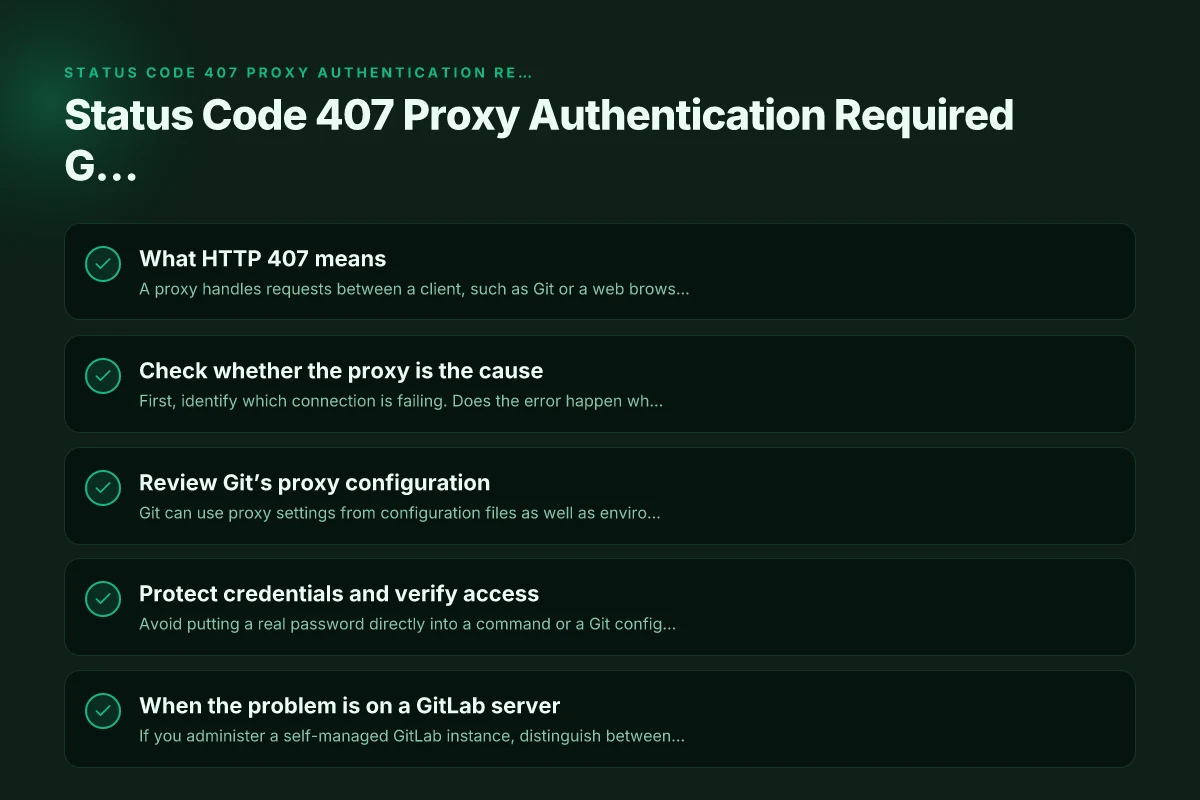
Check whether the proxy is the cause
First, identify which connection is failing. Does the error happen when you clone, fetch, or push? Does the GitLab website also fail in a browser on the same network? Does the same Git command work on another network, such as a trusted home connection? FortiGate Client VPN: Setup, Configuration, and Troubleshooting
These checks help separate a proxy problem from a GitLab authentication problem:
| What you observe | Likely area to check |
|---|---|
| Git and other websites fail with 407 | Proxy credentials or network policy |
| Git fails, but the GitLab website works | Git’s proxy settings or credential handling |
| The request works on another network | Current network’s proxy or access rules |
| No 407, but GitLab reports an authentication error | GitLab credentials, token, or repository permissions |
If you are on a company or school network, contact its IT or network administrator. The proxy may require credentials, specific authentication software, or access from an approved network. A correctly configured http_proxy environment variable does not necessarily satisfy every proxy rule. A GitLab issue about a 407 error in an integration illustrates that applications can encounter the response even when a proxy variable is configured.
Git proxy configuration options and credential safety
| Option | Where it applies | Useful when | Credential concern | Suggested action |
|---|---|---|---|---|
| Git configuration | Git commands | Git uses an incorrect proxy setting | Stored values may expose credentials | Review configured proxy values |
| Environment variables | Processes inheriting the environment | Proxy is set outside Git configuration | Values may be visible to other processes | Check approved environment settings |
| Proxy without credentials | Git’s proxy address | Authentication is handled separately | Avoids embedding a password in the URL | Use if supported by the organization |
| Credential helper | Git credential storage | Credentials need managed reuse | Safety depends on the helper | Use an approved helper |
| Interactive authentication | Git prompts | Credentials should not be stored in a URL | Prompts may be inconvenient | Enter credentials only through trusted prompts |
| Personal access token | GitLab authentication | The server requires token-based access | Treat the token as a secret | Use the required scope and revoke exposed tokens |
| Configuration cleanup | Old or duplicate proxy entries | Settings conflict or credentials are outdated | Removing a setting can affect other work | Back up and update only the relevant entry |
Compiled November 2026; check the provider's site for current details. Free VPN to Switch Country: What to Choose and How to Use It
Review Git’s proxy configuration
Git can use proxy settings from configuration files as well as environment variables. Conflicting or outdated values can cause it to send requests to the wrong proxy or authenticate incorrectly.
Inspect the settings that Git is using:
git config --show-origin --get-regexp 'http\.*proxy'
Also check whether proxy variables are set in your shell:
env | grep -i proxy
On Windows, use the equivalent environment-variable tools for your shell. Look for an old proxy address, a typo, an unexpected setting that applies only to a particular URL, or a proxy configured in more than one place. Why Won’t My VPN Connect? Common Causes and Fixes
If your organization has provided the correct proxy address and authentication method, update the relevant setting according to its instructions. For example, a basic proxy setting without credentials may look like this:
git config --global http.proxy http://proxy.example.com:PORT
Replace the example with the values supplied by your administrator. Do not guess the address or port. If the network uses integrated authentication, a browser sign-in, or another managed method, a username-and-password URL may not be appropriate. Ask IT how command-line tools should authenticate.
To remove a stale global proxy setting, use:
git config --global --unset http.proxy
Only do this if you have confirmed that the setting is incorrect or no longer needed. A proxy may be mandatory on your network. Why Is My VPN Not Working? Common Causes and Fixes
Protect credentials and verify access
Avoid putting a real password directly into a command or a Git configuration URL. Commands may be saved in shell history, and configuration files may be readable by other users or copied into logs. Ask your administrator which credential manager or approved authentication method to use.
Once the proxy settings are corrected, retry the operation:
git ls-remote https://gitlab.com/group/project.git
Use the URL for your actual repository. If this command still returns 407, the proxy is continuing to block the request. If the proxy error disappears and GitLab instead reports an access or authentication problem, troubleshoot your GitLab credentials, token, or repository permissions separately.
Also check whether access is restricted by network policy. Some proxies allow connections only from an approved network or recognized IP address. In that case, changing GitLab credentials will not fix the issue. The administrator must confirm that your connection is allowed. Free VPN to Change Country: What Works and What to Watch For
Decide whether to troubleshoot locally or contact GitLab support
| Observation | Likely area | What to verify | Best next step |
|---|---|---|---|
| Only Git commands fail | Git or proxy configuration | Git proxy settings and credentials | Review Git configuration |
| Browser works but Git fails | Git transport or proxy path | Whether Git uses a separate proxy | Check Git’s network settings |
| Multiple sites fail | Network or proxy | Proxy availability and authentication | Contact network support |
| Other users have the same issue | Shared proxy or GitLab service | Whether the problem is widespread | Ask the administrator to investigate |
| One repository fails | Project access or repository policy | Membership and repository URL | Verify access with the project owner |
| Credentials are rejected | Authentication | Credential type, freshness, and required method | Re-enter approved credentials securely |
| Direct access works | Proxy path | Proxy requirement and configuration | Have the network team review proxy rules |
| Checks point to a server issue | GitLab server | Service status and administrator reports | Contact the GitLab administrator |
Compiled November 2026; check the provider's site for current details.
When the problem is on a GitLab server
If you administer a self-managed GitLab instance, distinguish between two directions of traffic:
- Your computer connecting to GitLab: Your local Git client’s proxy settings are the first place to check.
- GitLab connecting to another service: The server or integration may need proxy configuration, credentials, or network access.
For an error shown in a GitLab integration, inspect the relevant server-side proxy configuration and logs, and involve the administrator responsible for outbound network access. Do not assume that a proxy setting on your computer also configures the GitLab server. Why Can’t I Connect to My VPN? Common Causes and Fixes
If you are using GitLab.com and Git receives 407 from a proxy, contact your network administrator or proxy provider first. GitLab cannot authenticate your request to a proxy that sits on your side of the connection.
Recommended next step
Start by checking whether the same request works on another network and reviewing Git’s proxy settings. Then confirm the required authentication method and access rules with your network administrator. Fix the proxy or network configuration before changing GitLab credentials. Only investigate GitLab authentication if the 407 has cleared and a different error appears.