TunnelBear Extension for Edge: Setup, Features, and Alternatives

Learn whether TunnelBear works as an Edge extension, how to install it, and what to use if it is unavailable.


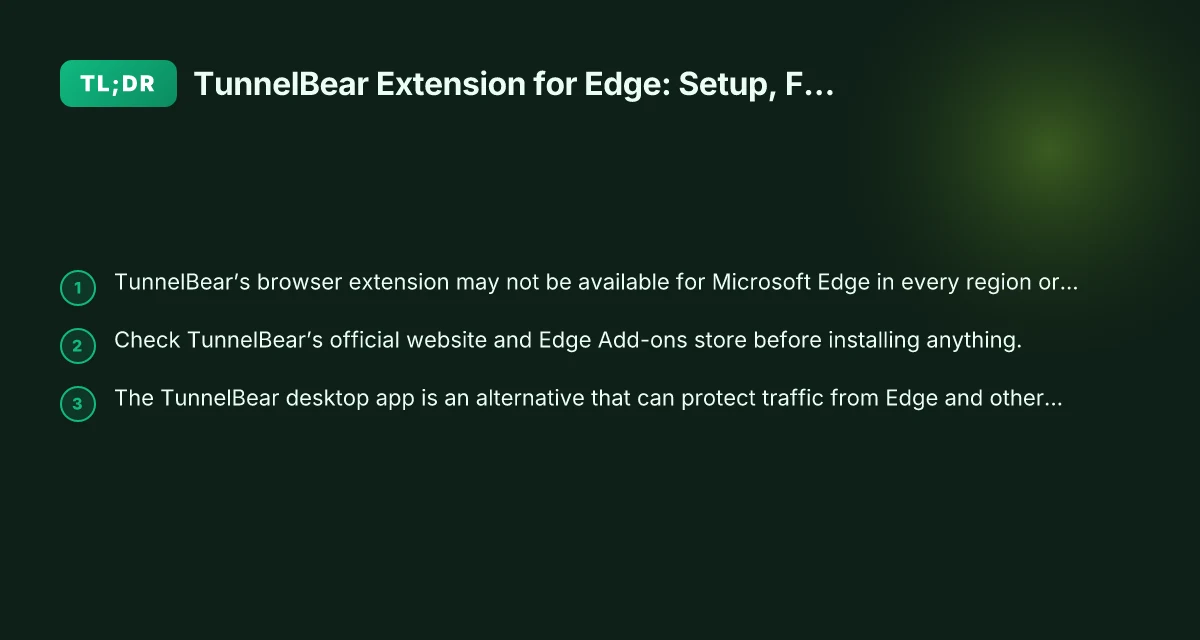
If you’re looking for a TunnelBear extension for Edge, first check the Microsoft Edge Add-ons store and TunnelBear’s official website: availability can change, and a Chrome extension should not be assumed to be supported in Edge. If TunnelBear does not offer an Edge-compatible extension, you can use its desktop VPN app to route browser traffic through a VPN instead.
A browser extension and a full VPN app are not the same thing. An extension typically handles browser traffic, while a desktop VPN app can protect traffic from multiple applications on your device. The right choice depends on whether you need browser-only coverage or broader device protection.

Editor's pick: NordVPN — fast, secure VPN — Strong encryption, a no-logs policy and apps for every device. 30-day money-back guarantee. Get NordVPN →
Compare TunnelBear extension, desktop app, and alternatives
| Option | Works in Edge | Scope of protection | Setup route | Best for |
|---|---|---|---|---|
| TunnelBear Edge extension | Only if currently listed in Edge Add-ons | Browser traffic | Edge Add-ons store | Browser-only use |
| TunnelBear desktop app | Yes, if compatible with your device | Device traffic | Official TunnelBear website or app store | Protection beyond the browser |
| Another Edge VPN extension | Depends on the listing | Usually browser traffic | Microsoft Edge Add-ons | Comparing browser extensions |
| Another desktop VPN app | Usually, if compatible | Device traffic | Provider’s official site or app store | Comparing device-wide VPNs |
| Edge built-in privacy tools | Yes | Browser privacy features, not a VPN | Edge settings | Basic browser privacy |
| No VPN | Yes | No VPN protection | No installation needed | Unprotected browsing |
Compiled November 2026; check the provider's site for current details.
Is there a TunnelBear extension for Edge?
TunnelBear’s browser-extension availability may vary over time. Search the official Microsoft Edge Add-ons store for “TunnelBear” and check TunnelBear’s own support pages for current installation guidance. These are the best sources to confirm that an extension is genuine, supported, and suitable for your version of Edge.
Microsoft Edge is based on Chromium, so some extensions made for Chrome can also work in Edge. However, technical compatibility does not guarantee that a particular extension is officially supported, currently maintained, or available to Edge users. Before installing one, confirm that the listing identifies TunnelBear as the publisher and review its update history and permissions.
Avoid downloading extension files from unofficial websites. A fake VPN extension could collect sensitive information or fail to provide the protection it claims.

How to check and install it safely
Start with the official store rather than a search result or download site: VPN Link Online: How to Find and Use a Safe VPN Connection
- Open Microsoft Edge and visit the Microsoft Edge Add-ons store.
- Search for TunnelBear.
- Check the publisher name, description, permissions, reviews, and latest update date.
- Follow the listing’s installation steps if it is official and available.
- Open the extension and sign in or create an account as prompted.
- Confirm that it connects before relying on it.
If you cannot find an official Edge listing, consult TunnelBear’s website for supported browsers and current options. Do not treat a Chrome Web Store listing as proof of Edge support. If you choose to install a Chrome extension in Edge using Edge’s compatibility option, do so only when TunnelBear’s own guidance confirms that this is appropriate.
Safe installation and troubleshooting checks
| Check | What to do | Good sign | If it fails |
|---|---|---|---|
| Find the extension | Search Edge Add-ons for TunnelBear | Official publisher is shown | Don’t install a lookalike |
| Confirm availability | Check the current Edge Add-ons listing | Listing is available and installable | Use the official desktop app if suitable |
| Verify the publisher | Match the listing to TunnelBear | Publisher details look official | Avoid the listing |
| Review permissions | Read requested access before installing | Permissions fit the extension’s purpose | Don’t grant access you don’t understand |
| Install and pin | Use Edge’s install option, then pin it if desired | Extension appears in the toolbar | Check whether installation was blocked |
| Test the connection | Open the extension and try connecting | Connection status updates | Check sign-in and connection settings |
| Check browser settings | Review extension permissions and disabled items | Extension is enabled | Re-enable it or review policy restrictions |
| Check network access | Try another network or restart the browser | Connection succeeds | Check firewall, network, or service status |
Compiled November 2026; check the provider's site for current details.
Extension versus desktop VPN app
The main difference is what each option is designed to cover. A browser extension usually works within the browser. A desktop VPN app generally creates a VPN connection for device traffic, subject to the app’s settings and operating system. How to Get a VPN Connection Online Safely
| Option | Typical coverage | Best for | What to check |
|---|---|---|---|
| Official Edge extension | Browser traffic handled by the extension | A browser-focused setup | Edge support, permissions, and current availability |
| TunnelBear desktop app | Device traffic routed through the VPN | Protecting Edge along with other apps | App compatibility, plan limits, and connection settings |
| Unofficial extension or download | Unclear | Not recommended | Publisher identity and security cannot be reliably confirmed |
A desktop app may be the simplest choice if no official Edge extension is available. Install it only from TunnelBear’s official site or an authorized app store, then connect before browsing. Review the app’s settings to understand how it handles connections and what happens if the VPN disconnects.
What to expect from TunnelBear on Edge
A VPN can help protect internet traffic between your device and the VPN service, particularly when you use public Wi-Fi. It can also make websites see the VPN server’s IP address instead of your usual public IP address. It does not make you anonymous or prevent every kind of tracking.
Keep these points in mind:
- Websites can still identify you through sign-ins, cookies, browser fingerprinting, or other information.
- A VPN does not replace antivirus software or protect you from every malicious download.
- A browser extension may cover only browser activity, not other apps on your computer.
- Connection speed and access to particular websites can vary.
- A VPN does not guarantee access to every streaming service or region-restricted site.
For privacy-sensitive activities, review TunnelBear’s current privacy policy, account terms, and plan details. Also check whether the product’s features meet your needs instead of relying only on claims in an extension listing. Where Is My VPN Located? Find Your VPN Server and IP Location
Choose the option that fits your needs
| Need | TunnelBear extension | TunnelBear desktop app | Alternative to consider | Key trade-off |
|---|---|---|---|---|
| Protect Edge browsing only | Suitable if currently available | May be more than needed | Another Edge VPN extension | Browser-only coverage |
| Protect apps beyond Edge | Not designed for device-wide coverage | Better fit | Another desktop VPN app | Requires app installation |
| Install through Edge | Use Edge Add-ons if listed | Not installed through the extension store | Another listed extension | Confirm publisher and permissions |
| Use TunnelBear across the device | Extension alone may not suffice | Better fit if supported on your device | Compatible desktop VPN | Check device compatibility |
| Resolve an unavailable listing | Cannot install from an unavailable listing | Check official app options | Compare verified alternatives | Avoid unofficial downloads |
| Keep setup simple | Browser extension may be simpler | Requires desktop-app setup | Compare install steps | Simplicity may mean narrower coverage |
| Make a final choice | Pick for browser-only needs | Pick for device-wide needs | Choose a verified compatible provider | Confirm current availability first |
Compiled November 2026; check the provider's site for current details.
Troubleshooting connection or installation issues
If an official extension appears in the store but will not install, update Edge and try again. Restarting the browser, checking for conflicting extensions, or removing an outdated version may help. Make sure you are using a supported operating system and browser version.
If the extension installs but does not connect: VPN Connect Online: How to Connect Securely and Choose the Right Method
- Confirm that your internet connection works without the VPN.
- Sign out and back in if the extension provides an account option.
- Temporarily disable other VPN or proxy tools to check for a conflict.
- Restart Edge and try a different available VPN location.
- Check TunnelBear’s service status and support guidance.
If you are using the desktop app, confirm that it is connected and that Edge is not configured to use a separate proxy. For persistent problems, use TunnelBear’s official support channels rather than downloading replacement software from an unknown source.
Recommendation
For a safe setup, verify current Edge support directly in the Microsoft Edge Add-ons store and on TunnelBear’s official website. Install only an extension published or endorsed by TunnelBear. If no official Edge extension is available, use the official TunnelBear desktop app to protect Edge traffic, and remember that its coverage and privacy benefits are not the same as anonymity.