How to Get a VPN Connection Online Safely
Learn how to connect to a VPN online, choose a reliable service, and fix common connection problems.
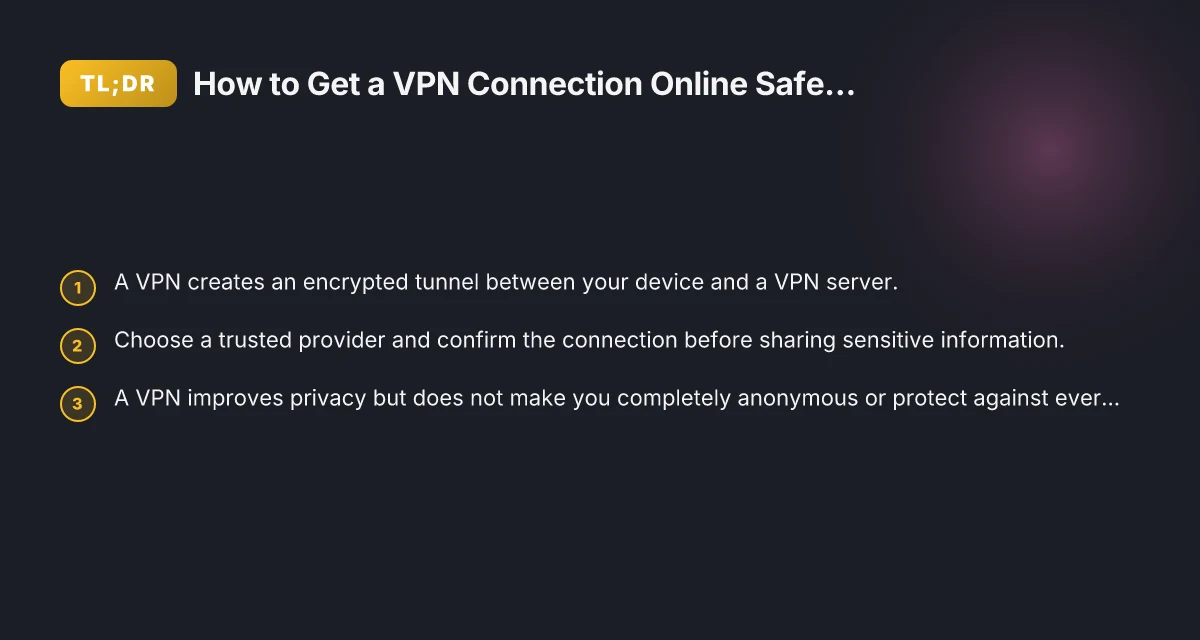
A VPN connection online routes your internet traffic through a VPN server and encrypts it between your device and that server. To get connected, choose a reputable VPN provider, install its app, sign in, select a server, and tap Connect. Once the app confirms the connection, you can browse as usual, with your device’s traffic protected on the network between you and the VPN server.

Editor's pick: NordVPN — fast, secure VPN — Strong encryption, a no-logs policy and apps for every device. 30-day money-back guarantee. Get NordVPN →
VPN connection types compared
| Connection type | Best suited for | Typical speed | Setup effort | Main consideration |
|---|---|---|---|---|
| Commercial VPN app | Everyday browsing | Varies by service | Low | Provider handles servers |
| Built-in VPN client | Connecting to a provided service | Varies by service | Medium | Requires server details |
| Work VPN | Accessing company resources | Varies by service | Medium | Follow employer instructions |
| School VPN | Accessing campus resources | Varies by service | Medium | Follow school instructions |
| Router VPN | Protecting connected devices | Varies by router | Medium | Router must support VPNs |
| Browser VPN or proxy | Browser-only traffic | Varies by service | Low | May not protect other apps |
Compiled November 2026; check the provider's site for current details.
| VPN | Obfuscation | From / month | Plan | Free plan | Refund | Alipay | UnionPay | Crypto | Website opens in China | Trustpilot | |
|---|---|---|---|---|---|---|---|---|---|---|---|
 ZoogVPN | Turn on manually Shadow | $2.49/mo | 27 months: $59.99 | Yes | 7 days | ✓ | ✓ | ✓ | ✓ | Official site blocked; our special link opens (4.4 s) | 4.2/5 (195 reviews) |
 NordVPN | Turn on manually Obfuscated Servers / NordWhisper | $3.49/mo | 27 months: $94.23 | No | 30 days | ? | ✗ | ✓ | ✓ | ✗ Blocked | 4.2/5 (51,628 reviews) |
 ExpressVPN | ✓ On by default all servers | $3.00/mo | 28 months: $84 | No | 30 days | ✗ | ✗ | ✓ | ✗ | ✗ Blocked | 4.4/5 (29,706 reviews) |
 Surfshark | ✓ On by default Camouflage, with OpenVPN | See site | See site | No | 30 days | ✗ | ✗ | ✗ | ✓ | ✗ Blocked | 4.3/5 (31,823 reviews) |
 Proton VPN | Turn on manually Stealth, free plan too | $2.99/mo | 12 months: $35.88 | Yes | 30 days | ✗ | ✗ | ✗ | ✓ | ✗ Blocked | 2.1/5 (1,040 reviews) |
 Astrill VPN | Turn on manually StealthVPN / OpenWeb | $12.50/mo | 24 months: $300 | No | See site | ✗ | ✗ | ✗ | ✓ | ✗ Blocked | 1.3/5 (110 reviews) |
 Private Internet Access | Turn on manually Shadowsocks, OpenVPN only | $2.03/mo | 40 months: $81.2 | No | 30 days | ✗ | ✗ | ✗ | ✗ | ✗ Blocked | 4.2/5 (11,033 reviews) |
 CyberGhost | Turn on manually selected servers | $2.19/mo | 28 months: $61.32 | No | 45 days | ✗ | ✗ | ✗ | ✓ | ✗ Blocked | 4.0/5 (24,178 reviews) |
 PureVPN | Turn on manually switch to OpenVPN | $1.69/mo | 60 months: $101.55 | No | 31 days | ? | ? | ✗ | ✓ | ✗ Blocked | 4.4/5 (17,994 reviews) |
 AdGuard VPN | ✓ On by default TrustTunnel | $2.99/mo | 24 months: $71.76 | Yes | 30 days | ✓ | ✗ | ✓ | ✓ | Official site blocked; our special link opens (3.7 s) | 4.3/5 (290 reviews) |
 Mullvad | Turn on manually QUIC / Shadowsocks / LWO | $5.61/mo | €5/mo | No | 14 days | ✗ | ✗ | ✗ | ✓ | ✗ Blocked | 3.2/5 (192 reviews) |
 Windscribe | Turn on manually Stealth / WStunnel | $5.75/mo | 12 months: $69 | Yes | See site | ✗ | ✗ | ✗ | ✓ | ✗ Blocked | 4.7/5 (13,355 reviews) |
 StrongVPN | Turn on manually Scramble, OpenVPN TCP | See site | See site | No | 30 days | ✓ | ✗ | ✗ | ✗ | ✗ Blocked | 4.4/5 (2,695 reviews) |
 LightXtreme 闪连 | Not listed | $7.08/mo | 12 months: $84.99 | Yes | 30 days | ✓ | ✓ | ✓ | ✓ | ✓ Yes (3.5 s) | No page |
Prices checked 2026-11-10 on each vendor's pricing page (cheapest long plan, USD). Check the vendor's checkout for the final price.
Obfuscation checked 2026-11-14 on each vendor's site and help center: "on by default" = nothing to set; "turn on manually" = switch protocol or mode in settings; "not listed" = the vendor describes no obfuscation.
Payment methods checked 2026-11-10 on each vendor's payment pages: all 14 take cards and PayPal; ✗ = not listed, ? = the vendor's own pages disagree.
China access: whether the official website opens from mainland China networks (tests the website only, not the VPN connection). Last checked 2026-11-18 01:02 Beijing time.
Trustpilot score and review count checked 2026-11-10.
What a VPN connection does
VPN stands for virtual private network. When you connect, your device establishes an encrypted tunnel to a VPN server. Websites and online services generally see the VPN server’s IP address instead of the public IP address assigned by your internet provider.
This can help protect your traffic from being easily read by others on the same public Wi-Fi network. It can also reduce how much your internet provider can see about your browsing destinations, although the VPN provider may be able to see some connection information. That makes the provider’s privacy policy and security practices important.
A VPN does not make you invisible online. Websites may still identify you through account sign-ins, cookies, browser settings, or other tracking methods. A VPN also does not replace antivirus software, secure passwords, or caution when opening links and files.
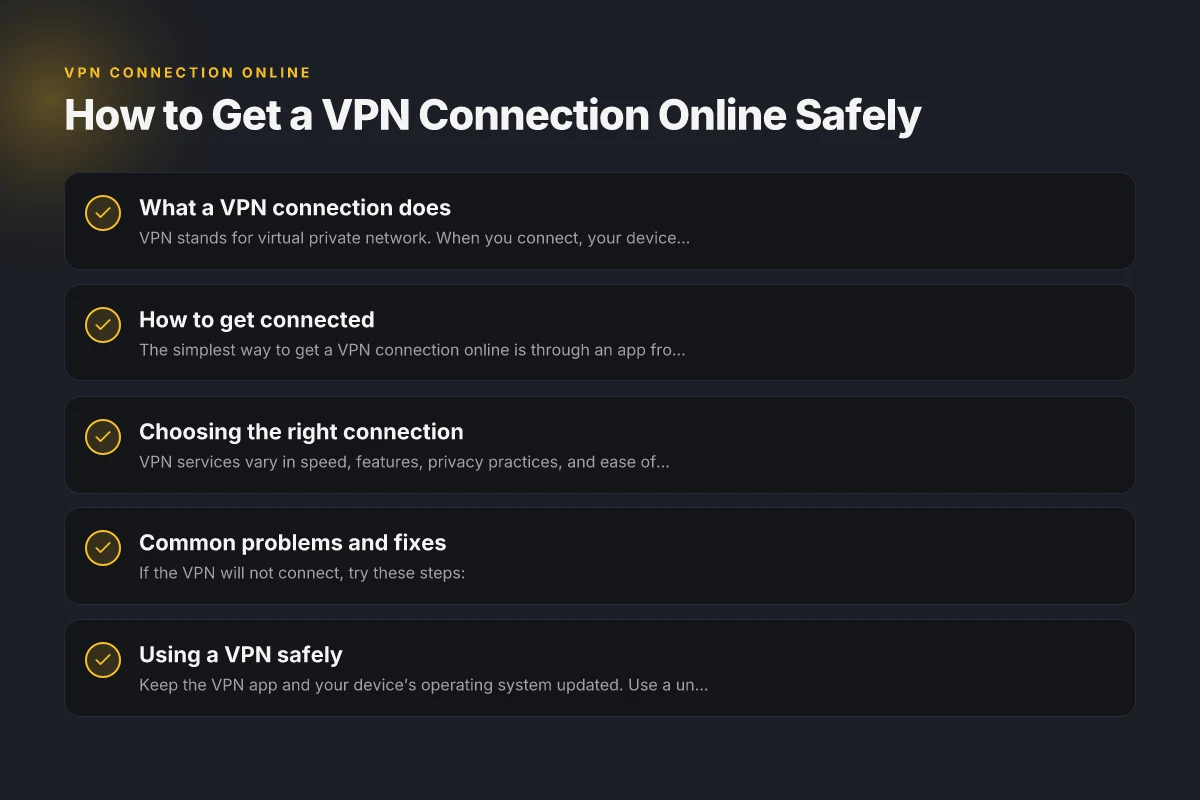
How to get connected
The simplest way to get a VPN connection online is through an app from a provider you trust. Where Is My VPN Located? Find Your VPN Server and IP Location
- Choose a VPN provider. Review its privacy policy, security features, reputation, pricing, and supported devices. Be cautious with unknown free VPNs, especially if their business model and data practices are unclear.
- Install the official app. Download it from the provider’s website or your device’s official app store. Avoid third-party download sites.
- Sign in and review the settings. Turn on features such as the kill switch or automatic protection on untrusted Wi-Fi if they are available and appropriate for you.
- Select a server. Choose a nearby location for speed, or a specific country if you have a legitimate need to use that region’s connection.
- Tap Connect. Wait for the app to show that the VPN is active. A VPN symbol or status indicator may also appear on your device.
- Check the connection if needed. Use the provider’s connection status or a reputable IP-checking service to confirm that your public IP address reflects the VPN server.
You usually do not need to configure advanced settings. If your organization or school provides a VPN, follow its instructions instead of signing up for a separate service.
Choosing the right connection
VPN services vary in speed, features, privacy practices, and ease of use. Consider what you need the connection for before choosing a plan.
| Option | Best for | What to consider |
|---|---|---|
| Provider app | Most personal users | Easy to set up; review the provider’s trustworthiness and data policies |
| Work or school VPN | Accessing an organization’s internal resources | Use only the official setup instructions; access may be limited to approved services |
| Manual VPN setup | Users who need specific configurations | Requires server and account details; incorrect settings can prevent connection |
| Browser VPN or proxy | Changing traffic from a particular browser | May not protect traffic from other apps or the whole device |
For everyday use, a well-supported app with clear privacy information is often the most practical choice. Look for strong encryption, modern VPN protocols, a kill switch, and transparent information about data collection. Independent security assessments can be useful, but check what was assessed and when.
A “no-logs” claim is not, by itself, proof that a provider collects no data. Read the policy to understand what information is retained, how long it is kept, and whether it may be shared. VPN Connect Online: How to Connect Securely and Choose the Right Method
VPN setup options compared
| Option | What you need | Where to configure | Device coverage | Key check |
|---|---|---|---|---|
| VPN provider app | Account and app | Provider app | Usually that device | Confirm the provider is reputable |
| Operating system client | VPN service details | Device network settings | Usually that device | Check protocol and server details |
| Employer-provided VPN | Work account and instructions | Approved app or settings | Work device or approved device | Use only approved access methods |
| School-provided VPN | School account and instructions | Approved app or settings | Configured device | Check current campus guidance |
| VPN-enabled router | Compatible router and service | Router administration page | Devices using the router | Confirm all intended devices are covered |
| Browser extension | Extension and account, if required | Browser settings | Browser traffic only | Check what traffic is excluded |
Compiled November 2026; check the provider's site for current details.
Common problems and fixes
If the VPN will not connect, try these steps:
- Check your internet connection. Open a website with the VPN disconnected. If it still fails, the issue may be your Wi-Fi or mobile data.
- Switch servers. A server may be busy or temporarily unavailable. Try another location, preferably one nearby.
- Restart the app or device. This can clear a temporary software or network problem.
- Update the VPN app. An older version may have bugs or compatibility issues.
- Try another protocol. If the app offers protocol choices, switch to a recommended alternative. Some networks block certain VPN connections.
- Check for network restrictions. Workplace, school, hotel, or public networks may restrict VPN traffic. Contact the network administrator when appropriate.
- Review firewall or security settings. A firewall, another VPN, or security app may interfere with the connection.
If the VPN connects but your internet stops working, check whether the kill switch is blocking traffic because the secure tunnel failed. Disconnect and reconnect, change servers, or consult the provider’s support instructions. Avoid turning off protective features permanently just to get online. Big IP VPN Download: How to Find the Right App Safely
Using a VPN safely
Keep the VPN app and your device’s operating system updated. Use a unique password for your VPN account and enable multifactor authentication if it is available. On public Wi-Fi, connect to the VPN before accessing sensitive accounts, but continue to check that websites use HTTPS and that you are on the correct site.
Remember that a VPN shifts some trust from your internet provider or local network to the VPN provider. It does not stop phishing, prevent a website from tracking a signed-in account, or guarantee that every app routes traffic through the tunnel. If you need to meet workplace, legal, or regulatory requirements, follow the relevant organization’s guidance.
VPN safety checks and fixes
| Situation | What to check | Safe action | Avoid |
|---|---|---|---|
| VPN will not connect | Internet access and sign-in | Restart the app and retry | Repeatedly sharing credentials |
| Connection is slow | Server location and network quality | Try a nearby server | Assuming every slowdown is a fault |
| VPN disconnects | App settings and connection stability | Enable a kill switch if available | Continuing sensitive activity unprotected |
| Sites still show your location | VPN status and browser permissions | Reconnect and review settings | Treating a VPN as full anonymity |
| Public Wi-Fi is in use | VPN connection status | Connect before sensitive browsing | Trusting an unfamiliar hotspot |
| App requests unusual permissions | Publisher and permission purpose | Verify through official sources | Granting unnecessary access |
| VPN provider is unfamiliar | Ownership and privacy information | Review its policies and reputation | Choosing on price alone |
Compiled November 2026; check the provider's site for current details. VPN Argentina Extension: How to Get an Argentine IP Address
Recommendation
For a straightforward VPN connection online, use the official app from a reputable provider, connect to a nearby server, and confirm the app shows an active connection. Choose a service with clear privacy practices and useful security features, and treat the VPN as one layer of protection, not a guarantee of complete anonymity.