NordVPN Authenticator App: How Two-Factor Authentication Works
Learn whether NordVPN has an authenticator app, how to enable two-factor authentication, and what to do if you lose access.
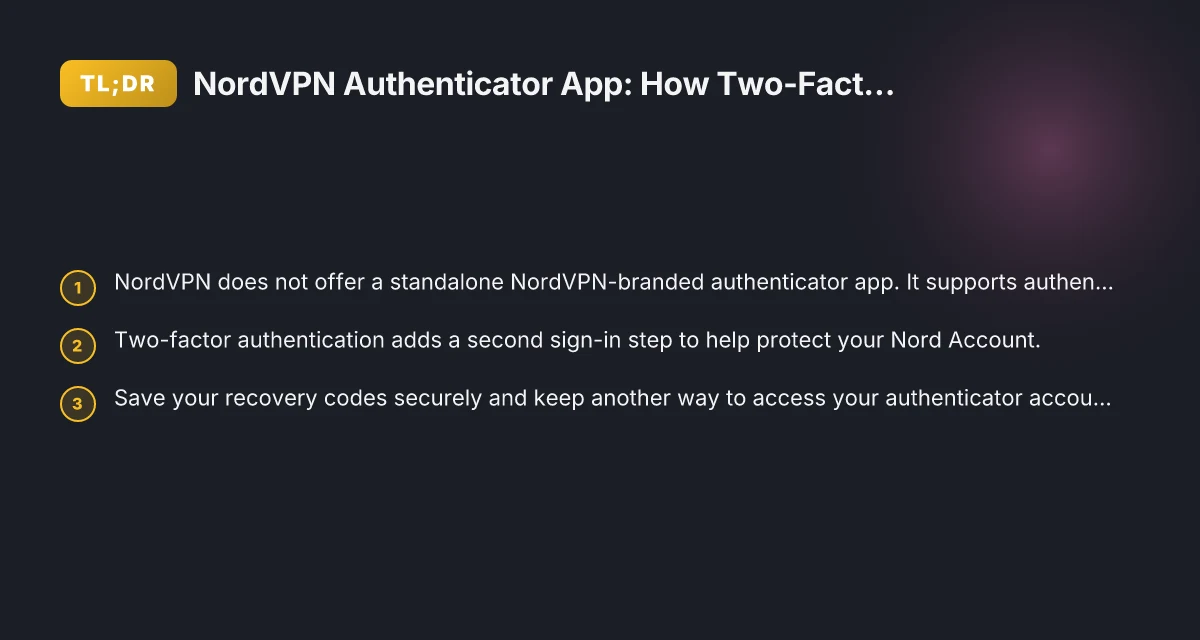
NordVPN does not have a dedicated “NordVPN Authenticator” app. Instead, you can protect your Nord Account with two-factor authentication (2FA) using a compatible third-party authenticator app. Once enabled, you’ll need both your password and a temporary verification code to sign in, adding a layer of protection if your password is exposed.

Editor's pick: NordVPN — fast, secure VPN — Strong encryption, a no-logs policy and apps for every device. 30-day money-back guarantee. Get NordVPN →
Compare NordVPN sign-in verification methods
| Method | What it uses | Requires a phone? | Works without internet? | Main consideration |
|---|---|---|---|---|
| Authenticator app | Time-based verification code | Usually, for setup | Usually, after setup | Keep access to the app |
| Security key | Physical key | No | Yes, for the key itself | Keep the key safe |
| SMS code | Text message | Yes | No | Depends on mobile service |
| Email code | Email account | No | No | Depends on email access |
| Password only | NordVPN password | No | Yes, if sign-in is available | No second verification step |
| Recovery code | Saved backup code | No | Usually | Store it securely |
Compiled November 2026; check the provider's site for current details.
| VPN | Obfuscation | From / month | Plan | Free plan | Refund | Alipay | UnionPay | Crypto | Website opens in China | Trustpilot | |
|---|---|---|---|---|---|---|---|---|---|---|---|
 NordVPN | Turn on manually Obfuscated Servers / NordWhisper | $3.49/mo | 27 months: $94.23 | No | 30 days | ? | ✗ | ✓ | ✓ | ✗ Blocked | 4.2/5 (51,628 reviews) |
 ZoogVPN | Turn on manually Shadow | $2.49/mo | 27 months: $59.99 | Yes | 7 days | ✓ | ✓ | ✓ | ✓ | Official site blocked; our special link opens (4.4 s) | 4.2/5 (195 reviews) |
 ExpressVPN | ✓ On by default all servers | $3.00/mo | 28 months: $84 | No | 30 days | ✗ | ✗ | ✓ | ✗ | ✗ Blocked | 4.4/5 (29,706 reviews) |
 Surfshark | ✓ On by default Camouflage, with OpenVPN | See site | See site | No | 30 days | ✗ | ✗ | ✗ | ✓ | ✗ Blocked | 4.3/5 (31,823 reviews) |
 Proton VPN | Turn on manually Stealth, free plan too | $2.99/mo | 12 months: $35.88 | Yes | 30 days | ✗ | ✗ | ✗ | ✓ | ✗ Blocked | 2.1/5 (1,040 reviews) |
 Astrill VPN | Turn on manually StealthVPN / OpenWeb | $12.50/mo | 24 months: $300 | No | See site | ✗ | ✗ | ✗ | ✓ | ✗ Blocked | 1.3/5 (110 reviews) |
 Private Internet Access | Turn on manually Shadowsocks, OpenVPN only | $2.03/mo | 40 months: $81.2 | No | 30 days | ✗ | ✗ | ✗ | ✗ | ✗ Blocked | 4.2/5 (11,033 reviews) |
 CyberGhost | Turn on manually selected servers | $2.19/mo | 28 months: $61.32 | No | 45 days | ✗ | ✗ | ✗ | ✓ | ✗ Blocked | 4.0/5 (24,178 reviews) |
 PureVPN | Turn on manually switch to OpenVPN | $1.69/mo | 60 months: $101.55 | No | 31 days | ? | ? | ✗ | ✓ | ✗ Blocked | 4.4/5 (17,994 reviews) |
 AdGuard VPN | ✓ On by default TrustTunnel | $2.99/mo | 24 months: $71.76 | Yes | 30 days | ✓ | ✗ | ✓ | ✓ | Official site blocked; our special link opens (3.7 s) | 4.3/5 (290 reviews) |
 Mullvad | Turn on manually QUIC / Shadowsocks / LWO | $5.61/mo | €5/mo | No | 14 days | ✗ | ✗ | ✗ | ✓ | ✗ Blocked | 3.2/5 (192 reviews) |
 Windscribe | Turn on manually Stealth / WStunnel | $5.75/mo | 12 months: $69 | Yes | See site | ✗ | ✗ | ✗ | ✓ | ✗ Blocked | 4.7/5 (13,355 reviews) |
 StrongVPN | Turn on manually Scramble, OpenVPN TCP | See site | See site | No | 30 days | ✓ | ✗ | ✗ | ✗ | ✗ Blocked | 4.4/5 (2,695 reviews) |
 LightXtreme 闪连 | Not listed | $7.08/mo | 12 months: $84.99 | Yes | 30 days | ✓ | ✓ | ✓ | ✓ | ✓ Yes (3.5 s) | No page |
Prices checked 2026-11-10 on each vendor's pricing page (cheapest long plan, USD). Check the vendor's checkout for the final price.
Obfuscation checked 2026-11-14 on each vendor's site and help center: "on by default" = nothing to set; "turn on manually" = switch protocol or mode in settings; "not listed" = the vendor describes no obfuscation.
Payment methods checked 2026-11-10 on each vendor's payment pages: all 14 take cards and PayPal; ✗ = not listed, ? = the vendor's own pages disagree.
China access: whether the official website opens from mainland China networks (tests the website only, not the VPN connection). Last checked 2026-11-18 01:02 Beijing time.
Trustpilot score and review count checked 2026-11-10.
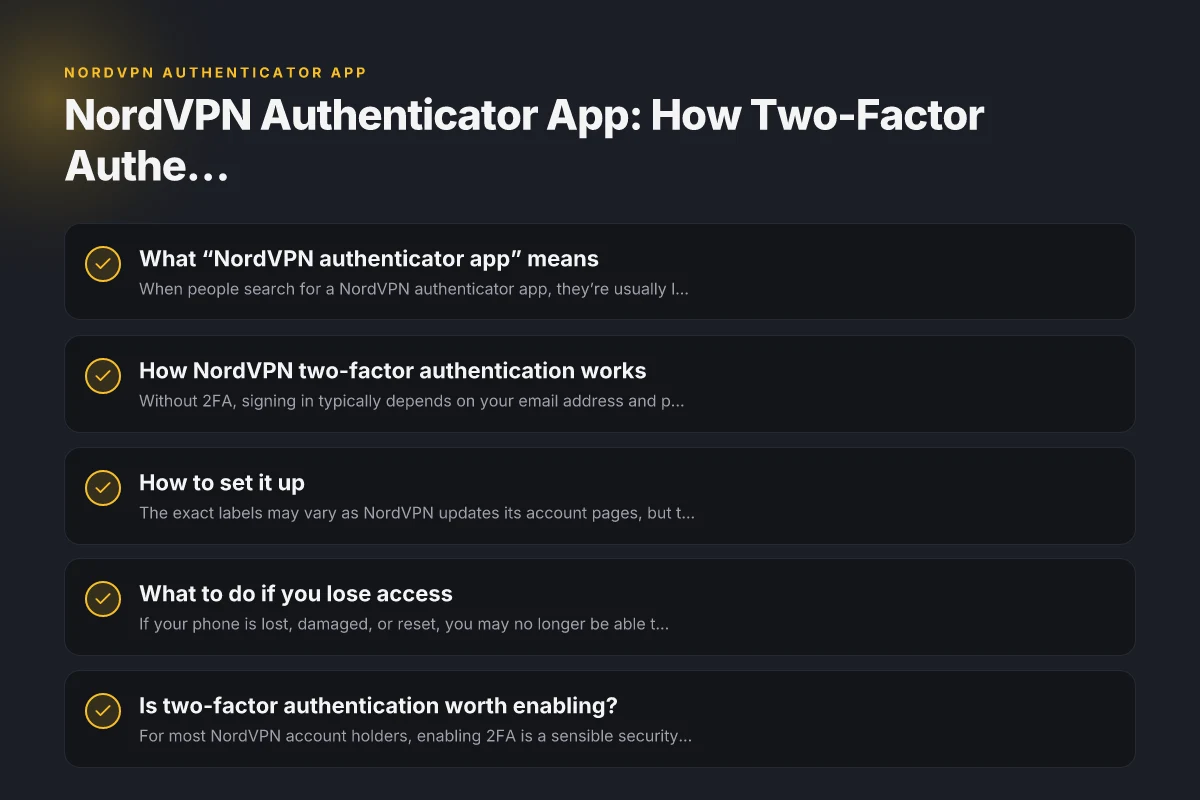
What “NordVPN authenticator app” means
When people search for a NordVPN authenticator app, they’re usually looking for an app that generates the one-time codes required by NordVPN’s two-factor authentication. Those codes are created by a separate authenticator app on your phone or another device.
This is different from the NordVPN app itself. NordVPN is the service you use to connect to its VPN servers, while an authenticator app generates temporary codes for account sign-ins. You generally enter the code when accessing your Nord Account or completing a security check, not every time you connect to a VPN server.
Compatible apps may include Google Authenticator, Microsoft Authenticator, Authy, or another app that supports standard time-based one-time passwords (TOTP). Availability and setup options can change, so check the security settings in your Nord Account for current instructions.
How NordVPN two-factor authentication works
Without 2FA, signing in typically depends on your email address and password. With 2FA turned on, NordVPN also asks for a short-lived code from your authenticator app. The code refreshes regularly, so it is not the same as your account password. NordVPN Account: How to Sign In, Manage, and Protect Yours
The process uses two separate factors:
- Something you know: your Nord Account password.
- Something you have: access to the device or account holding your authenticator codes.
This extra step can make it harder for someone to access your account with a stolen or reused password alone. It does not replace a strong, unique password, and it cannot prevent every kind of account compromise. Protecting your email account and devices remains important.
How to set it up
The exact labels may vary as NordVPN updates its account pages, but the setup usually follows this pattern:
- Sign in to your Nord Account through the official NordVPN website.
- Open the account’s security settings and find the two-factor authentication option.
- Choose the option to enable 2FA.
- Open your preferred authenticator app and use it to scan the QR code NordVPN displays. If scanning is unavailable, enter the setup key manually, if provided.
- Enter the current code generated by the app to confirm the setup.
- Save any recovery or backup codes shown during setup in a secure place.
Use the official Nord Account page and download authenticator apps from trusted app stores or the provider’s official website. Don’t share your QR code, setup key, or verification codes with anyone. NordVPN support should not need you to disclose a current one-time code. Nord VPN Turn Off Auto Connect: A Step-by-Step Guide
Choosing an authenticator app
| Option | What to consider |
|---|---|
| Google Authenticator | A familiar choice for users already using Google services. Check its current backup and device-transfer options. |
| Microsoft Authenticator | May suit people who already use Microsoft accounts or services. Review its backup settings before relying on them. |
| Authy | Offers features intended to help users manage codes across devices; check its current availability and account requirements. |
| Another TOTP app | Can work if NordVPN’s setup process accepts standard time-based codes. Confirm compatibility and understand the app’s recovery options. |
Pick an app you can reliably access and that has recovery or transfer options you understand. A cloud backup can be convenient, but it also makes the security of the associated account especially important.
Choose a backup plan for losing access to two-factor authentication
| Situation | First step | Backup option | What to protect | Prevention |
|---|---|---|---|---|
| New phone | Restore or transfer authenticator app | Use a recovery method | Account credentials | Prepare before replacing phone |
| Lost phone | Try another enrolled method | Use a recovery code | Email and account access | Keep recovery details separate |
| Authenticator app unavailable | Check app or device access | Use an alternative method | Backup codes | Save codes somewhere secure |
| No access to enrolled methods | Use NordVPN account recovery | Contact support if needed | Proof of account ownership | Keep account details current |
| Suspected account compromise | Secure email and NordVPN accounts | Change passwords | Recovery methods | Use unique passwords |
| Recovery code used or exposed | Replace or regenerate it if available | Set up another backup | Remaining codes | Do not share codes |
Compiled November 2026; check the provider's site for current details.
What to do if you lose access
If your phone is lost, damaged, or reset, you may no longer be able to generate the codes needed to sign in. That is why recovery planning matters as much as enabling 2FA. Nord VPN Login: How to Sign In and Fix Common Problems
Before a problem occurs:
- Save NordVPN’s recovery codes if they are provided.
- Keep them somewhere separate from your phone, such as a reputable password manager or a securely stored offline copy.
- Check how your authenticator app backs up or transfers accounts.
- Avoid relying on screenshots stored in an unprotected photo library.
If you have already lost access, look for a recovery-code or account-recovery option on the official Nord Account sign-in page. Follow NordVPN’s current recovery instructions, or contact its official support team if you cannot proceed. Be ready to verify ownership through the process NordVPN provides. Never send your password or authenticator codes to someone who contacts you unexpectedly.
If you still have your old device, transfer or reconfigure your authenticator account before wiping it. When switching apps or phones, confirm that the new app generates valid codes and that you can sign in before removing the old setup.
Is two-factor authentication worth enabling?
For most NordVPN account holders, enabling 2FA is a sensible security measure. It offers useful protection against password-only access, particularly if you reuse passwords or have reason to think your login details may have been exposed. Nord VPN logga in: How to Sign In to NordVPN
The added sign-in step is a small inconvenience, and losing your authenticator device can create a recovery challenge. You can reduce that risk by choosing an app with suitable backup options and storing recovery codes safely. Use a unique password as well, and secure the email address associated with your Nord Account.
Decide whether to enable two-factor authentication
| Factor | With two-factor authentication | Without it | Decision cue | Practical step |
|---|---|---|---|---|
| Sign-in security | Adds a second verification step | Relies on password alone | Prefer extra protection | Enable it |
| Password exposure | A stolen password may not be enough to sign in | A stolen password may enable access | Concerned about reused passwords | Use a unique password too |
| Sign-in convenience | Requires an extra step | Fewer steps | Convenience is the priority | Choose a method you can access |
| Phone loss | Could interrupt verification | No authenticator access needed | Devices may be lost or replaced | Set up a backup |
| Account recovery | Depends on available recovery options | Password recovery may still be needed | Plan for lockout | Save recovery details securely |
| Overall choice | More protection with a little extra effort | Simpler sign-in | Weigh security against convenience | Enable it if you can maintain access |
Compiled November 2026; check the provider's site for current details.
Recommendation
Use a trusted third-party authenticator app to enable two-factor authentication for your Nord Account, then save the recovery information securely before you need it. There is no separate NordVPN-branded authenticator app to install. The authenticator app generates your sign-in codes, while NordVPN manages the account security setting. How Can Government See What You Search With a VPN?