Kaspersky VPN Split Tunneling Not Working: Causes and Fixes
Fix Kaspersky VPN split tunneling by checking app support, settings, updates, and conflicting network tools.


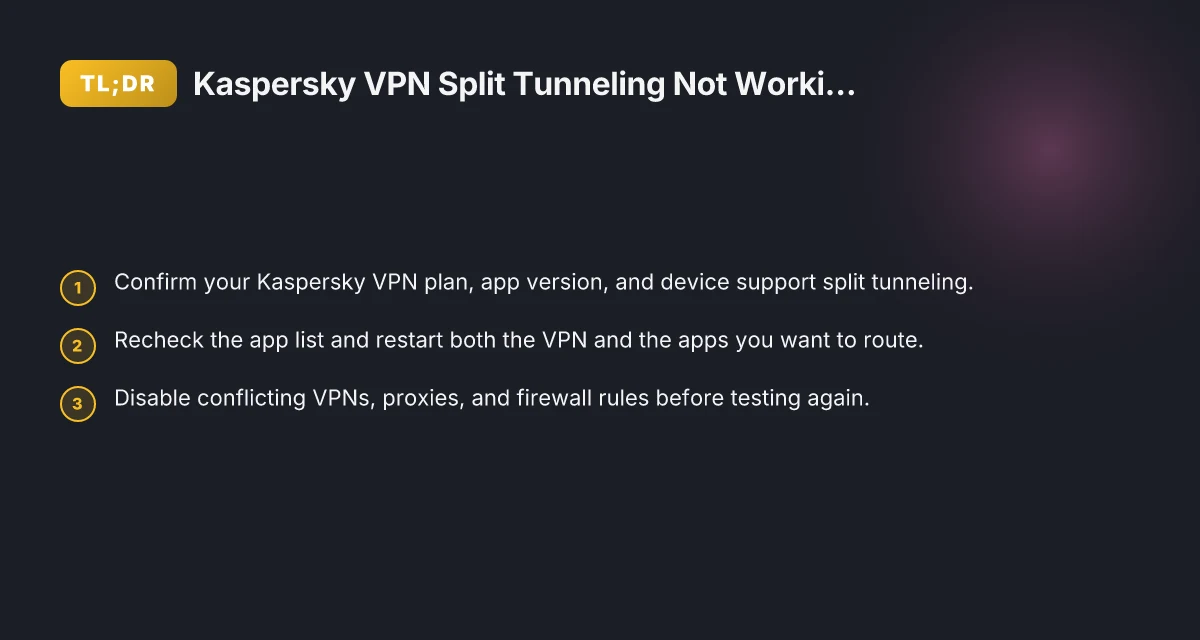
If Kaspersky VPN split tunneling is not working, first confirm that the feature is available on your device and in your version of the app. Then check whether the intended apps are selected, restart them after changing the setting, and rule out conflicts with other VPN or network software. Split tunneling only affects supported apps. It does not necessarily apply to every browser, background service, or system connection.

Editor's pick: NordVPN — fast, secure VPN — Strong encryption, a no-logs policy and apps for every device. 30-day money-back guarantee. Get NordVPN →
Check split-tunneling support before troubleshooting
| Check | What to look for | If available | If unavailable |
|---|---|---|---|
| VPN app | Split tunneling feature | Continue to app-list checks | Use another routing option |
| Device platform | Support for split tunneling | Open the feature settings | Check supported platforms |
| App version | Current version | Check routing choices | Update the app |
| Feature settings | Split tunneling enabled | Review selected apps | Turn it on if available |
| VPN connection | Connected status | Test one app at a time | Connect before testing |
| Expected behavior | Selected apps use VPN or bypass it | Verify the chosen route | Recheck the routing choice |
Compiled November 2026; check the provider's site for current details.
| VPN | Obfuscation | From / month | Plan | Free plan | Refund | Alipay | UnionPay | Crypto | Website opens in China | Trustpilot | |
|---|---|---|---|---|---|---|---|---|---|---|---|
 ZoogVPN | Turn on manually Shadow | $2.49/mo | 27 months: $59.99 | Yes | 7 days | ✓ | ✓ | ✓ | ✓ | Official site blocked; our special link opens (4.4 s) | 4.2/5 (195 reviews) |
 NordVPN | Turn on manually Obfuscated Servers / NordWhisper | $3.49/mo | 27 months: $94.23 | No | 30 days | ? | ✗ | ✓ | ✓ | ✗ Blocked | 4.2/5 (51,628 reviews) |
 ExpressVPN | ✓ On by default all servers | $3.00/mo | 28 months: $84 | No | 30 days | ✗ | ✗ | ✓ | ✗ | ✗ Blocked | 4.4/5 (29,706 reviews) |
 Surfshark | ✓ On by default Camouflage, with OpenVPN | See site | See site | No | 30 days | ✗ | ✗ | ✗ | ✓ | ✗ Blocked | 4.3/5 (31,823 reviews) |
 Proton VPN | Turn on manually Stealth, free plan too | $2.99/mo | 12 months: $35.88 | Yes | 30 days | ✗ | ✗ | ✗ | ✓ | ✗ Blocked | 2.1/5 (1,040 reviews) |
 Astrill VPN | Turn on manually StealthVPN / OpenWeb | $12.50/mo | 24 months: $300 | No | See site | ✗ | ✗ | ✗ | ✓ | ✗ Blocked | 1.3/5 (110 reviews) |
 Private Internet Access | Turn on manually Shadowsocks, OpenVPN only | $2.03/mo | 40 months: $81.2 | No | 30 days | ✗ | ✗ | ✗ | ✗ | ✗ Blocked | 4.2/5 (11,033 reviews) |
 CyberGhost | Turn on manually selected servers | $2.19/mo | 28 months: $61.32 | No | 45 days | ✗ | ✗ | ✗ | ✓ | ✗ Blocked | 4.0/5 (24,178 reviews) |
 PureVPN | Turn on manually switch to OpenVPN | $1.69/mo | 60 months: $101.55 | No | 31 days | ? | ? | ✗ | ✓ | ✗ Blocked | 4.4/5 (17,994 reviews) |
 AdGuard VPN | ✓ On by default TrustTunnel | $2.99/mo | 24 months: $71.76 | Yes | 30 days | ✓ | ✗ | ✓ | ✓ | Official site blocked; our special link opens (3.7 s) | 4.3/5 (290 reviews) |
 Mullvad | Turn on manually QUIC / Shadowsocks / LWO | $5.61/mo | €5/mo | No | 14 days | ✗ | ✗ | ✗ | ✓ | ✗ Blocked | 3.2/5 (192 reviews) |
 Windscribe | Turn on manually Stealth / WStunnel | $5.75/mo | 12 months: $69 | Yes | See site | ✗ | ✗ | ✗ | ✓ | ✗ Blocked | 4.7/5 (13,355 reviews) |
 StrongVPN | Turn on manually Scramble, OpenVPN TCP | See site | See site | No | 30 days | ✓ | ✗ | ✗ | ✗ | ✗ Blocked | 4.4/5 (2,695 reviews) |
 LightXtreme 闪连 | Not listed | $7.08/mo | 12 months: $84.99 | Yes | 30 days | ✓ | ✓ | ✓ | ✓ | ✓ Yes (3.5 s) | No page |
Prices checked 2026-11-10 on each vendor's pricing page (cheapest long plan, USD). Check the vendor's checkout for the final price.
Obfuscation checked 2026-11-14 on each vendor's site and help center: "on by default" = nothing to set; "turn on manually" = switch protocol or mode in settings; "not listed" = the vendor describes no obfuscation.
Payment methods checked 2026-11-10 on each vendor's payment pages: all 14 take cards and PayPal; ✗ = not listed, ? = the vendor's own pages disagree.
China access: whether the official website opens from mainland China networks (tests the website only, not the VPN connection). Last checked 2026-11-18 01:02 Beijing time.
Trustpilot score and review count checked 2026-11-10.
Check that split tunneling is available
Kaspersky VPN features can vary by operating system, app version, and subscription. A setting shown in a guide for one device may not exist in the version you have installed. Start by opening Kaspersky VPN and looking in its settings for Split tunneling or an equivalent app-routing option.
If you cannot find the setting:
- Update Kaspersky VPN through its official app store or Kaspersky’s website.
- Check the product documentation for your operating system and current app version.
- Confirm that your subscription includes the relevant VPN features.
- Restart the device after installing an update.
Do not assume that a setting is available just because another Kaspersky VPN user has it. If your current app version does not offer split tunneling on your platform, reinstalling the app is unlikely to add it.
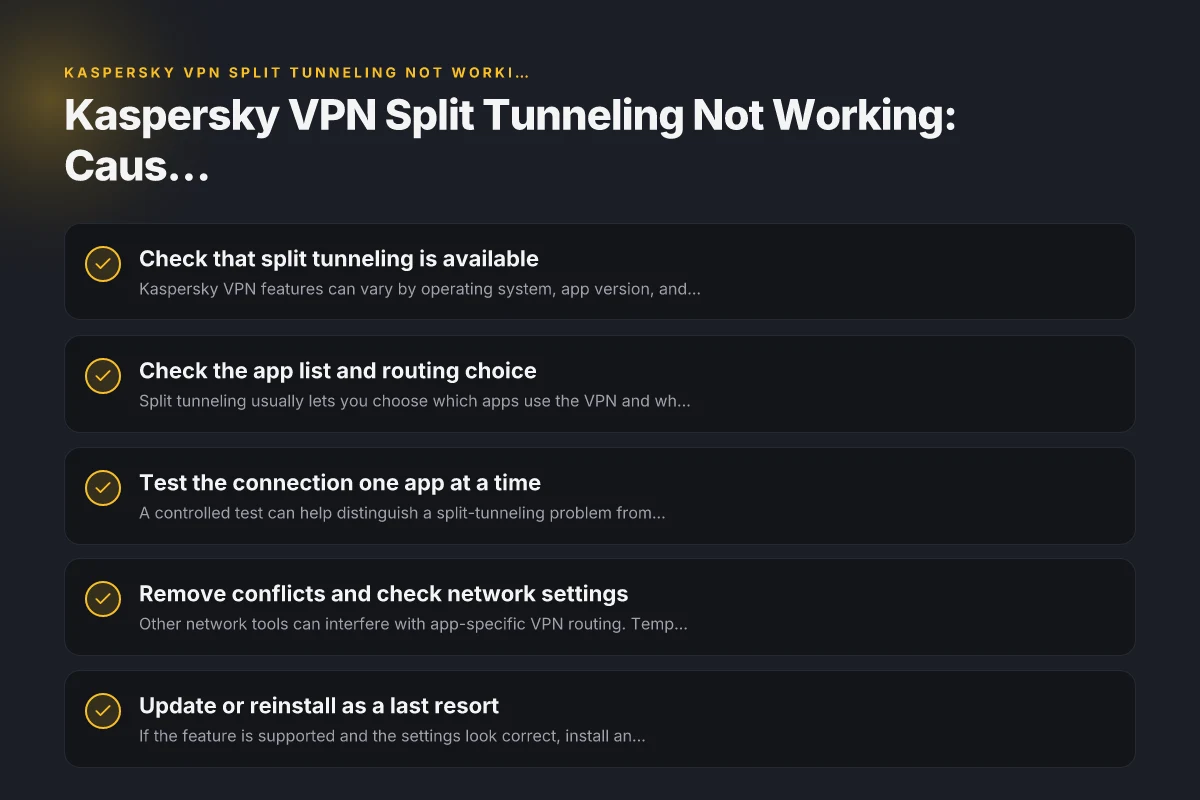
Check the app list and routing choice
Split tunneling usually lets you choose which apps use the VPN and which connect through your regular internet connection. A selection mistake can make the feature appear broken. Radmin VPN Not Working? Troubleshooting Steps That Usually Help
Open the split-tunneling settings and verify the routing mode. Depending on the app, you may be able to send selected apps through the VPN or exclude selected apps from it. Check that the mode matches your goal, then confirm that the right apps appear in the list.
Also check for these common issues:
- The app may be listed under a different name than expected.
- A browser shortcut may launch a different browser executable.
- A desktop app may use a separate helper or updater process.
- A website opened in a browser follows the browser’s route, not necessarily the route of another app.
- An app that was already running may need to be fully closed and reopened.
After changing the list, quit the affected app completely, including any background processes if practical, and launch it again. If the route still seems wrong, restart Kaspersky VPN and then the device.
Test the connection one app at a time
A controlled test can help distinguish a split-tunneling problem from a general VPN or internet issue. Choose one supported app and set it to use the VPN. Leave other apps on their default route, then check the public IP address from the selected app using a reputable IP-checking website. Compare it with the result from an app that should bypass the VPN. NordVPN Edge: How to Use NordVPN With Microsoft Edge
| What you observe | What it may indicate | What to try |
|---|---|---|
| Both apps show the VPN IP | The bypass rule may not be applied, or the apps may share a network process | Recheck the selected routing mode and restart both apps |
| Neither app shows the VPN IP | The VPN may not be connected | Reconnect and verify the VPN works without split tunneling |
| The selected app cannot connect | The app or its network traffic may be blocked or incompatible | Test another app and check firewall or app permissions |
| Results change after restarting | The apps may have kept old network connections | Reopen apps after each routing change |
IP checks are a useful clue, not a complete privacy audit. Apps can use multiple connection methods, and a browser may have its own proxy, DNS, or secure-connection settings. Test more than one service if the result is unexpected.
Choose the right app list and routing behavior
| Choice | Intended result | What to check | When to use |
|---|---|---|---|
| Include an app in VPN | App traffic uses the VPN | App is selected for VPN routing | Protect selected apps |
| Exclude an app from VPN | App traffic bypasses the VPN | App is selected to bypass VPN | Keep selected apps on the regular connection |
| App not listed | No explicit split-tunnel choice | Check whether the app is supported | Feature cannot select the app |
| Wrong routing choice | App takes an unexpected route | Confirm include or exclude behavior | Correct the selection |
| Multiple selected apps | Several apps use configured routing | Review each app’s selection | Apply routing to more than one app |
| One selected app | Easier to isolate a problem | Test its actual connection | Troubleshoot one app at a time |
Compiled November 2026; check the provider's site for current details.
Remove conflicts and check network settings
Other network tools can interfere with app-specific VPN routing. Temporarily disable them one at a time, then test again. Common sources of conflict include: Kaspersky VPN Doesn't Connect: Causes and Fixes
- Another VPN app or a built-in VPN profile
- A proxy configured in the operating system or browser
- Firewall or endpoint-security rules that block Kaspersky VPN
- DNS-filtering, ad-blocking, or traffic-management software
- Work or school network policies
Avoid turning off security protections permanently. If disabling a tool changes the result, restore it and adjust its settings or consult its documentation. On a managed work or school device, an administrator may control VPN or proxy behavior.
Check that your device has a stable internet connection, too. Try the test on a different network if possible. If split tunneling fails only on one Wi-Fi network, the router or network policy may be involved rather than the Kaspersky app.
Update or reinstall as a last resort
If the feature is supported and the settings look correct, install any available Kaspersky VPN update and restart the device. If the problem began after an update, check Kaspersky’s support information for known issues before changing more settings.
Reinstalling may help if the app’s configuration is damaged, but record your settings first. Use the official installer or app store, remove the app through the normal system process, restart, and install it again. Do not download VPN software from unofficial sites. Mac VPN: How to Choose, Set Up, and Use a VPN on Your Mac
If the issue continues, contact Kaspersky Support. Include your operating system and version, Kaspersky VPN version, subscription type, the apps affected, and the steps you have already tried. Do not send passwords or other sensitive account details.
Pick a troubleshooting step based on the symptom
| Symptom | First check | Next step | Escalation |
|---|---|---|---|
| Split tunneling is missing | Feature availability | Check platform and app support | Update or reinstall |
| App uses the wrong route | App list and routing choice | Correct the selection | Test one app at a time |
| One app fails to connect | Its split-tunnel selection | Test with other apps closed | Check network settings |
| Several apps fail | VPN connection and app list | Test apps individually | Look for conflicting settings |
| Problem began after a change | Recent app or network settings | Remove possible conflicts | Update the VPN app |
| Troubleshooting does not help | App version | Update the app | Reinstall as a last resort |
Compiled November 2026; check the provider's site for current details.
Recommendation
Start by confirming that split tunneling is supported on your device, then verify the routing mode and app selection. Restart the affected apps after each change and test one app at a time. If that does not resolve the issue, check for VPN, proxy, firewall, or network conflicts before updating or reinstalling Kaspersky VPN. Where Is the VPN Located? Find It on Your Device or Online