Where Is the VPN Located? Find It on Your Device or Online
Find your VPN settings on Android or Windows, or identify the location of the VPN server your internet traffic uses.
If you’re asking where the VPN is located on your device, check your network settings or open your VPN app. On Android, go to Settings > Network & internet > VPN. On Windows, go to Settings > Network & internet > VPN. If you mean where your VPN connection appears to come from online, check the public IP address shown while the VPN is connected: its estimated location usually reflects the VPN server, not your physical location.

Editor's pick: NordVPN — fast, secure VPN — Strong encryption, a no-logs policy and apps for every device. 30-day money-back guarantee. Get NordVPN →
Compare where to find VPN settings by device
| Device | Usual place to check | What to look for | Menu names may vary | Settings show public IP location? |
|---|---|---|---|---|
| Windows | Settings | Network & internet, then VPN | Yes | No |
| macOS | System Settings | VPN or Network | Yes | No |
| iPhone or iPad | Settings | VPN or General, then VPN & Device Management | Yes | No |
| Android | Settings | Network & internet, then VPN | Yes | No |
| Chromebook | Settings | Network, then VPN | Yes | No |
| Router | Router admin page | VPN or VPN client | Yes | No |
| VPN app | App interface | Connection status and server choice | Yes | Not necessarily |
Compiled November 2026; check the provider's site for current details.
| VPN | Obfuscation | From / month | Plan | Free plan | Refund | Alipay | UnionPay | Crypto | Website opens in China | Trustpilot | |
|---|---|---|---|---|---|---|---|---|---|---|---|
 ZoogVPN | Turn on manually Shadow | $2.49/mo | 27 months: $59.99 | Yes | 7 days | ✓ | ✓ | ✓ | ✓ | Official site blocked; our special link opens (4.4 s) | 4.2/5 (195 reviews) |
 NordVPN | Turn on manually Obfuscated Servers / NordWhisper | $3.49/mo | 27 months: $94.23 | No | 30 days | ? | ✗ | ✓ | ✓ | ✗ Blocked | 4.2/5 (51,628 reviews) |
 ExpressVPN | ✓ On by default all servers | $3.00/mo | 28 months: $84 | No | 30 days | ✗ | ✗ | ✓ | ✗ | ✗ Blocked | 4.4/5 (29,706 reviews) |
 Surfshark | ✓ On by default Camouflage, with OpenVPN | See site | See site | No | 30 days | ✗ | ✗ | ✗ | ✓ | ✗ Blocked | 4.3/5 (31,823 reviews) |
 Proton VPN | Turn on manually Stealth, free plan too | $2.99/mo | 12 months: $35.88 | Yes | 30 days | ✗ | ✗ | ✗ | ✓ | ✗ Blocked | 2.1/5 (1,040 reviews) |
 Astrill VPN | Turn on manually StealthVPN / OpenWeb | $12.50/mo | 24 months: $300 | No | See site | ✗ | ✗ | ✗ | ✓ | ✗ Blocked | 1.3/5 (110 reviews) |
 Private Internet Access | Turn on manually Shadowsocks, OpenVPN only | $2.03/mo | 40 months: $81.2 | No | 30 days | ✗ | ✗ | ✗ | ✗ | ✗ Blocked | 4.2/5 (11,033 reviews) |
 CyberGhost | Turn on manually selected servers | $2.19/mo | 28 months: $61.32 | No | 45 days | ✗ | ✗ | ✗ | ✓ | ✗ Blocked | 4.0/5 (24,178 reviews) |
 PureVPN | Turn on manually switch to OpenVPN | $1.69/mo | 60 months: $101.55 | No | 31 days | ? | ? | ✗ | ✓ | ✗ Blocked | 4.4/5 (17,994 reviews) |
 AdGuard VPN | ✓ On by default TrustTunnel | $2.99/mo | 24 months: $71.76 | Yes | 30 days | ✓ | ✗ | ✓ | ✓ | Official site blocked; our special link opens (3.7 s) | 4.3/5 (290 reviews) |
 Mullvad | Turn on manually QUIC / Shadowsocks / LWO | $5.61/mo | €5/mo | No | 14 days | ✗ | ✗ | ✗ | ✓ | ✗ Blocked | 3.2/5 (192 reviews) |
 Windscribe | Turn on manually Stealth / WStunnel | $5.75/mo | 12 months: $69 | Yes | See site | ✗ | ✗ | ✗ | ✓ | ✗ Blocked | 4.7/5 (13,355 reviews) |
 StrongVPN | Turn on manually Scramble, OpenVPN TCP | See site | See site | No | 30 days | ✓ | ✗ | ✗ | ✗ | ✗ Blocked | 4.4/5 (2,695 reviews) |
 LightXtreme 闪连 | Not listed | $7.08/mo | 12 months: $84.99 | Yes | 30 days | ✓ | ✓ | ✓ | ✓ | ✓ Yes (3.5 s) | No page |
Prices checked 2026-11-10 on each vendor's pricing page (cheapest long plan, USD). Check the vendor's checkout for the final price.
Obfuscation checked 2026-11-14 on each vendor's site and help center: "on by default" = nothing to set; "turn on manually" = switch protocol or mode in settings; "not listed" = the vendor describes no obfuscation.
Payment methods checked 2026-11-10 on each vendor's payment pages: all 14 take cards and PayPal; ✗ = not listed, ? = the vendor's own pages disagree.
China access: whether the official website opens from mainland China networks (tests the website only, not the VPN connection). Last checked 2026-11-18 01:02 Beijing time.
Trustpilot score and review count checked 2026-11-10.
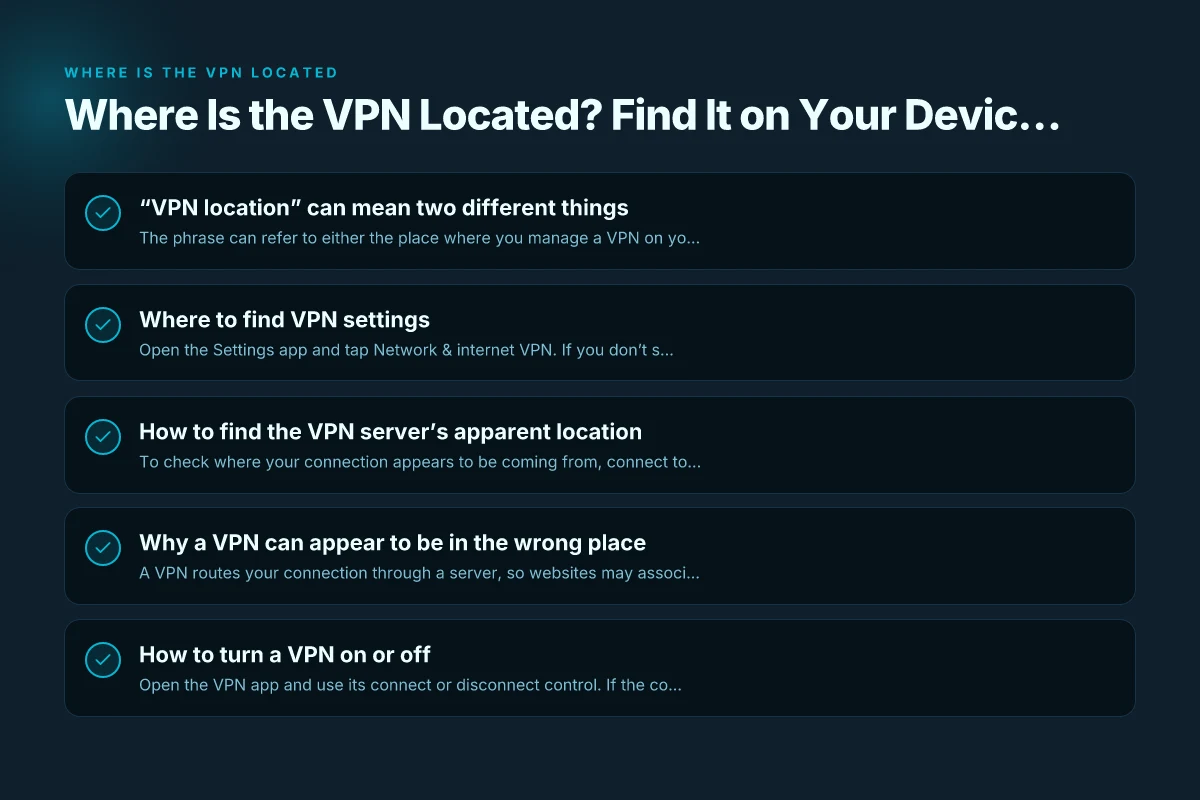
“VPN location” can mean two different things
The phrase can refer to either the place where you manage a VPN on your device or the apparent location of your internet connection.
Your VPN settings let you add, manage, or disconnect a VPN connection. The server location is the location associated with the VPN server you connect through. When you use a VPN, websites and online services generally see the connection’s public IP address rather than your device’s usual public IP address.
These locations are related, but they aren’t the same. Finding the VPN setting won’t tell you where its server is, and checking an IP location won’t show where the VPN controls are on your phone or computer.
Where to find VPN settings
On Android
Open the Settings app and tap Network & internet > VPN. If you don’t see VPN, search for “VPN” in Settings. The exact menu names can vary by device or Android version. How to VPN iPhone: Set Up and Use a VPN Safely
You can also open your VPN provider’s app to connect, disconnect, or choose a server location. Android’s built-in VPN page is useful for viewing and managing VPN connections added to the device.
On Windows
Open Settings and select Network & internet > VPN. To add a connection, select Add VPN and enter the details for the VPN service or organization you use.
If you use a standalone VPN app, its connection controls may be in the app rather than in the Windows settings page. The settings page is still the place to manage VPN profiles configured through Windows.
On other devices
Menu names differ across operating systems and device manufacturers. Look in Settings for VPN, or search the settings menu for that term. If your VPN came with a dedicated app, open it to find connection controls and server choices. IPsec MTU: How to Calculate and Troubleshoot It
| What you want to find | Where to look |
|---|---|
| VPN settings on Android | Settings > Network & internet > VPN |
| VPN settings on Windows | Settings > Network & internet > VPN |
| A VPN’s chosen server | The VPN app or connection profile |
| The apparent online location | A public IP address lookup while connected |
How to find the VPN server’s apparent location
To check where your connection appears to be coming from, connect to the VPN and use a public IP address lookup. The result can show your public IP address and an estimated location associated with it. Compare the result with the location shown when the VPN is disconnected to see whether the visible IP or estimated location changes.
A location lookup is an estimate, not a precise reading of the server’s physical position. IP location databases may list a city or region that differs from the server’s actual location. Results can also vary between lookup services.
If your VPN app lets you select a country or city, that selection indicates the server location you requested. It does not guarantee that every location database will display the same place.
Compare ways to check a VPN server’s apparent location How to Use NordVPN on iPhone: A Step-by-Step Guide
| Check | What it tells you | VPN connection needed? | Location shown is approximate? | Best used for |
|---|---|---|---|---|
| Public IP lookup site | IP address and estimated location | Yes | Yes | Checking apparent online location |
| Search engine IP query | Detected public IP or location | Yes | Yes | A quick check |
| VPN app server display | Selected server or region | Yes | Yes | Confirming the chosen server |
| Device VPN settings | VPN configuration and connection status | No | Not applicable | Finding or managing settings |
| DNS leak test | DNS resolver information | Yes | Yes | Checking for DNS leaks |
| WebRTC leak test | IP details exposed by browser features | Yes | Yes | Checking for WebRTC leaks |
| Another IP lookup service | A second location estimate | Yes | Yes | Comparing inconsistent results |
Compiled November 2026; check the provider's site for current details.
Why a VPN can appear to be in the wrong place
A VPN routes your connection through a server, so websites may associate your traffic with that server’s IP address. However, an IP lookup may show a nearby city, a regional hub, or another location recorded in its database.
If a website still seems to recognize your usual location, possible explanations include:
- The VPN is disconnected or hasn’t finished connecting.
- The website is using location information from a browser, account, or device setting as well as your IP address.
- The IP location database has outdated or approximate information.
- Your VPN app is connected to a different server than the one you expected.
Check the VPN app to confirm its connection status and selected server. Then refresh the IP lookup and review the website’s location permissions if needed. Comix.to Keeps Blocking VPN: Why It Happens and What to Try
How to turn a VPN on or off
Open the VPN app and use its connect or disconnect control. If the connection was set up through your device’s network settings, go to the VPN page and select the connection to connect or disconnect. On Android, you can also review VPN connections in Settings > Network & internet > VPN. On Windows, use Settings > Network & internet > VPN.
The exact controls depend on how the VPN was installed. If you can’t find a connection in device settings, search Settings for “VPN” or check the app used to set it up.
Compare common reasons a VPN location looks wrong
| Possible reason | What may happen | How to check | What to try |
|---|---|---|---|
| IP geolocation database is outdated | Location differs from the VPN server | Compare another IP lookup service | Recheck later or contact the VPN provider |
| VPN server is registered elsewhere | IP lookup shows a different city or country | Check the VPN app’s server details | Choose another server |
| Nearby server selection | App connects to a nearby location | Review the selected server | Select a specific location |
| VPN is disconnected | Your usual public IP may appear | Check app and device connection status | Reconnect the VPN |
| Split tunneling is enabled | Some traffic may use your regular connection | Review VPN app settings | Adjust split tunneling |
| DNS or browser leak | Some location-related information may differ | Run DNS and WebRTC leak tests | Follow the VPN provider’s troubleshooting steps |
| Website uses other signals | Site may infer location from browser or account data | Compare results on another site | Review site permissions and location settings |
| App or device error | VPN status or route may be incorrect | Restart the app or device | Reconnect and check again |
Compiled November 2026; check the provider's site for current details. How to Unsubscribe Proton VPN: Cancel Your Plan Step by Step
Recommendation: check both the settings and the public IP
Start with your device’s Settings if you need to locate, manage, or disconnect the VPN. Open the VPN app if you want to choose a server. If you’re checking the location other people may associate with your connection, connect first and then use a public IP lookup. Treat the displayed location as an estimate rather than proof of the server’s exact physical address.