How to Get a VPN: Choose, Install, and Set It Up
Learn how to choose a trustworthy VPN, install it on your devices, and check that it is working.
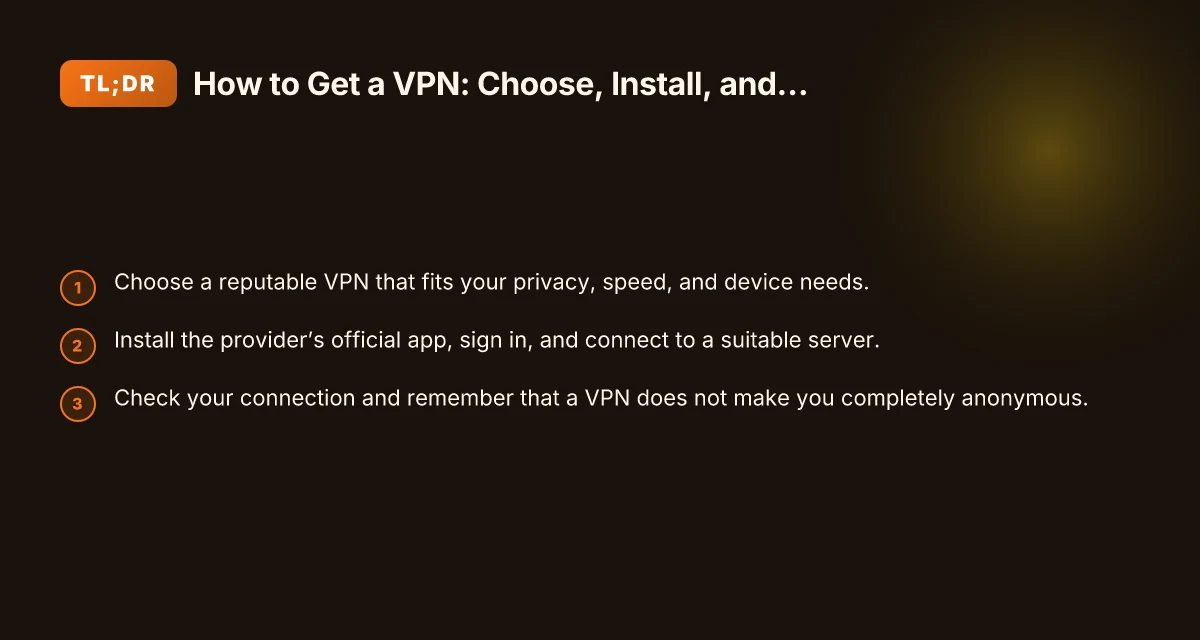
To get a VPN, choose a reputable provider, subscribe to a plan, download its official app, and connect to a server. You can usually complete setup in a few minutes on a computer or phone. Before paying, compare providers’ privacy policies, security features, supported devices, and renewal terms so you know what you are getting.

Editor's pick: NordVPN — fast, secure VPN — Strong encryption, a no-logs policy and apps for every device. 30-day money-back guarantee. Get NordVPN →
Match your VPN use case to the features to look for
| Use case | Look for | Server choice | Setup check |
|---|---|---|---|
| Public Wi-Fi | Encryption and a kill switch | Nearby server | Confirm VPN shows connected |
| Everyday browsing | Clear privacy policy | Nearby server | Check your IP address |
| Streaming | Support for your preferred services | Servers in relevant regions | Test the service after connecting |
| Travel | Servers near home and your destination | Multiple locations | Check access before you travel |
| Remote work | Work-approved VPN support | Server specified by employer | Follow workplace instructions |
| Gaming | Stable connection and nearby servers | Lowest-latency option | Test speed and connection stability |
Compiled November 2026; check the provider's site for current details.
| VPN | Obfuscation | From / month | Plan | Free plan | Refund | Alipay | UnionPay | Crypto | Website opens in China | Trustpilot | |
|---|---|---|---|---|---|---|---|---|---|---|---|
 ZoogVPN | Turn on manually Shadow | $2.49/mo | 27 months: $59.99 | Yes | 7 days | ✓ | ✓ | ✓ | ✓ | Official site blocked; our special link opens (4.4 s) | 4.2/5 (195 reviews) |
 NordVPN | Turn on manually Obfuscated Servers / NordWhisper | $3.49/mo | 27 months: $94.23 | No | 30 days | ? | ✗ | ✓ | ✓ | ✗ Blocked | 4.2/5 (51,628 reviews) |
 ExpressVPN | ✓ On by default all servers | $3.00/mo | 28 months: $84 | No | 30 days | ✗ | ✗ | ✓ | ✗ | ✗ Blocked | 4.4/5 (29,706 reviews) |
 Surfshark | ✓ On by default Camouflage, with OpenVPN | See site | See site | No | 30 days | ✗ | ✗ | ✗ | ✓ | ✗ Blocked | 4.3/5 (31,823 reviews) |
 Proton VPN | Turn on manually Stealth, free plan too | $2.99/mo | 12 months: $35.88 | Yes | 30 days | ✗ | ✗ | ✗ | ✓ | ✗ Blocked | 2.1/5 (1,040 reviews) |
 Astrill VPN | Turn on manually StealthVPN / OpenWeb | $12.50/mo | 24 months: $300 | No | See site | ✗ | ✗ | ✗ | ✓ | ✗ Blocked | 1.3/5 (110 reviews) |
 Private Internet Access | Turn on manually Shadowsocks, OpenVPN only | $2.03/mo | 40 months: $81.2 | No | 30 days | ✗ | ✗ | ✗ | ✗ | ✗ Blocked | 4.2/5 (11,033 reviews) |
 CyberGhost | Turn on manually selected servers | $2.19/mo | 28 months: $61.32 | No | 45 days | ✗ | ✗ | ✗ | ✓ | ✗ Blocked | 4.0/5 (24,178 reviews) |
 PureVPN | Turn on manually switch to OpenVPN | $1.69/mo | 60 months: $101.55 | No | 31 days | ? | ? | ✗ | ✓ | ✗ Blocked | 4.4/5 (17,994 reviews) |
 AdGuard VPN | ✓ On by default TrustTunnel | $2.99/mo | 24 months: $71.76 | Yes | 30 days | ✓ | ✗ | ✓ | ✓ | Official site blocked; our special link opens (3.7 s) | 4.3/5 (290 reviews) |
 Mullvad | Turn on manually QUIC / Shadowsocks / LWO | $5.61/mo | €5/mo | No | 14 days | ✗ | ✗ | ✗ | ✓ | ✗ Blocked | 3.2/5 (192 reviews) |
 Windscribe | Turn on manually Stealth / WStunnel | $5.75/mo | 12 months: $69 | Yes | See site | ✗ | ✗ | ✗ | ✓ | ✗ Blocked | 4.7/5 (13,355 reviews) |
 StrongVPN | Turn on manually Scramble, OpenVPN TCP | See site | See site | No | 30 days | ✓ | ✗ | ✗ | ✗ | ✗ Blocked | 4.4/5 (2,695 reviews) |
 LightXtreme 闪连 | Not listed | $7.08/mo | 12 months: $84.99 | Yes | 30 days | ✓ | ✓ | ✓ | ✓ | ✓ Yes (3.5 s) | No page |
Prices checked 2026-11-10 on each vendor's pricing page (cheapest long plan, USD). Check the vendor's checkout for the final price.
Obfuscation checked 2026-11-14 on each vendor's site and help center: "on by default" = nothing to set; "turn on manually" = switch protocol or mode in settings; "not listed" = the vendor describes no obfuscation.
Payment methods checked 2026-11-10 on each vendor's payment pages: all 14 take cards and PayPal; ✗ = not listed, ? = the vendor's own pages disagree.
China access: whether the official website opens from mainland China networks (tests the website only, not the VPN connection). Last checked 2026-11-18 01:02 Beijing time.
Trustpilot score and review count checked 2026-11-10.
1. Decide what you need a VPN for
A VPN, or virtual private network, creates an encrypted connection between your device and a VPN server. This can help protect traffic on public Wi-Fi and hide your IP address from websites you visit. Your VPN provider can still see some information about your connection, so choosing a trustworthy company matters.
Common reasons to use a VPN include:
- Adding protection when using Wi-Fi in a café, hotel, or airport.
- Connecting to a work or school network securely.
- Reducing the visibility of your IP address to websites.
- Accessing a service while traveling, subject to that service’s rules and local laws.
A VPN does not prevent every form of tracking. Websites may still identify you through your account, cookies, or browser settings, and a VPN does not replace antivirus software or safe browsing habits.
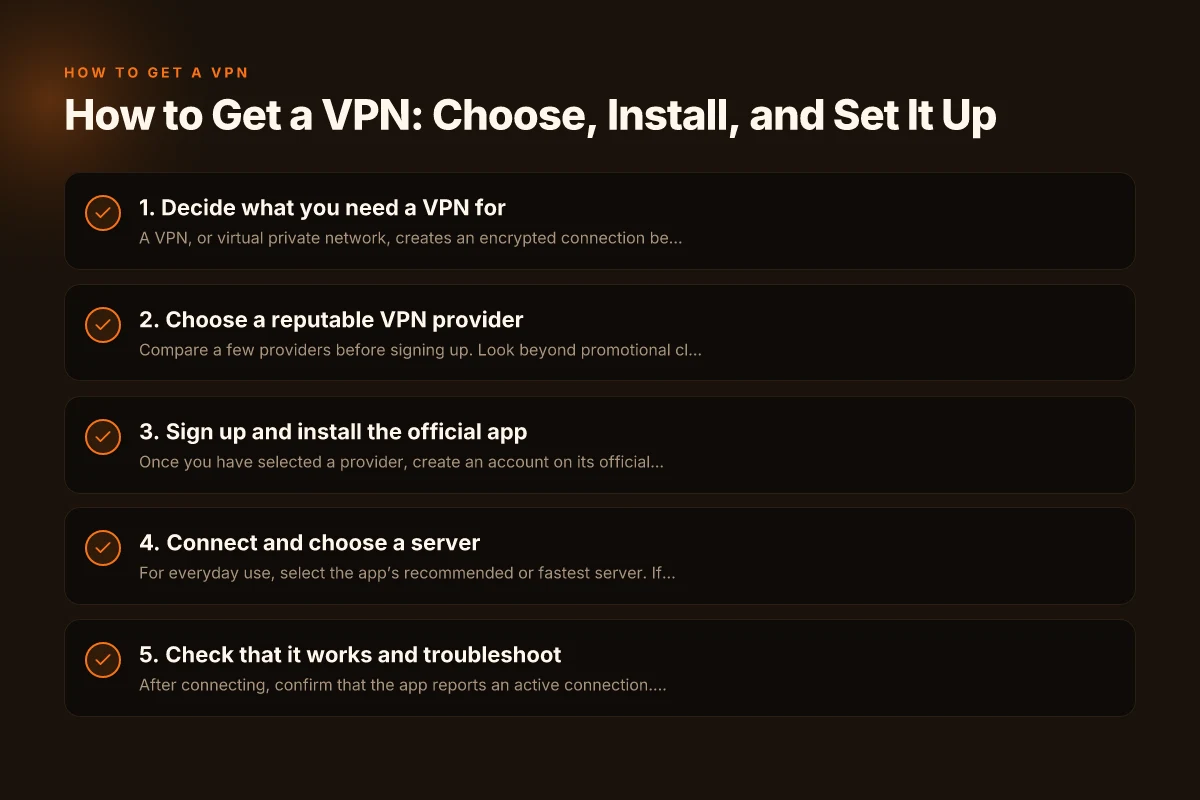
2. Choose a reputable VPN provider
Compare a few providers before signing up. Look beyond promotional claims and check how the service handles privacy, security, and billing. Chrome VPN Settings: How to Set Up and Use a VPN in Chrome
| What to compare | What to look for |
|---|---|
| Privacy policy | Clear details about what connection or activity data is collected |
| Independent audits | Recent, credible reviews of privacy or security claims |
| Security features | Modern protocols, a kill switch, and protection against DNS leaks |
| Device support | Apps for the devices you use and a suitable number of simultaneous connections |
| Server options | Locations and capacity that match your needs |
| Price and renewal | Total cost, renewal rate, refund rules, and cancellation process |
A “no-logs” claim is useful only if you understand what the provider means by logs. Read the privacy policy and look for independent evidence where available. Also check whether the company publishes contact details and explains how it responds to legal requests.
Avoid unknown VPN apps that promise unlimited protection without explaining who operates them or how they make money. Free services can be legitimate, but some may have limits, advertising, or data practices that do not suit your privacy needs.
Compare VPN providers before signing up
| Factor | What to check | Good sign | Caution |
|---|---|---|---|
| Privacy | Data collection and retention policy | Policy is clear | Vague logging claims |
| Security | Encryption and security features | Features are explained | Unsupported security promises |
| Reputation | Independent reviews and history | Consistent track record | Little verifiable information |
| Server network | Locations relevant to your needs | Useful location choices | Desired locations are missing |
| Device support | Apps for your devices | Official apps are available | Unclear compatibility |
| Price | Renewal terms and plan details | Costs are easy to understand | Surprise renewal terms |
| Cancellation | Refund and cancellation policy | Process is clearly stated | Restrictions are hard to find |
Compiled November 2026; check the provider's site for current details. Cambiar VPN online gratis: How to Change Your VPN Location Safely
3. Sign up and install the official app
Once you have selected a provider, create an account on its official website or through a trusted app store. Review the subscription length, price after any introductory period, automatic renewal terms, and refund policy before confirming payment.
Then install the VPN on each device you want to protect:
- Visit the provider’s official download page or find its verified app in the Apple App Store, Google Play, or your device’s app store.
- Download the app for your operating system.
- Open it and sign in with the account you created.
- Approve the requested VPN configuration or system permissions.
- Check the app’s settings before connecting.
Do not install a VPN from an unfamiliar download site or follow links in unexpected messages. On a work or school device, check with the administrator first. Organizational rules may restrict VPN installation.
4. Connect and choose a server
For everyday use, select the app’s recommended or fastest server. If you need a particular location, choose a server in that region. A nearby server often provides better speed, although performance depends on your internet connection, server load, and distance. Cambiar VPN gratis online: What You Can and Can’t Do
Most VPN apps provide:
- A quick-connect button for a recommended server.
- A location list or map for choosing a server.
- A status indicator showing whether the VPN is connected.
- Settings for features such as a kill switch or automatic connection.
A kill switch can block internet traffic if the VPN connection drops, reducing the chance that traffic continues over your regular connection. Automatic connection can be helpful on public Wi-Fi. Feature names and availability differ between providers, so check the app’s help pages if you are unsure.
Check your VPN setup and subscription
| Checkpoint | What to do | If it works | If it does not |
|---|---|---|---|
| App source | Install from the provider’s official site or app store | Open the official app | Remove unofficial software |
| Account | Sign in with your subscription | Account is recognized | Check credentials and plan |
| Connection | Choose a server and connect | App shows connected | Try another server |
| IP address | Check it before and after connecting | Address changes | Reconnect and check settings |
| DNS or leak test | Use a reputable leak-test service | No unexpected leak is shown | Review app settings or contact support |
| Internet access | Load a familiar website | Page opens normally | Change server or reconnect |
| Subscription | Review renewal and cancellation terms | Terms match your expectations | Contact the provider before renewal |
| Limits | Check whether the VPN meets your use case | Needed services work | Consider another provider |
Compiled November 2026; check the provider's site for current details. NNLink VPN Code: How to Find, Redeem, and Troubleshoot One
5. Check that it works and troubleshoot
After connecting, confirm that the app reports an active connection. You can also check your public IP address using a reputable IP-checking website. It should show the VPN server’s location rather than your usual network location. If you are concerned about DNS leaks, use a trusted DNS leak test and follow your provider’s instructions.
If the VPN will not connect or feels slow, try these steps:
- Switch to another server, preferably one nearby.
- Change the VPN protocol in the app if the provider offers that option.
- Update the app and restart your device.
- Check whether another VPN, firewall, or network setting is interfering.
- Try a different internet connection to see whether the network is blocking VPN traffic.
- Contact the provider’s support team if the issue continues.
Some websites and online services block VPN connections. A VPN may also affect video-call quality, gaming latency, or access to local network devices. Disconnecting may resolve the issue, but do so only when it is appropriate for your privacy and security needs.
6. Know the limits and manage your subscription
A VPN protects the connection between your device and its server, but it does not make you invisible online. Your provider may have access to connection information, and websites can still track activity through sign-ins, cookies, and other identifiers. Use strong, unique passwords and multi-factor authentication, keep your software updated, and be cautious with links and downloads. Urban VPN Extension Edge Download: How to Install and Use It Safely
Check your account periodically for renewal dates, connected devices, and security settings. If you no longer want the service, cancel through the method specified by the provider and verify that you receive confirmation. Uninstalling the app alone may not end a paid subscription.
Recommendation
For most people, the simplest approach is to choose a well-reviewed provider with clear privacy practices, install its official app, enable the kill switch if available, and use quick connect or a nearby server. Test the connection after setup, and choose a service based on transparent policies and useful features, not promises of complete anonymity.