Chrome VPN Settings: How to Set Up and Use a VPN in Chrome
Learn how Chrome VPN settings work, how to configure a VPN extension or device connection, and how to check that it protects your traffic.
Chrome VPN settings depend on how you connect. Google Chrome does not include a built-in VPN switch or server setting. To use a VPN with Chrome, install an extension from a VPN provider or connect through a VPN app or VPN profile on your device. Choose a reputable provider, connect to a server, and check that your connection is active before browsing.

Editor's pick: NordVPN — fast, secure VPN — Strong encryption, a no-logs policy and apps for every device. 30-day money-back guarantee. Get NordVPN →
Compare three ways to use a VPN with Chrome
| Option | What it covers | Where you set it up | Works outside Chrome | Main consideration |
|---|---|---|---|---|
| Chrome VPN extension | Browser traffic, depending on the provider | Chrome Web Store and extension settings | No | Check the provider and permissions |
| VPN desktop app | Device traffic, depending on the app | The VPN provider’s app | Yes | The app must be running and connected |
| Device VPN settings | Device traffic, depending on the configuration | Your operating system’s network settings | Yes | Setup details depend on the VPN service |
Compiled November 2026; check the provider's site for current details.
| VPN | Obfuscation | From / month | Plan | Free plan | Refund | Alipay | UnionPay | Crypto | Website opens in China | Trustpilot | |
|---|---|---|---|---|---|---|---|---|---|---|---|
 ZoogVPN | Turn on manually Shadow | $2.49/mo | 27 months: $59.99 | Yes | 7 days | ✓ | ✓ | ✓ | ✓ | Official site blocked; our special link opens (4.4 s) | 4.2/5 (195 reviews) |
 NordVPN | Turn on manually Obfuscated Servers / NordWhisper | $3.49/mo | 27 months: $94.23 | No | 30 days | ? | ✗ | ✓ | ✓ | ✗ Blocked | 4.2/5 (51,628 reviews) |
 ExpressVPN | ✓ On by default all servers | $3.00/mo | 28 months: $84 | No | 30 days | ✗ | ✗ | ✓ | ✗ | ✗ Blocked | 4.4/5 (29,706 reviews) |
 Surfshark | ✓ On by default Camouflage, with OpenVPN | See site | See site | No | 30 days | ✗ | ✗ | ✗ | ✓ | ✗ Blocked | 4.3/5 (31,823 reviews) |
 Proton VPN | Turn on manually Stealth, free plan too | $2.99/mo | 12 months: $35.88 | Yes | 30 days | ✗ | ✗ | ✗ | ✓ | ✗ Blocked | 2.1/5 (1,040 reviews) |
 Astrill VPN | Turn on manually StealthVPN / OpenWeb | $12.50/mo | 24 months: $300 | No | See site | ✗ | ✗ | ✗ | ✓ | ✗ Blocked | 1.3/5 (110 reviews) |
 Private Internet Access | Turn on manually Shadowsocks, OpenVPN only | $2.03/mo | 40 months: $81.2 | No | 30 days | ✗ | ✗ | ✗ | ✗ | ✗ Blocked | 4.2/5 (11,033 reviews) |
 CyberGhost | Turn on manually selected servers | $2.19/mo | 28 months: $61.32 | No | 45 days | ✗ | ✗ | ✗ | ✓ | ✗ Blocked | 4.0/5 (24,178 reviews) |
 PureVPN | Turn on manually switch to OpenVPN | $1.69/mo | 60 months: $101.55 | No | 31 days | ? | ? | ✗ | ✓ | ✗ Blocked | 4.4/5 (17,994 reviews) |
 AdGuard VPN | ✓ On by default TrustTunnel | $2.99/mo | 24 months: $71.76 | Yes | 30 days | ✓ | ✗ | ✓ | ✓ | Official site blocked; our special link opens (3.7 s) | 4.3/5 (290 reviews) |
 Mullvad | Turn on manually QUIC / Shadowsocks / LWO | $5.61/mo | €5/mo | No | 14 days | ✗ | ✗ | ✗ | ✓ | ✗ Blocked | 3.2/5 (192 reviews) |
 Windscribe | Turn on manually Stealth / WStunnel | $5.75/mo | 12 months: $69 | Yes | See site | ✗ | ✗ | ✗ | ✓ | ✗ Blocked | 4.7/5 (13,355 reviews) |
 StrongVPN | Turn on manually Scramble, OpenVPN TCP | See site | See site | No | 30 days | ✓ | ✗ | ✗ | ✗ | ✗ Blocked | 4.4/5 (2,695 reviews) |
 LightXtreme 闪连 | Not listed | $7.08/mo | 12 months: $84.99 | Yes | 30 days | ✓ | ✓ | ✓ | ✓ | ✓ Yes (3.5 s) | No page |
Prices checked 2026-11-10 on each vendor's pricing page (cheapest long plan, USD). Check the vendor's checkout for the final price.
Obfuscation checked 2026-11-14 on each vendor's site and help center: "on by default" = nothing to set; "turn on manually" = switch protocol or mode in settings; "not listed" = the vendor describes no obfuscation.
Payment methods checked 2026-11-10 on each vendor's payment pages: all 14 take cards and PayPal; ✗ = not listed, ? = the vendor's own pages disagree.
China access: whether the official website opens from mainland China networks (tests the website only, not the VPN connection). Last checked 2026-11-18 01:02 Beijing time.
Trustpilot score and review count checked 2026-11-10.
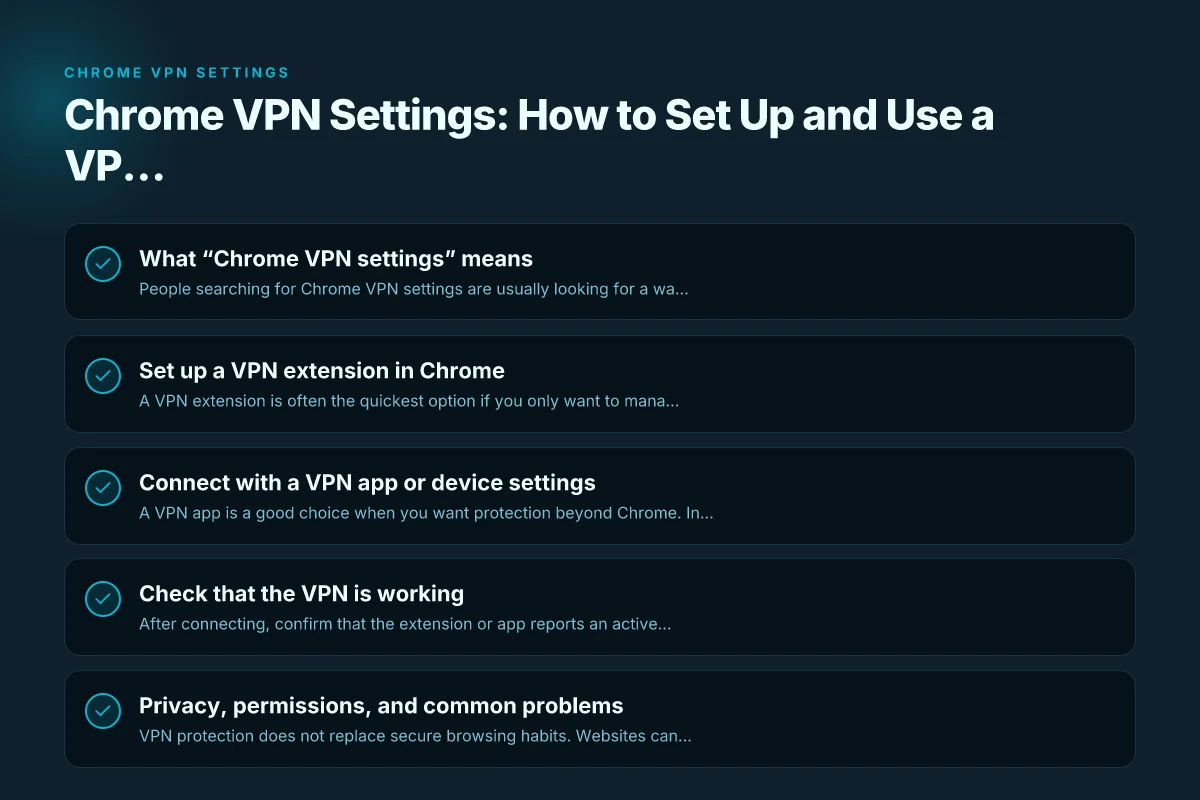
What “Chrome VPN settings” means
People searching for Chrome VPN settings are usually looking for a way to turn on a VPN, choose a server location, or make sure Chrome traffic is protected. These controls are usually found in the VPN extension or your device’s network settings, not in Chrome’s standard settings menu.
A VPN, or virtual private network, routes internet traffic through a VPN provider’s server. This can help protect traffic on untrusted networks and change the public IP address that websites see. It does not make you anonymous, prevent every kind of tracking, or guarantee access to any particular website or service.
There are two common ways to use a VPN with Chrome:
- VPN extension: Runs inside Chrome and usually applies to browser traffic.
- VPN app or device VPN profile: Connects through the operating system and can generally cover traffic from multiple apps.
Set up a VPN extension in Chrome
A VPN extension is often the quickest option if you only want to manage protection from the browser. Its features and coverage depend on the provider and extension. Cambiar VPN online gratis: How to Change Your VPN Location Safely
- Choose a VPN provider and confirm that it offers an official Chrome extension.
- Open the Chrome Web Store and find the provider’s extension.
- Check the publisher name, reviews, update history, and requested permissions.
- Select Add to Chrome, then review the access request before confirming.
- Open the extension, sign in or create an account, and connect to a server.
- Use the extension’s menu to disconnect or select a different location.
You can usually pin the extension for easier access by selecting the puzzle-piece Extensions icon in Chrome, then choosing the pin icon beside the VPN extension. The extension’s own menu is where you will typically find its connection status and server choices.
Do not install an extension just because its name resembles a familiar VPN brand. Check the provider’s official website for a link to its Chrome extension, and avoid extensions that make unclear promises or request access that seems unrelated to their function.
Choose a setup method for your needs
| If you want to… | Consider… | Setup location | Chrome-only coverage | Check before connecting |
|---|---|---|---|---|
| Protect traffic in Chrome only | A VPN extension | Chrome | Yes | Provider, permissions, and connection status |
| Cover other apps too | A VPN app | Your device | No | Whether the app reports a connected VPN |
| Use built-in network controls | Device VPN settings | Your operating system | No | Whether your service supports manual setup |
| Avoid installing a browser extension | A VPN app or device settings | Your device | No | Compatibility with your device |
| Check browser protection | The VPN’s status and an IP check | Chrome | Depends on setup | Confirm the apparent IP changes |
| Troubleshoot a failed connection | The extension, app, or device settings used | The relevant settings | Depends on setup | Check sign-in, permissions, and connection status |
Compiled November 2026; check the provider's site for current details. Cambiar VPN gratis online: What You Can and Can’t Do
Connect with a VPN app or device settings
A VPN app is a good choice when you want protection beyond Chrome. Install the official app for your operating system, sign in, and connect to a server. Once the device shows an active VPN connection, Chrome traffic will generally use that connection along with traffic from other apps, subject to your device and VPN configuration.
Some workplaces, schools, and VPN providers instead supply a VPN profile or manual connection details. Add these through your device’s network or VPN settings, following the organization’s instructions. The menu names vary by Windows, macOS, ChromeOS, Android, and iOS versions.
Chrome settings are not the place to enter a VPN server address. If you are using a managed work or school device, an administrator may control available network settings or extensions.
| Method | Typical coverage | Where you manage it | Best suited to |
|---|---|---|---|
| Chrome VPN extension | Chrome traffic, depending on the extension | Extension menu in Chrome | Browser-only use and quick server switching |
| VPN app | Usually traffic from multiple apps | VPN app and device status controls | General device protection |
| Device VPN profile | Usually traffic from multiple apps | Operating system network settings | Work, school, or manually configured connections |
Coverage can vary. For example, an extension may act as a proxy rather than a full device VPN. Read the provider’s documentation to understand precisely which traffic it routes. NNLink VPN Code: How to Find, Redeem, and Troubleshoot One
Check that the VPN is working
After connecting, confirm that the extension or app reports an active connection. You can also check your public IP address with a reputable IP-checking website. If the VPN is connected, the displayed address will usually differ from your normal public IP and may show the selected server’s location.
For a more complete check:
- Open a few websites in Chrome and confirm the connection remains active.
- Check the provider’s settings for DNS leak protection, a kill switch, and WebRTC controls, if available.
- Recheck the connection after switching networks, waking your device, or restarting Chrome.
- If protection drops, disconnect sensitive activity until the VPN reconnects.
A changed IP address is a useful sign, but it does not prove that every connection is protected. Browser extensions, device settings, and provider features differ, so consult the provider’s guidance for testing leaks and handling connection failures.
Privacy and troubleshooting checks Urban VPN Extension Edge Download: How to Install and Use It Safely
| Check | What to look for | Why it matters | If there is a problem |
|---|---|---|---|
| Provider | A service you trust | The VPN provider handles your connection | Review its privacy information |
| Extension permissions | Requests that fit its features | Permissions affect browser access | Reconsider unnecessary access |
| Connection status | Connected in the extension or app | A VPN must connect to protect traffic | Reconnect or check sign-in |
| Apparent IP | Changes when the VPN is on | Helps confirm traffic is routed differently | Check the selected server and reconnect |
| Browser scope | Extension or device-level setup | Coverage differs by method | Use a device VPN for broader coverage |
| Conflicting network tools | Other VPNs or proxies | They can interfere with routing | Disable conflicts and test again |
| Updated software | Current browser and VPN software | Outdated software can cause issues | Update and retry |
| Site access | Whether the site loads with VPN on | Some sites may restrict VPN traffic | Try another server or turn off the VPN if appropriate |
Compiled November 2026; check the provider's site for current details.
Privacy, permissions, and common problems
VPN protection does not replace secure browsing habits. Websites can still identify you through account sign-ins, cookies, browser fingerprinting, or information you choose to share. A VPN provider may also be able to observe some connection information, so review its privacy policy and reputation before installing its software.
If Chrome cannot connect through the VPN, try these steps:
- Confirm the VPN is connected in the extension or app.
- Choose a different server, then reload the page.
- Check whether another VPN, proxy, firewall, or security tool is interfering.
- Update Chrome and the VPN software, then restart the browser.
- Review the extension’s permissions and disable conflicting extensions temporarily.
Some websites block VPN connections or require a particular region for licensing or account reasons. A VPN cannot guarantee access, and using one may be subject to workplace rules, service terms, or local laws. How to Choose a VPN for Privacy, Security, and Everyday Use
Recommendation
For Chrome-only use, install the official extension from a trusted VPN provider and manage the connection from its toolbar menu. For broader device protection, use the provider’s VPN app or a properly configured device profile. In either case, check the active connection and privacy settings, and do not assume Chrome has a built-in VPN switch.