How to Find OpenVPN GUI on My System

Find OpenVPN GUI on Windows, check whether it is running, and locate your VPN profiles and settings.
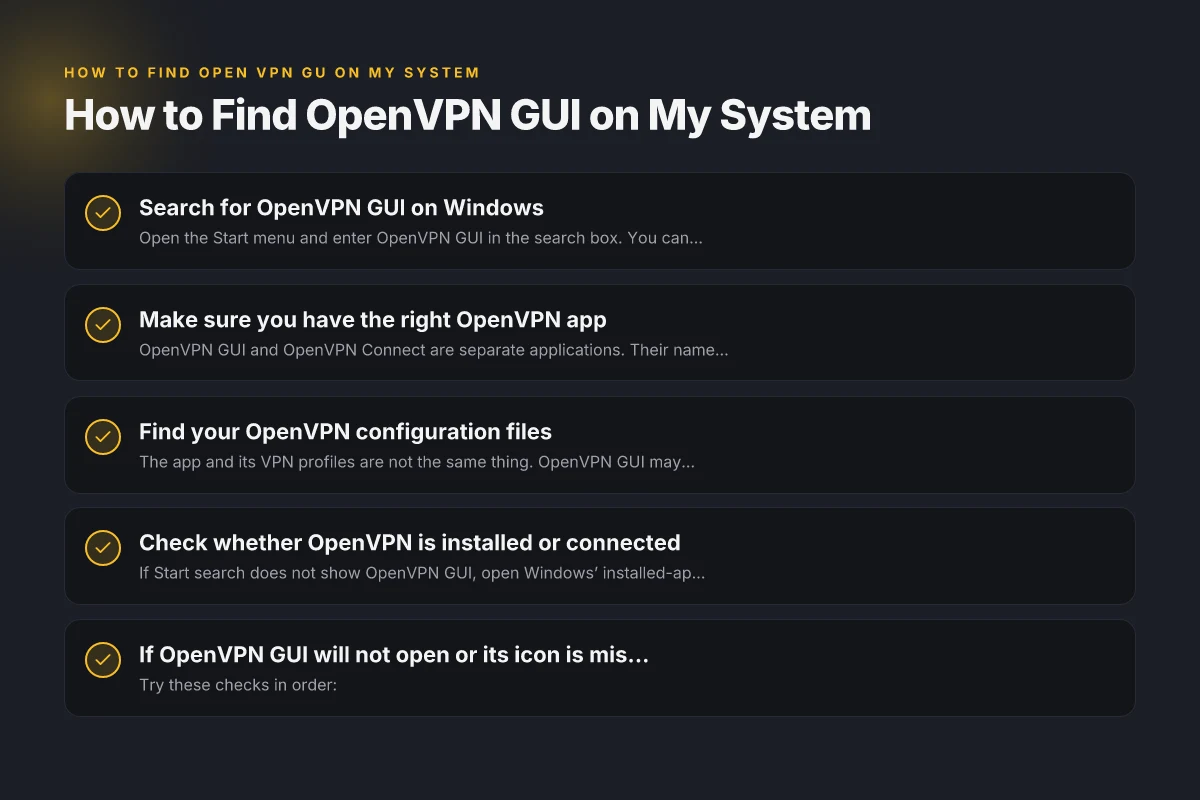
If you’re wondering how to find OpenVPN GUI on your system, start by searching your installed apps. On Windows, open the Start menu and type OpenVPN GUI. If it appears, select it to launch the app. If it is already running, look for its icon in the notification area near the clock. You may need to select the arrow for hidden icons.
If nothing appears, you may have installed OpenVPN Connect instead, or OpenVPN GUI may not be installed. The steps below help you locate the app, check whether it is running, and find its configuration files.
| VPN | Obfuscation | From / month | Plan | Free plan | Refund | Alipay | UnionPay | Crypto | Website opens in China | Trustpilot | |
|---|---|---|---|---|---|---|---|---|---|---|---|
 ZoogVPN | Turn on manually Shadow | $2.49/mo | 27 months: $59.99 | Yes | 7 days | ✓ | ✓ | ✓ | ✓ | Official site blocked; our special link opens (4.4 s) | 4.2/5 (195 reviews) |
 NordVPN | Turn on manually Obfuscated Servers / NordWhisper | $3.49/mo | 27 months: $94.23 | No | 30 days | ? | ✗ | ✓ | ✓ | ✗ Blocked | 4.2/5 (51,628 reviews) |
 ExpressVPN | ✓ On by default all servers | $3.00/mo | 28 months: $84 | No | 30 days | ✗ | ✗ | ✓ | ✗ | ✗ Blocked | 4.4/5 (29,706 reviews) |
 Surfshark | ✓ On by default Camouflage, with OpenVPN | See site | See site | No | 30 days | ✗ | ✗ | ✗ | ✓ | ✗ Blocked | 4.3/5 (31,823 reviews) |
 Proton VPN | Turn on manually Stealth, free plan too | $2.99/mo | 12 months: $35.88 | Yes | 30 days | ✗ | ✗ | ✗ | ✓ | ✗ Blocked | 2.1/5 (1,040 reviews) |
 Astrill VPN | Turn on manually StealthVPN / OpenWeb | $12.50/mo | 24 months: $300 | No | See site | ✗ | ✗ | ✗ | ✓ | ✗ Blocked | 1.3/5 (110 reviews) |
 Private Internet Access | Turn on manually Shadowsocks, OpenVPN only | $2.03/mo | 40 months: $81.2 | No | 30 days | ✗ | ✗ | ✗ | ✗ | ✗ Blocked | 4.2/5 (11,033 reviews) |
 CyberGhost | Turn on manually selected servers | $2.19/mo | 28 months: $61.32 | No | 45 days | ✗ | ✗ | ✗ | ✓ | ✗ Blocked | 4.0/5 (24,178 reviews) |
 PureVPN | Turn on manually switch to OpenVPN | $1.69/mo | 60 months: $101.55 | No | 31 days | ? | ? | ✗ | ✓ | ✗ Blocked | 4.4/5 (17,994 reviews) |
 AdGuard VPN | ✓ On by default TrustTunnel | $2.99/mo | 24 months: $71.76 | Yes | 30 days | ✓ | ✗ | ✓ | ✓ | Official site blocked; our special link opens (3.7 s) | 4.3/5 (290 reviews) |
 Mullvad | Turn on manually QUIC / Shadowsocks / LWO | $5.61/mo | €5/mo | No | 14 days | ✗ | ✗ | ✗ | ✓ | ✗ Blocked | 3.2/5 (192 reviews) |
 Windscribe | Turn on manually Stealth / WStunnel | $5.75/mo | 12 months: $69 | Yes | See site | ✗ | ✗ | ✗ | ✓ | ✗ Blocked | 4.7/5 (13,355 reviews) |
 StrongVPN | Turn on manually Scramble, OpenVPN TCP | See site | See site | No | 30 days | ✓ | ✗ | ✗ | ✗ | ✗ Blocked | 4.4/5 (2,695 reviews) |
 LightXtreme 闪连 | Not listed | $7.08/mo | 12 months: $84.99 | Yes | 30 days | ✓ | ✓ | ✓ | ✓ | ✓ Yes (3.5 s) | No page |
Prices checked 2026-11-10 on each vendor's pricing page (cheapest long plan, USD). Check the vendor's checkout for the final price.
Obfuscation checked 2026-11-14 on each vendor's site and help center: "on by default" = nothing to set; "turn on manually" = switch protocol or mode in settings; "not listed" = the vendor describes no obfuscation.
Payment methods checked 2026-11-10 on each vendor's payment pages: all 14 take cards and PayPal; ✗ = not listed, ? = the vendor's own pages disagree.
China access: whether the official website opens from mainland China networks (tests the website only, not the VPN connection). Last checked 2026-11-18 01:02 Beijing time.
Trustpilot score and review count checked 2026-11-10.

Editor's pick: NordVPN — fast, secure VPN — Strong encryption, a no-logs policy and apps for every device. 30-day money-back guarantee. Get NordVPN →
Compare ways to find OpenVPN GUI on Windows
| Method | Where to look | What to search for | What it can confirm | Next step |
|---|---|---|---|---|
| Start menu | Windows Start | OpenVPN GUI | App shortcut is listed | Open the app |
| Windows Search | Search box | OpenVPN GUI | Search finds a matching app | Check its name |
| Desktop | Desktop | OpenVPN GUI shortcut | A shortcut is present | Double-click it |
| Notification area | Taskbar, near the clock | OpenVPN icon | GUI may already be running | Open its menu |
| Installed apps | Windows Settings | OpenVPN | An app is installed | Check the app name |
| File Explorer | Program Files folders | OpenVPN GUI executable | App files may be present | Launch the correct app |
| Start menu app list | All apps | OpenVPN folder or entry | An OpenVPN shortcut is available | Select the GUI entry |
Compiled November 2026; check the provider's site for current details.
Search for OpenVPN GUI on Windows
Open the Start menu and enter OpenVPN GUI in the search box. You can also open the list of installed applications and scroll to the OpenVPN folder or entry. If a result appears, select it to launch the program.
If Windows finds the app but it does not open, try right-clicking the result and choosing Run as administrator. OpenVPN GUI may also be available from a Start menu shortcut or a desktop shortcut, if one was created during installation.
Check the notification area
OpenVPN GUI can run in the background without showing a regular window. Check the area next to the clock on the taskbar, then select the Show hidden icons arrow if you do not see it. The icon may be there even when no VPN connection is active.
If you expect the icon to appear but cannot find it, open Settings > Personalization > Taskbar and check the notification-area or taskbar icon settings. Menu wording may vary by Windows version. You can also restart the app from the Start menu. Best Free Trial VPNs: Top Picks for Testing a VPN
Make sure you have the right OpenVPN app
OpenVPN GUI and OpenVPN Connect are separate applications. Their names and interfaces differ, so searching for one will not necessarily find the other. Check your installed apps for both names before concluding that OpenVPN is missing.
| App | How to look for it | What to expect |
|---|---|---|
| OpenVPN GUI | Search Windows for “OpenVPN GUI” | A desktop app that commonly runs from the notification area |
| OpenVPN Connect | Search for “OpenVPN Connect” | A separate OpenVPN client with its own connection interface |
If you find OpenVPN Connect rather than OpenVPN GUI, open that app and check whether your VPN profile is available there. If you specifically need OpenVPN GUI, confirm that your VPN provider or organization supports it before installing another client. OpenVPN’s official Community Edition page provides information about its software and downloads, while the official OpenVPN Connect documentation covers the Connect app for Windows.
Identify the right OpenVPN app or file
| Item | Typical purpose | What to check | What it tells you | Suitable for |
|---|---|---|---|---|
| OpenVPN GUI | Windows desktop client | App name and icon | Provides a Windows GUI | Managing VPN connections |
| OpenVPN Connect | OpenVPN client app | Product name | It is a different OpenVPN app | Users set up for Connect |
| OpenVPN service | Background component | Services list | Supports VPN operation | Running the client in the background |
| `.ovpn` file | Connection profile | File extension and source | Holds VPN connection settings | Importing or connecting |
| Configuration folder | Stores profiles and related files | Folder contents | Profiles may be stored locally | Finding saved configurations |
| Installer | Setup program | File name and publisher | Can install or repair an app | Setting up the client |
| VPN server profile | Connection details | Provider or administrator | Identifies a VPN connection | Choosing the right profile |
Compiled November 2026; check the provider's site for current details. Where Is the OpenVPN Config File Saved in Windows 11?
Find your OpenVPN configuration files
The app and its VPN profiles are not the same thing. OpenVPN GUI may be installed even if no connection profiles have been added. Profiles are typically configuration files provided by your VPN provider, workplace, or network administrator.
To find a profile, check the location where you saved or downloaded it, such as your Downloads folder, or search Windows for files ending in .ovpn. The exact storage location can vary with the app, installation method, and setup. Avoid moving, deleting, or editing configuration files unless you know how your VPN connection is managed.
If you cannot find a profile, contact the person or service that supplied your VPN access. Installing the client alone does not provide a VPN account or connection details.
Check whether OpenVPN is installed or connected
If Start search does not show OpenVPN GUI, open Windows’ installed-apps list and search for OpenVPN. If neither OpenVPN GUI nor OpenVPN Connect appears, the software may not be installed, or it may have been installed under a different account or by your organization. Best Free Trial VPN: How to Choose and Test One
To check whether the VPN is connected, open the client and look at its connection status. With OpenVPN GUI, the notification-area icon and its menu can show available profiles and connection options. With OpenVPN Connect, check the profile and status in the app itself. Do not rely only on the presence of an icon: an app can be open without an active VPN connection.
If OpenVPN GUI will not open or its icon is missing
Try these checks in order:
- Search the Start menu again, using the exact name OpenVPN GUI.
- Check the hidden icons area next to the clock.
- Open Windows’ installed-apps list to confirm which OpenVPN app is installed.
- Restart the computer, then search for and launch the app again.
- If OpenVPN GUI is listed but still will not start, ask your IT administrator or VPN provider whether your account or device has restrictions.
- If the app is absent, use an official OpenVPN download source or follow your organization’s installation instructions.
If the app starts but no connection is available, check that you have an imported or accessible VPN profile. For work or school devices, avoid changing installation or network settings without your administrator’s guidance.
Diagnose OpenVPN GUI access and connection issues Where Are the VPN Profile on Windows Located? Find and Manage Your Settings
| What you notice | What to check | Possible meaning | Useful action | Result to look for |
|---|---|---|---|---|
| GUI appears in search | App name | App may be installed | Open it | GUI window appears |
| GUI is absent from search | Installed apps list | App may be missing | Check for OpenVPN GUI | Installation is listed |
| Icon is missing from taskbar | Hidden notification icons | GUI may be running | Expand the notification area | OpenVPN icon appears |
| GUI will not open | App shortcut and installation | Shortcut or app may have an issue | Try the installed app entry | GUI starts |
| App opens but no profile is listed | Configuration files | Profile may not be imported | Locate the `.ovpn` file | Profile is available |
| Profile is listed but disconnected | Connection status | VPN is not connected | Select the profile and connect | Status changes to connected |
| Different OpenVPN app is installed | Product name | You may be using another client | Confirm which app your setup requires | Correct app is identified |
Compiled November 2026; check the provider's site for current details.
Recommendation
First search Windows for OpenVPN GUI, then check the notification area and your installed apps. If you find only OpenVPN Connect, use that app if it matches your setup. If neither client is installed, obtain the correct one from OpenVPN’s official site or your organization.