Where Are the VPN Profile on Windows Located? Find and Manage Your Settings
Find VPN profiles in Windows Settings, understand where their data may be stored, and learn how to manage built-in and work VPNs.
If you’re asking where VPN profiles are located on Windows, check Settings > Network & internet > VPN first. This is where you can view and manage connections set up through Windows’ built-in VPN feature. A VPN profile is a set of connection details, not necessarily a file you can open in one universal folder.

Editor's pick: NordVPN — fast, secure VPN — Strong encryption, a no-logs policy and apps for every device. 30-day money-back guarantee. Get NordVPN →
Where to find a VPN profile in Windows
| Profile type | Where to look | How to identify it | Can Windows Settings manage it? |
|---|---|---|---|
| Built-in personal VPN | Settings → Network & internet → VPN | Profile appears in the VPN list | Yes |
| Built-in work VPN | Settings → Network & internet → VPN | Look for the organization’s profile name | Yes |
| School VPN | Settings → Network & internet → VPN | Look for the school’s profile name | Yes |
| Third-party VPN | The VPN provider’s app | Check the app’s connection or profile list | Usually no |
| Windows VPN configuration files | No general user-facing profile folder | Profiles are managed through Windows settings or system interfaces | No |
| Work or school-managed VPN | Settings, or the organization’s setup instructions | May be configured or controlled by an administrator | Sometimes |
| Missing profile | Check the VPN app or contact the administrator | It may not be a built-in Windows profile | Depends on how it was set up |
Compiled November 2026; check the provider's site for current details.
| VPN | Obfuscation | From / month | Plan | Free plan | Refund | Alipay | UnionPay | Crypto | Website opens in China | Trustpilot | |
|---|---|---|---|---|---|---|---|---|---|---|---|
 ZoogVPN | Turn on manually Shadow | $2.49/mo | 27 months: $59.99 | Yes | 7 days | ✓ | ✓ | ✓ | ✓ | Official site blocked; our special link opens (4.4 s) | 4.2/5 (195 reviews) |
 NordVPN | Turn on manually Obfuscated Servers / NordWhisper | $3.49/mo | 27 months: $94.23 | No | 30 days | ? | ✗ | ✓ | ✓ | ✗ Blocked | 4.2/5 (51,628 reviews) |
 ExpressVPN | ✓ On by default all servers | $3.00/mo | 28 months: $84 | No | 30 days | ✗ | ✗ | ✓ | ✗ | ✗ Blocked | 4.4/5 (29,706 reviews) |
 Surfshark | ✓ On by default Camouflage, with OpenVPN | See site | See site | No | 30 days | ✗ | ✗ | ✗ | ✓ | ✗ Blocked | 4.3/5 (31,823 reviews) |
 Proton VPN | Turn on manually Stealth, free plan too | $2.99/mo | 12 months: $35.88 | Yes | 30 days | ✗ | ✗ | ✗ | ✓ | ✗ Blocked | 2.1/5 (1,040 reviews) |
 Astrill VPN | Turn on manually StealthVPN / OpenWeb | $12.50/mo | 24 months: $300 | No | See site | ✗ | ✗ | ✗ | ✓ | ✗ Blocked | 1.3/5 (110 reviews) |
 Private Internet Access | Turn on manually Shadowsocks, OpenVPN only | $2.03/mo | 40 months: $81.2 | No | 30 days | ✗ | ✗ | ✗ | ✗ | ✗ Blocked | 4.2/5 (11,033 reviews) |
 CyberGhost | Turn on manually selected servers | $2.19/mo | 28 months: $61.32 | No | 45 days | ✗ | ✗ | ✗ | ✓ | ✗ Blocked | 4.0/5 (24,178 reviews) |
 PureVPN | Turn on manually switch to OpenVPN | $1.69/mo | 60 months: $101.55 | No | 31 days | ? | ? | ✗ | ✓ | ✗ Blocked | 4.4/5 (17,994 reviews) |
 AdGuard VPN | ✓ On by default TrustTunnel | $2.99/mo | 24 months: $71.76 | Yes | 30 days | ✓ | ✗ | ✓ | ✓ | Official site blocked; our special link opens (3.7 s) | 4.3/5 (290 reviews) |
 Mullvad | Turn on manually QUIC / Shadowsocks / LWO | $5.61/mo | €5/mo | No | 14 days | ✗ | ✗ | ✗ | ✓ | ✗ Blocked | 3.2/5 (192 reviews) |
 Windscribe | Turn on manually Stealth / WStunnel | $5.75/mo | 12 months: $69 | Yes | See site | ✗ | ✗ | ✗ | ✓ | ✗ Blocked | 4.7/5 (13,355 reviews) |
 StrongVPN | Turn on manually Scramble, OpenVPN TCP | See site | See site | No | 30 days | ✓ | ✗ | ✗ | ✗ | ✗ Blocked | 4.4/5 (2,695 reviews) |
 LightXtreme 闪连 | Not listed | $7.08/mo | 12 months: $84.99 | Yes | 30 days | ✓ | ✓ | ✓ | ✓ | ✓ Yes (3.5 s) | No page |
Prices checked 2026-11-10 on each vendor's pricing page (cheapest long plan, USD). Check the vendor's checkout for the final price.
Obfuscation checked 2026-11-14 on each vendor's site and help center: "on by default" = nothing to set; "turn on manually" = switch protocol or mode in settings; "not listed" = the vendor describes no obfuscation.
Payment methods checked 2026-11-10 on each vendor's payment pages: all 14 take cards and PayPal; ✗ = not listed, ? = the vendor's own pages disagree.
China access: whether the official website opens from mainland China networks (tests the website only, not the VPN connection). Last checked 2026-11-18 01:02 Beijing time.
Trustpilot score and review count checked 2026-11-10.
Find a VPN profile in Windows Settings
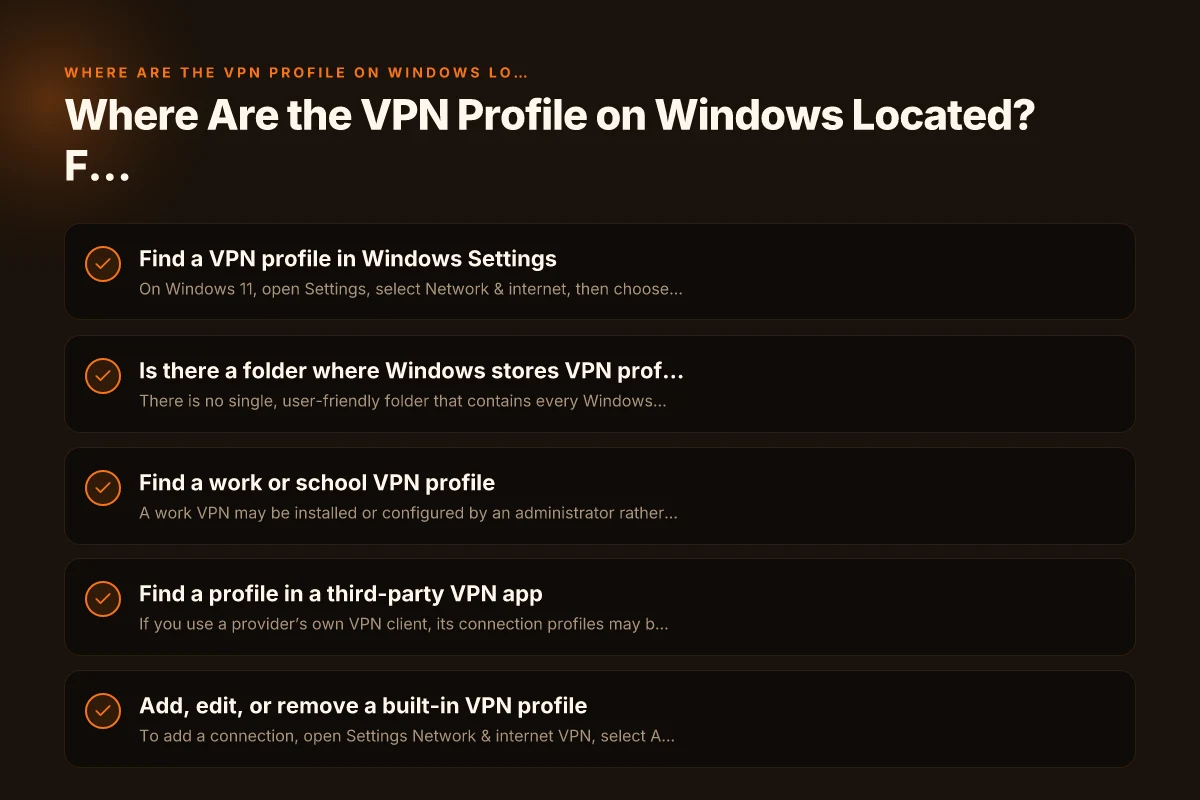
On Windows 11, open Settings, select Network & internet, then choose VPN. The available Windows VPN connections appear there. Select a profile to connect, disconnect, or open its options to edit or remove it.
On Windows 10, go to Settings > Network & Internet > VPN. The screen similarly lists VPN connections configured in Windows.
Microsoft’s instructions for creating a built-in VPN connection use this same area: choose Add VPN, select the VPN provider, and enter details such as the server name or address. If you’re trying to find a server address rather than a profile, check the connection’s settings or ask your VPN provider or workplace IT team.
Is there a folder where Windows stores VPN profiles?
There is no single, user-friendly folder that contains every Windows VPN profile. The profile’s location and management depend on how it was created, for example, in Windows Settings, through a company’s device-management tools, or inside a third-party VPN app. Best Firestick VPNs: Top Picks for Streaming, Speed, and Privacy
For most people, the VPN page in Settings is the right place to find and manage a built-in connection. Avoid changing system files or registry entries based on instructions for a different Windows version or VPN type. Doing so can break a connection or expose configuration details.
| VPN type | Where to look first | Who may manage it |
|---|---|---|
| Windows built-in VPN | Settings > Network & internet > VPN | You or your organization |
| Third-party VPN app | The VPN app and its settings | You or the app provider |
| Work- or school-managed VPN | Windows Settings and your organization’s support resources | Your IT administrator |
Find a work or school VPN profile
A work VPN may be installed or configured by an administrator rather than added manually in Settings. Depending on how the organization manages the device, the connection may still appear on the Windows VPN page, or it may be controlled through management software or a configuration profile.
Microsoft Intune, for example, lets administrators create VPN configuration profiles for Windows devices. If a work connection is missing, won’t let you edit it, or returns after you remove it, contact your organization’s IT team. The profile may be managed centrally and restored automatically.
Before troubleshooting, check: Why Does My VPN Keep Turning On on My iPhone?
- Whether you’re signed in to the correct Windows account.
- Whether the device is managed by your employer or school.
- Whether your organization requires a particular VPN app.
- Whether IT provided a server name, sign-in method, or setup instructions.
Find a profile in a third-party VPN app
If you use a provider’s own VPN client, its connection profiles may be stored and managed within that app rather than shown as editable Windows built-in connections. Open the client and look for its connection list, locations, or settings.
Some apps create a Windows network connection as part of their setup, while others handle the connection entirely through their own software. If you don’t see the VPN under Settings > Network & internet > VPN, that doesn’t necessarily mean the app is missing or broken.
For a specific client, use the provider’s support documentation. The storage and export options can vary by app, so don’t assume that instructions for one VPN client apply to another.
Add, edit, or remove a built-in VPN profile
To add a connection, open Settings > Network & internet > VPN, select Add VPN, and enter the details supplied by your VPN provider or IT department. Microsoft identifies the provider, server name or address, and sign-in information among the details used to configure a connection. VPN 360 for Windows 11: Setup, Features, and Safety Checks
To manage an existing connection:
- Select the profile on the VPN settings page to connect or disconnect.
- Open its options to view available management actions.
- Edit or remove it only if you have the information needed to restore it.
Removing a profile may delete its saved configuration, so record any required setup details first, or ask your administrator before changing a managed connection. Removing the profile does not automatically cancel a subscription to a commercial VPN service.
Ways to manage a built-in Windows VPN profile
| Action | Where to go | What to select | Result |
|---|---|---|---|
| View profiles | Settings → Network & internet → VPN | Open the VPN list | See available built-in profiles |
| Add a profile | VPN settings | Add VPN | Create a built-in VPN profile |
| Choose provider | Add VPN form | Windows (built-in) | Configure a Windows-managed profile |
| Edit a profile | VPN settings | Select the profile, then Advanced options | Change its settings |
| Remove a profile | VPN settings | Select the profile, then Remove | Delete the built-in profile |
| Connect | VPN settings | Select the profile, then Connect | Start the VPN connection |
| Find a third-party profile | Provider’s VPN app | Open its profile or connection controls | Manage it in the provider’s app |
| Manage a work or school profile | Windows VPN settings or organization support | Follow the organization’s instructions | Access depends on administrator settings |
Compiled November 2026; check the provider's site for current details. Best Fire Stick VPNs: Top Picks for Streaming, Speed, and Privacy
Recommendation
Start with Settings > Network & internet > VPN to find a Windows-built-in profile. If the connection isn’t listed, check the VPN provider’s app. For a work or school device, ask IT before trying to locate or edit internal configuration files.