Find Devices Not Connected to VPN: A Practical Guide

Learn how to identify devices missing a VPN connection, verify their status, and reduce the risk of unsecured network traffic.


To find devices not connected to a VPN, compare the devices using your network with the devices shown as connected in your VPN app or router, then verify each device’s connection directly. Start with phones, computers, tablets, and smart TVs, and include guest devices and equipment that connects automatically. A device can use your Wi-Fi without using the VPN, even when other devices are protected.

Editor's pick: NordVPN — fast, secure VPN — Strong encryption, a no-logs policy and apps for every device. 30-day money-back guarantee. Get NordVPN →
Compare methods for finding devices that are not connected to your VPN
| Method | What you check | What it can reveal | Best for | Limitation |
|---|---|---|---|---|
| Device inventory | Your list of phones, computers, and other devices | Devices that may be missing from VPN checks | Establishing a baseline | Depends on keeping the list current |
| VPN app | Connected devices and connection status | Devices not shown as connected | Checking a device’s VPN status | May not show every device on your network |
| VPN account dashboard | Account’s device or session list | Devices associated with your VPN account | Reviewing account-level connections | List details vary by provider |
| Router device list | Devices connected to your home network | Devices that may need a VPN check | Comparing network devices with VPN devices | A router list does not confirm VPN status |
| Device settings | VPN connection status on the device | Whether that device reports a VPN connection | Verifying a specific device | Status can differ by operating system |
| Connection check | Whether traffic appears to use the VPN | Possible gaps between the app status and connection | Confirming a device’s connection | Requires checking each device |
| List comparison | VPN list against router and inventory lists | Devices present on one list but absent on another | Finding omissions | Requires lists that are reasonably current |
Compiled November 2026; check the provider's site for current details.
| VPN | Obfuscation | From / month | Plan | Free plan | Refund | Alipay | UnionPay | Crypto | Website opens in China | Trustpilot | |
|---|---|---|---|---|---|---|---|---|---|---|---|
 ZoogVPN | Turn on manually Shadow | $2.49/mo | 27 months: $59.99 | Yes | 7 days | ✓ | ✓ | ✓ | ✓ | Official site blocked; our special link opens (4.4 s) | 4.2/5 (195 reviews) |
 NordVPN | Turn on manually Obfuscated Servers / NordWhisper | $3.49/mo | 27 months: $94.23 | No | 30 days | ? | ✗ | ✓ | ✓ | ✗ Blocked | 4.2/5 (51,628 reviews) |
 ExpressVPN | ✓ On by default all servers | $3.00/mo | 28 months: $84 | No | 30 days | ✗ | ✗ | ✓ | ✗ | ✗ Blocked | 4.4/5 (29,706 reviews) |
 Surfshark | ✓ On by default Camouflage, with OpenVPN | See site | See site | No | 30 days | ✗ | ✗ | ✗ | ✓ | ✗ Blocked | 4.3/5 (31,823 reviews) |
 Proton VPN | Turn on manually Stealth, free plan too | $2.99/mo | 12 months: $35.88 | Yes | 30 days | ✗ | ✗ | ✗ | ✓ | ✗ Blocked | 2.1/5 (1,040 reviews) |
 Astrill VPN | Turn on manually StealthVPN / OpenWeb | $12.50/mo | 24 months: $300 | No | See site | ✗ | ✗ | ✗ | ✓ | ✗ Blocked | 1.3/5 (110 reviews) |
 Private Internet Access | Turn on manually Shadowsocks, OpenVPN only | $2.03/mo | 40 months: $81.2 | No | 30 days | ✗ | ✗ | ✗ | ✗ | ✗ Blocked | 4.2/5 (11,033 reviews) |
 CyberGhost | Turn on manually selected servers | $2.19/mo | 28 months: $61.32 | No | 45 days | ✗ | ✗ | ✗ | ✓ | ✗ Blocked | 4.0/5 (24,178 reviews) |
 PureVPN | Turn on manually switch to OpenVPN | $1.69/mo | 60 months: $101.55 | No | 31 days | ? | ? | ✗ | ✓ | ✗ Blocked | 4.4/5 (17,994 reviews) |
 AdGuard VPN | ✓ On by default TrustTunnel | $2.99/mo | 24 months: $71.76 | Yes | 30 days | ✓ | ✗ | ✓ | ✓ | Official site blocked; our special link opens (3.7 s) | 4.3/5 (290 reviews) |
 Mullvad | Turn on manually QUIC / Shadowsocks / LWO | $5.61/mo | €5/mo | No | 14 days | ✗ | ✗ | ✗ | ✓ | ✗ Blocked | 3.2/5 (192 reviews) |
 Windscribe | Turn on manually Stealth / WStunnel | $5.75/mo | 12 months: $69 | Yes | See site | ✗ | ✗ | ✗ | ✓ | ✗ Blocked | 4.7/5 (13,355 reviews) |
 StrongVPN | Turn on manually Scramble, OpenVPN TCP | See site | See site | No | 30 days | ✓ | ✗ | ✗ | ✗ | ✗ Blocked | 4.4/5 (2,695 reviews) |
 LightXtreme 闪连 | Not listed | $7.08/mo | 12 months: $84.99 | Yes | 30 days | ✓ | ✓ | ✓ | ✓ | ✓ Yes (3.5 s) | No page |
Prices checked 2026-11-10 on each vendor's pricing page (cheapest long plan, USD). Check the vendor's checkout for the final price.
Obfuscation checked 2026-11-14 on each vendor's site and help center: "on by default" = nothing to set; "turn on manually" = switch protocol or mode in settings; "not listed" = the vendor describes no obfuscation.
Payment methods checked 2026-11-10 on each vendor's payment pages: all 14 take cards and PayPal; ✗ = not listed, ? = the vendor's own pages disagree.
China access: whether the official website opens from mainland China networks (tests the website only, not the VPN connection). Last checked 2026-11-18 01:02 Beijing time.
Trustpilot score and review count checked 2026-11-10.
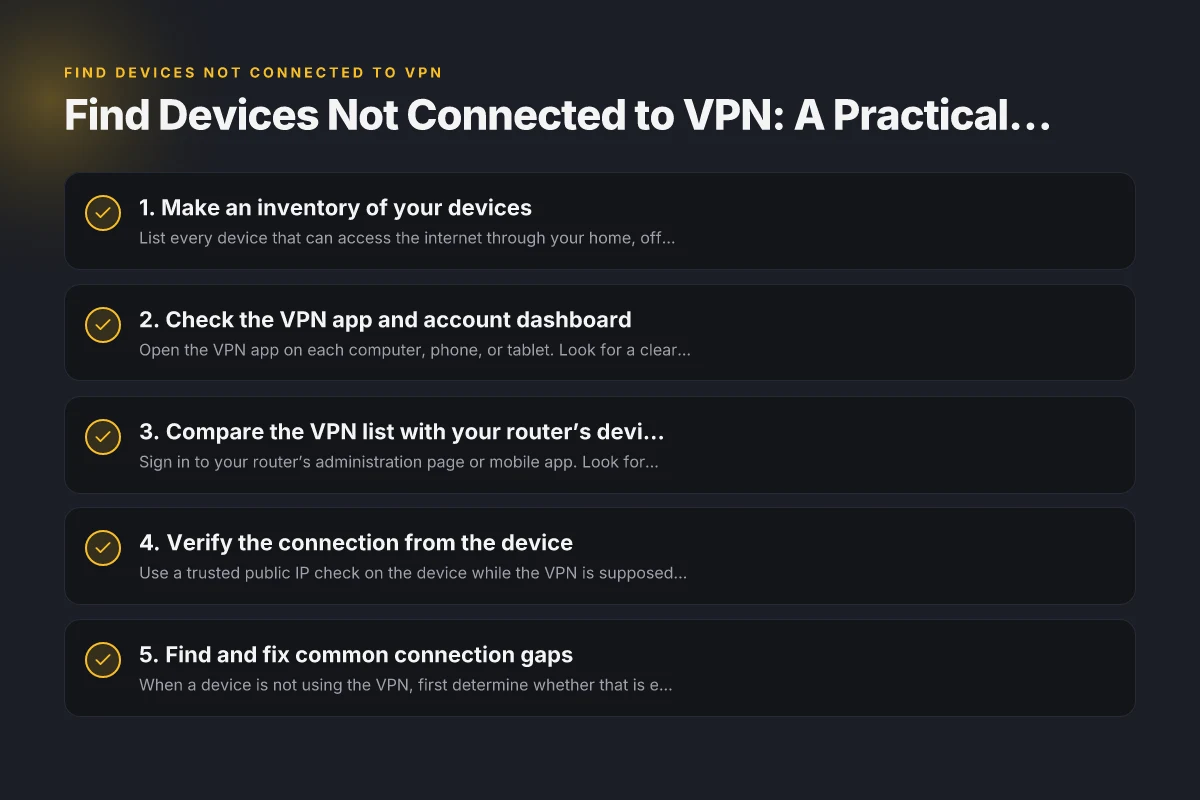
1. Make an inventory of your devices
List every device that can access the internet through your home, office, or organization’s network. Include devices that are easy to overlook, such as a work laptop, game console, streaming box, printer, or smart speaker.
Next, note how each device is supposed to use the VPN:
- VPN app installed: The device should connect through its own VPN application.
- Router-level VPN: Devices on a specific router or network should use the router’s VPN tunnel.
- No VPN required: The device may be intentionally excluded, such as a local printer or a device that cannot run a VPN client.
This distinction matters. A device missing from the VPN app’s list may still be protected by a router-level VPN. Conversely, an installed VPN app does not prove that the connection is currently active.
2. Check the VPN app and account dashboard
Open the VPN app on each computer, phone, or tablet. Look for a clear status such as Connected, the selected server, and an active connection duration. If the app has an account dashboard that lists active sessions or devices, compare that list with your inventory. UniFi VPN Client Windows: How to Connect and Troubleshoot
A dashboard can help you identify devices you did not expect to see, but it may not show every device using the VPN. Some providers list only devices signed in to the account, and a router may appear as a single connection even when many devices use it.
| Check | What it can tell you | Common limitation |
|---|---|---|
| VPN app on the device | Whether its VPN tunnel appears active | The app may show connected while a specific app uses another route |
| Provider dashboard | Which account sessions or VPN connections are recognized | May not list devices behind a VPN router individually |
| Router device list | Which devices are on your local network | Does not always show whether each device’s traffic uses the VPN |
| Public IP check | Which internet-facing IP a device appears to use | One check may not reveal all traffic leaks or split-tunnel rules |
If a device should use its own VPN app but shows Disconnected, reconnect it and confirm that the status changes. Also check whether the app is signed in, allowed to run in the background, and configured to start automatically.
Choose the right place to check a device’s VPN connection
| Where to check | What to look for | Useful comparison | If the device is missing | What it cannot confirm alone |
|---|---|---|---|---|
| VPN app | Device and connection status | Compare with your inventory | Open the app on the device | That every network device is covered |
| VPN account dashboard | Listed devices or sessions | Compare with the app | Review the account’s device list | That the device is currently connected |
| Router | Connected devices | Compare with the VPN list | Identify the device and check it directly | That the device uses the VPN |
| Device settings | VPN status on that device | Compare with the VPN app | Check the app and connection settings | That the router’s full device list is covered |
| Device inventory | Devices you own or manage | Compare with router and VPN lists | Add or identify the device | Its current connection status |
| Connection check | Whether the device appears to be using the VPN | Compare with the app’s status | Recheck the connection and app | Why a connection gap occurred |
Compiled November 2026; check the provider's site for current details. Microsoft Edge VPN Extension: How It Works and Which One to Choose
3. Compare the VPN list with your router’s device list
Sign in to your router’s administration page or mobile app. Look for a section called Connected devices, Clients, or Network map. Names and menus vary by router.
Match the router’s device list against your inventory and the VPN status of each device. Unfamiliar entries could be old devices, equipment with generic names, or visitors’ devices, not necessarily unauthorized users. Check the device’s manufacturer, connection type, and last-seen time before drawing conclusions.
If your router runs the VPN, inspect its VPN status and routing settings. Many routers let you choose which devices use the tunnel. Look for per-device rules, policy routing, or a list of devices excluded from the VPN. A device connected to the router’s Wi-Fi might be intentionally routed through the regular internet connection.
Also check guest networks and secondary access points. A guest network may bypass the VPN, and a mesh system or extender may use different settings from the main router. NordVPN PC: How to Install, Set Up, and Use It
4. Verify the connection from the device
Use a trusted public IP check on the device while the VPN is supposed to be active. Compare the displayed public IP or location with what you expect from the VPN server. If the device shows your usual internet provider’s IP, it may be bypassing the VPN, although split tunneling or network design can affect the result.
For a more reliable check, confirm several things:
- The VPN app reports an active tunnel.
- The public IP appears to belong to the VPN service or chosen location.
- The result is consistent after refreshing the page.
- The device remains connected after switching between Wi-Fi and mobile data, if applicable.
A public IP check is a useful clue, not a complete security audit. DNS settings, split tunneling, and certain apps may behave differently from a browser. If your VPN provider offers DNS or leak tests, use those as an additional check. For managed business devices, ask your IT administrator to verify the device’s VPN and security status through the organization’s management tools.
Common VPN connection gaps and practical next steps Nord VPN China 2026: Does It Work, and Is It Worth Trying?
| Situation | What to compare | Possible gap | Practical next step | Keep the list current |
|---|---|---|---|---|
| Device is on the router list but not the VPN list | Router and VPN lists | Device may not be using the VPN | Check VPN status on the device | Add it to your inventory |
| Device is in your inventory but not on the router list | Inventory and router list | Device may be offline or on another network | Check its current network | Update its status |
| App says connected, but a connection check disagrees | App and connection check | Connection status may need verification | Recheck the device’s VPN connection | Record the result |
| Device appears in the account dashboard but is not in use | Dashboard and inventory | Old or unused device entry | Review the account’s device list | Remove or update outdated entries |
| A newly added device is absent from your records | Device and inventory | Inventory may be out of date | Check the VPN app and router list | Add the device |
| Lists show different device names | Router, app, and inventory | The same device may be hard to identify | Match devices using details available on each list | Use consistent names |
| A device’s connection status is unclear | App and device settings | Status has not been verified | Check from the device itself | Note when it was last checked |
Compiled November 2026; check the provider's site for current details.
5. Find and fix common connection gaps
When a device is not using the VPN, first determine whether that is expected. Some devices do not support VPN apps, and some services need local network access. Then choose a fix that suits the device and your setup.
Common causes include:
- The VPN app is disconnected: Sign in again, reconnect, and enable auto-connect.
- The app does not start after a restart: Turn on the app’s startup or background permissions.
- A device is excluded by router rules: Review per-device routing and move it to the VPN-protected group.
- The device uses a guest network: Change the network assignment or configure the guest network to use the VPN, if supported.
- Split tunneling bypasses selected apps: Review which apps or destinations are excluded.
- The VPN dropped during a network change: Enable a kill switch or network lock, where available, and test reconnection.
- The device cannot run a VPN client: Consider routing it through a VPN-enabled router, if compatible with the device and your network needs.
Be cautious when changing router settings. A VPN tunnel can interfere with local printers, casting, smart-home controls, or services that depend on your normal location. Test important devices after changing routing rules. Urban VPN Extension for Chrome: Features, Safety, and Setup
6. Keep the device list current
Repeat the check when you add a device, change your router, install a VPN update, or create a new Wi-Fi network. Remove old devices from your VPN account or router list when you no longer use them, and investigate unfamiliar connections before blocking them.
For ongoing protection, enable automatic VPN connection on devices that support it. If available, use a kill switch to prevent internet access when the VPN unexpectedly drops. These settings reduce the chance of a device silently switching to an unprotected connection, but they do not replace periodic checks.
Recommendation
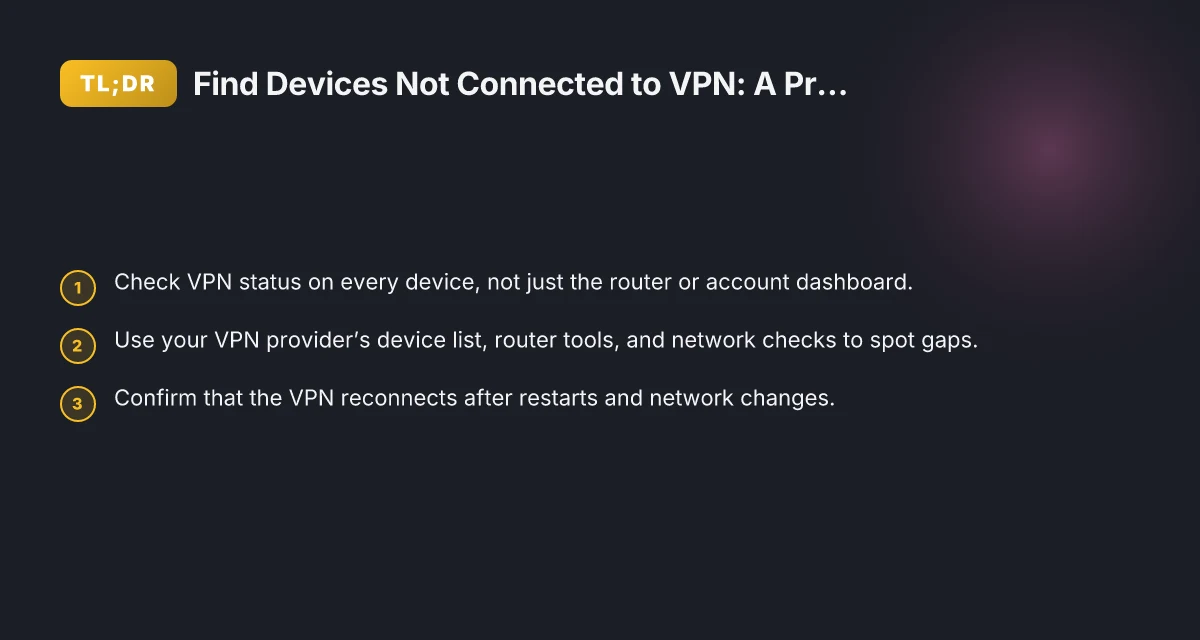
The most reliable way to find devices not connected to a VPN is to compare your complete device inventory with both the VPN status and the router’s connected-device list, then verify questionable devices with an IP check. Review guest networks and routing exclusions, fix any unintended gaps, and retest after a restart or network change.