NordVPN PC: How to Install, Set Up, and Use It
Learn how to download NordVPN for PC, connect securely, choose settings, and troubleshoot common Windows app issues.
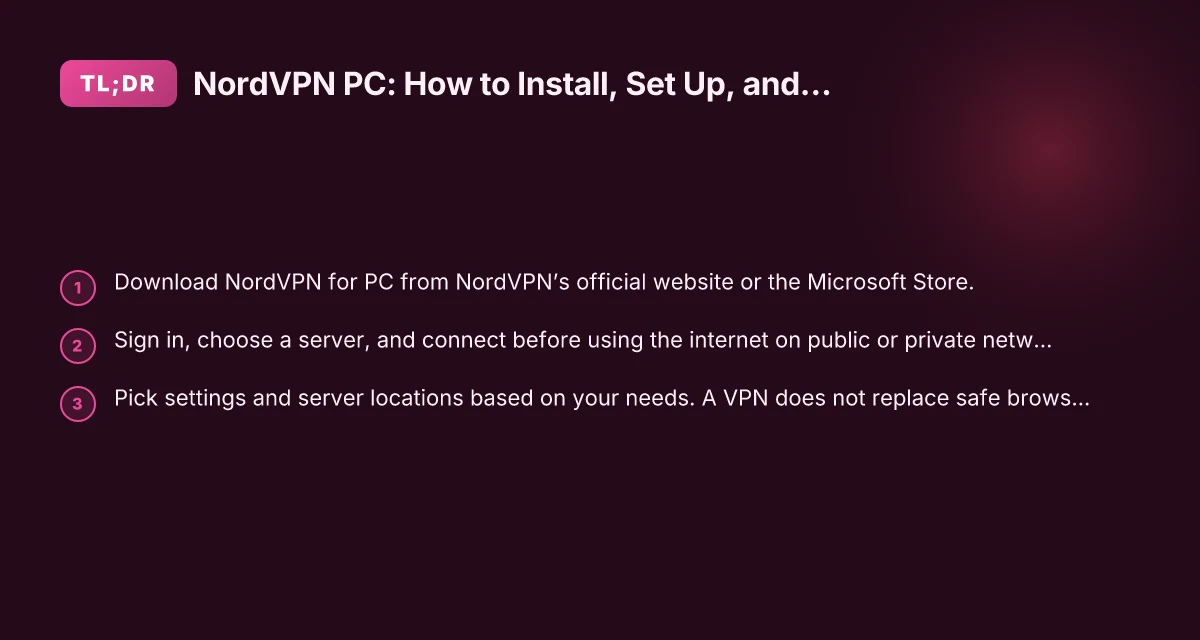
NordVPN for PC is a Windows app that routes your internet traffic through an encrypted VPN connection. To use it, download the official app, sign in to your Nord Account, and select a server or use the quick-connect option. The app can help protect traffic on shared networks, change the apparent location of your connection, and provide access to additional security tools, depending on your plan and settings.

Editor's pick: NordVPN — fast, secure VPN — Strong encryption, a no-logs policy and apps for every device. 30-day money-back guarantee. Get NordVPN →
Compare NordVPN connection options
| Option | Best for | How it works | Server choice | Main trade-off |
|---|---|---|---|---|
| Quick Connect | A fast, simple connection | Selects a server automatically | Automatic | Less control over location |
| Search by country | Connecting through a chosen country | Pick a country in the app | Country-level | May not select a specific city |
| Search by city | A particular location | Choose a listed city | City-level, where available | Options depend on the country |
| Search by server number | Reconnecting to a known server | Enter or select its number | Specific server | Requires knowing the server number |
| Specialty server | A particular connection type | Choose a supported specialty category | Category-based | Not every category suits every task |
| Disconnect | Stop using the VPN | End the active VPN connection | None | Internet traffic no longer uses the VPN |
Compiled November 2026; check the provider's site for current details.
| VPN | Obfuscation | From / month | Plan | Free plan | Refund | Alipay | UnionPay | Crypto | Website opens in China | Trustpilot | |
|---|---|---|---|---|---|---|---|---|---|---|---|
 NordVPN | Turn on manually Obfuscated Servers / NordWhisper | $3.49/mo | 27 months: $94.23 | No | 30 days | ? | ✗ | ✓ | ✓ | ✗ Blocked | 4.2/5 (51,628 reviews) |
 ZoogVPN | Turn on manually Shadow | $2.49/mo | 27 months: $59.99 | Yes | 7 days | ✓ | ✓ | ✓ | ✓ | Official site blocked; our special link opens (4.4 s) | 4.2/5 (195 reviews) |
 ExpressVPN | ✓ On by default all servers | $3.00/mo | 28 months: $84 | No | 30 days | ✗ | ✗ | ✓ | ✗ | ✗ Blocked | 4.4/5 (29,706 reviews) |
 Surfshark | ✓ On by default Camouflage, with OpenVPN | See site | See site | No | 30 days | ✗ | ✗ | ✗ | ✓ | ✗ Blocked | 4.3/5 (31,823 reviews) |
 Proton VPN | Turn on manually Stealth, free plan too | $2.99/mo | 12 months: $35.88 | Yes | 30 days | ✗ | ✗ | ✗ | ✓ | ✗ Blocked | 2.1/5 (1,040 reviews) |
 Astrill VPN | Turn on manually StealthVPN / OpenWeb | $12.50/mo | 24 months: $300 | No | See site | ✗ | ✗ | ✗ | ✓ | ✗ Blocked | 1.3/5 (110 reviews) |
 Private Internet Access | Turn on manually Shadowsocks, OpenVPN only | $2.03/mo | 40 months: $81.2 | No | 30 days | ✗ | ✗ | ✗ | ✗ | ✗ Blocked | 4.2/5 (11,033 reviews) |
 CyberGhost | Turn on manually selected servers | $2.19/mo | 28 months: $61.32 | No | 45 days | ✗ | ✗ | ✗ | ✓ | ✗ Blocked | 4.0/5 (24,178 reviews) |
 PureVPN | Turn on manually switch to OpenVPN | $1.69/mo | 60 months: $101.55 | No | 31 days | ? | ? | ✗ | ✓ | ✗ Blocked | 4.4/5 (17,994 reviews) |
 AdGuard VPN | ✓ On by default TrustTunnel | $2.99/mo | 24 months: $71.76 | Yes | 30 days | ✓ | ✗ | ✓ | ✓ | Official site blocked; our special link opens (3.7 s) | 4.3/5 (290 reviews) |
 Mullvad | Turn on manually QUIC / Shadowsocks / LWO | $5.61/mo | €5/mo | No | 14 days | ✗ | ✗ | ✗ | ✓ | ✗ Blocked | 3.2/5 (192 reviews) |
 Windscribe | Turn on manually Stealth / WStunnel | $5.75/mo | 12 months: $69 | Yes | See site | ✗ | ✗ | ✗ | ✓ | ✗ Blocked | 4.7/5 (13,355 reviews) |
 StrongVPN | Turn on manually Scramble, OpenVPN TCP | See site | See site | No | 30 days | ✓ | ✗ | ✗ | ✗ | ✗ Blocked | 4.4/5 (2,695 reviews) |
 LightXtreme 闪连 | Not listed | $7.08/mo | 12 months: $84.99 | Yes | 30 days | ✓ | ✓ | ✓ | ✓ | ✓ Yes (3.5 s) | No page |
Prices checked 2026-11-10 on each vendor's pricing page (cheapest long plan, USD). Check the vendor's checkout for the final price.
Obfuscation checked 2026-11-14 on each vendor's site and help center: "on by default" = nothing to set; "turn on manually" = switch protocol or mode in settings; "not listed" = the vendor describes no obfuscation.
Payment methods checked 2026-11-10 on each vendor's payment pages: all 14 take cards and PayPal; ✗ = not listed, ? = the vendor's own pages disagree.
China access: whether the official website opens from mainland China networks (tests the website only, not the VPN connection). Last checked 2026-11-18 01:02 Beijing time.
Trustpilot score and review count checked 2026-11-10.
What NordVPN for PC does
A VPN, or virtual private network, creates an encrypted connection between your computer and a VPN server. Websites and online services generally see the server’s IP address rather than your home network’s public IP address. Your internet provider may still see that you are connected to a VPN, but the VPN helps prevent it from viewing the contents of your encrypted traffic.
NordVPN’s Windows app provides a graphical interface for connecting and managing supported features. Depending on the current app version, plan, and region, options may include:
- A server map and country list
- Quick Connect, which chooses a server automatically
- Specialty servers, such as Double VPN or P2P servers
- Threat Protection features
- A kill switch and split tunneling
Features and labels can change over time. Check the app and NordVPN’s current plan information to confirm what is included.
A VPN does not make you completely anonymous or protect against every online threat. Websites can still identify you through account sign-ins, browser cookies, or other tracking methods. Use updated software, strong passwords, and caution with links and downloads. Nord VPN China 2026: Does It Work, and Is It Worth Trying?
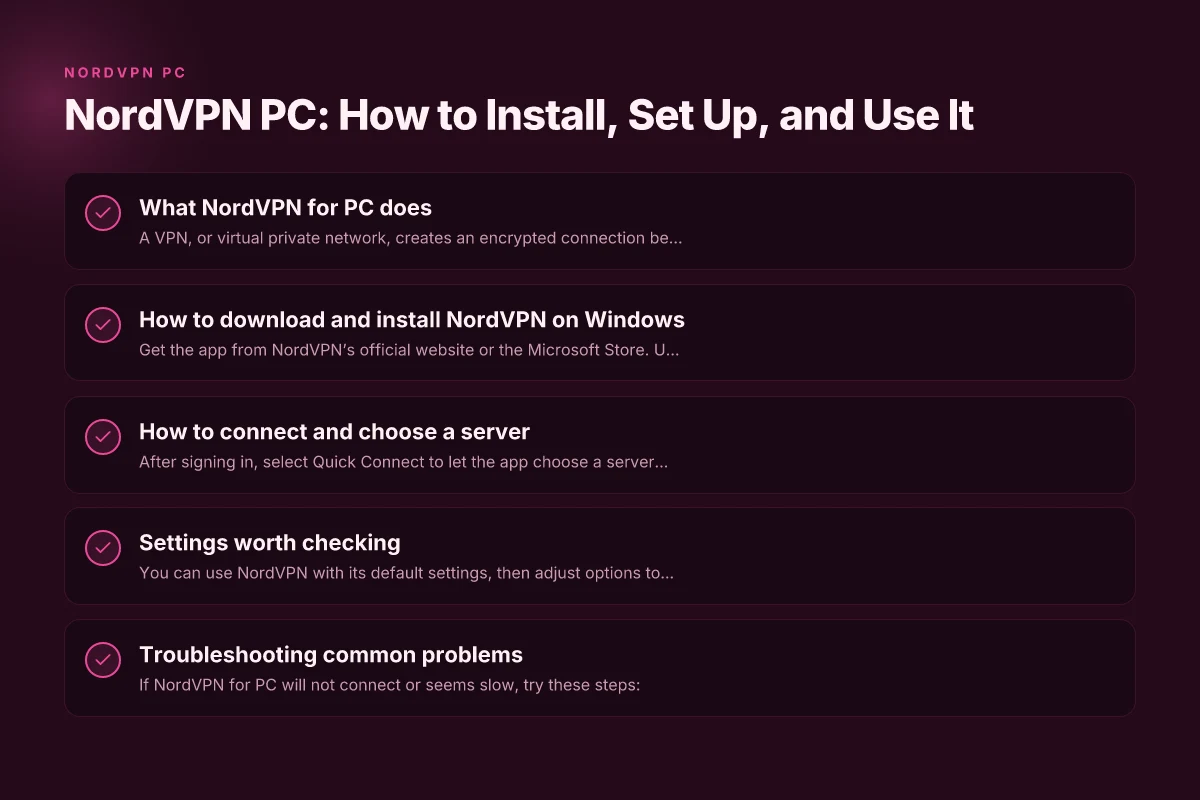
How to download and install NordVPN on Windows
Get the app from NordVPN’s official website or the Microsoft Store. Using an official source helps reduce the risk of installing a fake or altered program.
- Visit NordVPN’s website or open the Microsoft Store.
- Find the NordVPN app for Windows and download it.
- Open the installer and follow the on-screen instructions.
- Approve any Windows prompts needed to install the app.
- Launch NordVPN and sign in to your Nord Account.
You need an active subscription to use the VPN service. If you do not have an account, follow NordVPN’s sign-up process and review the subscription terms before purchasing. Avoid installers from third-party download sites, which may be outdated or unsafe.
If the app will not install, check that your Windows version is supported, that you have sufficient disk space, and that the installer has finished downloading. Restarting the computer can also resolve temporary installation problems.
How to connect and choose a server
After signing in, select Quick Connect to let the app choose a server, or choose a country from the map or server list. The best option depends on what you are trying to do. Urban VPN Extension for Chrome: Features, Safety, and Setup
- For everyday browsing: Quick Connect is a convenient starting point.
- For speed: Try a nearby server, since a shorter route often reduces delay.
- For a location-specific connection: Select a server in the country you need.
- For a supported activity: Choose a specialty server when the app indicates it is appropriate.
Once connected, the app should show that the VPN is active. You can then browse as usual. To disconnect, use the app’s disconnect control. If a website or service does not work as expected, try another server or disconnect and reconnect.
| Option | Useful for | What to consider |
|---|---|---|
| Quick Connect | A simple, automatic connection | The selected location may not be the one you prefer |
| Nearby country | General use and potentially lower delay | Speed still depends on the server and your connection |
| Specific country | Connecting through a chosen location | Some websites may block VPN traffic |
| Specialty server | Activities listed in the app | Availability and suitability depend on the server type |
A VPN cannot guarantee access to a particular website or streaming service. Services may restrict VPN connections, and their rules can change. Follow applicable terms and local laws.
NordVPN for Windows setup and connection checks
| Check | What to do | What to look for | If it does not work |
|---|---|---|---|
| Download source | Get the installer from NordVPN’s official website | Windows installer | Avoid third-party download sites |
| Installer launch | Open the downloaded installer | Setup starts | Check the file finished downloading |
| App sign-in | Sign in to your NordVPN account | Account opens in the app | Confirm the account details |
| First connection | Select Quick Connect | App shows a connected status | Try a different server |
| Location choice | Search for a country or city | Selected location appears | Check whether that location is listed |
| App update | Check for an available app update | Latest available version is installed | Restart the app after updating |
| Network access | Check that the internet works without the VPN | Websites load normally | Troubleshoot the internet connection first |
| Security settings | Review the app’s connection and security options | Settings match your needs | Change one setting at a time |
Compiled November 2026; check the provider's site for current details. Best Android VPN Reddit Users Recommend: A Practical 2026 Guide
Settings worth checking
You can use NordVPN with its default settings, then adjust options to match your needs. Open the Windows app’s settings and review each feature before enabling it.
Kill switch
A kill switch can block internet access if the VPN connection drops, helping prevent traffic from continuing over your regular connection. Check how the setting works in your version of the app, and test it before relying on it for sensitive activity. Some implementations can affect access to local network devices.
Auto-connect
Auto-connect can start the VPN automatically when Windows launches or when you join a selected type of network. It is useful if you often forget to connect, but confirm which server or location it uses.
Split tunneling
If available, split tunneling lets you choose which apps use the VPN and which connect directly to the internet. This can help with apps that need a local connection, but it means excluded apps do not receive the same VPN routing. Aurora VPN for Firestick: Setup, Compatibility, and What to Check
Threat Protection
Threat Protection features may help block certain ads, trackers, or harmful sites, depending on the version and configuration. They are an additional layer, not a replacement for antivirus software, browser protections, or careful downloading.
Troubleshooting common problems
If NordVPN for PC will not connect or seems slow, try these steps:
- Check that your internet works with the VPN disconnected.
- Try a different server or a nearby location.
- Close and reopen the app, then sign in again if prompted.
- Restart Windows and check for app updates.
- Temporarily review firewall or security software settings, without leaving your PC unprotected.
- Check NordVPN’s service status and support guidance.
If a website behaves differently while connected, clear its cookies or try another server. A site may have stored location data or may block VPN IP addresses. If the VPN connects but your internet stops working, disconnect, confirm your normal connection is available, and review the kill switch and network settings.
For persistent errors, note the exact message and the Windows version you are using before contacting NordVPN support. Do not share your password or other sensitive account information in a public forum. Clash for Android: What It Is, How to Install It, and What to Know
Troubleshooting choices for common NordVPN PC problems
| Problem | First check | Next step | When to try another option | Avoid |
|---|---|---|---|---|
| Installer will not open | Confirm the download completed | Download the installer again from NordVPN | If Windows still blocks it, review the warning | Installers from unknown sites |
| Sign-in fails | Recheck account details | Try signing in again | Contact NordVPN support if access remains unavailable | Sharing account credentials |
| Quick Connect fails | Check your internet connection | Choose a server manually | Try another location if needed | Repeating the same failed connection |
| One server will not connect | Select a different server in the location | Try another country or city | Return to the original server later | Assuming every server is available |
| VPN connects but websites do not load | Check whether sites load after disconnecting | Reconnect to another server | Troubleshoot the underlying network if needed | Changing many settings at once |
| Connection drops | Check the network connection | Reconnect or choose another server | Review connection settings | Assuming a brief drop means the app is broken |
| App behaves unexpectedly | Close and reopen the app | Check for an update | Reinstall using the official installer if needed | Deleting unrelated system files |
| Problem persists | Note the error and steps tried | Contact NordVPN support | Follow support guidance | Sharing sensitive account information |
Compiled November 2026; check the provider's site for current details.
Recommendation
For most Windows users, NordVPN for PC is straightforward: install the official app, sign in, and start with Quick Connect or a nearby server. Turn on features such as auto-connect or the kill switch only after checking how they work for your setup. A VPN can improve privacy on the connection, but it works best alongside updated software, secure accounts, and sensible browsing habits.