Azure Download VPN Client Not Working: Causes and Fixes
Fix Azure VPN client download problems with practical checks for permissions, browser issues, Azure configuration, and installation.


If the Azure download VPN client is not working, first verify that you are downloading the client from the correct Azure VPN gateway and that point-to-site (P2S) VPN is configured. Then check your access permissions, browser, network restrictions, and gateway settings. A failed download can mean the portal cannot generate the package, your account cannot access it, or a browser or security tool is blocking the request.

Editor's pick: NordVPN — fast, secure VPN — Strong encryption, a no-logs policy and apps for every device. 30-day money-back guarantee. Get NordVPN →
Choose the Azure VPN client download that matches your setup
| Client or option | Best fit | Where to get it | What to check | If unavailable |
|---|---|---|---|---|
| Azure VPN Client for Windows | Windows device using Azure VPN | Microsoft Store | Windows compatibility | Check device access to Store |
| Azure VPN Client for macOS | Mac using Azure VPN | Mac App Store | macOS compatibility | Check App Store access |
| Azure VPN Client for Linux | Supported Linux setup | Azure documentation | Distribution and setup steps | Use documented installation method |
| VPN client linked by your administrator | Organization-managed connection | Administrator-provided link | Link is current and trusted | Ask the administrator for the correct link |
| Generic VPN client | Gateway configuration explicitly supports it | Client’s official source | Protocol and gateway compatibility | Confirm supported clients with administrator |
Compiled November 2026; check the provider's site for current details.
| VPN | Obfuscation | From / month | Plan | Free plan | Refund | Alipay | UnionPay | Crypto | Website opens in China | Trustpilot | |
|---|---|---|---|---|---|---|---|---|---|---|---|
 ZoogVPN | Turn on manually Shadow | $2.49/mo | 27 months: $59.99 | Yes | 7 days | ✓ | ✓ | ✓ | ✓ | Official site blocked; our special link opens (4.4 s) | 4.2/5 (195 reviews) |
 NordVPN | Turn on manually Obfuscated Servers / NordWhisper | $3.49/mo | 27 months: $94.23 | No | 30 days | ? | ✗ | ✓ | ✓ | ✗ Blocked | 4.2/5 (51,628 reviews) |
 ExpressVPN | ✓ On by default all servers | $3.00/mo | 28 months: $84 | No | 30 days | ✗ | ✗ | ✓ | ✗ | ✗ Blocked | 4.4/5 (29,706 reviews) |
 Surfshark | ✓ On by default Camouflage, with OpenVPN | See site | See site | No | 30 days | ✗ | ✗ | ✗ | ✓ | ✗ Blocked | 4.3/5 (31,823 reviews) |
 Proton VPN | Turn on manually Stealth, free plan too | $2.99/mo | 12 months: $35.88 | Yes | 30 days | ✗ | ✗ | ✗ | ✓ | ✗ Blocked | 2.1/5 (1,040 reviews) |
 Astrill VPN | Turn on manually StealthVPN / OpenWeb | $12.50/mo | 24 months: $300 | No | See site | ✗ | ✗ | ✗ | ✓ | ✗ Blocked | 1.3/5 (110 reviews) |
 Private Internet Access | Turn on manually Shadowsocks, OpenVPN only | $2.03/mo | 40 months: $81.2 | No | 30 days | ✗ | ✗ | ✗ | ✗ | ✗ Blocked | 4.2/5 (11,033 reviews) |
 CyberGhost | Turn on manually selected servers | $2.19/mo | 28 months: $61.32 | No | 45 days | ✗ | ✗ | ✗ | ✓ | ✗ Blocked | 4.0/5 (24,178 reviews) |
 PureVPN | Turn on manually switch to OpenVPN | $1.69/mo | 60 months: $101.55 | No | 31 days | ? | ? | ✗ | ✓ | ✗ Blocked | 4.4/5 (17,994 reviews) |
 AdGuard VPN | ✓ On by default TrustTunnel | $2.99/mo | 24 months: $71.76 | Yes | 30 days | ✓ | ✗ | ✓ | ✓ | Official site blocked; our special link opens (3.7 s) | 4.3/5 (290 reviews) |
 Mullvad | Turn on manually QUIC / Shadowsocks / LWO | $5.61/mo | €5/mo | No | 14 days | ✗ | ✗ | ✗ | ✓ | ✗ Blocked | 3.2/5 (192 reviews) |
 Windscribe | Turn on manually Stealth / WStunnel | $5.75/mo | 12 months: $69 | Yes | See site | ✗ | ✗ | ✗ | ✓ | ✗ Blocked | 4.7/5 (13,355 reviews) |
 StrongVPN | Turn on manually Scramble, OpenVPN TCP | See site | See site | No | 30 days | ✓ | ✗ | ✗ | ✗ | ✗ Blocked | 4.4/5 (2,695 reviews) |
 LightXtreme 闪连 | Not listed | $7.08/mo | 12 months: $84.99 | Yes | 30 days | ✓ | ✓ | ✓ | ✓ | ✓ Yes (3.5 s) | No page |
Prices checked 2026-11-10 on each vendor's pricing page (cheapest long plan, USD). Check the vendor's checkout for the final price.
Obfuscation checked 2026-11-14 on each vendor's site and help center: "on by default" = nothing to set; "turn on manually" = switch protocol or mode in settings; "not listed" = the vendor describes no obfuscation.
Payment methods checked 2026-11-10 on each vendor's payment pages: all 14 take cards and PayPal; ✗ = not listed, ? = the vendor's own pages disagree.
China access: whether the official website opens from mainland China networks (tests the website only, not the VPN connection). Last checked 2026-11-18 01:02 Beijing time.
Trustpilot score and review count checked 2026-11-10.
Start with the right Azure VPN client download
In the Azure portal, open the virtual network gateway used for the VPN, then select Point-to-site configuration. The client download option is available for a gateway configured for P2S access. It is not a general download link for every Azure VPN resource.
Check that the gateway has a valid P2S address pool and an authentication method configured. Depending on the selected method, the gateway may also need certificates, Microsoft Entra ID settings, or other required configuration. If setup is incomplete, save the configuration and wait for Azure to apply it before trying again.
Use the client package generated for that specific gateway. A package from another environment may install successfully but contain the wrong VPN profile or settings.
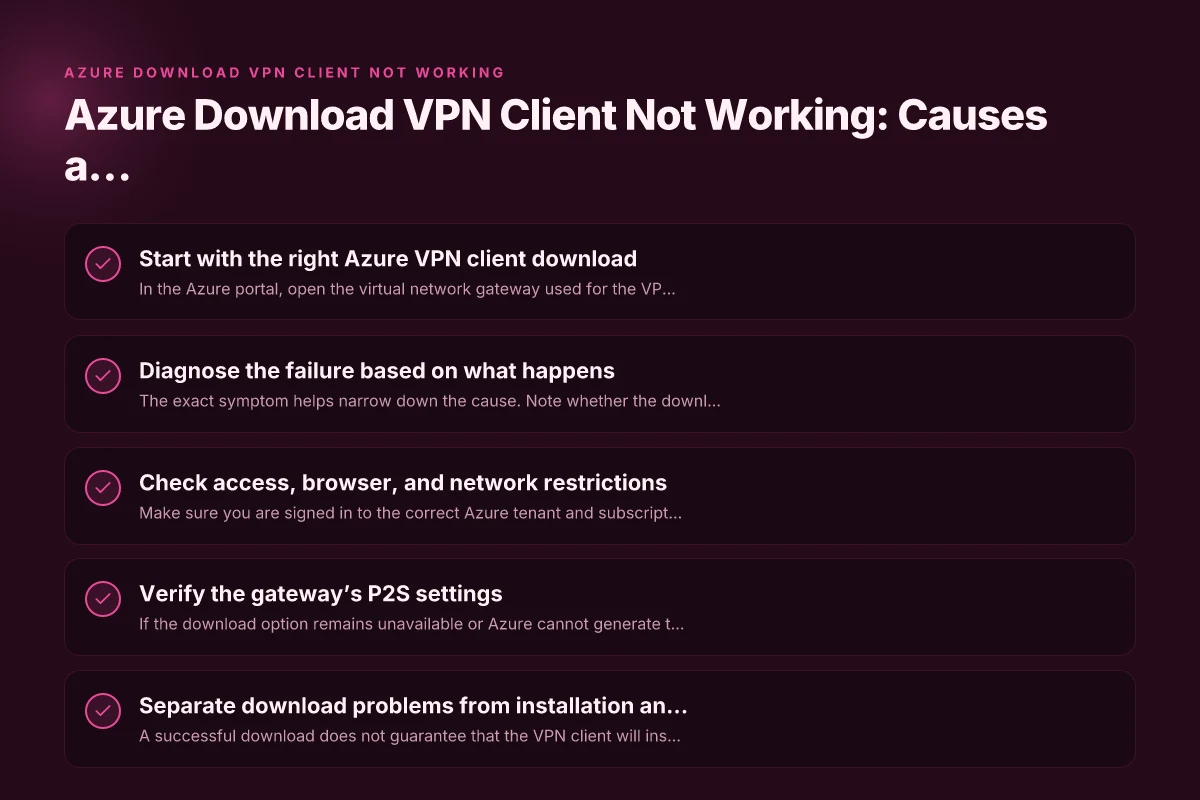
Diagnose the failure based on what happens
The exact symptom helps narrow down the cause. Note whether the download button is missing, the request fails, the file is blocked, or the installer fails after the file arrives. Forticlientvpnonlineinstaller: How to Download and Install FortiClient VPN
| Symptom | Likely cause | First check |
|---|---|---|
| Download option is missing | P2S is not configured, or you are on the wrong resource page | Open the virtual network gateway’s P2S configuration |
| Portal shows an error or download never starts | Gateway configuration, permissions, or a temporary portal issue | Confirm configuration and try again later or in another browser |
| File downloads but is blocked | Browser, endpoint security, or network filtering | Check download history and your organization’s security policy |
| Client installs but cannot connect | Profile, authentication, certificate, or gateway issue | Import the current profile and review connection settings |
If the portal reports an error, record the full message and when it occurred. That information is more useful to an administrator than a description such as “the download did not work.”
Diagnose the problem by what happens
| What happens | Likely area | First check | Next step | Contact administrator when |
|---|---|---|---|---|
| Download link will not open | Link or browser | Try the official store or link | Try another browser | Organization blocks the link |
| Store page opens but download fails | Store access or network | Check sign-in and network | Try an approved network | Store access is restricted |
| Download is blocked | Device or network policy | Note the warning or error | Check approved download sources | Policy requires an exception |
| Client downloads but will not install | Installation or device permissions | Check device requirements | Follow the client’s install guidance | Device is managed or install is denied |
| Client installs but profile is missing | VPN configuration | Check the supplied profile | Request the correct profile | No profile was provided |
| Client connects but cannot reach resources | Gateway or network access | Check connection status | Verify P2S settings and routes | Access remains unavailable |
| Error appears during connection | Client or gateway configuration | Save the exact error text | Retry after checking settings | Error persists or affects others |
Compiled November 2026; check the provider's site for current details.
Check access, browser, and network restrictions
Make sure you are signed in to the correct Azure tenant and subscription and have permission to view the virtual network gateway and its configuration. If you cannot see the gateway or relevant options, ask an Azure administrator to check your role assignments and resource access. Do not try to bypass your organization’s access controls. How to Add a Device to NordVPN
Next, rule out browser-related problems:
- Refresh the portal and sign out, then sign back in.
- Try a supported, up-to-date browser or a private window.
- Temporarily disable browser extensions that might block downloads, if your organization permits it.
- Check the browser’s downloads list for a prompt, warning, or blocked file.
- Avoid repeatedly retrying if Azure is still applying a gateway change.
A corporate proxy, firewall, VPN, or endpoint protection tool can also interrupt a download. If permitted, try another approved network or ask your IT team whether Azure portal downloads are being filtered. Do not disable security software without authorization.
Verify the gateway’s P2S settings
If the download option remains unavailable or Azure cannot generate the package, review the gateway configuration with an administrator. Confirm that:
- The resource is a virtual network gateway configured for point-to-site access.
- The P2S address pool is valid and does not conflict with connected networks.
- An authentication method is selected and its required settings are complete.
- Any required root certificate or Microsoft Entra ID configuration is in place.
- The gateway configuration has finished updating and is not showing a failed or pending operation.
Some configuration changes require time to propagate. Wait until the portal shows the operation has completed, then return to the P2S page and try again. If the settings appear correct but the portal continues to fail, check Azure Service Health for an incident affecting the portal or VPN services. Free VPN Extension for Microsoft Edge: What to Know Before You Install
Separate download issues from later VPN problems
| Stage | Typical symptom | What to verify | Who can help | Avoid assuming |
|---|---|---|---|---|
| Find the download | Link or store listing is unavailable | Correct client and official source | Administrator | The gateway is broken |
| Download the client | Download fails or is blocked | Browser, sign-in, and network restrictions | IT or network team | A different client is compatible |
| Install the client | Installer fails or is denied | Device requirements and permissions | Device administrator | Download failure caused installation issue |
| Get VPN configuration | Profile or settings are missing | Administrator-provided profile | Azure administrator | Installing the app configures the VPN |
| Connect to gateway | Connection fails | Client settings and P2S configuration | Azure administrator | The app download is still the problem |
| Reach private resources | VPN connects, but services do not work | Routes, permissions, and network access | Network or resource owner | A successful connection grants all access |
| Escalate for support | Issue persists after basic checks | Error text, device, client, and steps tried | Administrator or Microsoft support | Support can diagnose without details |
Compiled November 2026; check the provider's site for current details.
Separate download problems from installation and connection problems
A successful download does not guarantee that the VPN client will install or connect. First confirm that the file is complete and came from the expected Azure gateway. Follow your organization’s software installation policy, and use the client and operating system supported by your VPN configuration.
If installation fails, note the installer’s error message and check for an existing client version, device restrictions, or administrator approval requirements. If the client installs but the VPN connection fails, download the latest profile from the gateway and import it again. An older profile may no longer match the current gateway configuration. Account NordVPN: How to Sign In, Manage Your Account, and Fix Common Issues
For connection errors, review the selected authentication method, user sign-in, certificates, and device date and time. A user certificate may need to be installed in the correct certificate store, while Microsoft Entra ID authentication must use the configured sign-in flow. Ask your administrator to check gateway diagnostics and relevant client logs rather than sharing passwords, private keys, or sensitive configuration files.
When to contact an Azure administrator or support
Contact your Azure administrator if you lack access, cannot see the P2S settings, or are unsure whether the gateway is configured correctly. Provide the resource name, the time of the attempt, the exact portal message, and the browser and operating system you used. Do not send secrets or certificate private keys.
If the administrator confirms that permissions and gateway settings are correct, reproduce the issue in another approved browser and check Azure Service Health. For a persistent portal or package-generation error, use your organization’s Azure support process and include the troubleshooting details already collected.
Recommendation
Start by confirming that you are on the correct virtual network gateway and that P2S configuration is complete. Then check permissions and browser or network blocking. Once the package downloads, troubleshoot installation or VPN connection failures separately. They usually involve the client profile, authentication, or device policy rather than the download itself. 3 Year NordVPN Deal: Is There a Long-Term Plan Worth Buying?