How to Add a Device to NordVPN
Add a device to NordVPN by installing the app, signing in, and connecting, or set up a router to cover more devices.


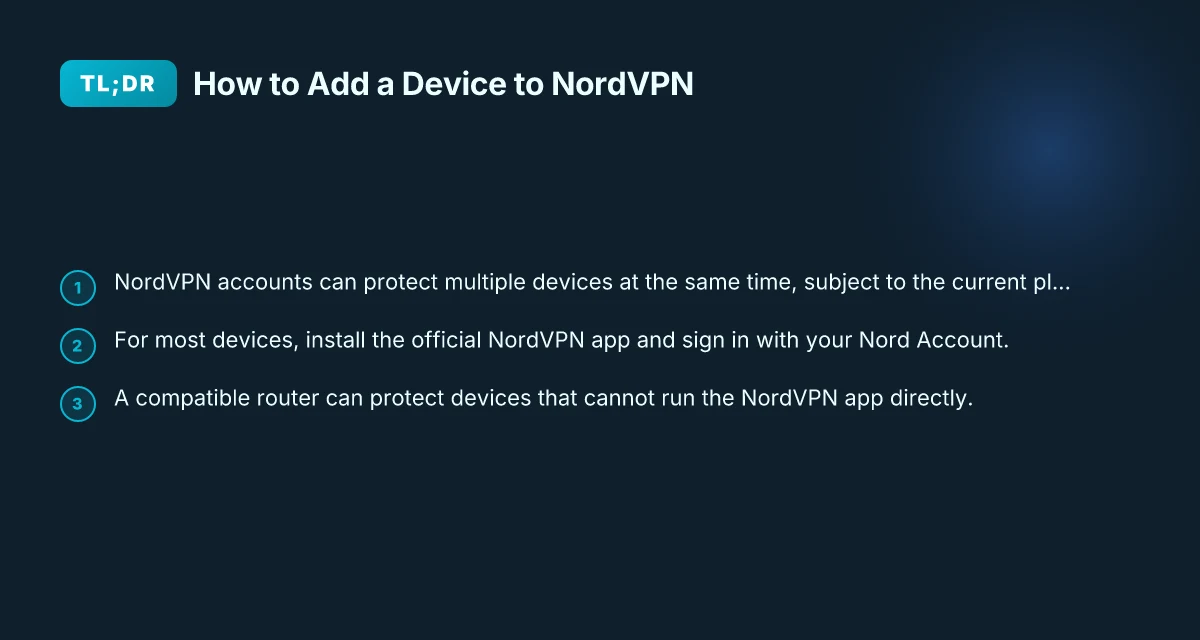
To add a device to NordVPN, install the official NordVPN app on it, sign in with your Nord Account, and connect to a VPN server. You generally do not need to buy a separate subscription for each device. NordVPN allows multiple simultaneous connections under one account, although the connection limit can depend on your plan and current NordVPN terms.

Editor's pick: NordVPN — fast, secure VPN — Strong encryption, a no-logs policy and apps for every device. 30-day money-back guarantee. Get NordVPN →
Choose the setup method that fits your device
| Setup method | Best for | App needed | Setup location | Key consideration |
|---|---|---|---|---|
| NordVPN app | Phones, tablets, computers | Yes | Device | Sign in to your account |
| Windows app | Windows computers | Yes | Device | Use the official NordVPN app |
| macOS app | Mac computers | Yes | Device | Use the official NordVPN app |
| Android app | Android phones and tablets | Yes | Device | Use the official NordVPN app |
| iOS app | iPhone and iPad | Yes | Device | Use the official NordVPN app |
| Linux setup | Linux computers | Depends on method | Device | Follow Linux-specific instructions |
| Router setup | Multiple devices on a network | No per-device app required | Router | Requires compatible router |
| Manual setup | Devices without a suitable app | No | Device or router | Available methods vary by device |
Compiled November 2026; check the provider's site for current details.
| VPN | Obfuscation | From / month | Plan | Free plan | Refund | Alipay | UnionPay | Crypto | Website opens in China | Trustpilot | |
|---|---|---|---|---|---|---|---|---|---|---|---|
 NordVPN | Turn on manually Obfuscated Servers / NordWhisper | $3.49/mo | 27 months: $94.23 | No | 30 days | ? | ✗ | ✓ | ✓ | ✗ Blocked | 4.2/5 (51,628 reviews) |
 ZoogVPN | Turn on manually Shadow | $2.49/mo | 27 months: $59.99 | Yes | 7 days | ✓ | ✓ | ✓ | ✓ | Official site blocked; our special link opens (4.4 s) | 4.2/5 (195 reviews) |
 ExpressVPN | ✓ On by default all servers | $3.00/mo | 28 months: $84 | No | 30 days | ✗ | ✗ | ✓ | ✗ | ✗ Blocked | 4.4/5 (29,706 reviews) |
 Surfshark | ✓ On by default Camouflage, with OpenVPN | See site | See site | No | 30 days | ✗ | ✗ | ✗ | ✓ | ✗ Blocked | 4.3/5 (31,823 reviews) |
 Proton VPN | Turn on manually Stealth, free plan too | $2.99/mo | 12 months: $35.88 | Yes | 30 days | ✗ | ✗ | ✗ | ✓ | ✗ Blocked | 2.1/5 (1,040 reviews) |
 Astrill VPN | Turn on manually StealthVPN / OpenWeb | $12.50/mo | 24 months: $300 | No | See site | ✗ | ✗ | ✗ | ✓ | ✗ Blocked | 1.3/5 (110 reviews) |
 Private Internet Access | Turn on manually Shadowsocks, OpenVPN only | $2.03/mo | 40 months: $81.2 | No | 30 days | ✗ | ✗ | ✗ | ✗ | ✗ Blocked | 4.2/5 (11,033 reviews) |
 CyberGhost | Turn on manually selected servers | $2.19/mo | 28 months: $61.32 | No | 45 days | ✗ | ✗ | ✗ | ✓ | ✗ Blocked | 4.0/5 (24,178 reviews) |
 PureVPN | Turn on manually switch to OpenVPN | $1.69/mo | 60 months: $101.55 | No | 31 days | ? | ? | ✗ | ✓ | ✗ Blocked | 4.4/5 (17,994 reviews) |
 AdGuard VPN | ✓ On by default TrustTunnel | $2.99/mo | 24 months: $71.76 | Yes | 30 days | ✓ | ✗ | ✓ | ✓ | Official site blocked; our special link opens (3.7 s) | 4.3/5 (290 reviews) |
 Mullvad | Turn on manually QUIC / Shadowsocks / LWO | $5.61/mo | €5/mo | No | 14 days | ✗ | ✗ | ✗ | ✓ | ✗ Blocked | 3.2/5 (192 reviews) |
 Windscribe | Turn on manually Stealth / WStunnel | $5.75/mo | 12 months: $69 | Yes | See site | ✗ | ✗ | ✗ | ✓ | ✗ Blocked | 4.7/5 (13,355 reviews) |
 StrongVPN | Turn on manually Scramble, OpenVPN TCP | See site | See site | No | 30 days | ✓ | ✗ | ✗ | ✗ | ✗ Blocked | 4.4/5 (2,695 reviews) |
 LightXtreme 闪连 | Not listed | $7.08/mo | 12 months: $84.99 | Yes | 30 days | ✓ | ✓ | ✓ | ✓ | ✓ Yes (3.5 s) | No page |
Prices checked 2026-11-10 on each vendor's pricing page (cheapest long plan, USD). Check the vendor's checkout for the final price.
Obfuscation checked 2026-11-14 on each vendor's site and help center: "on by default" = nothing to set; "turn on manually" = switch protocol or mode in settings; "not listed" = the vendor describes no obfuscation.
Payment methods checked 2026-11-10 on each vendor's payment pages: all 14 take cards and PayPal; ✗ = not listed, ? = the vendor's own pages disagree.
China access: whether the official website opens from mainland China networks (tests the website only, not the VPN connection). Last checked 2026-11-18 01:02 Beijing time.
Trustpilot score and review count checked 2026-11-10.
Check your account and device limit
Before setting up another device, check that your subscription is active and that you have not reached its simultaneous connection limit. You can review your plan and account information by signing in to the Nord Account website.
If you are already at the limit, disconnect a device you are not using, sign out of the app on that device, or check whether your plan offers a higher limit. A router setup may also let several devices share one VPN connection, but those devices may count differently under NordVPN’s current rules. Check the latest account guidance before relying on this option.
Adding NordVPN to a device does not normally require creating another account. Use the same Nord Account credentials you use for your existing subscription.
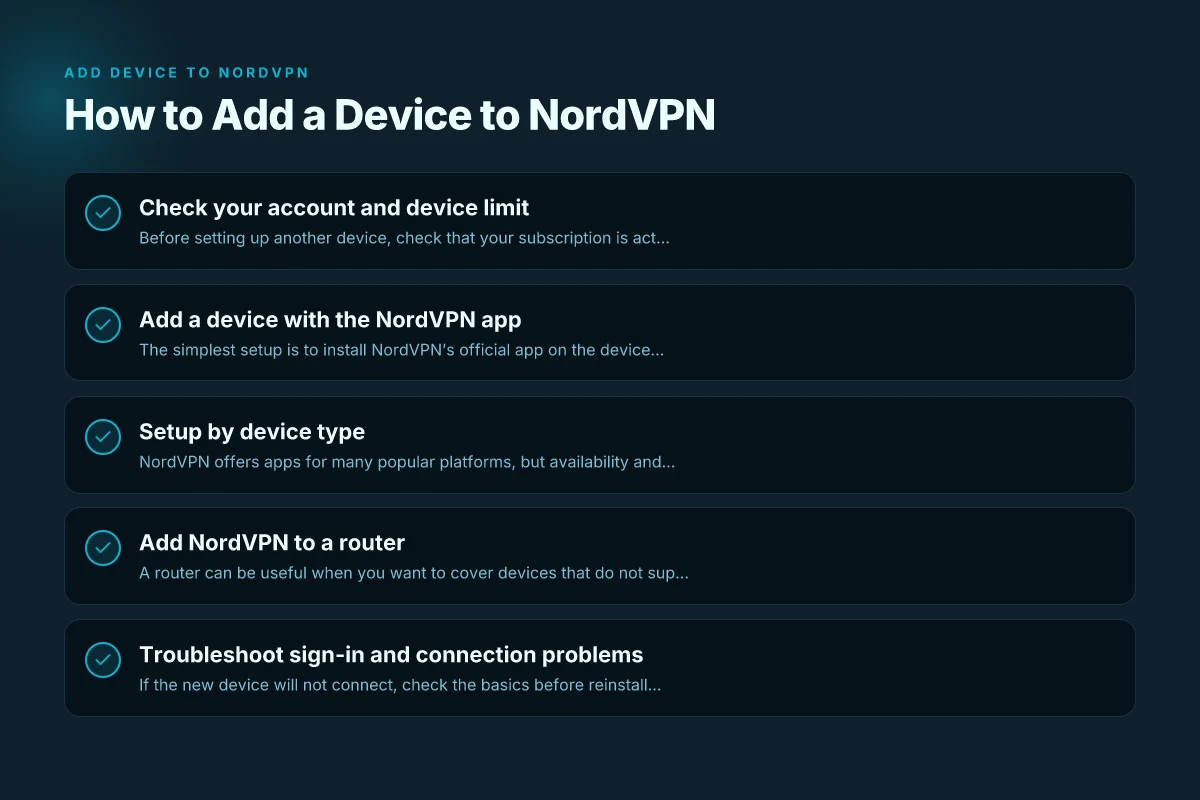
Add a device with the NordVPN app
The simplest setup is to install NordVPN’s official app on the device you want to protect. The exact steps vary by operating system, but the process is similar: Free VPN Extension for Microsoft Edge: What to Know Before You Install
- Open the official app store for your device, or visit NordVPN’s website.
- Download the NordVPN app for your operating system.
- Open the app and choose the option to sign in.
- Sign in using your Nord Account credentials.
- Approve any requested permissions, such as permission to add a VPN configuration.
- Select a server or tap the quick-connect option.
- Confirm the VPN shows as connected before browsing.
Download the app from NordVPN or the device’s trusted app store rather than from an unfamiliar website. On mobile devices, your operating system may display a prompt asking you to allow NordVPN to create or manage a VPN connection. Approve it if you want the app to connect.
Once setup is complete, the app can usually reconnect without requiring you to sign in every time. You can choose a different country or server in the app, and you can disconnect whenever you no longer want the VPN connection active.
Setup by device type
NordVPN offers apps for many popular platforms, but availability and menus can change. Use the app version intended for your device.
| Device | Typical setup | Notes |
|---|---|---|
| Windows or Mac computer | Install the desktop app, sign in, and connect | Use the official NordVPN download page or your computer’s app store |
| Android phone or tablet | Install the NordVPN app from Google Play, then sign in | Approve the VPN connection request |
| iPhone or iPad | Install NordVPN from the App Store, then sign in | Approve the iOS VPN configuration prompt |
| Linux computer | Follow NordVPN’s Linux installation instructions | Setup may use a command line or a graphical app, depending on the distribution |
| Smart TV or streaming device | Install the app if NordVPN supports that model or platform | Some devices may need a router-based setup instead |
If the device is shared with other people, consider whether you want NordVPN to connect automatically. Review the app’s startup, auto-connect, and trusted-network settings so they suit how the device is used. Account NordVPN: How to Sign In, Manage Your Account, and Fix Common Issues
Compare app and router setup
| Option | Where you add NordVPN | Covers multiple devices | Device compatibility | Main trade-off |
|---|---|---|---|---|
| App on each device | Each device | No | Devices with a supported app | Configure devices individually |
| Router setup | Router settings | Yes | Compatible routers | Router setup can be more involved |
| Windows app | Windows device | No | Windows computers | Limited to that device |
| macOS app | Mac device | No | Mac computers | Limited to that device |
| Android app | Android device | No | Android phones and tablets | Limited to that device |
| iOS app | iPhone or iPad | No | Apple mobile devices | Limited to that device |
| Linux setup | Linux device | No | Linux computers | Instructions depend on setup method |
Compiled November 2026; check the provider's site for current details.
Add NordVPN to a router
A router can be useful when you want to cover devices that do not support NordVPN apps, such as some smart TVs or game consoles. Instead of installing the app on each device, you configure the VPN on a compatible router. Devices connected through that router can then use its VPN connection.
Router setup is more involved than installing an app. First, check whether your router model and firmware support VPN client connections. Then follow NordVPN’s current router instructions for that model and connection method. You may need to enter server details and account or service credentials, and the router’s menu labels can differ by manufacturer. 3 Year NordVPN Deal: Is There a Long-Term Plan Worth Buying?
Keep these points in mind:
- Router compatibility is not universal.
- A router’s VPN connection may affect the speed of every device using it.
- Changing router settings can interrupt your home network if configured incorrectly.
- Some routers let you choose which devices use the VPN, while others route all connected devices through it.
- If your router does not support VPN connections, a compatible replacement or another supported setup may be needed.
For a device that supports the NordVPN app, the app is usually the easier choice. Use a router when app installation is unavailable or when you specifically want network-wide coverage.
Troubleshoot sign-in and connection problems
If the new device will not connect, check the basics before reinstalling the app:
- Confirm that your NordVPN subscription is active and that you entered the correct Nord Account details.
- Check your internet connection by opening a website with the VPN disconnected.
- Update the NordVPN app and your device’s operating system.
- Restart the app and device, then try another server.
- Disconnect an old device if your account may have reached its connection limit.
- Check NordVPN’s service status or support pages for current issues.
If you cannot sign in, make sure you are using the Nord Account login flow shown in the app. If you have forgotten your password, use the account recovery option rather than creating a second account. For persistent errors, contact NordVPN support and include the device type, operating system, and any error message you see. VPN for Photographers 2025: How to Choose the Right One
Troubleshoot sign-in and connection issues
| Problem | What to check | Suggested action | Applies to |
|---|---|---|---|
| Sign-in fails | Account credentials | Check that the details are correct | App or account |
| Sign-in fails | Account access | Confirm you can access your NordVPN account | App or account |
| App will not connect | Internet connection | Check that the device is online | Any device |
| App will not connect | App status | Restart the app and try again | App setup |
| App will not connect | Device status | Restart the device and retry | Any device |
| Router connection fails | Router compatibility | Confirm the router supports the setup | Router setup |
| Setup is incomplete | Device-specific steps | Follow instructions for your device type | Any device |
| Still having problems | Available support | Contact NordVPN support | Any setup |
Compiled November 2026; check the provider's site for current details.
Recommendation
For most people, the best way to add a device to NordVPN is to install the official app, sign in with the existing Nord Account, and connect to a server. Check your account’s connection limit if the app reports too many active connections. Choose a router setup only when the device cannot run the app or you want to protect multiple devices through one network connection.