Free VPN Extension for Microsoft Edge: What to Know Before You Install

Learn how free VPN extensions for Microsoft Edge work, what they protect, their limits, and how to choose one safely.


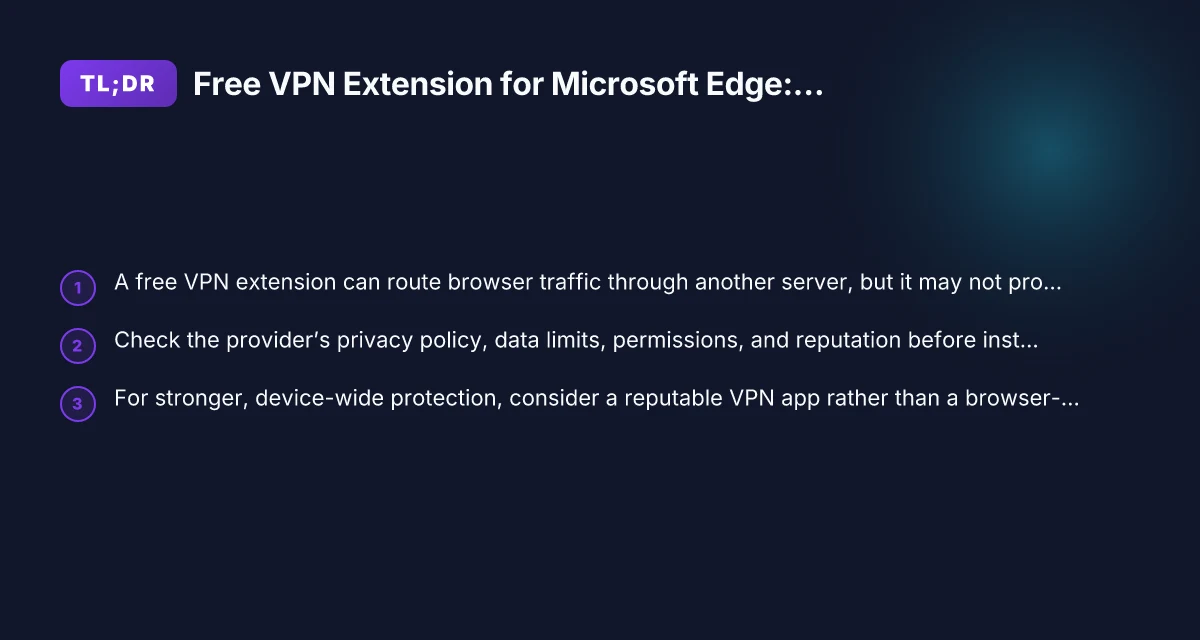
If you’re looking for a free VPN extension for Microsoft Edge, you can install one from the Microsoft Edge Add-ons store or use a trusted VPN provider’s official website. A browser extension can help route Edge traffic through a VPN server, but free options often have limits, and some extensions may be proxies rather than full VPNs. Choose carefully: the provider’s privacy practices matter as much as its price.

Editor's pick: NordVPN — fast, secure VPN — Strong encryption, a no-logs policy and apps for every device. 30-day money-back guarantee. Get NordVPN →
Compare free VPN extensions by what matters before installing
| Check | What to look for | Why it matters | Warning sign |
|---|---|---|---|
| Provider | A clearly identified company | Makes the service accountable | No company or contact details |
| Privacy policy | Plain-language data practices | Shows what may be collected | Vague or missing policy |
| Permissions | Access relevant to the extension’s function | Limits unnecessary access | Broad access with no explanation |
| Encryption | Clear information about connection protection | Helps assess what the extension protects | No security details |
| Data limits | Any usage or speed restrictions stated upfront | Free plans may have limits | Limits are unclear |
| Locations | Available server locations are listed | Indicates where you can connect | Locations are not explained |
| Updates | Recent maintenance and support information | Can indicate ongoing care | Appears abandoned |
| Reviews | A range of credible user feedback | Can reveal recurring problems | Repeated reports of unexpected behavior |
Compiled November 2026; check the provider's site for current details.
| VPN | Obfuscation | From / month | Plan | Free plan | Refund | Alipay | UnionPay | Crypto | Website opens in China | Trustpilot | |
|---|---|---|---|---|---|---|---|---|---|---|---|
 ZoogVPN | Turn on manually Shadow | $2.49/mo | 27 months: $59.99 | Yes | 7 days | ✓ | ✓ | ✓ | ✓ | Official site blocked; our special link opens (4.4 s) | 4.2/5 (195 reviews) |
 NordVPN | Turn on manually Obfuscated Servers / NordWhisper | $3.49/mo | 27 months: $94.23 | No | 30 days | ? | ✗ | ✓ | ✓ | ✗ Blocked | 4.2/5 (51,628 reviews) |
 ExpressVPN | ✓ On by default all servers | $3.00/mo | 28 months: $84 | No | 30 days | ✗ | ✗ | ✓ | ✗ | ✗ Blocked | 4.4/5 (29,706 reviews) |
 Surfshark | ✓ On by default Camouflage, with OpenVPN | See site | See site | No | 30 days | ✗ | ✗ | ✗ | ✓ | ✗ Blocked | 4.3/5 (31,823 reviews) |
 Proton VPN | Turn on manually Stealth, free plan too | $2.99/mo | 12 months: $35.88 | Yes | 30 days | ✗ | ✗ | ✗ | ✓ | ✗ Blocked | 2.1/5 (1,040 reviews) |
 Astrill VPN | Turn on manually StealthVPN / OpenWeb | $12.50/mo | 24 months: $300 | No | See site | ✗ | ✗ | ✗ | ✓ | ✗ Blocked | 1.3/5 (110 reviews) |
 Private Internet Access | Turn on manually Shadowsocks, OpenVPN only | $2.03/mo | 40 months: $81.2 | No | 30 days | ✗ | ✗ | ✗ | ✗ | ✗ Blocked | 4.2/5 (11,033 reviews) |
 CyberGhost | Turn on manually selected servers | $2.19/mo | 28 months: $61.32 | No | 45 days | ✗ | ✗ | ✗ | ✓ | ✗ Blocked | 4.0/5 (24,178 reviews) |
 PureVPN | Turn on manually switch to OpenVPN | $1.69/mo | 60 months: $101.55 | No | 31 days | ? | ? | ✗ | ✓ | ✗ Blocked | 4.4/5 (17,994 reviews) |
 AdGuard VPN | ✓ On by default TrustTunnel | $2.99/mo | 24 months: $71.76 | Yes | 30 days | ✓ | ✗ | ✓ | ✓ | Official site blocked; our special link opens (3.7 s) | 4.3/5 (290 reviews) |
 Mullvad | Turn on manually QUIC / Shadowsocks / LWO | $5.61/mo | €5/mo | No | 14 days | ✗ | ✗ | ✗ | ✓ | ✗ Blocked | 3.2/5 (192 reviews) |
 Windscribe | Turn on manually Stealth / WStunnel | $5.75/mo | 12 months: $69 | Yes | See site | ✗ | ✗ | ✗ | ✓ | ✗ Blocked | 4.7/5 (13,355 reviews) |
 StrongVPN | Turn on manually Scramble, OpenVPN TCP | See site | See site | No | 30 days | ✓ | ✗ | ✗ | ✗ | ✗ Blocked | 4.4/5 (2,695 reviews) |
 LightXtreme 闪连 | Not listed | $7.08/mo | 12 months: $84.99 | Yes | 30 days | ✓ | ✓ | ✓ | ✓ | ✓ Yes (3.5 s) | No page |
Prices checked 2026-11-10 on each vendor's pricing page (cheapest long plan, USD). Check the vendor's checkout for the final price.
Obfuscation checked 2026-11-14 on each vendor's site and help center: "on by default" = nothing to set; "turn on manually" = switch protocol or mode in settings; "not listed" = the vendor describes no obfuscation.
Payment methods checked 2026-11-10 on each vendor's payment pages: all 14 take cards and PayPal; ✗ = not listed, ? = the vendor's own pages disagree.
China access: whether the official website opens from mainland China networks (tests the website only, not the VPN connection). Last checked 2026-11-18 01:02 Beijing time.
Trustpilot score and review count checked 2026-11-10.
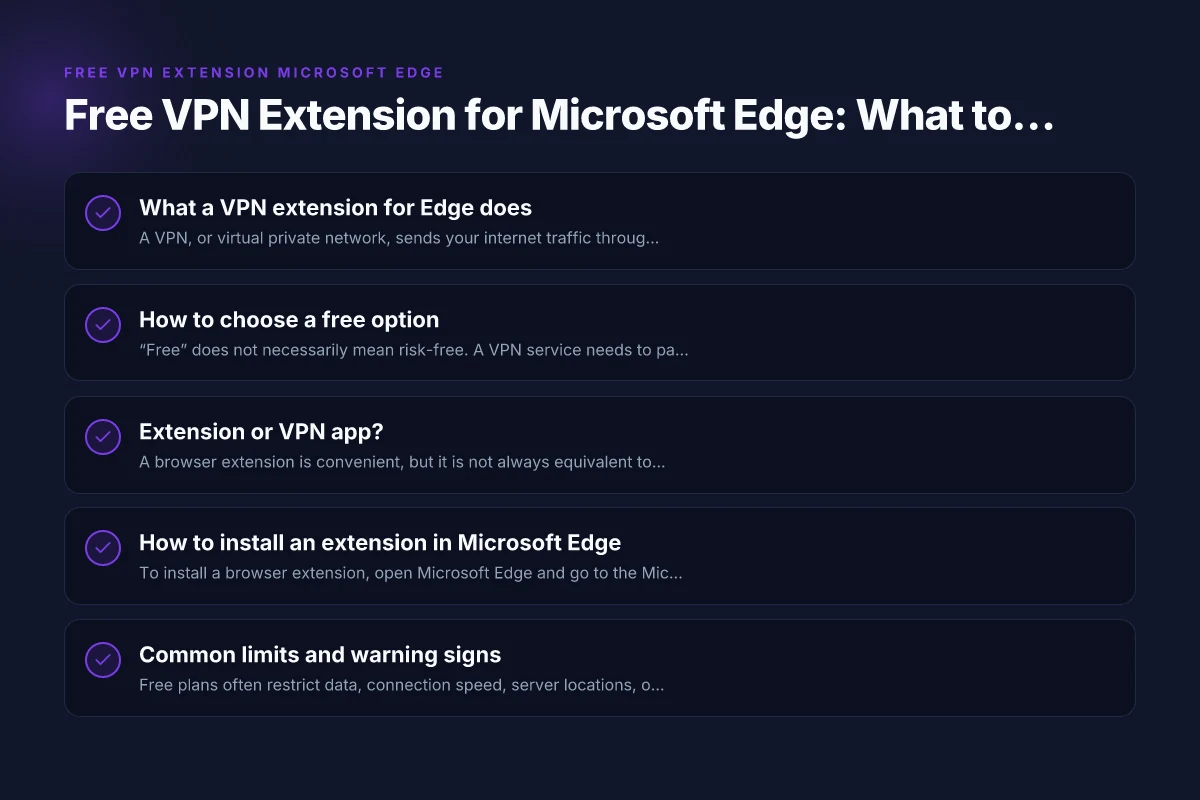
What a VPN extension for Edge does
A VPN, or virtual private network, sends your internet traffic through a server operated by a VPN provider. A browser extension can make it easy to connect to a different server or location without opening a separate desktop app.
However, an Edge extension generally protects only traffic handled by the browser, depending on how the extension is built. It may not cover other apps, such as email software, games, or file-sharing programs. Some products marketed as VPN extensions simply proxy browser traffic and may offer less protection than a full VPN app.
A VPN can help obscure your IP address from websites and protect traffic between your browser and the VPN server. It does not make you anonymous, prevent every kind of tracking, or guarantee that a website is safe. You should still use HTTPS websites and avoid sharing sensitive information with services you do not trust.
How to choose a free option
“Free” does not necessarily mean risk-free. A VPN service needs to pay for servers and maintenance, so it is worth understanding how a no-cost provider funds its service and handles your data. Account NordVPN: How to Sign In, Manage Your Account, and Fix Common Issues
Before installing an extension, check:
- Provider identity: Is the developer clearly named, with an official website and support information?
- Privacy policy: Does it explain what data is collected, how long it is kept, and whether it is shared?
- Limits: Are there monthly data caps, speed restrictions, server limits, or queues?
- Permissions: Does the requested access make sense for the extension’s stated function?
- Reputation: Look for independent reviews and a consistent history of updates.
- Security features: Check whether the provider explains its encryption and connection protections.
- Business model: Be cautious if the service makes broad privacy claims but offers little detail about how it operates.
An extension’s presence in a store does not guarantee that it is the right choice for your needs. Review its publisher and policy yourself, and avoid extensions that ask for permissions unrelated to their purpose.
Extension or VPN app?
A browser extension is convenient, but it is not always equivalent to installing a VPN application. Compare the two before deciding:
| Feature | Edge VPN extension | VPN app for your device |
|---|---|---|
| Coverage | Usually limited to browser traffic | Can cover traffic from multiple apps |
| Setup | Often quick to install and connect | Requires installing and configuring an app |
| Resource use | Typically lightweight | May use more system resources |
| Free-plan limits | May include data or server restrictions | May also have limits, depending on the plan |
| Best suited to | Basic browser use and convenience | Broader protection across the device |
The exact coverage depends on the product. Read the provider’s documentation rather than assuming that an extension protects every connection on your computer. 3 Year NordVPN Deal: Is There a Long-Term Plan Worth Buying?
Choose between an Edge VPN extension and a VPN app
| Comparison | Edge VPN extension | VPN app |
|---|---|---|
| Where it works | Usually browser traffic | Device traffic, depending on settings |
| Setup | Installed through the browser | Installed on the device |
| Best fit | Browser-only use | Protection beyond the browser |
| Other applications | May not cover them | May cover them when connected |
| Browser independence | Tied to Edge | Can work across browsers |
| Controls | Often focused on browser use | May offer device-wide controls |
| Coverage to verify | Check exactly what traffic is routed | Check app and device coverage |
| Free-plan limits | Review the extension’s terms | Review the app’s terms |
Compiled November 2026; check the provider's site for current details.
How to install an extension in Microsoft Edge
To install a browser extension, open Microsoft Edge and go to the Microsoft Edge Add-ons store. Search for the provider by name, open its listing, and check the publisher, permissions, reviews, and privacy information. If you decide to proceed, select Get and confirm the installation.
After installation: VPN for Photographers 2025: How to Choose the Right One
- Open the extension from the Edge toolbar.
- Sign in or create an account if required.
- Review the available locations and plan limits.
- Connect to a server.
- Visit a reputable IP-checking website to confirm that your browser appears to use the VPN connection.
If the extension offers a connection status or security settings, review them before browsing. Disconnect when you no longer need the service, and uninstall the extension if it behaves unexpectedly or its policies change.
Common limits and warning signs
Free plans often restrict data, connection speed, server locations, or simultaneous use. That can be enough for occasional browsing, but it may not suit video streaming, large downloads, or regular use on public Wi-Fi. Some services also reserve the fastest servers or additional privacy features for paid subscribers.
Be cautious of extensions that:
- Promise complete anonymity or protection from all online threats.
- Have no clear privacy policy or identifiable provider.
- Request broad access without explaining why.
- Show excessive ads, redirect searches, or change browser settings unexpectedly.
- Have little evidence of maintenance or credible user support.
A VPN is also not a substitute for antivirus software, strong passwords, two-factor authentication, or careful browsing. If you are handling sensitive work or personal information, consider whether a free service’s limits and policies meet your needs. Mailcheck for VPN: What It Can and Cannot Tell You
Installation and safety checks for an Edge VPN extension
| Step or check | What to do | Good sign | Pause if |
|---|---|---|---|
| Find the listing | Search Microsoft Edge Add-ons | Listing identifies the provider | The source is unclear |
| Verify the publisher | Match the name to the provider’s site | Names and details agree | Publisher details do not match |
| Read the description | Check features and limitations | Claims are specific | Promises sound absolute |
| Review permissions | Consider whether each request makes sense | Requests fit the stated purpose | Access seems unrelated |
| Check the policy | Read what data is collected and retained | Practices are explained clearly | The policy is absent or vague |
| Install | Select the add-on and follow Edge’s prompts | Edge shows the expected extension | Unexpected software is requested |
| Confirm behavior | Open the extension and review its controls | Connection status is understandable | Status or routing is unclear |
| Reassess | Check updates, limits, and privacy over time | Information remains current | New concerns or unexplained changes appear |
Compiled November 2026; check the provider's site for current details.
Recommendation
For casual browser use, a free VPN extension for Microsoft Edge may be convenient if it comes from a reputable provider and its privacy policy and limits are clear. Install it from the official Edge Add-ons store or the provider’s verified website, and confirm whether it covers only Edge traffic. If you need protection for your whole device, dependable performance, or more control over your connection, choose a reputable VPN app and compare its terms before subscribing.