Windows Update Blocking VPN Client GlobalProtect: How to Troubleshoot It

Find out what to check when a Windows update prevents GlobalProtect from connecting, and how to recover safely.
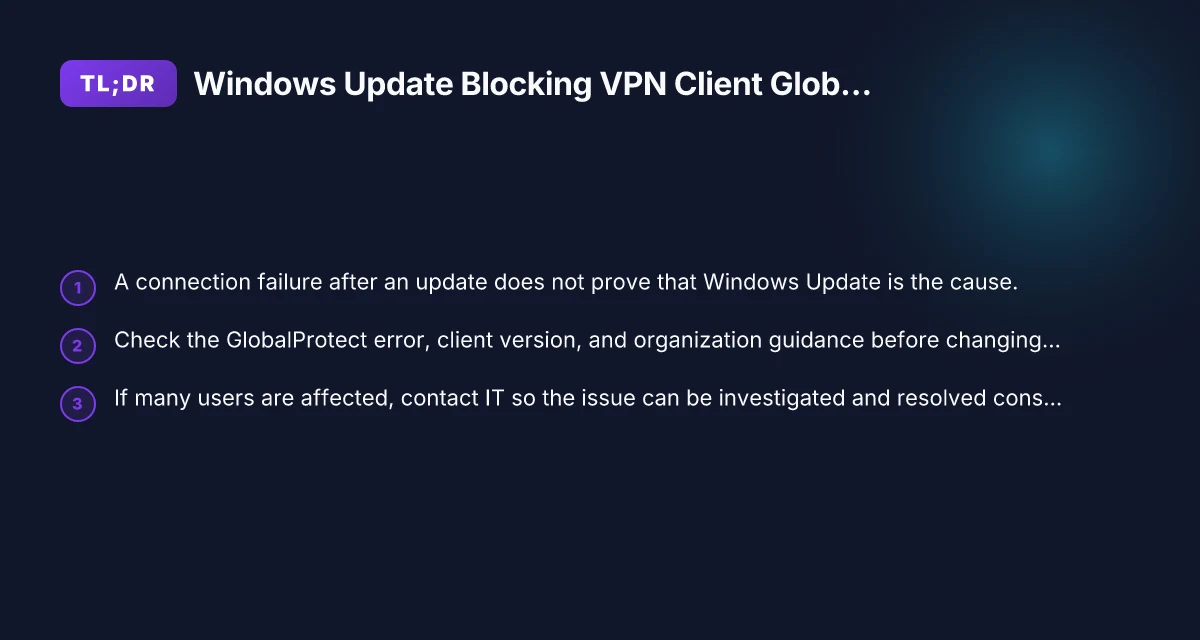
If a Windows update appears to be blocking the GlobalProtect VPN client, first confirm that the failure began after the update and note the exact error. Restart the device, check that GlobalProtect is the correct version for your organization, and contact your IT team before uninstalling a security update. Reports describe GlobalProtect connection problems after specific updates, including KB5058411 and KB5018410, but the reports do not establish that either update is the cause in every case.

Editor's pick: NordVPN — fast, secure VPN — Strong encryption, a no-logs policy and apps for every device. 30-day money-back guarantee. Get NordVPN →
Use these checks to determine whether Windows Update is actually blocking GlobalProtect
| Check | What to look for | What it may indicate | Next step |
|---|---|---|---|
| Timing | Did the issue start after an update? | A possible link, not proof | Compare with update history |
| Other users | Are coworkers affected too? | A broader compatibility issue | Ask IT to check for reports |
| Network access | Does the internet work without the VPN? | Whether the issue is VPN-specific | Test a trusted connection |
| Client status | Does GlobalProtect show an error? | A client or connection problem | Note the exact message |
| Sign-in | Does authentication complete? | Whether login is failing | Check credentials and sign-in prompts |
| Network changes | Did Wi-Fi, firewall, or security software change? | Another possible cause | Review recent changes |
| Update history | Which updates were installed and when? | A timeline for troubleshooting | Share details with IT |
Compiled November 2026; check the provider's site for current details.
| VPN | Obfuscation | From / month | Plan | Free plan | Refund | Alipay | UnionPay | Crypto | Website opens in China | Trustpilot | |
|---|---|---|---|---|---|---|---|---|---|---|---|
 ZoogVPN | Turn on manually Shadow | $2.49/mo | 27 months: $59.99 | Yes | 7 days | ✓ | ✓ | ✓ | ✓ | Official site blocked; our special link opens (4.4 s) | 4.2/5 (195 reviews) |
 NordVPN | Turn on manually Obfuscated Servers / NordWhisper | $3.49/mo | 27 months: $94.23 | No | 30 days | ? | ✗ | ✓ | ✓ | ✗ Blocked | 4.2/5 (51,628 reviews) |
 ExpressVPN | ✓ On by default all servers | $3.00/mo | 28 months: $84 | No | 30 days | ✗ | ✗ | ✓ | ✗ | ✗ Blocked | 4.4/5 (29,706 reviews) |
 Surfshark | ✓ On by default Camouflage, with OpenVPN | See site | See site | No | 30 days | ✗ | ✗ | ✗ | ✓ | ✗ Blocked | 4.3/5 (31,823 reviews) |
 Proton VPN | Turn on manually Stealth, free plan too | $2.99/mo | 12 months: $35.88 | Yes | 30 days | ✗ | ✗ | ✗ | ✓ | ✗ Blocked | 2.1/5 (1,040 reviews) |
 Astrill VPN | Turn on manually StealthVPN / OpenWeb | $12.50/mo | 24 months: $300 | No | See site | ✗ | ✗ | ✗ | ✓ | ✗ Blocked | 1.3/5 (110 reviews) |
 Private Internet Access | Turn on manually Shadowsocks, OpenVPN only | $2.03/mo | 40 months: $81.2 | No | 30 days | ✗ | ✗ | ✗ | ✗ | ✗ Blocked | 4.2/5 (11,033 reviews) |
 CyberGhost | Turn on manually selected servers | $2.19/mo | 28 months: $61.32 | No | 45 days | ✗ | ✗ | ✗ | ✓ | ✗ Blocked | 4.0/5 (24,178 reviews) |
 PureVPN | Turn on manually switch to OpenVPN | $1.69/mo | 60 months: $101.55 | No | 31 days | ? | ? | ✗ | ✓ | ✗ Blocked | 4.4/5 (17,994 reviews) |
 AdGuard VPN | ✓ On by default TrustTunnel | $2.99/mo | 24 months: $71.76 | Yes | 30 days | ✓ | ✗ | ✓ | ✓ | Official site blocked; our special link opens (3.7 s) | 4.3/5 (290 reviews) |
 Mullvad | Turn on manually QUIC / Shadowsocks / LWO | $5.61/mo | €5/mo | No | 14 days | ✗ | ✗ | ✗ | ✓ | ✗ Blocked | 3.2/5 (192 reviews) |
 Windscribe | Turn on manually Stealth / WStunnel | $5.75/mo | 12 months: $69 | Yes | See site | ✗ | ✗ | ✗ | ✓ | ✗ Blocked | 4.7/5 (13,355 reviews) |
 StrongVPN | Turn on manually Scramble, OpenVPN TCP | See site | See site | No | 30 days | ✓ | ✗ | ✗ | ✗ | ✗ Blocked | 4.4/5 (2,695 reviews) |
 LightXtreme 闪连 | Not listed | $7.08/mo | 12 months: $84.99 | Yes | 30 days | ✓ | ✓ | ✓ | ✓ | ✓ Yes (3.5 s) | No page |
Prices checked 2026-11-10 on each vendor's pricing page (cheapest long plan, USD). Check the vendor's checkout for the final price.
Obfuscation checked 2026-11-14 on each vendor's site and help center: "on by default" = nothing to set; "turn on manually" = switch protocol or mode in settings; "not listed" = the vendor describes no obfuscation.
Payment methods checked 2026-11-10 on each vendor's payment pages: all 14 take cards and PayPal; ✗ = not listed, ? = the vendor's own pages disagree.
China access: whether the official website opens from mainland China networks (tests the website only, not the VPN connection). Last checked 2026-11-18 01:02 Beijing time.
Trustpilot score and review count checked 2026-11-10.
Check whether Windows Update is actually the cause
A timing link is useful evidence, but it is not conclusive. VPN failures can also result from an outdated or incompatible GlobalProtect client, an authentication problem, a network interruption, or an organization-side configuration change.
Start with these checks:
- Record the Windows update name or KB number and when it was installed.
- Write down the exact GlobalProtect message or error code.
- Restart Windows, then try connecting again.
- Check whether ordinary internet access works without the VPN.
- Ask whether coworkers using the same setup are experiencing the same problem.
If only one device is affected, the issue may be specific to that device or its client installation. If multiple users began seeing the same failure around the same time, share that pattern with your IT team. It can help them investigate a wider compatibility or service issue.
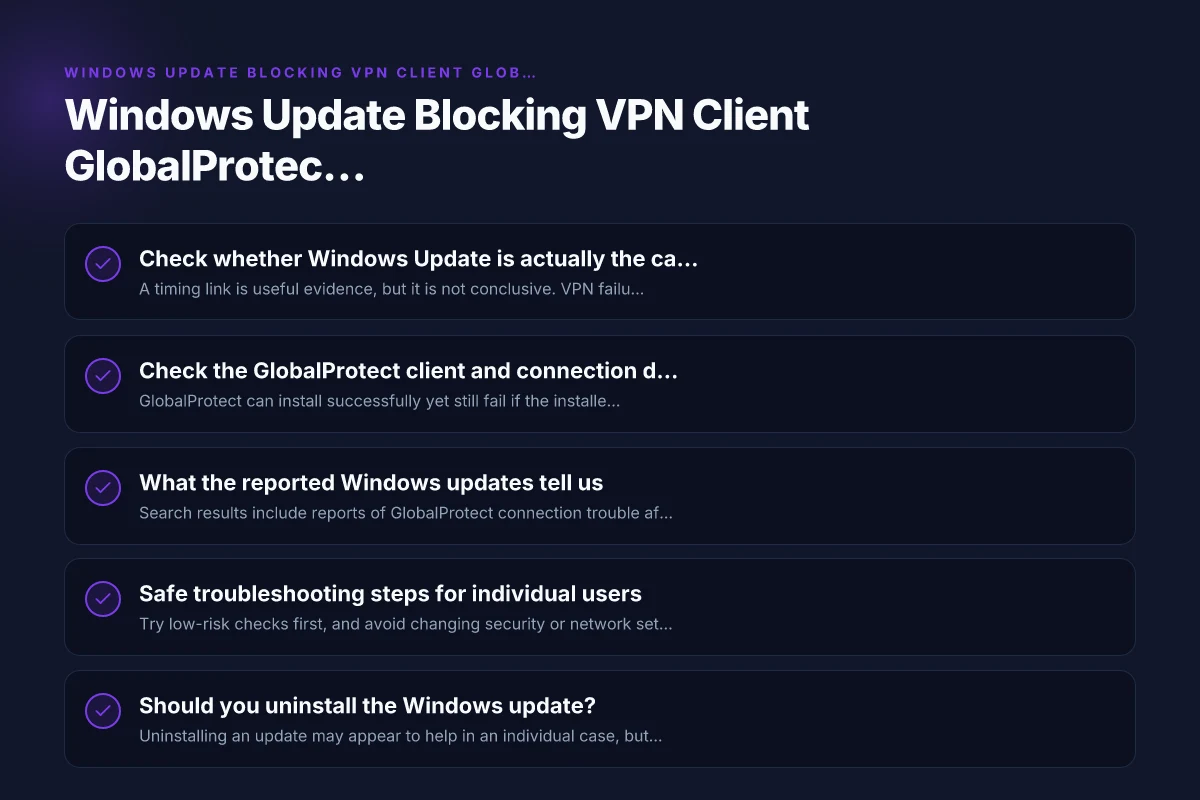
Check the GlobalProtect client and connection details
GlobalProtect can install successfully yet still fail if the installed client version is not the one intended for the organization. Do not assume that the newest version available online is appropriate: your employer or school may require a particular release or configuration. Best VPN for Russia: How to Choose a Reliable, Safer Option
Check the following without changing managed settings:
- Open GlobalProtect and note the version shown in its settings or About screen.
- Confirm that the portal address is the one provided by your organization.
- Check whether the client shows a specific connection or authentication error.
- Follow your organization’s instructions for restarting or reconnecting the client.
If the Connect button does not respond or the client reports a connection failure, the client version may be relevant. Ask IT to verify that the installed version is approved for your device and compatible with the organization’s setup.
Match GlobalProtect symptoms to safe troubleshooting steps
| Symptom | Check first | Safe user step | When to contact IT |
|---|---|---|---|
| Client will not open | Whether it is running | Restart the device | It still will not launch |
| Connection fails | Error message and network | Try a trusted network | The error persists |
| Sign-in fails | Authentication prompts | Check the approved sign-in method | Account access may be affected |
| Connects, then disconnects | Network stability | Reconnect once | Disconnects continue |
| Works on another network | Network-specific behavior | Use an approved network | Work network blocks access |
| Began after an update | Update history and timing | Record the update details | The issue appears update-related |
| Multiple users affected | Scope of the problem | Avoid repeated reinstall attempts | A wider outage is possible |
Compiled November 2026; check the provider's site for current details. Best VPN for Netherlands: Top Picks for Privacy, Streaming, and Speed
What the reported Windows updates tell US
Search results include reports of GlobalProtect connection trouble after more than one Windows update. These cases are clues for troubleshooting, not proof of a universal Windows-to-GlobalProtect conflict.
| Reported update | What was reported | How to interpret it |
|---|---|---|
| KB5058411 | Some users reported connection problems after updating. In one discussion, a small number of affected users said uninstalling the update resolved the issue, while others reported that it cleared by the next day. | A reported workaround for particular users is not a general recommendation to remove the update. |
| KB5018410 | A support article describes users who could not connect to GlobalProtect after receiving this security update and notes that Microsoft released a further update. | Check current IT guidance and the device’s update status before taking action. |
The reports point to different situations and do not show that every GlobalProtect failure after an update has the same cause. Your organization’s IT staff can compare the device’s update history, client version, and error details with any known issue that applies to its environment.
Safe troubleshooting steps for individual users
Try low-risk checks first, and avoid changing security or network settings unless IT directs you to do so.
- Restart the computer. This can clear a temporary problem after an update or client change.
- Test the basic connection. Confirm that the device has internet access before starting the VPN.
- Reconnect to GlobalProtect. Use the organization’s normal portal and sign-in process.
- Capture useful details. Include the Windows update or KB number, GlobalProtect version, error text, and when the problem started.
- Contact your help desk. Ask whether there is a known issue or an approved client update or repair procedure.
Avoid downloading a GlobalProtect installer from an unverified source, disabling endpoint security, or changing VPN, firewall, or certificate settings on your own. These actions can create additional problems or conflict with your organization’s security requirements. FortiClient VPN 7.2 Download: Safe Sources and Installation Guide
Compare options before deciding whether to uninstall a Windows update
| Option | User risk | Reversibility | Best suited for | Recommendation |
|---|---|---|---|---|
| Check update history | Low | Not applicable | Establishing timing | Do first |
| Restart the device | Low | Not applicable | Temporary client issues | Try once |
| Check GlobalProtect details | Low | Not applicable | Identifying client or sign-in errors | Record the message |
| Contact IT | Low | Not applicable | Work-managed devices or persistent failures | Preferred for work VPNs |
| Pause troubleshooting and wait for guidance | Low | Not applicable | Suspected wider issue | Follow IT instructions |
| Uninstall an update yourself | Higher | May be reversible, but can affect security | Only when specifically advised | Do not do this without approval |
| Roll back through an approved process | Depends on the process | Usually reversible | Confirmed update-related issues | Have IT manage it |
Compiled November 2026; check the provider's site for current details.
Should you uninstall the Windows update?
Uninstalling an update may appear to help in an individual case, but it should not be the first step. Updates can include important security fixes, and removing one may expose the device to vulnerabilities or violate workplace policy. A report that removing KB5058411 helped some users does not establish that it is safe or appropriate for your device.
Before considering removal, ask IT to confirm: Best VPN for Indian Servers: Top Choices and How to Pick
- Whether the update is known to cause the same error in your organization.
- Whether a newer Windows update or approved GlobalProtect version is available.
- Whether there is an organization-approved recovery procedure.
- Whether the device is managed by a policy that prohibits removing updates.
If your IT team approves a rollback, follow its instructions and reconnect the device to the organization’s update process afterward. Do not repeatedly remove and reinstall updates as a trial-and-error fix.
Recommendation
Treat “Windows update blocking VPN client GlobalProtect” as a troubleshooting lead, not a confirmed diagnosis. Record the update and error details, check basic connectivity and the approved client version, then contact your organization’s IT team. Only uninstall a Windows update when IT confirms that it is appropriate and provides a safe procedure.