WatchGuard VPN Stopped Working After Router Change: How to Fix It
Find out why a router change can break WatchGuard VPN and how to troubleshoot the connection safely.
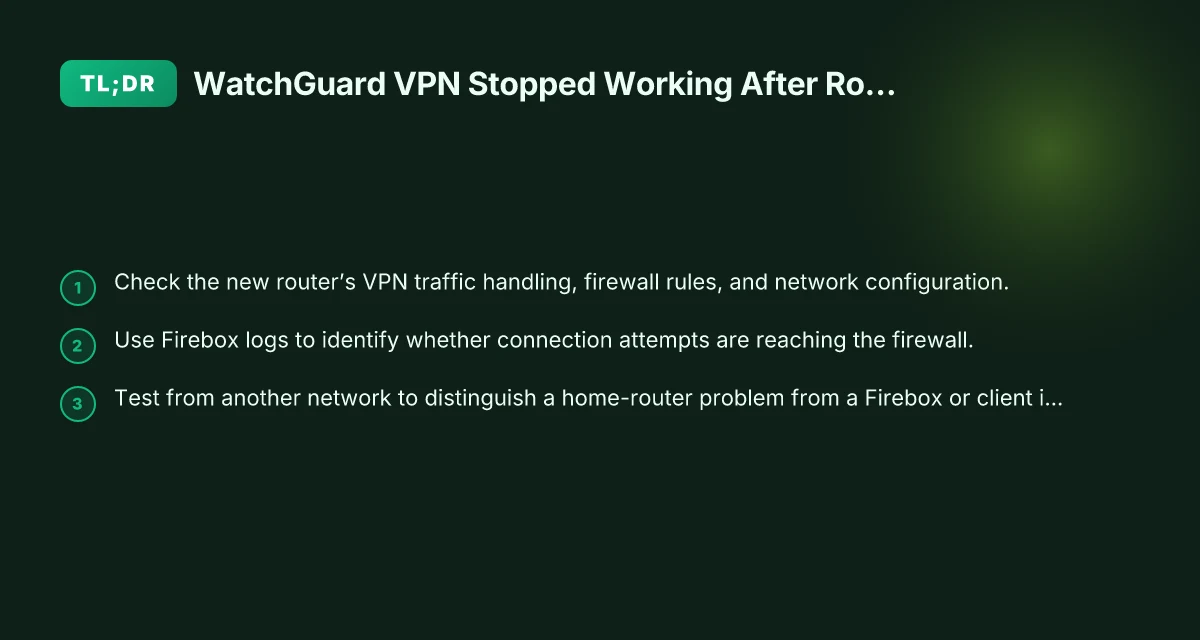
If your WatchGuard VPN stopped working after a router change, the new router may be blocking, misrouting, or altering traffic needed by the VPN. Start by checking whether the client can reach the Firebox and review the Firebox logs during a connection attempt. Then compare the router’s settings with the previous setup and test from a different network. These checks can help pinpoint the cause without changing the Firebox configuration unnecessarily.

Editor's pick: NordVPN — fast, secure VPN — Strong encryption, a no-logs policy and apps for every device. 30-day money-back guarantee. Get NordVPN →
Changes to check first after replacing a router
| What changed | Possible VPN effect | What to check | Useful evidence |
|---|---|---|---|
| Public IP address | Firebox may no longer be reached at the expected address | Confirm the current public IP | VPN profile uses an old address |
| Router mode | Double NAT may interfere with VPN traffic | Check whether another router is upstream | More than one device routes traffic |
| Firewall rules | VPN traffic may be blocked | Review inbound and outbound rules | Connection attempts do not reach the Firebox |
| Port forwarding | Traffic may not reach the Firebox | Compare forwarding rules with the old router | No matching forwarding rule |
| VPN passthrough | Router may block VPN protocols | Review VPN-related router settings | VPN fails only through this router |
| DNS settings | VPN name may resolve to the wrong address | Compare name resolution with the current public IP | Name and address do not match |
| LAN subnet | Overlapping networks may disrupt access | Compare local and remote subnet ranges | Both networks use the same range |
Compiled November 2026; check the provider's site for current details.
| VPN | Obfuscation | From / month | Plan | Free plan | Refund | Alipay | UnionPay | Crypto | Website opens in China | Trustpilot | |
|---|---|---|---|---|---|---|---|---|---|---|---|
 ZoogVPN | Turn on manually Shadow | $2.49/mo | 27 months: $59.99 | Yes | 7 days | ✓ | ✓ | ✓ | ✓ | Official site blocked; our special link opens (4.4 s) | 4.2/5 (195 reviews) |
 NordVPN | Turn on manually Obfuscated Servers / NordWhisper | $3.49/mo | 27 months: $94.23 | No | 30 days | ? | ✗ | ✓ | ✓ | ✗ Blocked | 4.2/5 (51,628 reviews) |
 ExpressVPN | ✓ On by default all servers | $3.00/mo | 28 months: $84 | No | 30 days | ✗ | ✗ | ✓ | ✗ | ✗ Blocked | 4.4/5 (29,706 reviews) |
 Surfshark | ✓ On by default Camouflage, with OpenVPN | See site | See site | No | 30 days | ✗ | ✗ | ✗ | ✓ | ✗ Blocked | 4.3/5 (31,823 reviews) |
 Proton VPN | Turn on manually Stealth, free plan too | $2.99/mo | 12 months: $35.88 | Yes | 30 days | ✗ | ✗ | ✗ | ✓ | ✗ Blocked | 2.1/5 (1,040 reviews) |
 Astrill VPN | Turn on manually StealthVPN / OpenWeb | $12.50/mo | 24 months: $300 | No | See site | ✗ | ✗ | ✗ | ✓ | ✗ Blocked | 1.3/5 (110 reviews) |
 Private Internet Access | Turn on manually Shadowsocks, OpenVPN only | $2.03/mo | 40 months: $81.2 | No | 30 days | ✗ | ✗ | ✗ | ✗ | ✗ Blocked | 4.2/5 (11,033 reviews) |
 CyberGhost | Turn on manually selected servers | $2.19/mo | 28 months: $61.32 | No | 45 days | ✗ | ✗ | ✗ | ✓ | ✗ Blocked | 4.0/5 (24,178 reviews) |
 PureVPN | Turn on manually switch to OpenVPN | $1.69/mo | 60 months: $101.55 | No | 31 days | ? | ? | ✗ | ✓ | ✗ Blocked | 4.4/5 (17,994 reviews) |
 AdGuard VPN | ✓ On by default TrustTunnel | $2.99/mo | 24 months: $71.76 | Yes | 30 days | ✓ | ✗ | ✓ | ✓ | Official site blocked; our special link opens (3.7 s) | 4.3/5 (290 reviews) |
 Mullvad | Turn on manually QUIC / Shadowsocks / LWO | $5.61/mo | €5/mo | No | 14 days | ✗ | ✗ | ✗ | ✓ | ✗ Blocked | 3.2/5 (192 reviews) |
 Windscribe | Turn on manually Stealth / WStunnel | $5.75/mo | 12 months: $69 | Yes | See site | ✗ | ✗ | ✗ | ✓ | ✗ Blocked | 4.7/5 (13,355 reviews) |
 StrongVPN | Turn on manually Scramble, OpenVPN TCP | See site | See site | No | 30 days | ✓ | ✗ | ✗ | ✗ | ✗ Blocked | 4.4/5 (2,695 reviews) |
 LightXtreme 闪连 | Not listed | $7.08/mo | 12 months: $84.99 | Yes | 30 days | ✓ | ✓ | ✓ | ✓ | ✓ Yes (3.5 s) | No page |
Prices checked 2026-11-10 on each vendor's pricing page (cheapest long plan, USD). Check the vendor's checkout for the final price.
Obfuscation checked 2026-11-14 on each vendor's site and help center: "on by default" = nothing to set; "turn on manually" = switch protocol or mode in settings; "not listed" = the vendor describes no obfuscation.
Payment methods checked 2026-11-10 on each vendor's payment pages: all 14 take cards and PayPal; ✗ = not listed, ? = the vendor's own pages disagree.
China access: whether the official website opens from mainland China networks (tests the website only, not the VPN connection). Last checked 2026-11-18 01:02 Beijing time.
Trustpilot score and review count checked 2026-11-10.
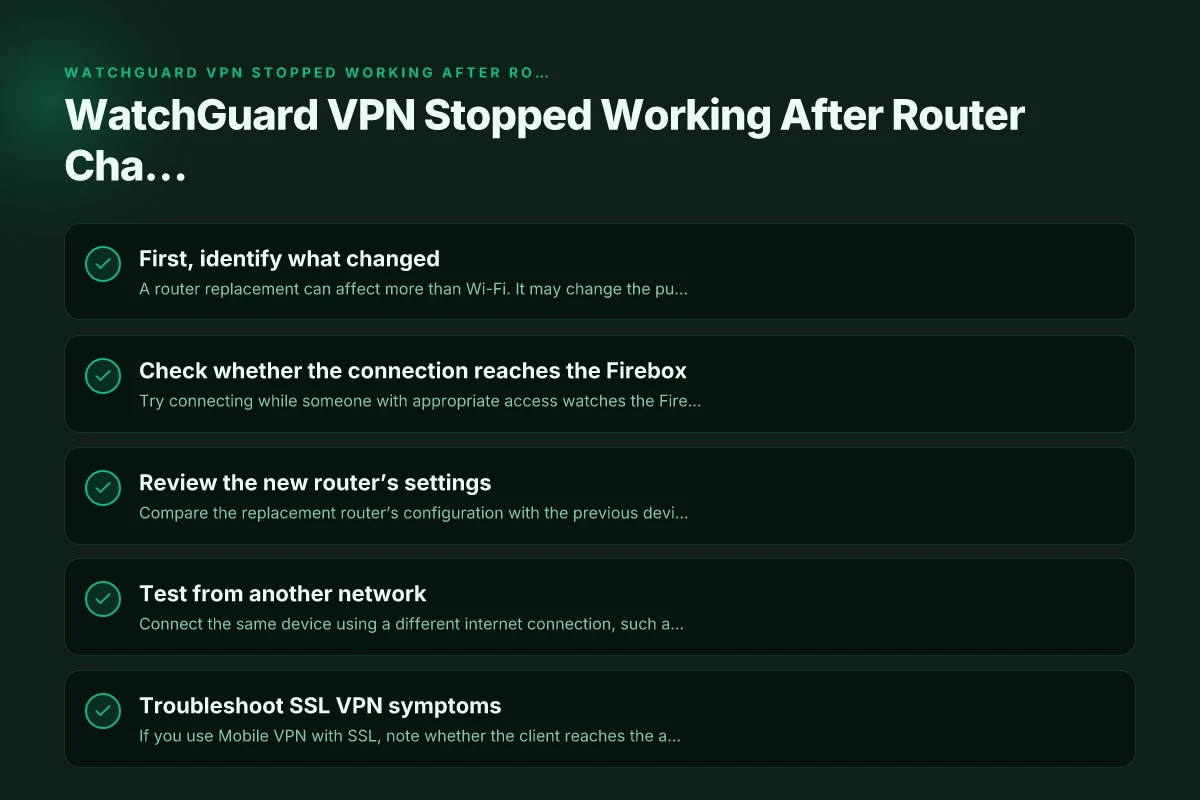
First, identify what changed
A router replacement can affect more than Wi-Fi. It may change the public IP address, firewall rules, routing, DNS, or how VPN traffic is handled. If the VPN worked before the change and stopped immediately afterward, investigate the new router and internet connection before reinstalling the VPN client.
Note what happens when you connect:
- Does the client fail immediately, or remain on “connecting” or “waiting”?
- Does it show an authentication error?
- Does it connect but fail to reach internal resources?
- Can other users still connect to the same Firebox?
The answers help distinguish a connection-path issue from a client, account, or internal-network problem.
Check whether the connection reaches the Firebox
Try connecting while someone with appropriate access watches the Firebox logs. Look for entries related to the VPN client and the time of the attempt. NordVPN Disable Auto Connect: How to Turn It Off on Any Device
| What you observe | What it may indicate | What to check next |
|---|---|---|
| No related traffic appears | Traffic may be blocked or misrouted before it reaches the Firebox | Router rules, routing, and internet access |
| The Firebox logs a denied connection | The request reaches the Firebox but is rejected | The logged reason, VPN settings, or access policy |
| The VPN connects, but resources are unavailable | The tunnel is established; the issue may be routing, DNS, or access to internal networks | Assigned routes, name resolution, and access permissions |
A lack of traffic in the logs is an important clue: the router, modem, or another network device between the client and Firebox may be preventing the request from getting through. If you are not responsible for the Firebox, ask your network administrator to check the logs rather than changing firewall settings yourself.
Review the new router’s settings
Compare the replacement router’s configuration with the previous device, if you can. Check that its firewall is not blocking the VPN connection and that traffic is being routed to the correct destination. Router settings and available controls vary by model, so use the manufacturer’s documentation or contact the person who manages the network.
Look for changes involving:
- Firewall or security rules that block VPN traffic
- Port forwarding or routing rules, if the Firebox setup requires them
- Parental controls, traffic filtering, or other security features
- A changed public IP address or internet connection type
- A modem-router combination that adds another layer of routing
Avoid opening broad access or disabling the router firewall as a permanent fix. If a setting must be tested, make one controlled change at a time and restore protections afterward. The Firebox administrator should confirm which traffic and configuration the organization’s VPN requires. WatchGuard VPN Can't Contact Server: Causes and Fixes
Where the connection appears to fail
| Test or symptom | Likely point to investigate | What the result suggests | Next step |
|---|---|---|---|
| VPN hostname resolves incorrectly | DNS or profile | Client may be using an outdated destination | Check DNS and VPN profile |
| Connection times out | Router path or Firebox reachability | Traffic may not reach the Firebox | Review forwarding and firewall rules |
| Firebox logs show no attempt | Before the Firebox | Router, address, or upstream path may be responsible | Test another network and verify the public IP |
| Firebox logs show an attempt | Firebox or VPN configuration | Traffic reaches the appliance | Review logs and VPN settings |
| Another network connects successfully | Home or office router path | Client and Firebox are more likely to be working | Compare router settings |
| Another network also fails | Profile, Firebox, or service | The original router may not be the only cause | Check the profile and Firebox status |
| SSL VPN fails but another VPN type works | SSL VPN-specific path or settings | Troubleshooting can focus on SSL VPN | Review SSL VPN configuration and client details |
Compiled November 2026; check the provider's site for current details.
Test from another network
Connect the same device using a different internet connection, such as a phone hotspot or another trusted network. If WatchGuard VPN works there, the original router or internet service is more likely to be involved. If it fails in the same way, check the VPN client, credentials, Firebox configuration, and any recent software changes.
A useful follow-up is to test another device on the new router: NordVPN Coupon Code 3 Year: What to Know Before You Buy
- If one device fails but another connects, focus on the affected device’s VPN client and network settings.
- If every device fails on the new router but works elsewhere, focus on the router or its connection.
- If clients fail across different networks, ask the Firebox administrator to check the service and logs.
Some mobile internet connections may use IPv6-only access. WatchGuard’s SSL VPN is IPv4-only, so a client without usable IPv4 connectivity may be unable to connect. If the problem occurs only on a particular mobile or ISP connection, check whether that connection provides IPv4.
Troubleshoot SSL VPN symptoms
If you use Mobile VPN with SSL, note whether the client reaches the authentication stage or remains waiting. A local router or modem can prevent return communication from the Firebox to the client, even when the client appears to send a request.
When a connection stalls, ask the network administrator to review the Firebox logs and confirm which transport settings are supported by your deployment. In some cases, testing a TCP-only connection may help identify interference with the VPN’s data traffic. Use this only as a diagnostic step approved by the administrator. The correct setting depends on the Firebox and client configuration.
Reinstalling the VPN client is unlikely to fix a network-path problem if connection attempts never reach the Firebox. Consider client repair or reinstallation only after checking the router path, logs, and device-specific symptoms. Virgin Media Issues With OpenVPN: Causes and Fixes
Choosing the next troubleshooting step
| Situation | Best next check | What to compare | What a useful result means |
|---|---|---|---|
| Failure began immediately after router replacement | Review router changes | Address, mode, rules, and forwarding | Identifies a change linked to the outage |
| Firebox receives no connection attempt | Check the route to the Firebox | Public IP and router rules | Points toward an upstream path issue |
| Firebox receives the attempt | Review Firebox logs and VPN settings | Error details and configured service | Narrows the issue to the Firebox or VPN |
| VPN works on another network | Focus on the new router | Router rules and VPN passthrough | Supports a router-path diagnosis |
| VPN fails on every network | Check profile and Firebox status | Destination, credentials, and service | Suggests a broader configuration issue |
| Only SSL VPN is affected | Troubleshoot SSL VPN | Client settings and SSL VPN configuration | Separates SSL VPN symptoms from general reachability |
| Router settings look correct but failure continues | Compare with known-good setup or consult an administrator | Current settings and Firebox logs | Helps identify less obvious configuration differences |
Compiled November 2026; check the provider's site for current details.
Recommendation
Start with a Firebox log check, then test the same device on another network. If the VPN works elsewhere, have the router administrator review filtering and routing on the replacement device. If no connection attempts reach the Firebox, focus on the network path. If they do reach it, use the logged result to guide the next step. Avoid resetting the Firebox or making broad firewall changes until the evidence points to a Firebox-side problem.