How to Use a Proxy Safely and Choose the Right Type

Learn how to use a proxy, compare common proxy types, and protect your privacy and accounts.
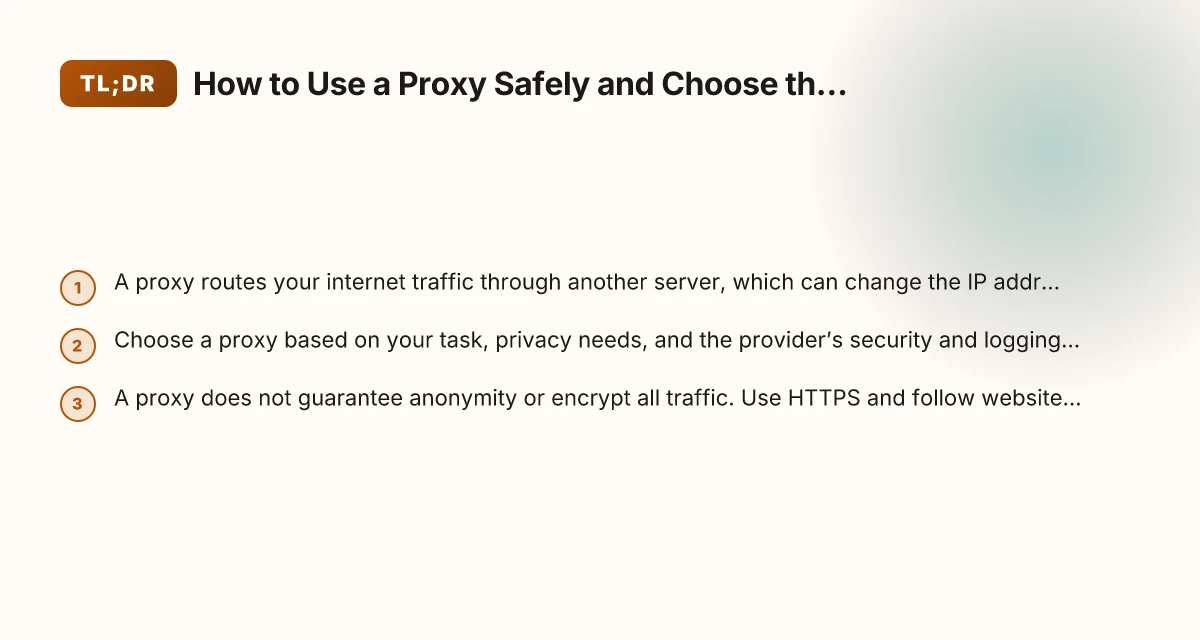
To use a proxy, choose a reputable provider, get its server address and connection details, then enter them in your device, browser, or app’s proxy settings. Once connected, your traffic for the configured apps or destinations is routed through the proxy server. Check your public IP address to confirm the connection works, and disable the proxy when you no longer need it.
A proxy can help route traffic through a different network, manage access to online services, or test how a site appears from another location. The right setup depends on what you want to do: a browser proxy may be enough for a single browsing task, while a system-wide proxy may cover more applications. Before connecting, understand what the provider can see and whether the proxy encrypts your traffic.

Editor's pick: NordVPN — fast, secure VPN — Strong encryption, a no-logs policy and apps for every device. 30-day money-back guarantee. Get NordVPN →
Proxy types at a glance
| Proxy type | How it routes traffic | Typical use | Main advantage | Main limitation |
|---|---|---|---|---|
| HTTP | Web traffic through a proxy server | Browsing websites | Simple to configure | Usually handles web traffic only |
| HTTPS | Encrypted web traffic through a proxy server | More private web browsing | Protects data in transit | Does not make you anonymous |
| SOCKS5 | Different types of traffic through a proxy server | Apps, downloads, or browsing | Flexible traffic support | Encryption may not be included |
| Residential | Traffic appears to come from a residential IP | Location-specific access | IP resembles a home connection | Can be slower or more costly |
| Datacenter | Traffic uses a data-center IP | General web tasks | Often fast and readily available | Sites may identify and block it |
| Mobile | Traffic uses a mobile-network IP | Mobile-specific access | Uses mobile carrier addresses | Availability and cost can vary |
Compiled November 2026; check the provider's site for current details.
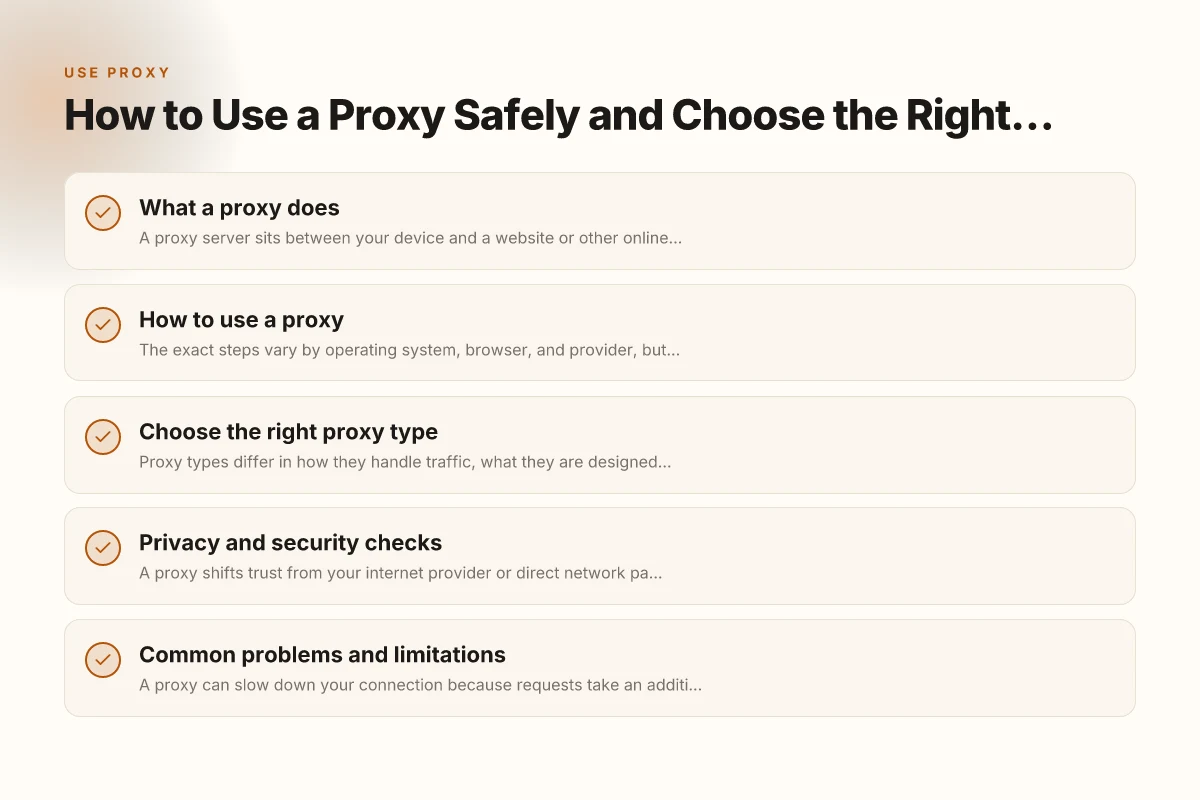
What a proxy does
A proxy server sits between your device and a website or other online service. Instead of connecting directly, your device sends a request to the proxy, which forwards it to the destination and returns the response. The destination generally sees the proxy’s IP address rather than your device’s public IP address.
Proxies are used for legitimate purposes such as accessing workplace resources, testing websites, filtering network traffic, and routing requests through a managed service. They can also help developers check how their services behave across networks or regions.
A proxy is not the same as a complete privacy or security solution. Many proxies do not encrypt traffic between your device and the proxy. Websites using HTTPS still encrypt the connection between your browser and the website, but the proxy provider may be able to see connection details and, depending on the setup, other information. A proxy also does not make it safe to share passwords or ignore a site’s terms.
How to use a proxy
The exact steps vary by operating system, browser, and provider, but the process is generally similar: Best VPN Germany: Top Choices for Privacy, Streaming, and Speed
- Choose a proxy provider or use connection details supplied by your employer, school, or network administrator.
- Select a proxy type and server location that fit your task.
- Note the server address, port, and any username or password the provider gives you.
- Open the proxy or network settings on your device, browser, or application.
- Enter the connection details and save the settings.
- Open a website or app that should use the proxy, then check your public IP address or connection status.
- Turn the proxy off or remove its settings when you are finished, especially on a shared device.
Some providers offer a dedicated application or browser extension instead of manual settings. Install software only from an official source, review the permissions it requests, and confirm whether it applies to one browser or the whole device.
If a proxy does not connect, check the address, port, and login details. Confirm that the provider’s server is online and that your network allows proxy connections. If the connection works but a particular site does not, the site may block that proxy or require a different configuration.
Choose a proxy based on your needs
| Your priority | Proxy option to consider | Check before choosing | Potential trade-off |
|---|---|---|---|
| Web browsing | HTTP or HTTPS | Whether your browser supports it | May not cover other apps |
| Encrypted web traffic | HTTPS proxy | Which traffic is encrypted | Proxy still sees connection details |
| Broader app support | SOCKS5 | Whether the app supports SOCKS5 | Encryption may require separate setup |
| Residential-looking IP | Residential proxy | IP source and provider practices | May cost more or perform less consistently |
| Speed for general tasks | Datacenter proxy | Site compatibility and server location | More likely to be blocked |
| Mobile-network access | Mobile proxy | Carrier coverage and pricing | Can be costly or limited |
Compiled November 2026; check the provider's site for current details. How to Check What Region a VPN Is Using
Choose the right proxy type
Proxy types differ in how they handle traffic, what they are designed for, and how they identify the connecting network. The names alone do not guarantee quality or privacy, so check the provider’s terms and technical details.
| Proxy type | Common use | Points to consider |
|---|---|---|
| HTTP or HTTPS proxy | Routing browser or web traffic | Usually limited to supported traffic; confirm how encryption is handled |
| SOCKS5 proxy | Routing traffic from compatible apps | Supports a wider range of traffic than a basic web proxy, but does not automatically encrypt it |
| Residential proxy | Testing services from consumer-network IP addresses | Can be costly; verify that IPs are obtained with consent |
| Datacenter proxy | Fast, general-purpose routing and testing | May be easier for websites to identify or block |
| Transparent proxy | Network filtering or traffic management | May operate without individual configuration; privacy depends on the network operator |
For ordinary browsing, a trusted VPN or your browser’s built-in privacy features may be a better fit if you need broader traffic coverage or encryption. A proxy is useful when you specifically need application-level routing or a particular network setup. Avoid free proxies that provide no clear explanation of ownership, logging, or security practices.
Privacy and security checks
A proxy shifts trust from your internet provider or direct network path to the proxy operator. Before using one, look for a clear privacy policy that explains what data is collected, how long it is retained, and whether it is shared. Prefer providers that use secure connections to their servers and publish enough information to assess their practices.
Use HTTPS websites for sensitive activity. Do not assume that a proxy hides your identity: websites may still identify you through account logins, cookies, browser settings, or other signals. A proxy may also expose traffic if it is misconfigured or operated by an untrustworthy provider. Best VPN Free Trials: Top Options and How to Choose
Take these precautions:
- Use a unique, strong password for any proxy account.
- Avoid entering sensitive information through an untrusted or public proxy.
- Keep your browser and operating system updated.
- Review app and browser permissions before installing proxy tools.
- Check the provider’s rules on logging, data use, and acceptable activity.
- Do not use a proxy to bypass laws, workplace controls, or a service’s access restrictions.
Safety and troubleshooting checks
| Check | What to do | Why it matters | If there is a problem |
|---|---|---|---|
| Provider trust | Review reputation and privacy policy | Provider may handle your traffic | Choose a provider with clear practices |
| Connection security | Use HTTPS websites | Encrypts data between browser and site | Avoid entering sensitive data on HTTP pages |
| Proxy settings | Confirm address, port, and protocol | Incorrect details can prevent connection | Recheck settings with provider instructions |
| IP exposure | Check which IP address websites see | Confirms traffic is using the proxy | Correct settings or reconnect |
| DNS handling | Check whether DNS requests use the proxy | DNS leaks can reveal browsing destinations | Enable supported DNS protection |
| Account security | Use strong passwords and multifactor authentication | Reduces account takeover risk | Change compromised credentials promptly |
| Proxy limitations | Check for blocked sites or unsupported apps | A proxy may not cover every connection | Try a compatible proxy type or direct connection |
Compiled November 2026; check the provider's site for current details.
Common problems and limitations
A proxy can slow down your connection because requests take an additional route. Performance depends on the server’s distance, capacity, and current load. Trying a nearby server may help, but location changes should be used only when permitted and appropriate. Best VPN Free Trial for Testing Streaming and Gaming
Some apps ignore the device’s proxy settings and connect directly. Others require their own proxy configuration. If you need all device traffic to pass through a service, verify that the chosen setup actually covers every relevant app. A browser-only proxy will not automatically route other software.
Websites may also challenge or block proxy traffic. This is a normal security measure, and repeatedly changing servers to evade a block can violate the site’s rules. If access is denied, use the service’s official support channels or connect through an approved network.
Recommendation
Use a proxy when you have a clear need for routed traffic and can verify that the provider is trustworthy. Choose the simplest proxy type that supports your application, confirm which traffic it covers, and keep sensitive activity on secure HTTPS connections. For general privacy across a device, consider a reputable VPN instead, and always follow the rules of the networks and services you use.