Urban VPN Microsoft Edge Extension: How It Works, Setup, and What to Check
Learn how to install the Urban VPN Microsoft Edge extension, use it, and assess its privacy, security, and limitations.


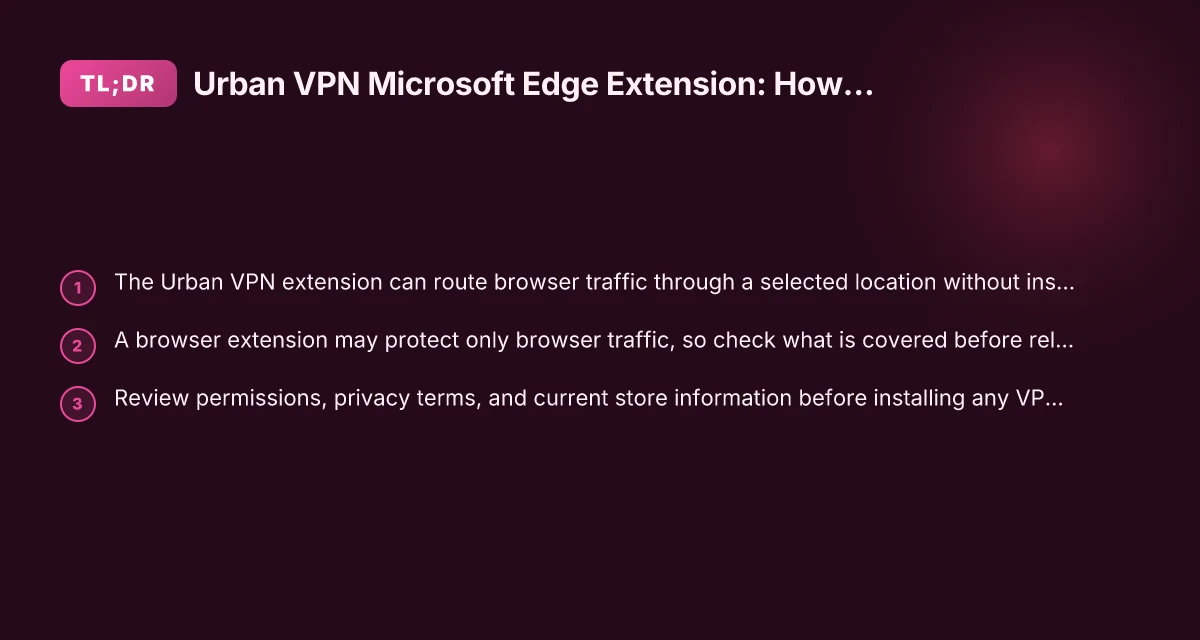
The Urban VPN Microsoft Edge extension is a browser add-on designed to connect Edge to a VPN server location. To try it, find Urban VPN in the official Microsoft Edge Add-ons store, confirm the publisher and current listing details, install it, and use its toolbar icon to connect. Before using it for sensitive activity, check its permissions and privacy policy: a VPN changes how traffic is routed, but it does not make you anonymous or automatically protect every app on your device.

Editor's pick: NordVPN — fast, secure VPN — Strong encryption, a no-logs policy and apps for every device. 30-day money-back guarantee. Get NordVPN →
Compare the Edge extension with the full VPN app
| Check | Urban VPN Edge extension | Full VPN app | What to consider |
|---|---|---|---|
| Where it runs | In Microsoft Edge | On the device | Browser vs. device coverage |
| Traffic covered | Edge browser traffic | App-dependent | Check which apps are included |
| Setup location | Edge Add-ons | Official app source | Use trusted sources |
| Browser use | Designed for Edge | Works beyond the browser | Match the option to your needs |
| Connection controls | Extension settings | App settings | Compare available controls |
| Privacy information | Review extension disclosures | Review app disclosures | Check both separately |
| Best fit | Edge-only browsing | Broader device use | Choose based on coverage |
Compiled November 2026; check the provider's site for current details.
| VPN | Obfuscation | From / month | Plan | Free plan | Refund | Alipay | UnionPay | Crypto | Website opens in China | Trustpilot | |
|---|---|---|---|---|---|---|---|---|---|---|---|
 ZoogVPN | Turn on manually Shadow | $2.49/mo | 27 months: $59.99 | Yes | 7 days | ✓ | ✓ | ✓ | ✓ | Official site blocked; our special link opens (4.4 s) | 4.2/5 (195 reviews) |
 NordVPN | Turn on manually Obfuscated Servers / NordWhisper | $3.49/mo | 27 months: $94.23 | No | 30 days | ? | ✗ | ✓ | ✓ | ✗ Blocked | 4.2/5 (51,628 reviews) |
 ExpressVPN | ✓ On by default all servers | $3.00/mo | 28 months: $84 | No | 30 days | ✗ | ✗ | ✓ | ✗ | ✗ Blocked | 4.4/5 (29,706 reviews) |
 Surfshark | ✓ On by default Camouflage, with OpenVPN | See site | See site | No | 30 days | ✗ | ✗ | ✗ | ✓ | ✗ Blocked | 4.3/5 (31,823 reviews) |
 Proton VPN | Turn on manually Stealth, free plan too | $2.99/mo | 12 months: $35.88 | Yes | 30 days | ✗ | ✗ | ✗ | ✓ | ✗ Blocked | 2.1/5 (1,040 reviews) |
 Astrill VPN | Turn on manually StealthVPN / OpenWeb | $12.50/mo | 24 months: $300 | No | See site | ✗ | ✗ | ✗ | ✓ | ✗ Blocked | 1.3/5 (110 reviews) |
 Private Internet Access | Turn on manually Shadowsocks, OpenVPN only | $2.03/mo | 40 months: $81.2 | No | 30 days | ✗ | ✗ | ✗ | ✗ | ✗ Blocked | 4.2/5 (11,033 reviews) |
 CyberGhost | Turn on manually selected servers | $2.19/mo | 28 months: $61.32 | No | 45 days | ✗ | ✗ | ✗ | ✓ | ✗ Blocked | 4.0/5 (24,178 reviews) |
 PureVPN | Turn on manually switch to OpenVPN | $1.69/mo | 60 months: $101.55 | No | 31 days | ? | ? | ✗ | ✓ | ✗ Blocked | 4.4/5 (17,994 reviews) |
 AdGuard VPN | ✓ On by default TrustTunnel | $2.99/mo | 24 months: $71.76 | Yes | 30 days | ✓ | ✗ | ✓ | ✓ | Official site blocked; our special link opens (3.7 s) | 4.3/5 (290 reviews) |
 Mullvad | Turn on manually QUIC / Shadowsocks / LWO | $5.61/mo | €5/mo | No | 14 days | ✗ | ✗ | ✗ | ✓ | ✗ Blocked | 3.2/5 (192 reviews) |
 Windscribe | Turn on manually Stealth / WStunnel | $5.75/mo | 12 months: $69 | Yes | See site | ✗ | ✗ | ✗ | ✓ | ✗ Blocked | 4.7/5 (13,355 reviews) |
 StrongVPN | Turn on manually Scramble, OpenVPN TCP | See site | See site | No | 30 days | ✓ | ✗ | ✗ | ✗ | ✗ Blocked | 4.4/5 (2,695 reviews) |
 LightXtreme 闪连 | Not listed | $7.08/mo | 12 months: $84.99 | Yes | 30 days | ✓ | ✓ | ✓ | ✓ | ✓ Yes (3.5 s) | No page |
Prices checked 2026-11-10 on each vendor's pricing page (cheapest long plan, USD). Check the vendor's checkout for the final price.
Obfuscation checked 2026-11-14 on each vendor's site and help center: "on by default" = nothing to set; "turn on manually" = switch protocol or mode in settings; "not listed" = the vendor describes no obfuscation.
Payment methods checked 2026-11-10 on each vendor's payment pages: all 14 take cards and PayPal; ✗ = not listed, ? = the vendor's own pages disagree.
China access: whether the official website opens from mainland China networks (tests the website only, not the VPN connection). Last checked 2026-11-18 01:02 Beijing time.
Trustpilot score and review count checked 2026-11-10.
What the Urban VPN Edge extension does
A VPN extension typically acts as a control for routing some or all of the browser’s web traffic through a VPN service. Depending on the product and its configuration, websites may see the VPN server’s IP address instead of your usual public IP address. This can be useful when you want to change the apparent location of browser traffic or add a layer of protection on an untrusted network.
An extension is not necessarily the same as a full VPN application. It runs inside the browser and may not cover other software, such as email clients, games, or desktop apps. Coverage can also depend on the extension’s settings and the service’s current design.
A VPN does not, by itself, prevent every form of tracking. Websites can still identify visitors through account sign-ins, cookies, browser fingerprinting, and other signals. Nor does a VPN guarantee access to a particular streaming service or bypass every network restriction.
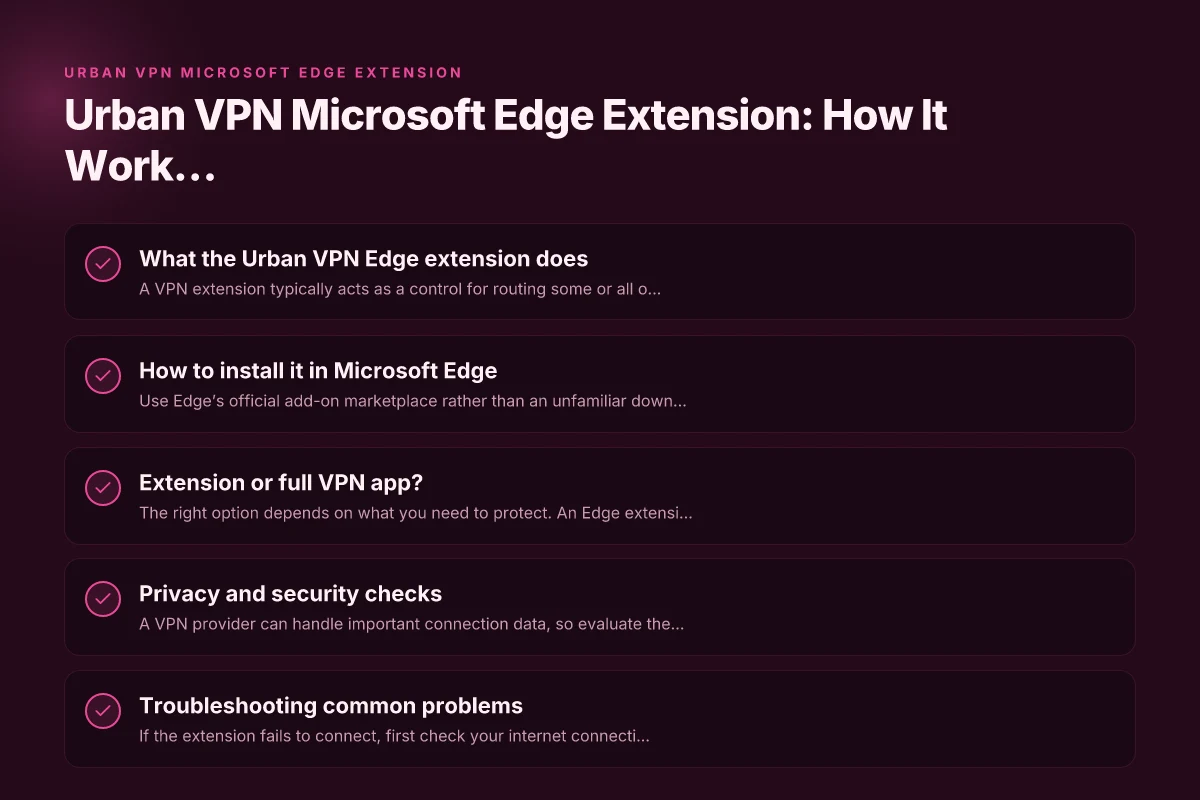
How to install it in Microsoft Edge
Use Edge’s official add-on marketplace rather than an unfamiliar download site. Store listings and product features can change, so check the current information instead of relying on old installation instructions. FortiClient iOS IPsec: Setup, Configuration, and Troubleshooting
- Open Microsoft Edge and go to the Edge Add-ons store.
- Search for “Urban VPN.”
- Check the publisher name, user reviews, update history, and requested permissions.
- Select the listing and choose the option to install or add the extension.
- Review the permissions prompt before approving it.
- Open the extension from the Edge toolbar, choose a location if offered, and connect.
- Visit a reputable IP-checking site to see whether your browser appears to use the selected location.
If the icon is not visible after installation, open Edge’s Extensions menu and pin it to the toolbar. If the add-on does not appear in the store or its publisher information seems inconsistent, do not install a copy from a third-party website.
Before you connect
Check whether the extension asks to read or change data on websites, manage downloads, or access other browser features. Some permissions are needed for an extension to work, but broad access deserves careful consideration. Read the listing and privacy policy to understand what data the service says it collects, how it uses that data, and whether information is shared with third parties.
Installation and troubleshooting checks
| Situation | Check | Try | If it persists |
|---|---|---|---|
| Installing | Microsoft Edge Add-ons listing | Confirm the extension name | Check the official source |
| Extension missing | Edge extensions page | Search installed extensions | Reinstall from the listing |
| Not connecting | Extension connection status | Reconnect or choose another location | Check service availability |
| Pages fail to load | Whether the issue affects all sites | Reload the page | Test without the extension |
| Settings seem inactive | Extension permissions | Review Edge settings | Remove and reinstall |
| Slow browsing | Whether other sites are affected | Try another location | Compare with the extension off |
| Unexpected behavior | Recent browser changes | Update Edge and the extension | Review privacy and security details |
Compiled November 2026; check the provider's site for current details. IPsec over TCP 443: How It Works, Benefits, and Limitations
Extension or full VPN app?
The right option depends on what you need to protect. An Edge extension is convenient for browser use, while a full VPN application may offer wider device coverage. Confirm the actual features of the version available to you. Product functions and subscription terms can change.
| Feature | Urban VPN Edge extension | Full-device VPN app |
|---|---|---|
| Setup | Installed in Edge | Installed on the operating system |
| Typical coverage | Browser traffic, depending on configuration | Often traffic from multiple apps |
| Browser-specific controls | Convenient access from Edge | Usually controlled through a separate app |
| Other device apps | May not be covered | May be covered when the VPN is active |
| Best fit | Browsing in Edge | Broader device-level VPN use |
Do not assume that an extension covers every connection made by your computer. If you need protection for all apps, check whether Urban VPN offers a full VPN app for your operating system and verify exactly what it covers.
Privacy and security checks
A VPN provider can handle important connection data, so evaluate the service rather than judging it only by the presence of a “VPN” label. Look for clear, current documentation about logging, data retention, encryption, and third-party sharing. If the policy is vague or difficult to find, consider whether you are comfortable using the service.
Keep these points in mind: VPN That Allows You to Choose Location for Free: What to Know
- Check the current privacy policy. Look for what connection and usage data may be collected, why it is collected, and how long it is retained.
- Review permissions. Make sure the access requested is consistent with the extension’s stated purpose.
- Use the official store listing. Avoid similarly named extensions from unknown publishers.
- Keep Edge and the extension updated. Updates can address compatibility and security issues.
- Test the connection. Check the displayed IP location after connecting, and repeat the check if you change servers.
- Avoid treating a VPN as complete anonymity. Logins, cookies, and tracking technologies can still link activity to you.
A VPN also cannot make an unsafe website trustworthy. Continue to use secure, up-to-date sites, protect your accounts with strong passwords and multifactor authentication, and be cautious about downloads and links.
Privacy and security decision checklist
| Check | What to look for | Good sign | Caution |
|---|---|---|---|
| Publisher | Listing and developer identity | Details match Urban VPN | Unfamiliar publisher |
| Permissions | Requested access in Edge | Access fits intended use | Broad access without explanation |
| Privacy policy | Data collection and use | Clear, specific disclosures | Vague or missing details |
| Connection protection | What traffic is covered | Coverage is clearly described | Assuming all device traffic is covered |
| Account details | Sign-in and data requirements | Requirements are explained | Unclear data handling |
| Updates | Recent listing or extension updates | Maintained and current | Long gaps or unclear status |
| Troubleshooting | Support and help information | Clear guidance is available | No useful support details |
| Recommendation | Fit for your use | Use after reviewing checks | Choose another option if concerns remain |
Compiled November 2026; check the provider's site for current details.
Troubleshooting common problems
If the extension fails to connect, first check your internet connection and confirm that Edge is up to date. Close and reopen the browser, then try reconnecting. If a location is unavailable, choose another one if the extension offers alternatives. Free Location Changer VPN: What It Can, and Can’t, Change
If websites continue to show your usual location, disconnect and reconnect, then check again. A website may also use location information from your device or account rather than relying only on your IP address. Browser settings, other privacy tools, or conflicting extensions can affect how a site behaves.
For persistent problems:
- Review the extension’s current help information.
- Temporarily disable other VPN or proxy extensions to check for a conflict.
- Remove and reinstall the add-on only through the official store.
- Check whether Edge or your network administrator restricts extensions or VPN connections.
- Contact the provider through its official support channel if available.
Do not enter account credentials into a support page unless you have confirmed that it belongs to the service.
Recommendation
The Urban VPN Microsoft Edge extension may suit people who want a browser-focused VPN control and have reviewed its current store listing and privacy terms. Install it only from the official Edge Add-ons store, verify what traffic it covers, and test the connection after setup. If you need VPN coverage for activity outside Edge, compare a full-device VPN app instead. Whichever option you choose, remember that a VPN improves privacy in specific ways but does not guarantee anonymity or complete security. Best Free VPN That Lets You Pick Locations: Top Options and Limits