Total VPN on Fire Stick: Installation, Setup, and What to Know
Learn how to install Total VPN on Fire Stick, connect securely, troubleshoot issues, and check compatibility before you start.
If you want to use Total VPN on Fire Stick, first check whether its app is available in the Amazon Appstore for your device and country. If it is, install it, sign in with your Total VPN account, and connect to a server before opening your streaming apps. If you cannot find the app, confirm compatibility with Total VPN’s official support team rather than downloading an unknown file.
The exact menus can differ between Fire TV models and Fire OS versions, but the basic setup is straightforward. This guide covers installation, connection, troubleshooting, and what to consider before using a VPN for streaming.
| VPN | Obfuscation | From / month | Plan | Free plan | Refund | Alipay | UnionPay | Crypto | Website opens in China | Trustpilot | |
|---|---|---|---|---|---|---|---|---|---|---|---|
 ZoogVPN | Turn on manually Shadow | $2.49/mo | 27 months: $59.99 | Yes | 7 days | ✓ | ✓ | ✓ | ✓ | Official site blocked; our special link opens (4.4 s) | 4.2/5 (195 reviews) |
 NordVPN | Turn on manually Obfuscated Servers / NordWhisper | $3.49/mo | 27 months: $94.23 | No | 30 days | ? | ✗ | ✓ | ✓ | ✗ Blocked | 4.2/5 (51,628 reviews) |
 ExpressVPN | ✓ On by default all servers | $3.00/mo | 28 months: $84 | No | 30 days | ✗ | ✗ | ✓ | ✗ | ✗ Blocked | 4.4/5 (29,706 reviews) |
 Surfshark | ✓ On by default Camouflage, with OpenVPN | See site | See site | No | 30 days | ✗ | ✗ | ✗ | ✓ | ✗ Blocked | 4.3/5 (31,823 reviews) |
 Proton VPN | Turn on manually Stealth, free plan too | $2.99/mo | 12 months: $35.88 | Yes | 30 days | ✗ | ✗ | ✗ | ✓ | ✗ Blocked | 2.1/5 (1,040 reviews) |
 Astrill VPN | Turn on manually StealthVPN / OpenWeb | $12.50/mo | 24 months: $300 | No | See site | ✗ | ✗ | ✗ | ✓ | ✗ Blocked | 1.3/5 (110 reviews) |
 Private Internet Access | Turn on manually Shadowsocks, OpenVPN only | $2.03/mo | 40 months: $81.2 | No | 30 days | ✗ | ✗ | ✗ | ✗ | ✗ Blocked | 4.2/5 (11,033 reviews) |
 CyberGhost | Turn on manually selected servers | $2.19/mo | 28 months: $61.32 | No | 45 days | ✗ | ✗ | ✗ | ✓ | ✗ Blocked | 4.0/5 (24,178 reviews) |
 PureVPN | Turn on manually switch to OpenVPN | $1.69/mo | 60 months: $101.55 | No | 31 days | ? | ? | ✗ | ✓ | ✗ Blocked | 4.4/5 (17,994 reviews) |
 AdGuard VPN | ✓ On by default TrustTunnel | $2.99/mo | 24 months: $71.76 | Yes | 30 days | ✓ | ✗ | ✓ | ✓ | Official site blocked; our special link opens (3.7 s) | 4.3/5 (290 reviews) |
 Mullvad | Turn on manually QUIC / Shadowsocks / LWO | $5.61/mo | €5/mo | No | 14 days | ✗ | ✗ | ✗ | ✓ | ✗ Blocked | 3.2/5 (192 reviews) |
 Windscribe | Turn on manually Stealth / WStunnel | $5.75/mo | 12 months: $69 | Yes | See site | ✗ | ✗ | ✗ | ✓ | ✗ Blocked | 4.7/5 (13,355 reviews) |
 StrongVPN | Turn on manually Scramble, OpenVPN TCP | See site | See site | No | 30 days | ✓ | ✗ | ✗ | ✗ | ✗ Blocked | 4.4/5 (2,695 reviews) |
 LightXtreme 闪连 | Not listed | $7.08/mo | 12 months: $84.99 | Yes | 30 days | ✓ | ✓ | ✓ | ✓ | ✓ Yes (3.5 s) | No page |
Prices checked 2026-11-10 on each vendor's pricing page (cheapest long plan, USD). Check the vendor's checkout for the final price.
Obfuscation checked 2026-11-14 on each vendor's site and help center: "on by default" = nothing to set; "turn on manually" = switch protocol or mode in settings; "not listed" = the vendor describes no obfuscation.
Payment methods checked 2026-11-10 on each vendor's payment pages: all 14 take cards and PayPal; ✗ = not listed, ? = the vendor's own pages disagree.
China access: whether the official website opens from mainland China networks (tests the website only, not the VPN connection). Last checked 2026-11-18 01:02 Beijing time.
Trustpilot score and review count checked 2026-11-10.

Editor's pick: NordVPN — fast, secure VPN — Strong encryption, a no-logs policy and apps for every device. 30-day money-back guarantee. Get NordVPN →
Compare your Fire Stick with Total VPN’s installation requirements
| Check | What to look for | If it matches | If it does not |
|---|---|---|---|
| Device type | Amazon Fire TV device | Continue to the Appstore | Check whether your model is supported |
| Fire OS version | Current software | Continue with installation | Update Fire OS |
| Internet access | Working connection | Open the Appstore | Restore the connection |
| Amazon account | Signed-in account | Search for Total VPN | Sign in |
| Appstore access | Amazon Appstore available | Install the listed app | Check device or account availability |
| Available storage | Room for the app | Install the app | Free up storage |
| App listing | Total VPN appears in search | Install from Amazon | Try the alternative-installation guidance |
| Region availability | App is offered in your region | Install from the listing | Check availability for your region |
Compiled November 2026; check the provider's site for current details.
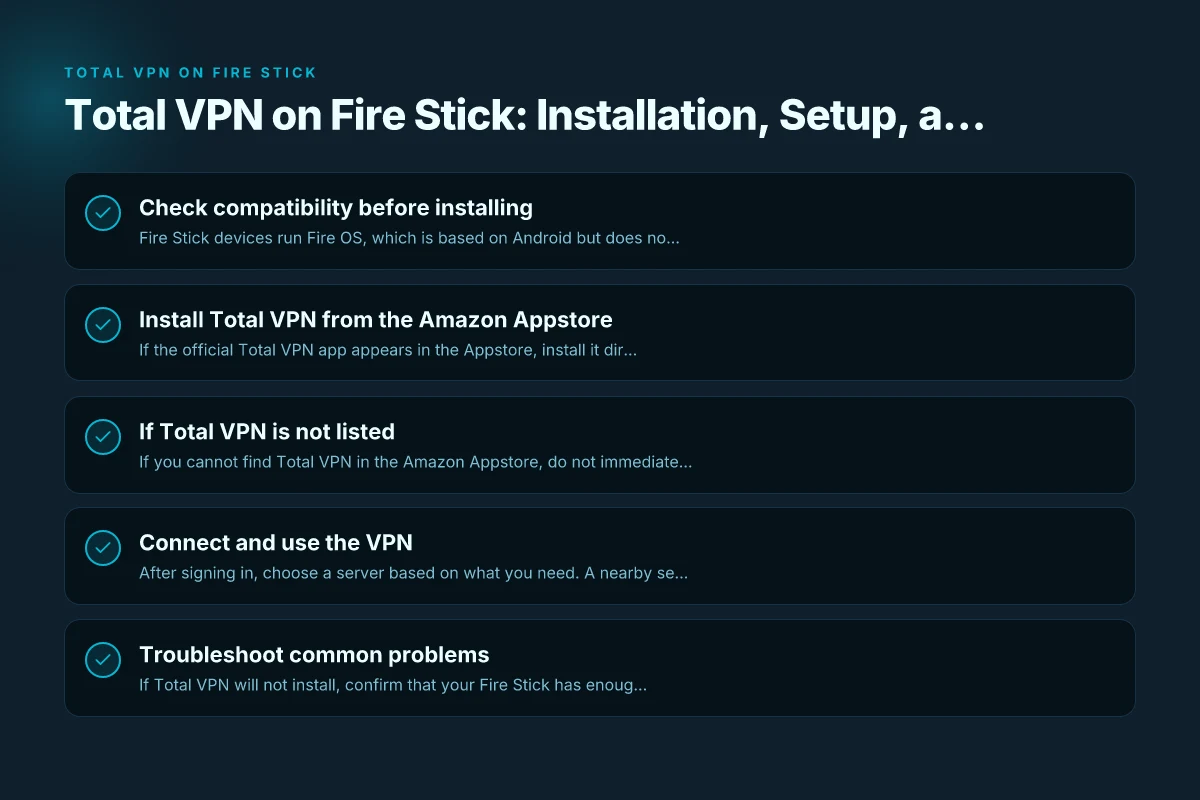
Check compatibility before installing
Fire Stick devices run Fire OS, which is based on Android but does not support every Android app. A VPN provider may offer a phone or computer app without offering a version designed for Fire TV. Availability can also vary by country, device generation, and app-store settings.
On your Fire Stick, open the Find or Search option and look for Total VPN in the Amazon Appstore. Check the app publisher carefully so you do not install an unrelated app with a similar name. If it does not appear, that does not necessarily mean your subscription is invalid. The app may simply not be offered for your device or region.
Before proceeding, it can help to check:
- Your Fire Stick model and Fire OS version
- The Amazon account and app-store region configured on the device
- Total VPN’s current device compatibility information
- Whether your subscription permits the number of simultaneous connections you need
Do not assume that instructions for another VPN provider will work for Total VPN. The available apps, features, and supported setup methods are provider-specific. Hide Proxy Fast: A Safe, Practical Guide
Install Total VPN from the Amazon Appstore
If the official Total VPN app appears in the Appstore, install it directly on your Fire Stick. This is generally the simplest route because the app is delivered through Amazon’s normal distribution and update process.
- From the Fire Stick home screen, select Find or the search icon.
- Search for Total VPN.
- Open the listing and verify that it is the official app.
- Select Get, Download, or Install, depending on the wording displayed.
- Open the app after installation.
- Sign in using your Total VPN account details.
- Choose a server and connect.
The labels and prompts may differ slightly across devices. If the app asks for permission to set up a VPN connection, review the prompt and approve it if you want Total VPN to route your device’s network traffic through its VPN connection.
Once connected, check the app’s status before launching a streaming service. If the app provides a connection indicator or server details, confirm that it shows an active connection. You can also try loading a familiar website or app to make sure the Fire Stick remains online.
If Total VPN is not listed
If you cannot find Total VPN in the Amazon Appstore, do not immediately install a file from a third-party download site. Unofficial app packages can be outdated, modified, or unsafe, and they may not work properly with Fire OS. Windows OpenVPN: Where Are Profiles Stored?
Instead, check Total VPN’s official website or support documentation for current Fire TV instructions. Ask whether your specific Fire Stick model is supported and whether the company provides an approved alternative. Some VPN providers may offer a router setup or another supported method, but you should use one only if Total VPN explicitly documents it.
| Setup option | When it may help | What to check |
|---|---|---|
| Amazon Appstore app | The official app is available for your Fire Stick | Publisher, region availability, and device compatibility |
| VPN-enabled router | The provider supports router connections | Router compatibility and whether all home devices will use the VPN |
| Other provider-approved method | Total VPN documents a specific alternative | Official instructions, security, and Fire OS support |
A router setup can send traffic from several home devices through a VPN, but it is not the same as installing a VPN app on the Fire Stick. It can also affect devices that you did not intend to route through the VPN. Follow the provider’s guidance and your router manufacturer’s instructions before changing network settings.
Choose an installation route for Total VPN on Fire Stick
| Situation | Recommended route | Main steps | What to check |
|---|---|---|---|
| App appears in search | Amazon Appstore | Select the app and install | Confirm it is Total VPN |
| Search gives no result | Check compatibility | Review device and software support | Confirm Fire OS is current |
| Listing may be region-limited | Check availability | Review Amazon account region | Confirm the app is offered there |
| Appstore is not working | Troubleshoot first | Check internet and account access | Retry the search |
| Device needs an update | Update Fire OS | Install available system updates | Search again afterward |
| Installation fails | Check storage and connection | Free space and restore internet | Retry installation |
| App is unavailable | Use only trusted guidance | Follow the article’s alternative-installation advice | Avoid untrusted downloads |
Compiled November 2026; check the provider's site for current details. Axgate VPN Client Download: Safe Setup and Connection Guide
Connect and use the VPN
After signing in, choose a server based on what you need. A nearby server is often a sensible starting point for everyday use because a shorter network route may provide a faster, more stable connection. If you have a particular reason to select another location, make sure that choice follows the service’s terms and any applicable rules.
Keep these points in mind while streaming:
- Connect to Total VPN before opening the streaming app.
- If playback fails, try a different supported server or disconnect briefly to test whether the VPN is causing the issue.
- Avoid changing several settings at once. Test one change at a time.
- Check Total VPN’s current information on features such as automatic reconnection or a kill switch. Do not assume those features are available on Fire Stick just because they appear in another version of the app.
- Remember that a VPN does not increase the speed of your internet plan.
Streaming platforms decide which content is available and may restrict VPN connections. A VPN therefore cannot promise access to a particular title, service, or regional catalog. Follow the streaming provider’s terms and the laws that apply where you live.
Troubleshoot common problems
If Total VPN will not install, confirm that your Fire Stick has enough storage, is connected to the internet, and is using a supported Fire OS version. Restarting the device and checking for system updates may help. If the official listing remains unavailable, contact Total VPN rather than relying on an unofficial package. Best Free VPN for Edge: Top Options and What to Know
If the app opens but will not connect:
- Confirm that your account is active and that the login details are correct.
- Restart the Fire Stick and your router.
- Try another server available in the app.
- Check for updates to the Total VPN app and Fire OS.
- Contact Total VPN support with your device model, Fire OS version, and the error message.
If the VPN connects but streaming buffers or stops, test a nearby server and check your normal internet connection without the VPN. Also consider Wi-Fi signal strength and congestion. A weak wireless connection can cause playback problems regardless of which VPN you use.
Decide what to do when using Total VPN on Fire Stick
| Situation | What to try | What to confirm | Next step |
|---|---|---|---|
| First launch | Open Total VPN | App opens successfully | Sign in or follow its prompts |
| Ready to connect | Choose a VPN location | Location is selected | Start the connection |
| Connection appears active | Check the app status | VPN shows connected | Open the streaming app |
| VPN will not connect | Check internet access | Other apps can get online | Retry the VPN connection |
| Connection drops | Reconnect in Total VPN | App shows connected again | Retry the stream |
| App is unresponsive | Restart the app | Controls respond | Restart Fire Stick if needed |
| Streaming has issues | Test the VPN connection | VPN remains connected | Try another location |
| Problems persist | Update or restart | App and Fire OS are current | Contact Total VPN support |
Compiled November 2026; check the provider's site for current details. Find Devices Not Connected to VPN: A Practical Guide
Recommendation
Use Total VPN on Fire Stick through the official Amazon Appstore app if it is available for your device and region. If it is not listed, verify supported alternatives directly with Total VPN and avoid untrusted downloads. Once connected, test your streaming apps, use a suitable server, and remember that service availability and playback performance are not guaranteed.