Palo Alto GlobalProtect Per-App VPN Tunnel Intune Config: Setup Guide
Learn how to plan and configure a GlobalProtect per-app VPN with Microsoft Intune for supported Android and Windows endpoints.


To configure a Palo Alto GlobalProtect per-app VPN tunnel with Microsoft Intune, deploy the GlobalProtect app, create the platform-appropriate VPN and app configuration policies, and associate the apps that should use the tunnel. The exact steps differ between Android Enterprise and Windows 10 UWP endpoints, so first confirm that your device and app scenario is supported. A standard GlobalProtect VPN profile does not automatically create per-app routing.

Editor's pick: NordVPN — fast, secure VPN — Strong encryption, a no-logs policy and apps for every device. 30-day money-back guarantee. Get NordVPN →
Platform support and configuration comparison
| Area | Android Enterprise | Windows 10 UWP |
|---|---|---|
| Per-app VPN support | Supported on compatible devices | Supported for UWP apps |
| Intune configuration | VPN profile and app assignment | VPN profile and app assignment |
| App targeting | Assign apps to the VPN profile | Select supported UWP apps |
| Tunnel type | GlobalProtect | GlobalProtect |
| Endpoint requirement | Android Enterprise enrollment | Windows 10 endpoint |
| Key planning check | Confirm device and app compatibility | Confirm app is UWP-compatible |
| Best fit | Managed Android app traffic | Managed UWP app traffic |
Compiled November 2026; check the provider's site for current details.
| VPN | Obfuscation | From / month | Plan | Free plan | Refund | Alipay | UnionPay | Crypto | Website opens in China | Trustpilot | |
|---|---|---|---|---|---|---|---|---|---|---|---|
 ZoogVPN | Turn on manually Shadow | $2.49/mo | 27 months: $59.99 | Yes | 7 days | ✓ | ✓ | ✓ | ✓ | Official site blocked; our special link opens (4.4 s) | 4.2/5 (195 reviews) |
 NordVPN | Turn on manually Obfuscated Servers / NordWhisper | $3.49/mo | 27 months: $94.23 | No | 30 days | ? | ✗ | ✓ | ✓ | ✗ Blocked | 4.2/5 (51,628 reviews) |
 ExpressVPN | ✓ On by default all servers | $3.00/mo | 28 months: $84 | No | 30 days | ✗ | ✗ | ✓ | ✗ | ✗ Blocked | 4.4/5 (29,706 reviews) |
 Surfshark | ✓ On by default Camouflage, with OpenVPN | See site | See site | No | 30 days | ✗ | ✗ | ✗ | ✓ | ✗ Blocked | 4.3/5 (31,823 reviews) |
 Proton VPN | Turn on manually Stealth, free plan too | $2.99/mo | 12 months: $35.88 | Yes | 30 days | ✗ | ✗ | ✗ | ✓ | ✗ Blocked | 2.1/5 (1,040 reviews) |
 Astrill VPN | Turn on manually StealthVPN / OpenWeb | $12.50/mo | 24 months: $300 | No | See site | ✗ | ✗ | ✗ | ✓ | ✗ Blocked | 1.3/5 (110 reviews) |
 Private Internet Access | Turn on manually Shadowsocks, OpenVPN only | $2.03/mo | 40 months: $81.2 | No | 30 days | ✗ | ✗ | ✗ | ✗ | ✗ Blocked | 4.2/5 (11,033 reviews) |
 CyberGhost | Turn on manually selected servers | $2.19/mo | 28 months: $61.32 | No | 45 days | ✗ | ✗ | ✗ | ✓ | ✗ Blocked | 4.0/5 (24,178 reviews) |
 PureVPN | Turn on manually switch to OpenVPN | $1.69/mo | 60 months: $101.55 | No | 31 days | ? | ? | ✗ | ✓ | ✗ Blocked | 4.4/5 (17,994 reviews) |
 AdGuard VPN | ✓ On by default TrustTunnel | $2.99/mo | 24 months: $71.76 | Yes | 30 days | ✓ | ✗ | ✓ | ✓ | Official site blocked; our special link opens (3.7 s) | 4.3/5 (290 reviews) |
 Mullvad | Turn on manually QUIC / Shadowsocks / LWO | $5.61/mo | €5/mo | No | 14 days | ✗ | ✗ | ✗ | ✓ | ✗ Blocked | 3.2/5 (192 reviews) |
 Windscribe | Turn on manually Stealth / WStunnel | $5.75/mo | 12 months: $69 | Yes | See site | ✗ | ✗ | ✗ | ✓ | ✗ Blocked | 4.7/5 (13,355 reviews) |
 StrongVPN | Turn on manually Scramble, OpenVPN TCP | See site | See site | No | 30 days | ✓ | ✗ | ✗ | ✗ | ✗ Blocked | 4.4/5 (2,695 reviews) |
 LightXtreme 闪连 | Not listed | $7.08/mo | 12 months: $84.99 | Yes | 30 days | ✓ | ✓ | ✓ | ✓ | ✓ Yes (3.5 s) | No page |
Prices checked 2026-11-10 on each vendor's pricing page (cheapest long plan, USD). Check the vendor's checkout for the final price.
Obfuscation checked 2026-11-14 on each vendor's site and help center: "on by default" = nothing to set; "turn on manually" = switch protocol or mode in settings; "not listed" = the vendor describes no obfuscation.
Payment methods checked 2026-11-10 on each vendor's payment pages: all 14 take cards and PayPal; ✗ = not listed, ? = the vendor's own pages disagree.
China access: whether the official website opens from mainland China networks (tests the website only, not the VPN connection). Last checked 2026-11-18 01:02 Beijing time.
Trustpilot score and review count checked 2026-11-10.
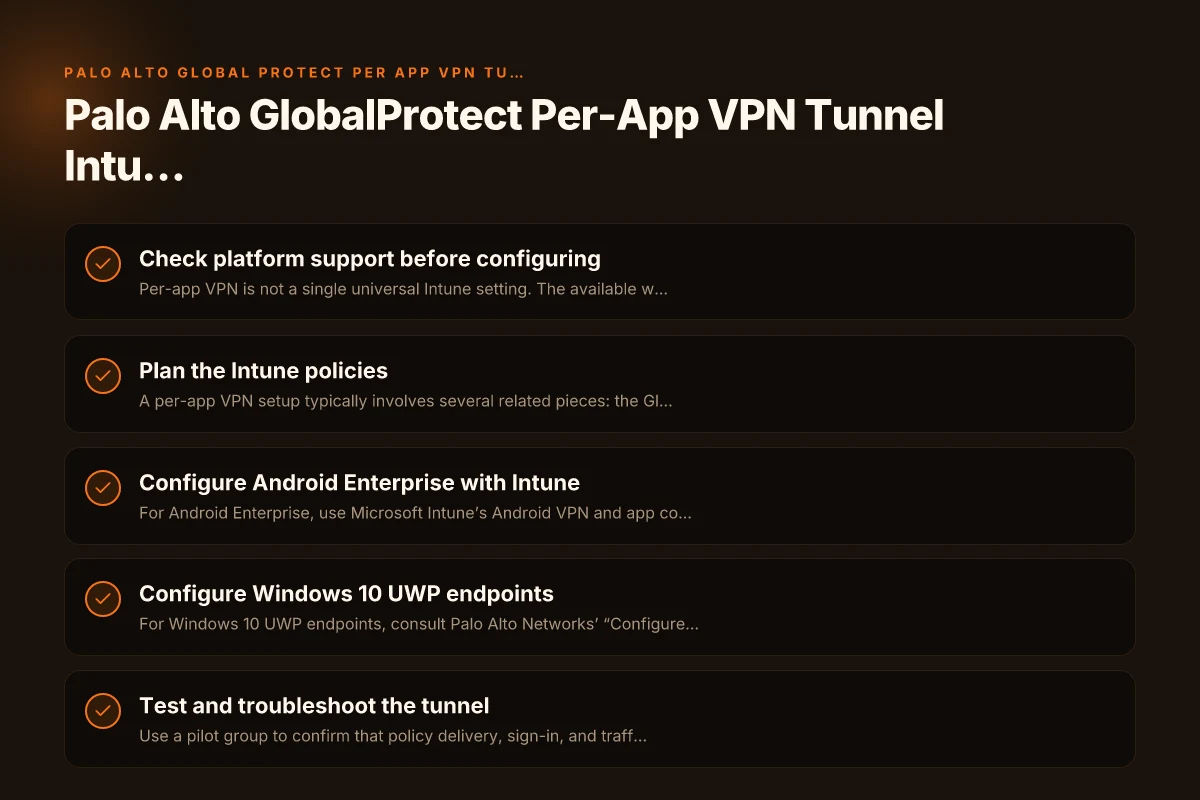
Check platform support before configuring
Per-app VPN is not a single universal Intune setting. The available workflow depends on the operating system, management mode, GlobalProtect app version, and the configuration options supported by that app.
Palo Alto Networks documents a per-app VPN configuration for Windows 10 UWP endpoints in its GlobalProtect Quick Configs. Microsoft also provides guidance for configuring VPN and per-app VPN policies for Android Enterprise devices, including policies that use GlobalProtect.
Before building policies, confirm:
- The endpoint platform and enrollment type are supported for the intended configuration.
- The GlobalProtect app version is compatible with your environment.
- The VPN gateway and authentication method are already configured and reachable.
- The applications that need corporate access can be assigned or identified in Intune.
- Your organization’s licensing and management requirements are met.
Do not assume that instructions for Android apply to Windows, or vice versa. Use the matching Palo Alto Networks and Microsoft documentation for the platform you are deploying. Clash Free: What It Means and How to Avoid Conflicts
Plan the Intune policies
A per-app VPN setup typically involves several related pieces: the GlobalProtect client, its app configuration, the VPN profile, and the app-to-VPN association. Exact policy names and available fields vary by platform and Intune interface.
| Policy or component | Purpose | What to verify |
|---|---|---|
| GlobalProtect app deployment | Installs the VPN client on managed devices | Correct app, version, and assignment |
| App configuration policy | Supplies supported GlobalProtect settings | Values match your gateway and authentication design |
| VPN configuration | Defines the tunnel and connection behavior | GlobalProtect is selected where supported |
| Per-app association | Specifies which apps use the VPN | App identifiers and assignments are correct |
| Device and user assignments | Controls who receives the configuration | Groups are consistent across related policies |
Keep the target groups aligned. If a device receives the VPN profile but not the GlobalProtect app, the tunnel cannot be established. If the app is assigned but the per-app policy is not, the device may connect differently than intended.
Intune policy planning choices
| Decision | Option | Applies to | Main consideration |
|---|---|---|---|
| Enrollment platform | Android Enterprise | Android devices | Use the matching enrollment type |
| Enrollment platform | Windows 10 | Windows endpoints | Target supported UWP apps |
| VPN assignment | Device or user group | Enrolled endpoints | Keep assignments intentional |
| App assignment | Selected apps | Per-app tunnel | Include only apps that need access |
| Tunnel scope | Per-app | Supported apps | Limits VPN use to assigned apps |
| Policy rollout | Pilot group first | Test endpoints | Catch issues before broad rollout |
| Policy maintenance | Review assignments | Existing endpoints | Remove stale app or group targets |
Compiled November 2026; check the provider's site for current details. Does VPN Block Ads? What to Expect from a VPN’s Ad-Blocking Features
Configure Android Enterprise with Intune
For Android Enterprise, use Microsoft Intune’s Android VPN and app configuration guidance as the starting point. The policy workflow can include a VPN configuration and an app configuration that identifies the applications intended to use the VPN.
A practical sequence is:
- In Intune, add or assign the GlobalProtect app to the appropriate managed Android users or devices.
- Create the GlobalProtect app configuration policy using the settings supported by the deployed app and management mode.
- Create the Android Enterprise VPN configuration and select GlobalProtect when the configuration flow supports it.
- Set the per-app behavior and associate the required apps using the identifiers requested by Intune.
- Assign the policies to the same test group and allow the devices to sync.
Be careful when entering an app in an app list. Use the identifier format required by the relevant Intune policy, not merely the app’s display name. A mismatch can prevent the association from applying even when the app is installed.
Also distinguish between the VPN app configuration and the per-app routing assignment. Supplying GlobalProtect settings does not necessarily tell Android which apps should start or use the tunnel. Check both policies and their deployment status in Intune. Country Change VPN Free: How to Choose and Use One
Configure Windows 10 UWP endpoints
For Windows 10 UWP endpoints, consult Palo Alto Networks’ “Configure a Per-App VPN Configuration for Windows 10 UWP Endpoints Using Microsoft Intune” guidance in the GlobalProtect Quick Configs. Follow that workflow for the supported Windows scenario rather than reusing Android policy steps.
At a high level, the deployment requires the GlobalProtect app and a per-app VPN configuration that targets the appropriate UWP applications. Confirm the endpoint type, app package identity, and policy format expected by the current documentation. Windows per-app VPN behavior can differ from full-device VPN behavior, and not every desktop application is necessarily eligible for the same configuration.
Before assigning broadly:
- Validate that the target app is a supported UWP app for the documented workflow.
- Confirm that the GlobalProtect client and Windows endpoint meet the guide’s prerequisites.
- Check the policy’s app identity and VPN association carefully.
- Test the configuration on a small set of managed devices.
If your Windows devices or applications do not fit the documented UWP scenario, verify current platform support with Palo Alto Networks and Microsoft before designing an alternative. Does Proton VPN Auto Renew? What to Know Before Your Subscription Ends
Test and troubleshoot the tunnel
Use a pilot group to confirm that policy delivery, sign-in, and traffic routing all work as expected. Start with one managed device and one application that should use the tunnel, then compare it with an application that should remain outside it.
Check the following:
- App installation: GlobalProtect is installed and launches on the assigned device.
- Policy status: Intune reports the relevant app configuration and VPN policies as successfully applied.
- Authentication: The user can complete the configured sign-in flow.
- Tunnel state: GlobalProtect establishes a connection to the expected gateway.
- App routing: The selected application reaches internal resources through the VPN, while nonselected apps behave according to the intended policy.
- Access controls: Firewall rules and other network controls permit the required destinations.
If the VPN connects but the target app cannot reach a resource, investigate both the per-app association and the network access rules. If the app does not trigger the tunnel, verify the app identifier, policy assignment, enrollment type, and platform-specific requirements. A successful Intune policy assignment alone does not prove that traffic is taking the intended route.
Tunnel validation and troubleshooting checklist Safe VPN Extension for Edge: How to Choose One
| Check | What to verify | If it fails | Next step |
|---|---|---|---|
| Profile delivery | Intune profile reaches device | Profile absent | Check assignment and sync |
| App targeting | Intended app is assigned | App uses no tunnel | Review app selection |
| Platform support | Device and app are compatible | Unsupported configuration | Confirm platform and app type |
| GlobalProtect status | Client connects successfully | Tunnel does not connect | Review client and gateway settings |
| App traffic | Assigned app uses VPN | Traffic bypasses tunnel | Recheck per-app policy |
| User scope | Correct user or group is targeted | Some users lack access | Verify group membership |
| Pilot results | Test cases pass | Inconsistent behavior | Compare device and policy state |
Compiled November 2026; check the provider's site for current details.
Recommendation
Use the platform-specific Palo Alto Networks and Microsoft instructions as the source of truth: the Windows 10 UWP Quick Config for its supported Windows scenario, and Microsoft’s Android Enterprise VPN guidance for Android. Deploy the GlobalProtect app, app configuration, VPN profile, and per-app association to a small, consistent test group first. Expand deployment only after you confirm policy delivery, authentication, and routing for both selected and nonselected apps.