Nord VPN PC: How to Download, Install, and Use NordVPN on Windows
Learn how to install NordVPN on a PC, choose a server, use key security features, and troubleshoot common connection problems.


If you’re looking for Nord VPN PC, NordVPN’s Windows app lets you connect your computer to VPN servers, encrypt traffic between your PC and the VPN, and manage security features from one place. To get started, download the official app, sign in to your Nord Account, and select a server. The steps below explain installation, everyday use, useful settings, and what to try if a connection doesn’t work.

Editor's pick: NordVPN — fast, secure VPN — Strong encryption, a no-logs policy and apps for every device. 30-day money-back guarantee. Get NordVPN →
| VPN | Obfuscation | From / month | Plan | Free plan | Refund | Alipay | UnionPay | Crypto | Website opens in China | Trustpilot | |
|---|---|---|---|---|---|---|---|---|---|---|---|
 NordVPN | Turn on manually Obfuscated Servers / NordWhisper | $3.49/mo | 27 months: $94.23 | No | 30 days | ? | ✗ | ✓ | ✓ | ✗ Blocked | 4.2/5 (51,628 reviews) |
 ZoogVPN | Turn on manually Shadow | $2.49/mo | 27 months: $59.99 | Yes | 7 days | ✓ | ✓ | ✓ | ✓ | Official site blocked; our special link opens (4.4 s) | 4.2/5 (195 reviews) |
 ExpressVPN | ✓ On by default all servers | $3.00/mo | 28 months: $84 | No | 30 days | ✗ | ✗ | ✓ | ✗ | ✗ Blocked | 4.4/5 (29,706 reviews) |
 Surfshark | ✓ On by default Camouflage, with OpenVPN | See site | See site | No | 30 days | ✗ | ✗ | ✗ | ✓ | ✗ Blocked | 4.3/5 (31,823 reviews) |
 Proton VPN | Turn on manually Stealth, free plan too | $2.99/mo | 12 months: $35.88 | Yes | 30 days | ✗ | ✗ | ✗ | ✓ | ✗ Blocked | 2.1/5 (1,040 reviews) |
 Astrill VPN | Turn on manually StealthVPN / OpenWeb | $12.50/mo | 24 months: $300 | No | See site | ✗ | ✗ | ✗ | ✓ | ✗ Blocked | 1.3/5 (110 reviews) |
 Private Internet Access | Turn on manually Shadowsocks, OpenVPN only | $2.03/mo | 40 months: $81.2 | No | 30 days | ✗ | ✗ | ✗ | ✗ | ✗ Blocked | 4.2/5 (11,033 reviews) |
 CyberGhost | Turn on manually selected servers | $2.19/mo | 28 months: $61.32 | No | 45 days | ✗ | ✗ | ✗ | ✓ | ✗ Blocked | 4.0/5 (24,178 reviews) |
 PureVPN | Turn on manually switch to OpenVPN | $1.69/mo | 60 months: $101.55 | No | 31 days | ? | ? | ✗ | ✓ | ✗ Blocked | 4.4/5 (17,994 reviews) |
 AdGuard VPN | ✓ On by default TrustTunnel | $2.99/mo | 24 months: $71.76 | Yes | 30 days | ✓ | ✗ | ✓ | ✓ | Official site blocked; our special link opens (3.7 s) | 4.3/5 (290 reviews) |
 Mullvad | Turn on manually QUIC / Shadowsocks / LWO | $5.61/mo | €5/mo | No | 14 days | ✗ | ✗ | ✗ | ✓ | ✗ Blocked | 3.2/5 (192 reviews) |
 Windscribe | Turn on manually Stealth / WStunnel | $5.75/mo | 12 months: $69 | Yes | See site | ✗ | ✗ | ✗ | ✓ | ✗ Blocked | 4.7/5 (13,355 reviews) |
 StrongVPN | Turn on manually Scramble, OpenVPN TCP | See site | See site | No | 30 days | ✓ | ✗ | ✗ | ✗ | ✗ Blocked | 4.4/5 (2,695 reviews) |
 LightXtreme 闪连 | Not listed | $7.08/mo | 12 months: $84.99 | Yes | 30 days | ✓ | ✓ | ✓ | ✓ | ✓ Yes (3.5 s) | No page |
Prices checked 2026-11-10 on each vendor's pricing page (cheapest long plan, USD). Check the vendor's checkout for the final price.
Obfuscation checked 2026-11-14 on each vendor's site and help center: "on by default" = nothing to set; "turn on manually" = switch protocol or mode in settings; "not listed" = the vendor describes no obfuscation.
Payment methods checked 2026-11-10 on each vendor's payment pages: all 14 take cards and PayPal; ✗ = not listed, ? = the vendor's own pages disagree.
China access: whether the official website opens from mainland China networks (tests the website only, not the VPN connection). Last checked 2026-11-18 01:02 Beijing time.
Trustpilot score and review count checked 2026-11-10.
What NordVPN for PC does
NordVPN for Windows routes your internet traffic through a VPN server. This can help protect your connection on public Wi-Fi and reduce what your local network can see about your online activity. The VPN connection also replaces your usual public IP address with one associated with the server you choose.
A VPN is not a complete privacy solution. It does not make you anonymous, prevent every form of tracking, or protect you from all malicious websites and downloads. Websites, apps, cookies, and account logins may still identify you. Keep Windows and your browser updated, use strong passwords, and enable multifactor authentication where available.
NordVPN offers additional tools within its app, but their availability can depend on your plan, region, app version, and settings. Check the current product details in your account before relying on a particular feature.
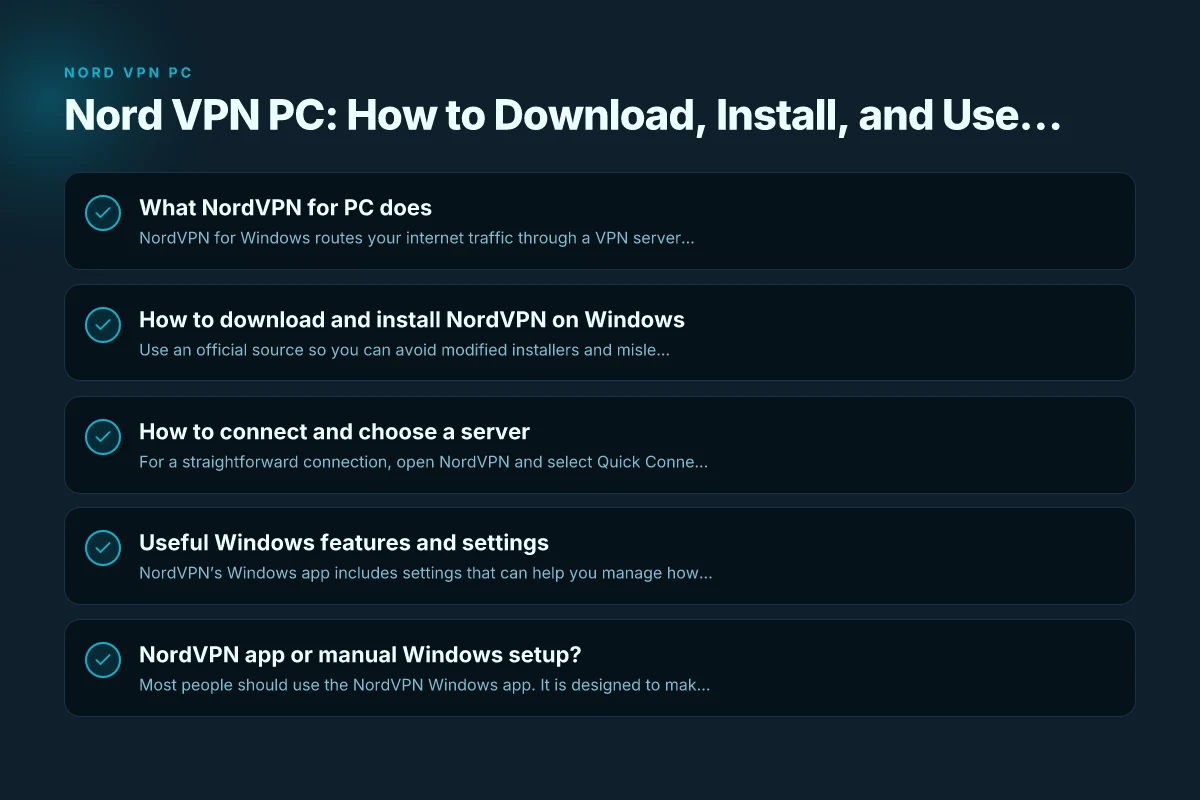
How to download and install NordVPN on Windows
Use an official source so you can avoid modified installers and misleading download pages. List of Undetectable VPN for Microsoft Edge Browser: What to Choose
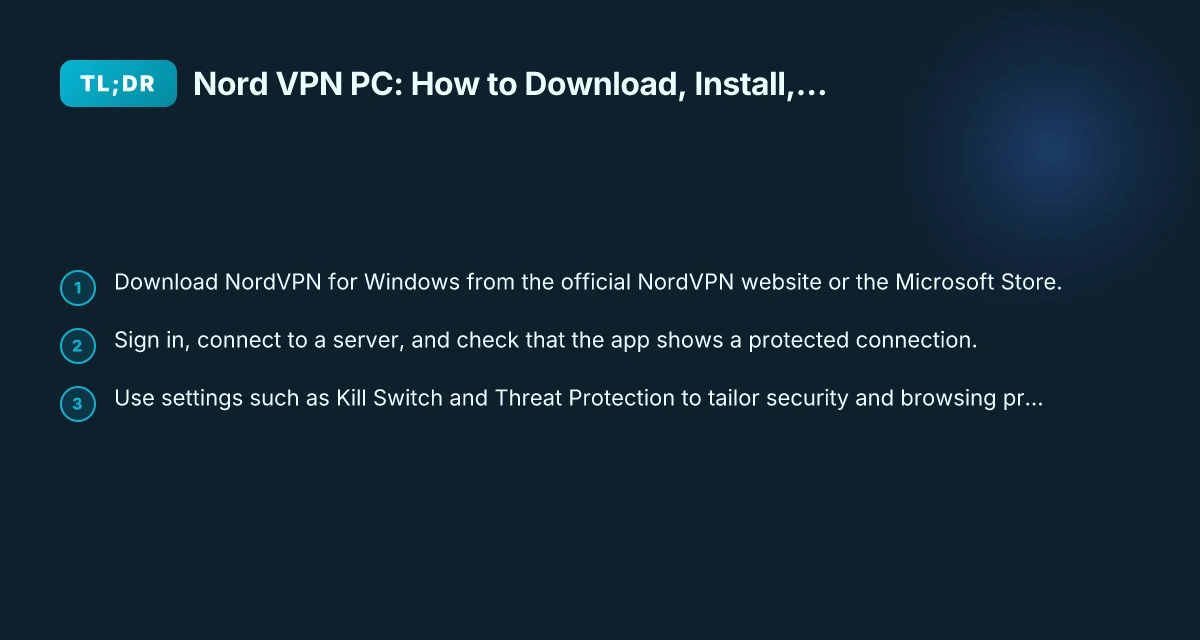
- Visit the NordVPN website or open the Microsoft Store.
- Download the NordVPN app for Windows.
- Run the installer and follow the on-screen instructions.
- Open the app and sign in using your Nord Account.
- Approve any Windows prompts required to finish setup.
- Select a server or choose the app’s Quick Connect option.
The exact interface can change as NordVPN updates its Windows app. If you already have an older version installed, update it through the app or the same official source you used before. If installation fails, restart your PC and check that your Windows version meets the app’s current requirements.
You need an active NordVPN subscription to use the service. The app may let you view or manage account details, but access to VPN servers depends on your subscription status.
How to connect and choose a server
For a straightforward connection, open NordVPN and select Quick Connect. The app chooses a server based on its selection process, which is convenient when you want a VPN connection without comparing locations.
You can also select a country or a specific server from the map or server list. Choose based on what you need: SSL VPN POSCO E&C: Access, Setup, and Security Tips
- For general browsing, connect to a nearby server to help keep latency low.
- For a particular country’s IP location, choose a server in that country.
- For more control, select a server manually if the app provides the option.
After connecting, look for the app’s connected status. You can also check your public IP address using a reputable IP-checking website. Disconnect through the app when you no longer want the VPN connection.
A VPN server location does not guarantee access to a specific website or service. Services may restrict access based on their own policies, licensing, or technical checks, and their availability can change.
Useful Windows features and settings
NordVPN’s Windows app includes settings that can help you manage how connections work. Names and options may vary by app version.
- Kill Switch: This can block internet access if the VPN connection drops, depending on how it is configured. Check the app’s settings to understand what traffic it covers.
- Auto-connect: Set the app to connect automatically under selected conditions, such as when Windows starts or when you join a network.
- Threat Protection: Available options may help block certain ads, trackers, or harmful downloads. It should not replace antivirus software or careful browsing.
- Split tunneling: If offered in your version, this lets you choose which apps use the VPN and which connect directly. Review your selections carefully, especially for apps that handle sensitive information.
- Protocol settings: The app may let you choose or manage the connection protocol. Automatic selection is a practical starting point if you are unsure which option to use.
| Need | Setting to consider | What to know |
|---|---|---|
| Reduce exposure if the VPN drops | Kill Switch | Confirm what types of traffic the setting blocks |
| Connect without manual steps | Auto-connect | Choose conditions that suit your routine |
| Filter some online threats | Threat Protection | Keep your operating system and security software updated |
| Route selected apps differently | Split tunneling | Available options and behavior can vary |
Review settings after major app updates. A feature’s presence or behavior can depend on your plan, Windows version, and the current release of the app. How Do U Deactivate Norton VPN to Help Restore Your Connection?
NordVPN app or manual Windows setup?
Most people should use the NordVPN Windows app. It is designed to make connecting, switching servers, and managing available features simpler. Manual setup through Windows may be useful in specific situations, but it can involve additional configuration and may not provide the same app controls.
| Option | Best suited to | Main consideration |
|---|---|---|
| NordVPN Windows app | Most PC users | Simple server selection and access to supported app features |
| Manual VPN configuration | Users with a specific setup requirement | Requires configuration details and may offer fewer service features |
If you choose manual setup, follow NordVPN’s current instructions for your account and Windows version. Avoid copying configuration details from unofficial guides, as incorrect or outdated settings can prevent connections or weaken your intended setup.
Troubleshooting common connection problems
If NordVPN won’t connect or your internet seems slow, try these steps:
- Disconnect and reconnect in the app.
- Choose a different server, preferably one nearby.
- Restart the app and, if needed, restart your PC.
- Check that your internet works when the VPN is disconnected.
- Update the NordVPN app and install available Windows updates.
- Review firewall, antivirus, or network settings that could be blocking the connection.
- Try another supported protocol in the app if the issue continues.
If websites fail to load only while connected, test another server and check whether a Kill Switch or split-tunneling rule is affecting traffic. Avoid disabling security features without understanding the trade-off. For persistent problems, consult NordVPN’s official support resources and provide the app version, Windows version, and a description of the issue. VPN for Xbox Browser: What Works and the Best Ways to Connect
Recommendation
For most Windows users, the NordVPN PC app is the simplest way to use the service: download it from an official source, sign in, connect to a nearby server, and confirm the app reports a protected connection. Enable the settings that match your needs, especially Auto-connect or Kill Switch if appropriate, and remember that a VPN complements rather than replaces good device security and privacy habits.