Microsoft Edge Proxy LAN Settings: How to Find and Change Them

Find the LAN proxy controls used by Microsoft Edge, change proxy settings, and troubleshoot common connection issues.


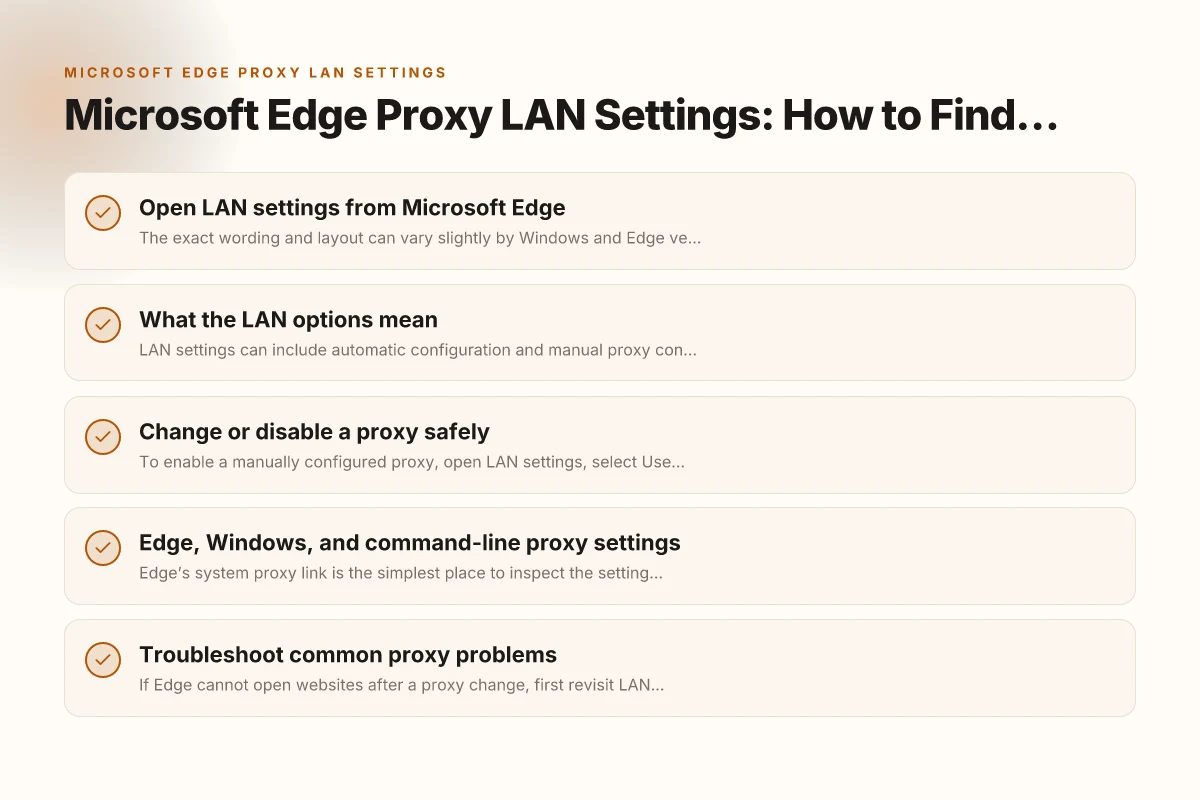
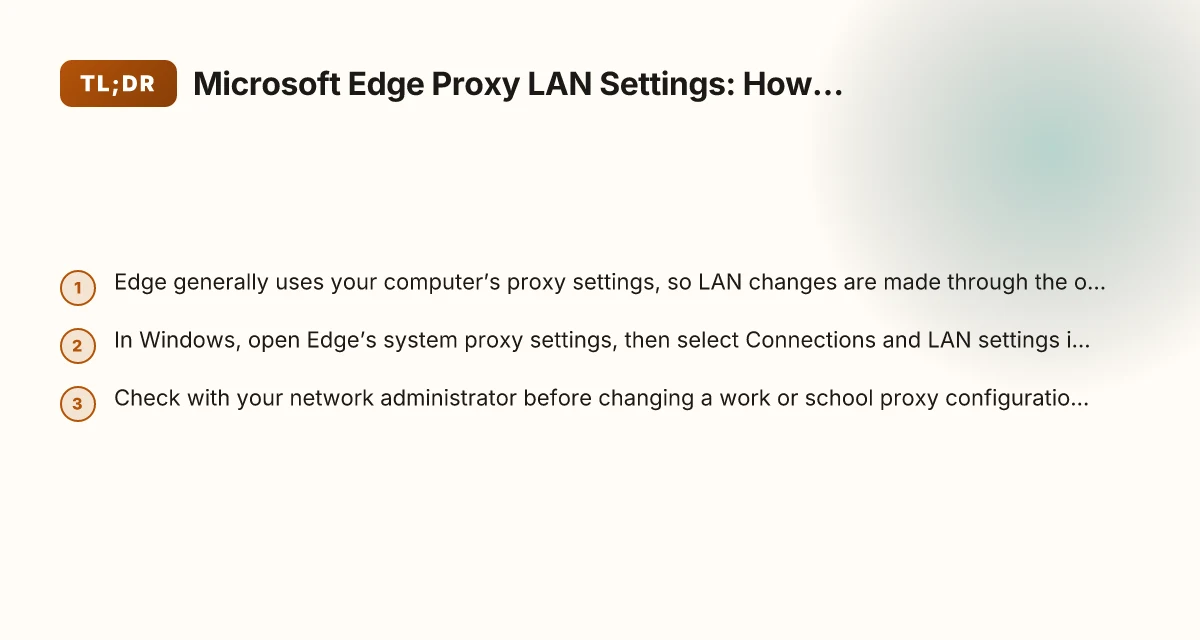
To change Microsoft Edge proxy LAN settings on Windows, open Edge’s Settings > System and performance > Open your computer’s proxy settings. In the Windows proxy controls, open Connections > LAN settings. There, you can review automatic configuration and proxy server options. Edge typically follows the system’s proxy configuration rather than providing a separate, independent LAN proxy page.

Editor's pick: NordVPN — fast, secure VPN — Strong encryption, a no-logs policy and apps for every device. 30-day money-back guarantee. Get NordVPN →
Open LAN settings from Microsoft Edge
The exact wording and layout can vary slightly by Windows and Edge version, but the usual route is:
- Open Microsoft Edge and select the three-dot menu in the upper-right corner.
- Select Settings.
- Open System and performance. In some versions, this area may simply be called System.
- Select Open your computer’s proxy settings.
- In the Windows settings window, open Connections.
- Select LAN settings.
This opens the Local Area Network (LAN) Settings dialog, where Windows manages options that Edge can use. If Edge sends you to a different-looking Settings page, look for the operating system’s Proxy settings and follow the link to the legacy Internet Properties or LAN controls if available.
What the LAN options mean
LAN settings can include automatic configuration and manual proxy controls. The right choice depends on how your network is set up. Avoid enabling or disabling options simply to test them if the device is managed by an employer, school, or service provider.
| Option | What it does | When it may be used |
|---|---|---|
| Automatically detect settings | Lets Windows try to discover proxy configuration for the network | Networks that provide automatic proxy discovery |
| Use automatic configuration script | Uses a configuration script address supplied by an administrator | Organizations that distribute a proxy configuration script |
| Use a proxy server for your LAN | Routes applicable traffic through a proxy server and port you enter | Networks where an administrator has provided specific proxy details |
| Bypass proxy for local addresses | Excludes certain local network addresses from the proxy | Setups where local resources should be reached directly |
If you need a manual proxy, enter the server address and port supplied by your network administrator. Do not guess these values: an incorrect address or port can prevent websites from loading, while an untrusted proxy may expose or redirect your traffic. Free Trial VPN Australia: How to Test a VPN Safely
Change or disable a proxy safely
To enable a manually configured proxy, open LAN settings, select Use a proxy server for your LAN, and enter the approved address and port. Select OK to save the change, then test Edge with a site you are authorized to access.
To turn off a manual proxy, return to the same dialog and clear Use a proxy server for your LAN. If a configuration script is enabled, review that option as well. Disabling a required company or school proxy may block access to internal sites or violate your organization’s network rules.
If you are troubleshooting, note the original selections and values before making changes. This makes it easier to restore the prior setup if the change does not resolve the problem. Some proxy settings may be controlled by an administrator or policy, so the controls may be unavailable or may revert after you change them.
Edge, Windows, and command-line proxy settings
Edge’s system proxy link is the simplest place to inspect the settings that commonly affect browser traffic. Windows LAN settings are not the only way to configure proxy behavior, however. Organizations can manage Edge through browser policies, and advanced users can start Edge with command-line proxy options. Cisco AnyConnect VPN Download: Safe Options and Setup Guide
Microsoft documents a --proxy-server command-line option that accepts a semicolon-separated mapping of schemes to proxy addresses and ports. For example, its documentation shows a mapping such as --proxy-server="http=proxy1:8080;ftp=ftpproxy". This is an advanced launch-time option, not a substitute for the standard LAN controls. Use it only when you understand the effect and have the correct proxy details.
| Configuration method | Where it is managed | Best suited to |
|---|---|---|
| Windows LAN settings | Internet Properties and Windows network controls | Checking or changing system-level LAN proxy options |
| Edge command-line option | The command used to launch Edge | Advanced, specific launch configurations |
| Edge policy | Organization-managed browser settings | IT administrators managing browser behavior |
If a setting is enforced by policy, contact your administrator rather than trying to override it. A managed configuration may intentionally prevent users from changing proxy settings.
Troubleshoot common proxy problems
If Edge cannot open websites after a proxy change, first revisit LAN settings and confirm the address, port, and configuration-script details match the information from your administrator. Check whether the proxy is meant to be enabled for the network you are currently using.
If the proxy is not required, disable the relevant manual or automatic configuration option only after confirming that doing so is appropriate. Then close and reopen Edge and test again. If the problem remains, check the Windows proxy page for other active settings, since more than one configuration method may affect traffic. Why Is It That My VPN Turns On Automatically? Common Causes and Fixes
If Edge does not open at all, the proxy may not be the cause. You can still reach the system proxy controls through Windows Settings or Internet Properties. On a managed device, ask IT to check whether the proxy service is available and whether the browser is receiving the correct policy.
Recommendation
For most users, the best approach is to open Edge Settings > System and performance > Open your computer’s proxy settings, then review Connections > LAN settings. Use only proxy details provided by a trusted administrator, and avoid changing managed settings without approval.