McAfee VPN 7 Turned On Automatically: How to Stop It
Find out why McAfee Secure VPN reconnects by itself and how to change its auto-connect settings.
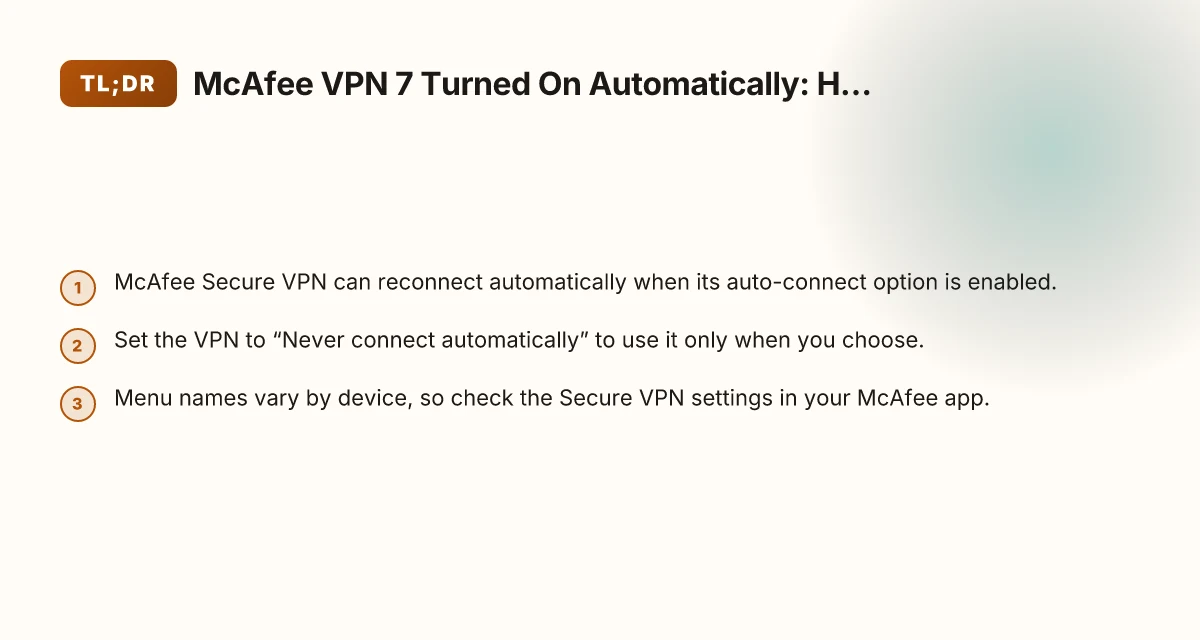
If your McAfee VPN turned on automatically, its auto-connect setting is the first thing to check. McAfee Secure VPN can be configured to connect automatically, including when you join a network. On Windows, choose “Never connect automatically” if you want to turn on the VPN only when you decide to use it. The setting is different from Safe reconnect, which is designed to pause your internet connection if the VPN is disrupted.

Editor's pick: NordVPN — fast, secure VPN — Strong encryption, a no-logs policy and apps for every device. 30-day money-back guarantee. Get NordVPN →
Common reasons McAfee VPN turns on automatically
| Possible cause | What to check | Where to look | Typical clue |
|---|---|---|---|
| Auto-connect is enabled | VPN connection preferences | McAfee VPN settings | Connects when you start the device |
| Protection feature triggers VPN | Secure connection or protection options | McAfee app settings | Starts when a protection feature activates |
| App startup behavior | Launch-at-startup setting | Device or app startup settings | VPN appears after sign-in |
| Trusted network rules | Network-specific VPN preferences | VPN settings | Behavior changes on different networks |
| Saved VPN preference | Current connection state | VPN app | VPN reconnects after being turned off |
| Another security tool interferes | Other VPN or network apps | Installed apps | Connection changes unexpectedly |
Compiled November 2026; check the provider's site for current details.
| VPN | Obfuscation | From / month | Plan | Free plan | Refund | Alipay | UnionPay | Crypto | Website opens in China | Trustpilot | |
|---|---|---|---|---|---|---|---|---|---|---|---|
 ZoogVPN | Turn on manually Shadow | $2.49/mo | 27 months: $59.99 | Yes | 7 days | ✓ | ✓ | ✓ | ✓ | Official site blocked; our special link opens (4.4 s) | 4.2/5 (195 reviews) |
 NordVPN | Turn on manually Obfuscated Servers / NordWhisper | $3.49/mo | 27 months: $94.23 | No | 30 days | ? | ✗ | ✓ | ✓ | ✗ Blocked | 4.2/5 (51,628 reviews) |
 ExpressVPN | ✓ On by default all servers | $3.00/mo | 28 months: $84 | No | 30 days | ✗ | ✗ | ✓ | ✗ | ✗ Blocked | 4.4/5 (29,706 reviews) |
 Surfshark | ✓ On by default Camouflage, with OpenVPN | See site | See site | No | 30 days | ✗ | ✗ | ✗ | ✓ | ✗ Blocked | 4.3/5 (31,823 reviews) |
 Proton VPN | Turn on manually Stealth, free plan too | $2.99/mo | 12 months: $35.88 | Yes | 30 days | ✗ | ✗ | ✗ | ✓ | ✗ Blocked | 2.1/5 (1,040 reviews) |
 Astrill VPN | Turn on manually StealthVPN / OpenWeb | $12.50/mo | 24 months: $300 | No | See site | ✗ | ✗ | ✗ | ✓ | ✗ Blocked | 1.3/5 (110 reviews) |
 Private Internet Access | Turn on manually Shadowsocks, OpenVPN only | $2.03/mo | 40 months: $81.2 | No | 30 days | ✗ | ✗ | ✗ | ✗ | ✗ Blocked | 4.2/5 (11,033 reviews) |
 CyberGhost | Turn on manually selected servers | $2.19/mo | 28 months: $61.32 | No | 45 days | ✗ | ✗ | ✗ | ✓ | ✗ Blocked | 4.0/5 (24,178 reviews) |
 PureVPN | Turn on manually switch to OpenVPN | $1.69/mo | 60 months: $101.55 | No | 31 days | ? | ? | ✗ | ✓ | ✗ Blocked | 4.4/5 (17,994 reviews) |
 AdGuard VPN | ✓ On by default TrustTunnel | $2.99/mo | 24 months: $71.76 | Yes | 30 days | ✓ | ✗ | ✓ | ✓ | Official site blocked; our special link opens (3.7 s) | 4.3/5 (290 reviews) |
 Mullvad | Turn on manually QUIC / Shadowsocks / LWO | $5.61/mo | €5/mo | No | 14 days | ✗ | ✗ | ✗ | ✓ | ✗ Blocked | 3.2/5 (192 reviews) |
 Windscribe | Turn on manually Stealth / WStunnel | $5.75/mo | 12 months: $69 | Yes | See site | ✗ | ✗ | ✗ | ✓ | ✗ Blocked | 4.7/5 (13,355 reviews) |
 StrongVPN | Turn on manually Scramble, OpenVPN TCP | See site | See site | No | 30 days | ✓ | ✗ | ✗ | ✗ | ✗ Blocked | 4.4/5 (2,695 reviews) |
 LightXtreme 闪连 | Not listed | $7.08/mo | 12 months: $84.99 | Yes | 30 days | ✓ | ✓ | ✓ | ✓ | ✓ Yes (3.5 s) | No page |
Prices checked 2026-11-10 on each vendor's pricing page (cheapest long plan, USD). Check the vendor's checkout for the final price.
Obfuscation checked 2026-11-14 on each vendor's site and help center: "on by default" = nothing to set; "turn on manually" = switch protocol or mode in settings; "not listed" = the vendor describes no obfuscation.
Payment methods checked 2026-11-10 on each vendor's payment pages: all 14 take cards and PayPal; ✗ = not listed, ? = the vendor's own pages disagree.
China access: whether the official website opens from mainland China networks (tests the website only, not the VPN connection). Last checked 2026-11-18 01:02 Beijing time.
Trustpilot score and review count checked 2026-11-10.
Why McAfee VPN may turn on by itself
Secure VPN can reconnect because an automatic connection preference is enabled. Depending on your device and McAfee app version, the option may apply to all networks, Wi-Fi networks, or selected network types.
A VPN may also reconnect after you switch networks or restart the app if its auto-connect rules are still active. Turning off the VPN’s current connection does not necessarily change those rules. That means it can be off now but connect again when the selected condition occurs.
If you see “7” in a message or label alongside the phrase “turned on automatically,” do not assume that it identifies a specific McAfee setting. Look for the actual auto-connect controls in the Secure VPN section of the app.
Turn off automatic connection on Windows
Open the McAfee app and go to Secure VPN. In the Windows setup guidance, the auto-connect choice called “Never connect automatically” means the VPN connects only when you turn it on yourself. Best Warzone VPN: How to Choose One for Better Gameplay
Try these steps:
- Open the McAfee app.
- Open the Secure VPN tile or section.
- Find the auto-connect or connection preference.
- Select “Never connect automatically.”
- Turn off the VPN if it is currently connected.
The exact menu layout can differ by app version. If you do not see the setting in the main VPN screen, check its settings or connection preferences.
| Setting | What it does | Choose it when |
|---|---|---|
| Never connect automatically | Connects only when you turn on the VPN yourself | You want manual control |
| Automatic connection | Connects based on the configured network rules | You want VPN protection to start automatically |
| Safe reconnect | Pauses your internet connection if the VPN is disrupted | You want a safeguard against traffic continuing outside the VPN |
“Never connect automatically” is the relevant choice for stopping routine auto-connects. Safe reconnect is a separate feature, not a schedule for turning the VPN on or off.
Check the settings on a Mac or mobile device
The steps and labels can vary across devices, so use the settings for the platform you are using. Cant Use Prime Because of VPN? How to Fix the Problem
Mac
McAfee’s Mac instructions direct users to open the app, select the Secure VPN tile, and then open the Settings tab. Under “Turn on VPN,” review the automatic connection option. If it is set to connect automatically on all networks or Wi-Fi, change it if you want to start the VPN manually.
Mobile devices
In the McAfee Security app, open the menu and go to Settings, then Secure VPN. Review the auto-connect choice and select the option that matches how you want the VPN to behave. The available choices may differ by app version.
After changing the preference, disconnect the VPN if it remains active. Then check whether it reconnects when you reopen the app or change networks. If it does, revisit the setting and confirm that the new preference was saved.
Where to stop automatic VPN connections Best VPNs in Italy: 5 Reliable Picks for Privacy, Streaming, and Travel
| Device | First place to check | Setting to look for | If the VPN still starts |
|---|---|---|---|
| Windows | McAfee VPN settings | Automatic connection or auto-connect | Check startup and protection settings |
| Mac | McAfee app settings | VPN connection preferences | Check login items and network rules |
| iPhone | McAfee app settings | Automatic connection preferences | Check iOS VPN settings |
| Android | McAfee app settings | Auto-connect or trusted network rules | Check Android VPN settings |
| Any device | VPN app | Saved connection preferences | Restart and test the setting |
| Any device | Device settings | Startup or VPN controls | Check for another VPN app |
Compiled November 2026; check the provider's site for current details.
If the VPN keeps reconnecting
If automatic connection is already disabled but the VPN still starts by itself, check a few practical details before changing other settings:
- Confirm the active preference: Reopen Secure VPN settings and make sure “Never connect automatically” or the equivalent manual option is selected.
- Check each network rule: On devices that offer separate Wi-Fi or network choices, review whether any automatic option remains enabled.
- Disconnect after changing the setting: The VPN may still be connected from before you changed the preference. Turn it off once and observe what happens next.
- Look for the source of the prompt: Make sure the connection is being initiated by McAfee Secure VPN, rather than another VPN app or a device-level VPN setting.
- Check for app-specific differences: Instructions for Windows, Mac, and mobile are not interchangeable. Use the controls shown in your own McAfee app.
If the setting appears to change back or the VPN continues to reconnect, consult McAfee’s support instructions for your device and app version. Avoid deleting or disabling unrelated security features just to stop an unwanted VPN connection.
Should you leave McAfee VPN on?
That depends on how you use it. Automatic connection can be convenient if you want the VPN to start under chosen network conditions. Manual connection is more suitable if you use it only for specific tasks or find that it interferes with access to some sites. Best VPNs in India: Top Picks for Privacy, Speed, and Streaming
You can leave Secure VPN installed while disabling its auto-connect behavior. That lets you open the app and connect when needed without having it start automatically under the configured conditions.
Decide whether to leave McAfee VPN on
| Situation | Leave it on? | Main consideration | Practical choice |
|---|---|---|---|
| Using public Wi-Fi | Often yes | Adds a layer of connection privacy | Keep VPN enabled |
| Using a trusted home network | Optional | Your comfort and privacy needs | Use it if preferred |
| VPN disrupts an app or site | Not necessarily | Some services may not work as expected | Turn it off temporarily |
| Connection is slow or unstable | Not necessarily | VPN routing can affect performance | Test with VPN off |
| Device reconnects unexpectedly | No, until checked | Automatic settings may be active | Disable auto-connect |
| You need a work or school network | Follow its guidance | Network policies may restrict VPNs | Check with the administrator |
Compiled November 2026; check the provider's site for current details.
Recommendation
To stop McAfee VPN from turning on automatically, open Secure VPN settings and choose “Never connect automatically” or the equivalent manual option for your device. Disconnect any active VPN session, then check that it stays off. Best VPNs in Germany: Top Picks for Privacy, Streaming, and Speed