iPhone Clash: What It Means and How to Fix Common iPhone Conflicts
Understand what “iPhone clash” can mean, from app conflicts to device compatibility, and learn practical ways to resolve common issues.


An “iPhone clash” usually means that two apps, settings, or connected devices are interfering with one another, not that Apple has a single feature or error officially called iPhone Clash. If your iPhone is freezing, an app is closing unexpectedly, Bluetooth accessories are disconnecting, or notifications are behaving strangely, the cause is often a software bug, outdated app, incompatible accessory, or conflicting configuration. The right fix depends on what is clashing and when the problem started.

Common meanings of “iPhone Clash”
| Situation | What conflicts | Common clue | First check | Typical fix |
|---|---|---|---|---|
| App conflict | Two apps or an app and iOS | One app freezes or closes | Update the app and iOS | Restart, update, or reinstall the app |
| Bluetooth clash | iPhone and accessory connection | Audio cuts out or pairing fails | Bluetooth status and accessory charge | Re-pair the accessory |
| Settings interference | Features or permissions | Calls, alerts, or connections behave oddly | Relevant iPhone settings | Adjust the setting causing the issue |
| Network conflict | Wi-Fi or cellular connection | Internet or calling problems | Connection status | Reconnect or reset network settings |
| Storage pressure | Apps and iOS resources | Slow performance or failed updates | Available storage | Free up space |
| Account mismatch | Apple Account or app sign-in | Sync or access problems | Signed-in account | Sign in with the intended account |
Compiled November 2026; check the provider's site for current details.
What people mean by “iPhone Clash”
The phrase can describe several different problems. Identifying which one you have is the first step toward a safe fix.
Common examples include:
- App conflicts: An app crashes, stalls, or behaves differently after an iOS or app update.
- Accessory conflicts: Bluetooth headphones, car systems, keyboards, or other devices fail to connect reliably.
- Settings conflicts: Focus modes, notification permissions, Screen Time limits, or background activity affect an app.
- Compatibility problems: An older app or accessory does not fully support your iPhone model or current iOS version.
- Storage or performance issues: Low storage or heavy background activity makes the phone seem unstable.
The wording alone does not identify a specific cause. Note what you were doing when the issue appeared, which app or accessory was involved, and whether anything changed shortly beforehand.
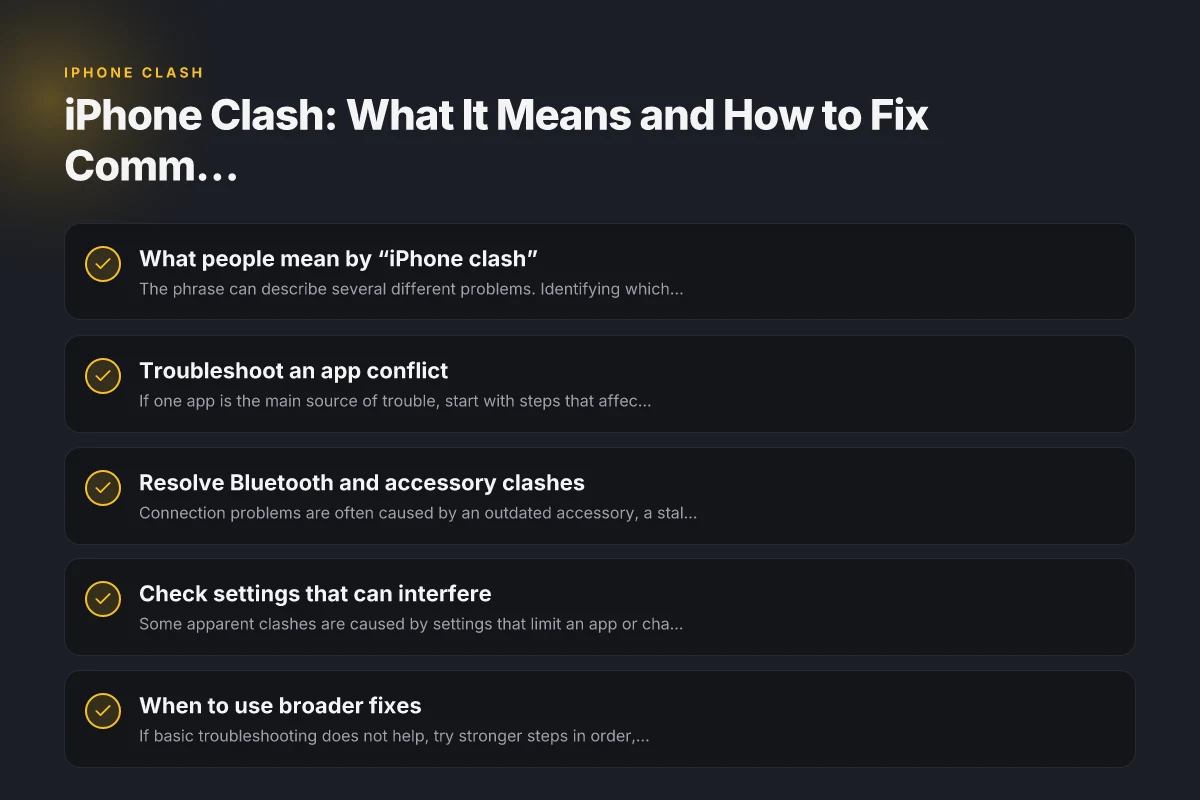
Troubleshoot an app conflict
If one app is the main source of trouble, start with steps that affect only that app. VPN Extension for Edge Browser: How to Choose and Use One
- Close and reopen the app. This can clear a temporary hang without changing your data.
- Update the app. Open the App Store, tap your account picture, and check for available updates.
- Check for an iOS update. Go to Settings > General > Software Update. Install an update if one is available and suitable for your device.
- Restart your iPhone. A restart can clear temporary system issues.
- Check the app’s permissions. Go to Settings, find the app, and review relevant permissions such as Bluetooth, Location, Photos, or Notifications.
If the problem began immediately after an app update, check the developer’s support page or recent App Store reviews for reports from other users. You can also contact the developer, especially if the issue affects one app while the rest of the phone works normally.
Deleting and reinstalling an app may help, but first confirm that its data is backed up or linked to an account. Removing an app can erase locally stored information.
Troubleshoot an app conflict
| Option | Best when | What to try | Possible drawback | Escalate if |
|---|---|---|---|---|
| Force close and reopen | One app is unresponsive | Close, then reopen the app | May not address the cause | The issue returns |
| Restart iPhone | Several apps act strangely | Restart the iPhone | Temporary interruption | Problems persist |
| Update the app | A newer version is available | Install the app update | Update may not fix every bug | The app still fails |
| Update iOS | The issue may involve system software | Check for an iOS update | Requires time and free space | The problem remains |
| Check app permissions | A feature is unavailable | Review the app’s permissions | Permission changes affect access | The setting looks correct |
| Reinstall the app | One app remains faulty | Delete and reinstall it | Local app data may be lost | The issue continues |
| Contact app support | The fault appears app-specific | Share the symptoms and app version | Response times vary | The issue may involve iOS or hardware |
Compiled November 2026; check the provider's site for current details. NordVPN Extension for Edge: How to Install and Use It
Resolve Bluetooth and accessory clashes
Connection problems are often caused by an outdated accessory, a stale pairing, or another device trying to connect.
| Symptom | First thing to try | If it continues |
|---|---|---|
| Accessory will not pair | Charge it and put it in pairing mode | Check the accessory maker’s instructions and compatibility |
| Accessory connects, then drops | Restart the iPhone and accessory | Forget the accessory and pair it again |
| Car audio connects but behaves inconsistently | Remove the old pairing from both devices | Check for updates for the car system or accessory |
| Several accessories have trouble | Toggle Bluetooth off and on in Settings | Restart the iPhone and check for an iOS update |
To remove a Bluetooth pairing, go to Settings > Bluetooth, tap the information button next to the accessory, and choose Forget This Device. Then pair it again using the accessory’s instructions. You may also need to remove the iPhone from the accessory’s saved-device list.
For car systems, wireless CarPlay, or specialized accessories, check the manufacturer’s compatibility information. Not every feature works with every iPhone, software version, or accessory model.
Check settings that can interfere
Some apparent clashes are caused by settings that limit an app or change how it behaves. Where Is My VPN? How to Find It and Check That It’s Connected
- Focus: A Focus mode can silence notifications from selected apps or people. Review it in Settings > Focus.
- Notifications: Check Settings > Notifications to confirm that the app is allowed to send alerts and that its alert style is set as intended.
- Screen Time: App limits or communication restrictions may block access. Review Settings > Screen Time.
- Low Power Mode: This can reduce background activity. Check Settings > Battery if an app is not refreshing as expected.
- Storage: Go to Settings > General > iPhone Storage. If storage is nearly full, remove or offload items you no longer need after confirming important data is backed up.
Also check whether the issue affects only one Wi-Fi network or location. If so, the network, router, or service may be responsible rather than the iPhone itself.
Choose a fix for Bluetooth or settings clashes
| Symptom | Check first | Low-impact fix | Broader fix | Use broader fix when |
|---|---|---|---|---|
| Accessory will not pair | Bluetooth and accessory charge | Toggle Bluetooth; retry pairing | Reset network settings | Multiple connection fixes fail |
| Audio cuts out | Distance and nearby connections | Move closer; reconnect | Restart iPhone and accessory | Dropouts continue |
| Accessory connects to another device | Accessory’s active connection | Disconnect it from the other device | Forget and re-pair it | It keeps selecting the wrong device |
| Wi-Fi behaves inconsistently | Wi-Fi status and network | Toggle Wi-Fi; reconnect | Reset network settings | Several networks are affected |
| Alerts are missing | Focus and notification settings | Review Focus and app notifications | Restart iPhone | Settings appear correct |
| Calls are silenced | Focus and call settings | Check Focus and allowed callers | Review relevant settings | Calls remain affected |
| Several issues persist | Recent changes and updates | Restart and check for updates | Contact Apple Support | Basic checks do not resolve the issue |
Compiled November 2026; check the provider's site for current details.
When to use broader fixes
If basic troubleshooting does not help, try stronger steps in order, and avoid erasing the phone unless necessary. VPN Free Extension Edge: How to Choose One for Microsoft Edge
First, make sure you have a current backup using iCloud or a computer. Then consider Settings > General > Transfer or Reset iPhone > Reset > Reset Network Settings for persistent Wi-Fi, cellular, or Bluetooth problems. This removes saved network information, including Wi-Fi passwords, so you will need to reconnect afterward.
For broader settings issues, Reset All Settings returns many system preferences to their defaults without deleting personal media and documents. It does, however, change settings such as network preferences, privacy choices, and Apple Pay cards. Review Apple’s on-screen explanation before proceeding.
An erase-and-restore should be a last resort. It removes content and settings, so back up first and make sure you know the Apple Account credentials needed to set the phone up again. If an iPhone remains unstable after a clean update or shows physical damage, contact Apple Support or an authorized service provider.
Recommendation
Treat “iPhone clash” as a description of a problem, not a diagnosis. Start by isolating the affected app, setting, or accessory. Update software. And restart the phone. Use network or settings resets only when the symptoms point to them, and back up before any major change. If the problem persists across multiple apps or accessories, Apple Support can help determine whether the cause is software, compatibility, or hardware. Fortinet VPN: What It Is, How It Works, and How to Get Started