I Noticed a VPN Connected on iPhone That I Did Not Install: What to Check
Find out why a VPN may appear on your iPhone, how to identify its source, and what to do if you do not recognize it.
If you noticed a VPN connected on your iPhone that you did not install, first check Settings > General > VPN & Device Management (or search Settings for “VPN”). A VPN can be configured by a work or school profile, a security app, or a network setting, not only by an app you remember installing. Check what is listed before removing anything, especially if the phone belongs to an employer or school.
Seeing the VPN symbol alone does not prove that someone is remotely accessing your iPhone. It indicates that iOS believes a VPN connection is active, though the icon can sometimes remain visible after a connection has ended. The steps below can help you identify the source and decide what to do.
| VPN | Obfuscation | From / month | Plan | Free plan | Refund | Alipay | UnionPay | Crypto | Website opens in China | Trustpilot | |
|---|---|---|---|---|---|---|---|---|---|---|---|
 ZoogVPN | Turn on manually Shadow | $2.49/mo | 27 months: $59.99 | Yes | 7 days | ✓ | ✓ | ✓ | ✓ | Official site blocked; our special link opens (4.4 s) | 4.2/5 (195 reviews) |
 NordVPN | Turn on manually Obfuscated Servers / NordWhisper | $3.49/mo | 27 months: $94.23 | No | 30 days | ? | ✗ | ✓ | ✓ | ✗ Blocked | 4.2/5 (51,628 reviews) |
 ExpressVPN | ✓ On by default all servers | $3.00/mo | 28 months: $84 | No | 30 days | ✗ | ✗ | ✓ | ✗ | ✗ Blocked | 4.4/5 (29,706 reviews) |
 Surfshark | ✓ On by default Camouflage, with OpenVPN | See site | See site | No | 30 days | ✗ | ✗ | ✗ | ✓ | ✗ Blocked | 4.3/5 (31,823 reviews) |
 Proton VPN | Turn on manually Stealth, free plan too | $2.99/mo | 12 months: $35.88 | Yes | 30 days | ✗ | ✗ | ✗ | ✓ | ✗ Blocked | 2.1/5 (1,040 reviews) |
 Astrill VPN | Turn on manually StealthVPN / OpenWeb | $12.50/mo | 24 months: $300 | No | See site | ✗ | ✗ | ✗ | ✓ | ✗ Blocked | 1.3/5 (110 reviews) |
 Private Internet Access | Turn on manually Shadowsocks, OpenVPN only | $2.03/mo | 40 months: $81.2 | No | 30 days | ✗ | ✗ | ✗ | ✗ | ✗ Blocked | 4.2/5 (11,033 reviews) |
 CyberGhost | Turn on manually selected servers | $2.19/mo | 28 months: $61.32 | No | 45 days | ✗ | ✗ | ✗ | ✓ | ✗ Blocked | 4.0/5 (24,178 reviews) |
 PureVPN | Turn on manually switch to OpenVPN | $1.69/mo | 60 months: $101.55 | No | 31 days | ? | ? | ✗ | ✓ | ✗ Blocked | 4.4/5 (17,994 reviews) |
 AdGuard VPN | ✓ On by default TrustTunnel | $2.99/mo | 24 months: $71.76 | Yes | 30 days | ✓ | ✗ | ✓ | ✓ | Official site blocked; our special link opens (3.7 s) | 4.3/5 (290 reviews) |
 Mullvad | Turn on manually QUIC / Shadowsocks / LWO | $5.61/mo | €5/mo | No | 14 days | ✗ | ✗ | ✗ | ✓ | ✗ Blocked | 3.2/5 (192 reviews) |
 Windscribe | Turn on manually Stealth / WStunnel | $5.75/mo | 12 months: $69 | Yes | See site | ✗ | ✗ | ✗ | ✓ | ✗ Blocked | 4.7/5 (13,355 reviews) |
 StrongVPN | Turn on manually Scramble, OpenVPN TCP | See site | See site | No | 30 days | ✓ | ✗ | ✗ | ✗ | ✗ Blocked | 4.4/5 (2,695 reviews) |
 LightXtreme 闪连 | Not listed | $7.08/mo | 12 months: $84.99 | Yes | 30 days | ✓ | ✓ | ✓ | ✓ | ✓ Yes (3.5 s) | No page |
Prices checked 2026-11-10 on each vendor's pricing page (cheapest long plan, USD). Check the vendor's checkout for the final price.
Obfuscation checked 2026-11-14 on each vendor's site and help center: "on by default" = nothing to set; "turn on manually" = switch protocol or mode in settings; "not listed" = the vendor describes no obfuscation.
Payment methods checked 2026-11-10 on each vendor's payment pages: all 14 take cards and PayPal; ✗ = not listed, ? = the vendor's own pages disagree.
China access: whether the official website opens from mainland China networks (tests the website only, not the VPN connection). Last checked 2026-11-18 01:02 Beijing time.
Trustpilot score and review count checked 2026-11-10.

Editor's pick: NordVPN — fast, secure VPN — Strong encryption, a no-logs policy and apps for every device. 30-day money-back guarantee. Get NordVPN →
Compare the places to check for an active VPN
| Where to look | What to check | What it can show | What to do next |
|---|---|---|---|
| iPhone status bar | VPN indicator | A VPN may be connected | Check Settings |
| Settings home | VPN status | Whether iOS reports a connection | Open VPN settings |
| Settings > General > VPN & Device Management | VPN configuration | Saved VPN settings or profiles | Review unfamiliar entries |
| VPN app | Connection status | Whether the app says it is connected | Check its account and settings |
| Wi-Fi settings | Network details | Network-specific settings | Review unfamiliar configuration |
| Cellular settings | Cellular data options | Carrier or network settings | Look for changes you recognize |
Compiled November 2026; check the provider's site for current details.
Check whether a VPN is actually connected
Open Settings and look for VPN. Depending on your iOS version, you may also find VPN details under General > VPN & Device Management. Review the status and any listed configurations.
If a VPN is active, turn it off using the control shown in Settings. You can also disconnect it from the VPN app, if one is identified. Then check whether the VPN symbol disappears and whether your internet connection behaves normally.
If there is no VPN configuration or active connection but the symbol remains, restart your iPhone. Some users have reported that the VPN icon can linger because of an iOS display issue. A restart may clear it, but verify the status in Settings rather than relying on the icon alone.
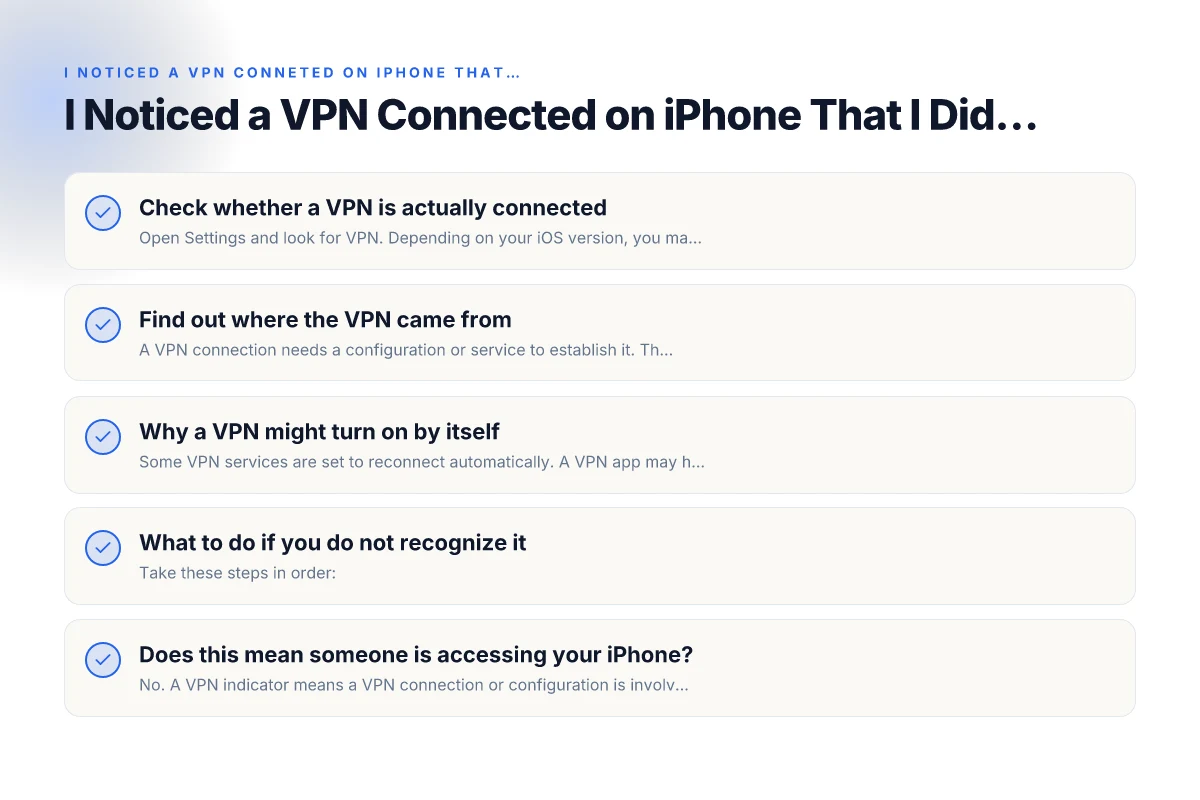
Find out where the VPN came from
A VPN connection needs a configuration or service to establish it. That source may not be an app you deliberately installed. Check the following places: Astrill VPN Download Mac: Official Steps, Setup, and Safety Tips
- VPN settings: Look for a VPN configuration or connection name you recognize.
- VPN & Device Management: Review any management profiles or configuration profiles.
- Installed apps: Look for VPN, privacy, security, antivirus, or filtering apps that could provide network protection.
- Work or school setup: An organization may manage VPN settings on a device it issued or enrolled.
A configuration profile can apply settings to an iPhone, including VPN settings. If you do not recognize a profile, note its name and who it says manages it before taking action. On a work or school phone, ask the organization’s IT team what the profile is for. Removing a required profile could affect access to work or school services.
| What you find | What it may mean | Sensible next step |
|---|---|---|
| A VPN app you recognize | The app may have connected automatically | Open it and review its connection settings |
| A work or school profile | The device may be managed by an organization | Confirm with its IT administrator |
| An unfamiliar profile or VPN | The source is unclear | Record the details and investigate before removing it |
| No configuration, but the icon remains | The display may be stale or there may be another connectivity issue | Restart, check again, and update iOS |
Why a VPN might turn on by itself
Some VPN services are set to reconnect automatically. A VPN app may have a feature such as Connect On Demand, or it may reconnect when your iPhone joins a particular network. Security or filtering software can also manage network traffic through a VPN-style connection.
Check the app or configuration details for automatic connection options. If you find a VPN service you recognize but do not want active, turn off its auto-connect setting or disconnect it through the app. If you cannot identify the source, avoid approving prompts or installing additional profiles until you understand what is being requested.
Also remember that a VPN option in Settings is not, by itself, a free VPN service provided by Apple. It is a place where a VPN connection can be configured and managed. VPN Speed: What to Expect and How to Improve It
Compare common sources of an unfamiliar VPN
| Possible source | Where to check | What may appear | What to do if unfamiliar |
|---|---|---|---|
| VPN app | App Library or Settings | A VPN app and its connection | Review the app and its account |
| Work or school | VPN & Device Management | An organization profile | Ask the organization before removing |
| Configuration profile | VPN & Device Management | A profile that can configure VPN | Check who installed it |
| Security or privacy app | Installed apps | VPN features bundled with the app | Review the app’s settings |
| Network setup | Wi-Fi settings | Network-related configuration | Check with the network administrator |
| Carrier or service provider | Provider app or support | Service-specific setup | Confirm with the provider |
Compiled November 2026; check the provider's site for current details.
What to do if you do not recognize it
Take these steps in order:
- Disconnect the VPN using Settings or the associated app, if you can identify it.
- Review profiles and device management under General > VPN & Device Management.
- Ask the owner or administrator if your iPhone is supplied or managed by work or school.
- Remove an unfamiliar profile only when you are confident it is not required. Removing it can change device settings or interrupt access to services.
- Restart your iPhone and check the VPN status again.
- Install available iOS updates and confirm your date, time, and time zone are correct.
Apple’s guidance for network connectivity issues recommends checking VPN and other third-party security software, verifying date and time settings, and using the latest software updates. If you still cannot identify the connection or have trouble accessing the internet, consult Apple Support or the relevant app provider. Fortigate IPsec Debug: A Practical Guide to Finding VPN Problems
Does this mean someone is accessing your iPhone?
No. A VPN indicator means a VPN connection or configuration is involved. It does not, on its own, show that another person is controlling your phone. Treat an unfamiliar VPN as something worth checking, but do not assume it proves a security breach.
If you find an unknown profile, review its details and contact the person or organization responsible for the device if applicable. Avoid sharing passwords or verification codes with anyone who contacts you unexpectedly. For a personal iPhone, use Apple’s official support channels if you cannot establish where the profile came from.
Decide what to do about a VPN you do not recognize
| What you find | Possible explanation | Suggested action | Does it prove someone accessed the iPhone? |
|---|---|---|---|
| Known VPN app | App or service setup | Check its connection settings | No |
| Work or school profile | Organization-managed setup | Confirm with your administrator | No |
| Unknown profile | Configuration you do not recognize | Identify its source before removing | No |
| VPN turns on after opening an app | App connection setting | Review the app’s settings | No |
| VPN returns after disconnecting | App, profile, or management setting | Find the source and review it | No |
| No recognizable source | Unexplained configuration | Review installed apps and profiles; contact Apple Support if needed | No |
Compiled November 2026; check the provider's site for current details. Could Virgin Be Blocking My VPN? How to Find Out and Fix It
Recommendation
Start by checking Settings > General > VPN & Device Management, then disconnect any identifiable VPN and review its source. If the VPN icon remains with no active configuration, restart and update your iPhone. Do not remove a work or school profile, or an unfamiliar profile you do not understand, until you have confirmed what it does.