FortiClient VPN Connection Failed. Please Check Your Configuration: How to Fix It
Fix the FortiClient VPN configuration error by checking your connection settings, credentials, network, and VPN client.
If FortiClient displays “VPN connection failed. Please check your configuration,” it usually cannot establish a connection using the current profile or account. Check the VPN type, server address, port, credentials, and any organization-specific requirements first. If you use a work or school VPN, your IT administrator may need to confirm the correct settings or investigate the VPN gateway.

Editor's pick: NordVPN — fast, secure VPN — Strong encryption, a no-logs policy and apps for every device. 30-day money-back guarantee. Get NordVPN →
Compare the likely cause with the symptom and first check
| Symptom | Likely cause | First check | Next step |
|---|---|---|---|
| “Connection failed” after a profile change | Incorrect VPN settings | Compare the profile with IT’s instructions | Correct only confirmed mismatches |
| Login is rejected | Wrong username or password | Check spelling and account format | Reset credentials through approved channels |
| Password works, but sign-in still fails | Authentication or MFA issue | Check for an MFA prompt or approval request | Retry, then ask IT to verify authentication |
| VPN server cannot be reached | Network or server problem | Check internet access and server address | Try an approved alternate network |
| Connection fails on one device only | Device configuration or client issue | Compare with a working device, if available | Check device settings or contact IT |
| Connection drops repeatedly | Unstable network or device issue | Test whether other internet services also drop | Retry on a stable, permitted network |
Compiled November 2026; check the provider's site for current details.
| VPN | Obfuscation | From / month | Plan | Free plan | Refund | Alipay | UnionPay | Crypto | Website opens in China | Trustpilot | |
|---|---|---|---|---|---|---|---|---|---|---|---|
 ZoogVPN | Turn on manually Shadow | $2.49/mo | 27 months: $59.99 | Yes | 7 days | ✓ | ✓ | ✓ | ✓ | Official site blocked; our special link opens (4.4 s) | 4.2/5 (195 reviews) |
 NordVPN | Turn on manually Obfuscated Servers / NordWhisper | $3.49/mo | 27 months: $94.23 | No | 30 days | ? | ✗ | ✓ | ✓ | ✗ Blocked | 4.2/5 (51,628 reviews) |
 ExpressVPN | ✓ On by default all servers | $3.00/mo | 28 months: $84 | No | 30 days | ✗ | ✗ | ✓ | ✗ | ✗ Blocked | 4.4/5 (29,706 reviews) |
 Surfshark | ✓ On by default Camouflage, with OpenVPN | See site | See site | No | 30 days | ✗ | ✗ | ✗ | ✓ | ✗ Blocked | 4.3/5 (31,823 reviews) |
 Proton VPN | Turn on manually Stealth, free plan too | $2.99/mo | 12 months: $35.88 | Yes | 30 days | ✗ | ✗ | ✗ | ✓ | ✗ Blocked | 2.1/5 (1,040 reviews) |
 Astrill VPN | Turn on manually StealthVPN / OpenWeb | $12.50/mo | 24 months: $300 | No | See site | ✗ | ✗ | ✗ | ✓ | ✗ Blocked | 1.3/5 (110 reviews) |
 Private Internet Access | Turn on manually Shadowsocks, OpenVPN only | $2.03/mo | 40 months: $81.2 | No | 30 days | ✗ | ✗ | ✗ | ✗ | ✗ Blocked | 4.2/5 (11,033 reviews) |
 CyberGhost | Turn on manually selected servers | $2.19/mo | 28 months: $61.32 | No | 45 days | ✗ | ✗ | ✗ | ✓ | ✗ Blocked | 4.0/5 (24,178 reviews) |
 PureVPN | Turn on manually switch to OpenVPN | $1.69/mo | 60 months: $101.55 | No | 31 days | ? | ? | ✗ | ✓ | ✗ Blocked | 4.4/5 (17,994 reviews) |
 AdGuard VPN | ✓ On by default TrustTunnel | $2.99/mo | 24 months: $71.76 | Yes | 30 days | ✓ | ✗ | ✓ | ✓ | Official site blocked; our special link opens (3.7 s) | 4.3/5 (290 reviews) |
 Mullvad | Turn on manually QUIC / Shadowsocks / LWO | $5.61/mo | €5/mo | No | 14 days | ✗ | ✗ | ✗ | ✓ | ✗ Blocked | 3.2/5 (192 reviews) |
 Windscribe | Turn on manually Stealth / WStunnel | $5.75/mo | 12 months: $69 | Yes | See site | ✗ | ✗ | ✗ | ✓ | ✗ Blocked | 4.7/5 (13,355 reviews) |
 StrongVPN | Turn on manually Scramble, OpenVPN TCP | See site | See site | No | 30 days | ✓ | ✗ | ✗ | ✗ | ✗ Blocked | 4.4/5 (2,695 reviews) |
 LightXtreme 闪连 | Not listed | $7.08/mo | 12 months: $84.99 | Yes | 30 days | ✓ | ✓ | ✓ | ✓ | ✓ Yes (3.5 s) | No page |
Prices checked 2026-11-10 on each vendor's pricing page (cheapest long plan, USD). Check the vendor's checkout for the final price.
Obfuscation checked 2026-11-14 on each vendor's site and help center: "on by default" = nothing to set; "turn on manually" = switch protocol or mode in settings; "not listed" = the vendor describes no obfuscation.
Payment methods checked 2026-11-10 on each vendor's payment pages: all 14 take cards and PayPal; ✗ = not listed, ? = the vendor's own pages disagree.
China access: whether the official website opens from mainland China networks (tests the website only, not the VPN connection). Last checked 2026-11-18 01:02 Beijing time.
Trustpilot score and review count checked 2026-11-10.
Check the VPN profile
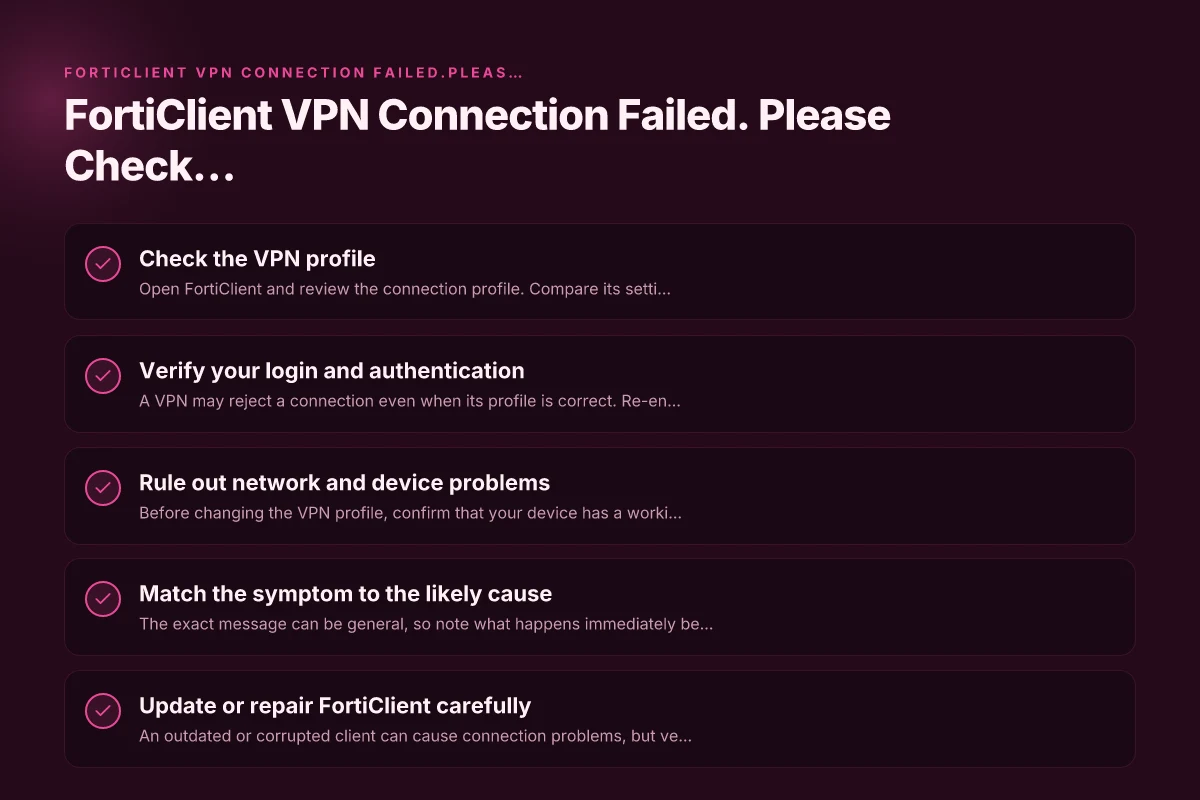
Open FortiClient and review the connection profile. Compare its settings with instructions supplied by your organization or VPN provider. Don’t guess at server details.
Check these items:
- VPN type: The profile must use the type your organization provides, such as SSL-VPN or IPsec VPN.
- Remote gateway: Confirm the hostname or IP address is spelled correctly. Remove accidental spaces.
- Port: Make sure the configured port matches the provider’s instructions. SSL-VPN commonly uses port 443, but organizations can use a different port.
- IPsec settings: If you use IPsec, verify the required authentication method, pre-shared key or certificate, and other parameters with your administrator.
- Certificate requirements: Some organizations require a client certificate. Check that it is installed, valid, and selected if FortiClient asks for one.
Avoid changing advanced encryption or authentication settings at random. A mismatch can prevent a connection, and the correct values are specific to the VPN gateway.
Verify your login and authentication
A VPN may reject a connection even when its profile is correct. Re-enter your username and password carefully, checking for typos, capitalization, and the correct account format. Some organizations require a domain name or a particular username format. Connect VPN Without Download: Safe Ways to Get Started
If multi-factor authentication is enabled:
- Approve the sign-in promptly in the authentication app.
- Enter a current one-time code, if requested.
- Check whether the organization requires a specific sign-in method.
- Contact IT if your account is locked, your password has expired, or you no longer have access to the second authentication factor.
Do not repeatedly retry a password you suspect is wrong. Too many failed attempts may lock your account. Confirm account access with your administrator or the organization’s password-reset process.
Rule out network and device problems
Before changing the VPN profile, confirm that your device has a working internet connection. Open a few websites or try another trusted network. A captive portal on hotel, airport, or guest Wi-Fi may require you to sign in before the VPN can connect.
A brief test on a different network can help identify the cause. If the VPN works elsewhere, the original network may be blocking the VPN protocol or port. A firewall, security product, or router policy can also interfere. Don’t disable security software or bypass organizational controls. Ask the relevant IT team whether the network allows the required connection. Norton VPN APK for Firestick: What to Know Before You Install
Also check that:
- Your device’s date and time are correct, especially when certificates are involved.
- FortiClient is allowed by the device firewall under your organization’s security policy.
- You are using the VPN profile and FortiClient version approved by your organization.
- The VPN service or gateway is not undergoing maintenance.
Restarting FortiClient or the device may clear a temporary issue. Save your work first, and avoid uninstalling a managed security client unless IT instructs you to do so.
Choose a safe troubleshooting action
| Action | Best for | What to check | Risk | When to stop |
|---|---|---|---|---|
| Review the VPN profile | Suspected setting mismatch | Server address and VPN type | Low if read-only | Stop if settings are unclear |
| Re-enter login details | Possible typing error | Username format and password | Low | Stop after repeated rejection |
| Complete MFA | Sign-in awaiting approval | Authenticator prompt or code | Low | Stop if no prompt appears |
| Test another approved network | Possible network block | Whether the VPN connects there | Low | Stop if the network is not permitted |
| Restart the device | Temporary device issue | Whether the problem persists | Low | Stop if restart does not help |
| Update FortiClient | Outdated client suspected | IT-approved version and instructions | Medium | Stop if update source is unverified |
| Repair or reinstall FortiClient | Client appears damaged | IT guidance and profile backup needs | Medium | Stop before removing managed settings |
Compiled November 2026; check the provider's site for current details. My IP ExpressVPN: How to Check Your IP Address
Match the symptom to the likely cause
The exact message can be general, so note what happens immediately before the failure. The comparison below is a starting point, not a definitive diagnosis.
| What you observe | Possible cause | What to check |
|---|---|---|
| Failure occurs immediately | Incorrect gateway, port, or VPN type | Compare the profile with official setup instructions |
| Username or password is rejected | Wrong credentials, expired password, or locked account | Verify the account and required username format |
| Multi-factor prompt does not complete | Delayed approval, wrong code, or authentication issue | Retry once and contact IT if the prompt still fails |
| Connection starts but then times out | Network restriction, gateway issue, or unreachable server | Test another network and ask IT to check gateway availability |
| Certificate or security warning appears | Missing, expired, or untrusted certificate | Contact IT for the correct certificate and installation steps |
| It worked before but stopped | Recent profile, client, account, or gateway change | Ask whether your organization changed VPN requirements |
A connection that fails on multiple networks and devices is more likely to involve the account, profile, or VPN gateway than a local Wi-Fi issue. Your administrator can confirm this by checking server-side logs.
Update or repair FortiClient carefully
An outdated or corrupted client can cause connection problems, but version compatibility matters: organizations may require a particular FortiClient release or centrally managed configuration.
- Check your organization’s instructions for the supported FortiClient version.
- Install updates only through an approved source or your organization’s software portal.
- Restart the device after an update if prompted.
- Reconnect using the approved profile.
If the error began after an update, tell IT the FortiClient version and device operating system. They can determine whether the release is compatible with the VPN gateway. Do not delete a work-managed profile or reset FortiClient without approval, since that could remove required settings or certificates. Norton VPN App for Fire Stick: What You Need to Know
Prepare information for your IT administrator
| Information to send | Include | Avoid sending |
|---|---|---|
| Error details | Exact message and when it appeared | A paraphrase alone |
| FortiClient details | Version and device operating system | Unverified download links |
| VPN profile | Profile name and server address, if permitted | Passwords or private keys |
| Sign-in status | Whether login and MFA completed | MFA codes or approval links |
| Network context | Wi-Fi or wired connection and whether internet works | Sensitive network credentials |
| Troubleshooting tried | Checks performed and what happened | Repeated attempts without results |
| Timing and scope | When it began and whether other devices are affected | Unneeded personal information |
Compiled November 2026; check the provider's site for current details.
What to send your IT administrator
If the basic checks do not solve the issue, contact your organization’s IT support rather than continuing to alter settings. Include:
- The exact error message and when it appears.
- Your operating system and FortiClient version.
- The VPN type and profile name, if known.
- Whether the problem happens on more than one network.
- The date and time of recent failed attempts.
- Any certificate, login, or multi-factor prompts you see.
Never send your password, one-time authentication code, or private certificate in a support request. Your administrator can use the timing and error details to check account status, gateway availability, access rules, and connection logs. NordVPN Activation Code: How to Activate Your Subscription
Recommendation
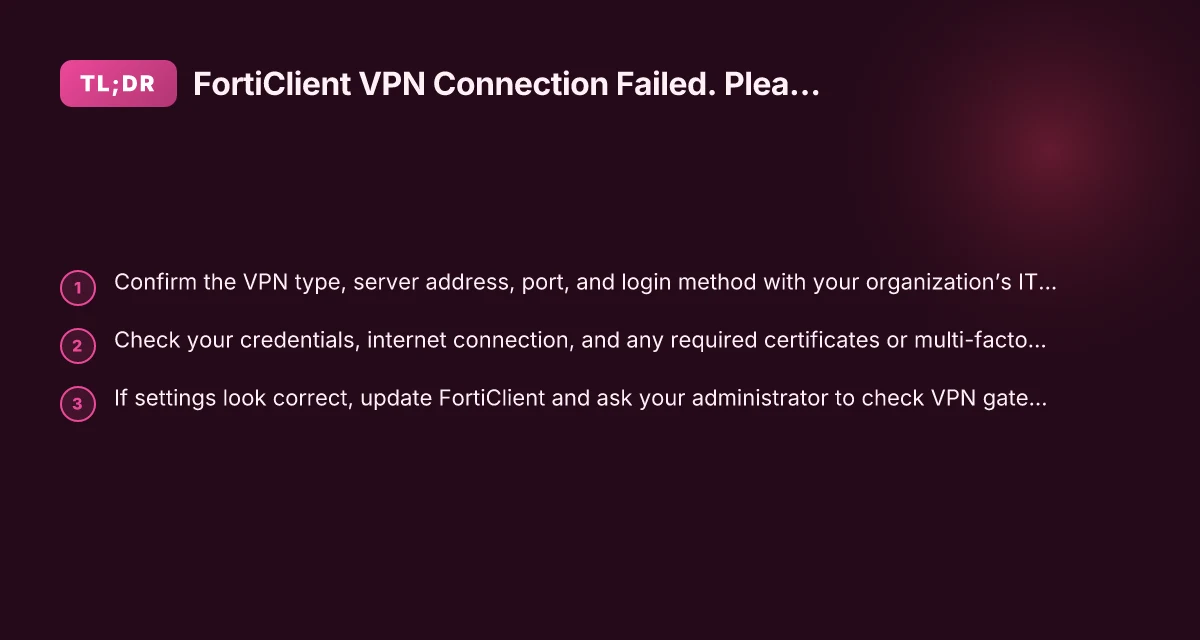
Start by comparing the VPN profile with your organization’s official settings, then verify your login, multi-factor authentication, and internet connection. If the message persists, stop changing advanced options and give IT the error details and FortiClient version so they can check the account and VPN gateway safely.