Can NordVPN Change My Location? What It Changes and What It Doesn’t
NordVPN can change the location websites see from your IP address, but it may not change your device’s GPS location.
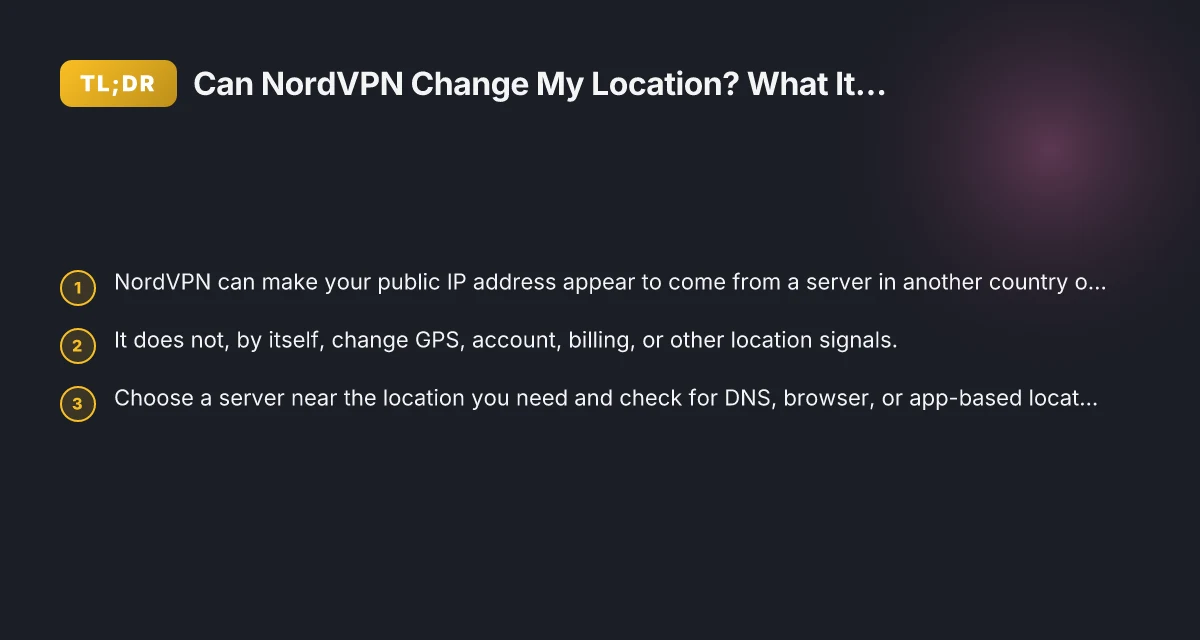
Yes, NordVPN can change the location that websites and services infer from your public IP address. When you connect to a VPN server in another country, your internet traffic appears to come from that server’s IP address, so IP-based location tools may show the server’s region instead of your own. However, NordVPN does not automatically change every way your location can be determined. GPS, Wi-Fi, browser permissions, account settings, and payment details may still reveal where you are.

Editor's pick: NordVPN — fast, secure VPN — Strong encryption, a no-logs policy and apps for every device. 30-day money-back guarantee. Get NordVPN →
What NordVPN changes—and what it doesn’t
| Location signal | NordVPN’s effect | What it can indicate | What to check |
|---|---|---|---|
| Public IP address | Changes to the VPN server’s IP | Approximate internet location | Check with an IP lookup |
| Website-visible IP | Usually shows the VPN server | Country or city associated with the IP | Compare before and after |
| DNS requests | Routed through the VPN when connected | Which DNS service handles requests | Use a DNS leak test |
| GPS location | Does not change GPS coordinates | Device’s physical location | Check device location settings |
| Wi-Fi or cell location | Does not change nearby network signals | Approximate device location | Review app permissions |
| Browser location access | Does not override device location permission | Location shared by the browser | Check browser and OS settings |
| Cookies and account activity | Does not erase saved history or profile data | Previously inferred location | Review cookies and account settings |
| App-specific location data | Does not necessarily change it | Location reported by the app or device | Check the app’s location source |
Compiled November 2026; check the provider's site for current details.
| VPN | Obfuscation | From / month | Plan | Free plan | Refund | Alipay | UnionPay | Crypto | Website opens in China | Trustpilot | |
|---|---|---|---|---|---|---|---|---|---|---|---|
 NordVPN | Turn on manually Obfuscated Servers / NordWhisper | $3.49/mo | 27 months: $94.23 | No | 30 days | ? | ✗ | ✓ | ✓ | ✗ Blocked | 4.2/5 (51,628 reviews) |
 ZoogVPN | Turn on manually Shadow | $2.49/mo | 27 months: $59.99 | Yes | 7 days | ✓ | ✓ | ✓ | ✓ | Official site blocked; our special link opens (4.4 s) | 4.2/5 (195 reviews) |
 ExpressVPN | ✓ On by default all servers | $3.00/mo | 28 months: $84 | No | 30 days | ✗ | ✗ | ✓ | ✗ | ✗ Blocked | 4.4/5 (29,706 reviews) |
 Surfshark | ✓ On by default Camouflage, with OpenVPN | See site | See site | No | 30 days | ✗ | ✗ | ✗ | ✓ | ✗ Blocked | 4.3/5 (31,823 reviews) |
 Proton VPN | Turn on manually Stealth, free plan too | $2.99/mo | 12 months: $35.88 | Yes | 30 days | ✗ | ✗ | ✗ | ✓ | ✗ Blocked | 2.1/5 (1,040 reviews) |
 Astrill VPN | Turn on manually StealthVPN / OpenWeb | $12.50/mo | 24 months: $300 | No | See site | ✗ | ✗ | ✗ | ✓ | ✗ Blocked | 1.3/5 (110 reviews) |
 Private Internet Access | Turn on manually Shadowsocks, OpenVPN only | $2.03/mo | 40 months: $81.2 | No | 30 days | ✗ | ✗ | ✗ | ✗ | ✗ Blocked | 4.2/5 (11,033 reviews) |
 CyberGhost | Turn on manually selected servers | $2.19/mo | 28 months: $61.32 | No | 45 days | ✗ | ✗ | ✗ | ✓ | ✗ Blocked | 4.0/5 (24,178 reviews) |
 PureVPN | Turn on manually switch to OpenVPN | $1.69/mo | 60 months: $101.55 | No | 31 days | ? | ? | ✗ | ✓ | ✗ Blocked | 4.4/5 (17,994 reviews) |
 AdGuard VPN | ✓ On by default TrustTunnel | $2.99/mo | 24 months: $71.76 | Yes | 30 days | ✓ | ✗ | ✓ | ✓ | Official site blocked; our special link opens (3.7 s) | 4.3/5 (290 reviews) |
 Mullvad | Turn on manually QUIC / Shadowsocks / LWO | $5.61/mo | €5/mo | No | 14 days | ✗ | ✗ | ✗ | ✓ | ✗ Blocked | 3.2/5 (192 reviews) |
 Windscribe | Turn on manually Stealth / WStunnel | $5.75/mo | 12 months: $69 | Yes | See site | ✗ | ✗ | ✗ | ✓ | ✗ Blocked | 4.7/5 (13,355 reviews) |
 StrongVPN | Turn on manually Scramble, OpenVPN TCP | See site | See site | No | 30 days | ✓ | ✗ | ✗ | ✗ | ✗ Blocked | 4.4/5 (2,695 reviews) |
 LightXtreme 闪连 | Not listed | $7.08/mo | 12 months: $84.99 | Yes | 30 days | ✓ | ✓ | ✓ | ✓ | ✓ Yes (3.5 s) | No page |
Prices checked 2026-11-10 on each vendor's pricing page (cheapest long plan, USD). Check the vendor's checkout for the final price.
Obfuscation checked 2026-11-14 on each vendor's site and help center: "on by default" = nothing to set; "turn on manually" = switch protocol or mode in settings; "not listed" = the vendor describes no obfuscation.
Payment methods checked 2026-11-10 on each vendor's payment pages: all 14 take cards and PayPal; ✗ = not listed, ? = the vendor's own pages disagree.
China access: whether the official website opens from mainland China networks (tests the website only, not the VPN connection). Last checked 2026-11-18 01:02 Beijing time.
Trustpilot score and review count checked 2026-11-10.
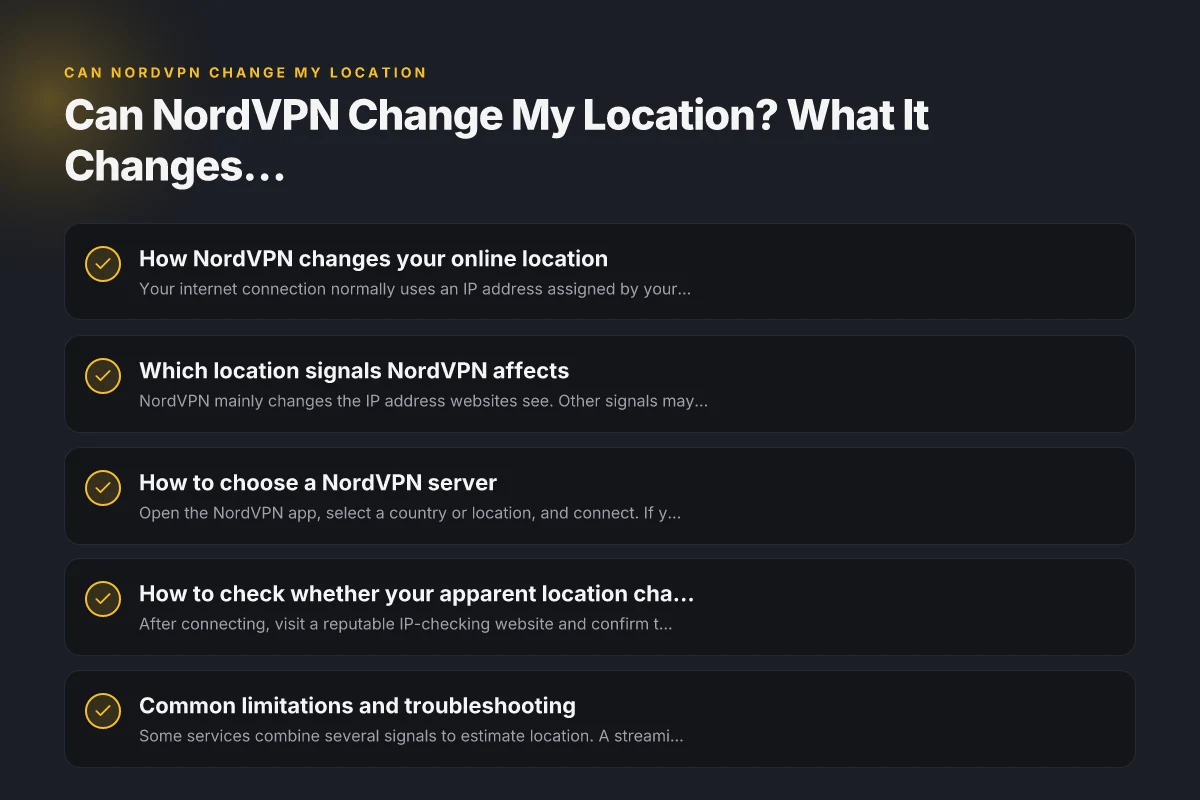
How NordVPN changes your online location
Your internet connection normally uses an IP address assigned by your internet provider. Websites can use that address to estimate your location, often at the country or regional level. When you connect to NordVPN, your traffic is routed through a VPN server, and websites generally see the server’s IP address rather than your home IP address.
For example, if you are physically in Canada and connect to a NordVPN server in France, a website that relies on IP location may identify your connection as French. Your actual device and physical location have not changed. The apparent location associated with your IP address has.
The result can vary. IP-location databases are not always precise or up to date, so a site might show a nearby city, a broader region, or occasionally an unexpected location. A VPN server’s advertised country also does not guarantee that every location-checking service will display the same city.
Which location signals NordVPN affects
NordVPN mainly changes the IP address websites see. Other signals may still point to your real location, depending on the device, app, and service you use. Best VPN for ESPN Plus: Top Picks, Features, and Setup Tips
| Location signal | Does NordVPN change it? | What to know |
|---|---|---|
| Public IP address | Usually | Websites see the VPN server’s IP while the connection is active. |
| GPS location | No | GPS-enabled apps can still use your device’s location sensor if you grant permission. |
| Wi-Fi or cellular location | No | Devices may use nearby networks or mobile signals to estimate your position. |
| Browser location permission | No | A site that has permission may request location information from your device. |
| Account or billing region | No | Your profile, payment method, or subscription settings may identify another region. |
| DNS requests | Protected when routed through the VPN | Incorrect settings or interruptions can expose DNS requests outside the tunnel. |
This is why switching VPN servers does not necessarily make every app behave as though you are physically in the server’s country. A map app, for instance, may use GPS rather than your IP address.
How to choose a NordVPN server
Open the NordVPN app, select a country or location, and connect. If you need a particular country, choose a server there. If you only want a different IP location, a nearby server may provide a faster connection than one far away.
Consider what you need the location for:
- General privacy: Pick a nearby server to reduce delay while hiding your home IP address.
- A specific country: Connect to a server in that country, then check how a website identifies your IP.
- A particular city: Choose a city-level server if one is available, but remember that location databases may report a different city.
- A stable connection: Keep the VPN connected and avoid switching servers while using a site or service.
Server availability and performance can change. If a chosen server is slow or a website does not recognize its location as expected, disconnect and try another server in the same country. Best NordVPN Discount: How to Find the Right Deal
Choosing a NordVPN server for your needs
| Goal | Server location to choose | Likely benefit | Limitation |
|---|---|---|---|
| Appear to browse from another country | Server in that country | IP may appear associated with that country | GPS and account signals can differ |
| Use a nearby connection | Nearby server | Often a practical choice for speed | IP location may be less specific |
| Access a country-specific service | Server in the relevant country | Gives you an IP associated with that country | Service access is not guaranteed |
| Keep a familiar apparent location | Server near your usual region | Can make IP-based location more consistent | Websites may retain older location data |
| Test whether location changed | A different-country server | Makes before-and-after checks clearer | Check for DNS or other leaks |
| Troubleshoot a slow connection | Try another server location | Helps compare connection performance | Results vary by network |
| Avoid a mismatched account location | Server that fits your intended use | May reduce IP-based inconsistencies | Profile and payment details still matter |
Compiled November 2026; check the provider's site for current details.
How to check whether your apparent location changed
After connecting, visit a reputable IP-checking website and confirm that the displayed IP address and country are different from what you saw without the VPN. For a stronger check, compare results from more than one IP-location service. Their databases can disagree.
If the site still shows your usual location, try these steps: Azure Download VPN Client Not Working: Causes and Fixes
- Confirm that NordVPN says you are connected to the intended server.
- Refresh the page or open it in a private browsing window.
- Check that the browser is not sharing your location through a permission prompt.
- Review your device’s location permissions for the browser or app.
- Check the NordVPN app for available protection settings and make sure the VPN connection has not dropped.
A site may also use cookies or information linked to your account to remember a previous region. Clearing site data or signing out can help identify whether the result comes from your IP address or from stored account information. Avoid assuming that an IP check proves every app will see the same location.
Common limitations and troubleshooting
Some services combine several signals to estimate location. A streaming platform, shopping site, or social network might consider your IP address along with account details, app permissions, cookies, or payment information. NordVPN changes the network route. It does not rewrite those records or change your device’s GPS coordinates.
If your privacy is the goal, keep the VPN connected when browsing and review location permissions on your phone or computer. NordVPN’s kill switch can help prevent internet traffic from using your regular connection if the VPN unexpectedly disconnects, when the feature is enabled and configured for your device. It is also sensible to keep the app and operating system up to date.
A VPN does not make you anonymous, and it cannot guarantee access to a particular website or service. Sites may block VPN IP addresses or require you to verify your account’s region. Use NordVPN in line with the service’s terms and applicable laws. Forticlientvpnonlineinstaller: How to Download and Install FortiClient VPN
Checking your apparent location and troubleshooting
| Check or issue | What to do | What a useful result looks like | If it doesn’t match |
|---|---|---|---|
| Public IP location | Check your IP before and after connecting | IP changes to the VPN server’s location | Reconnect or select another server |
| DNS exposure | Run a DNS leak test while connected | DNS requests do not reveal your usual connection | Check VPN settings and reconnect |
| GPS-based location | Check a map or location-aware app | Location may remain tied to the device | Review GPS and app permissions |
| Browser location prompt | Review browser site permissions | Sites use the location you allow | Deny or change permission if needed |
| Existing cookies | Test in a private window or clear site data | Site has fewer saved location clues | Sign out and revisit the site |
| Account-based location | Check profile and account settings | Account details match your intended use | Update details where appropriate |
| Connection drops | Confirm the VPN is connected | Traffic uses the VPN connection | Reconnect and check protection settings |
| Service still shows old location | Refresh or sign out and back in | Service may update its displayed location | Check IP, cookies, and account signals |
Compiled November 2026; check the provider's site for current details.
Recommendation
NordVPN can change your apparent location for services that rely on your IP address, but it cannot change your physical location or override every location signal. Connect to a server in the country you need, verify the result with an IP check, and review GPS and browser permissions if an app continues to identify your real location.