VPN PC Guide: How to Choose, Install, and Use a VPN on Windows
Learn what a VPN does on a PC, how to choose a provider, and how to install and use one safely.
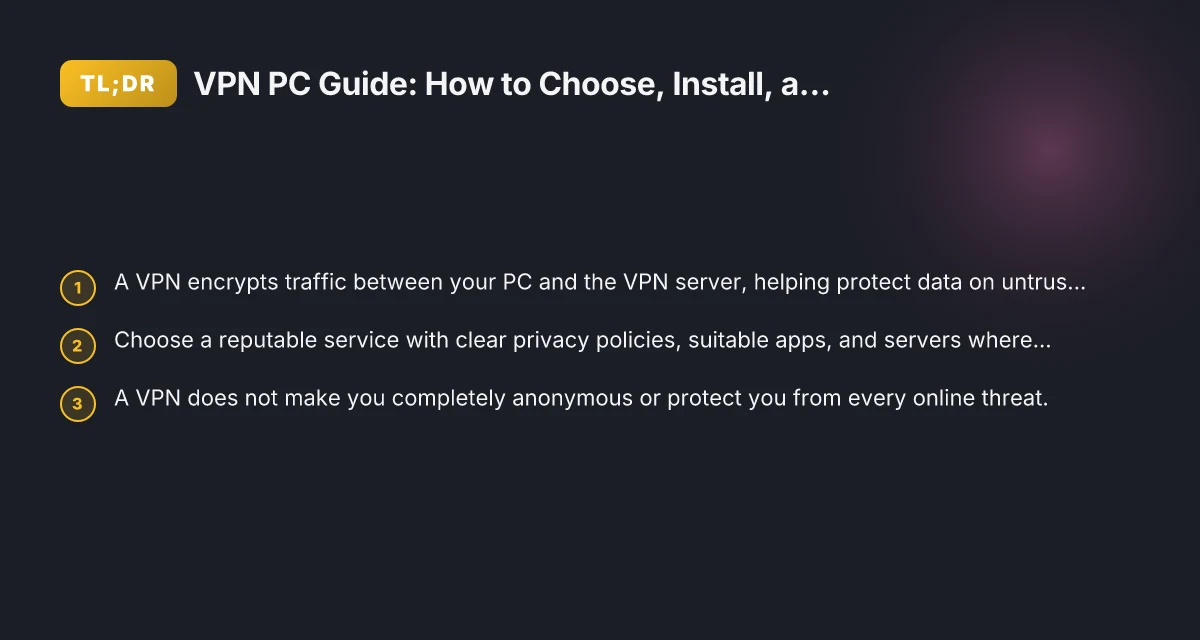
A VPN for a PC routes your internet connection through a VPN provider’s server and encrypts the connection between your computer and that server. This can help protect your traffic on public Wi-Fi, reduce what your local network can see, and let you connect through servers in other regions. To get started, choose a trustworthy VPN service, install its Windows app, sign in, and connect to a suitable server.

Editor's pick: NordVPN — fast, secure VPN — Strong encryption, a no-logs policy and apps for every device. 30-day money-back guarantee. Get NordVPN →
VPN protocol comparison for Windows PCs
| Protocol | Speed | Security | Best use | Windows support |
|---|---|---|---|---|
| WireGuard | Fast | Strong | Everyday use | Supported by many VPN apps |
| OpenVPN UDP | Fast | Strong | Streaming and browsing | Supported by many VPN apps |
| OpenVPN TCP | Moderate | Strong | Unreliable networks | Supported by many VPN apps |
| IKEv2 | Fast | Strong | Switching networks | Supported by some VPN apps |
| L2TP/IPsec | Moderate | Older security | Legacy compatibility | Built into some Windows versions |
| PPTP | Fast | Weak | Not recommended | Built into some Windows versions |
Compiled November 2026; check the provider's site for current details.
| VPN | Obfuscation | From / month | Plan | Free plan | Refund | Alipay | UnionPay | Crypto | Website opens in China | Trustpilot | |
|---|---|---|---|---|---|---|---|---|---|---|---|
 ZoogVPN | Turn on manually Shadow | $2.49/mo | 27 months: $59.99 | Yes | 7 days | ✓ | ✓ | ✓ | ✓ | Official site blocked; our special link opens (4.4 s) | 4.2/5 (195 reviews) |
 NordVPN | Turn on manually Obfuscated Servers / NordWhisper | $3.49/mo | 27 months: $94.23 | No | 30 days | ? | ✗ | ✓ | ✓ | ✗ Blocked | 4.2/5 (51,628 reviews) |
 ExpressVPN | ✓ On by default all servers | $3.00/mo | 28 months: $84 | No | 30 days | ✗ | ✗ | ✓ | ✗ | ✗ Blocked | 4.4/5 (29,706 reviews) |
 Surfshark | ✓ On by default Camouflage, with OpenVPN | See site | See site | No | 30 days | ✗ | ✗ | ✗ | ✓ | ✗ Blocked | 4.3/5 (31,823 reviews) |
 Proton VPN | Turn on manually Stealth, free plan too | $2.99/mo | 12 months: $35.88 | Yes | 30 days | ✗ | ✗ | ✗ | ✓ | ✗ Blocked | 2.1/5 (1,040 reviews) |
 Astrill VPN | Turn on manually StealthVPN / OpenWeb | $12.50/mo | 24 months: $300 | No | See site | ✗ | ✗ | ✗ | ✓ | ✗ Blocked | 1.3/5 (110 reviews) |
 Private Internet Access | Turn on manually Shadowsocks, OpenVPN only | $2.03/mo | 40 months: $81.2 | No | 30 days | ✗ | ✗ | ✗ | ✗ | ✗ Blocked | 4.2/5 (11,033 reviews) |
 CyberGhost | Turn on manually selected servers | $2.19/mo | 28 months: $61.32 | No | 45 days | ✗ | ✗ | ✗ | ✓ | ✗ Blocked | 4.0/5 (24,178 reviews) |
 PureVPN | Turn on manually switch to OpenVPN | $1.69/mo | 60 months: $101.55 | No | 31 days | ? | ? | ✗ | ✓ | ✗ Blocked | 4.4/5 (17,994 reviews) |
 AdGuard VPN | ✓ On by default TrustTunnel | $2.99/mo | 24 months: $71.76 | Yes | 30 days | ✓ | ✗ | ✓ | ✓ | Official site blocked; our special link opens (3.7 s) | 4.3/5 (290 reviews) |
 Mullvad | Turn on manually QUIC / Shadowsocks / LWO | $5.61/mo | €5/mo | No | 14 days | ✗ | ✗ | ✗ | ✓ | ✗ Blocked | 3.2/5 (192 reviews) |
 Windscribe | Turn on manually Stealth / WStunnel | $5.75/mo | 12 months: $69 | Yes | See site | ✗ | ✗ | ✗ | ✓ | ✗ Blocked | 4.7/5 (13,355 reviews) |
 StrongVPN | Turn on manually Scramble, OpenVPN TCP | See site | See site | No | 30 days | ✓ | ✗ | ✗ | ✗ | ✗ Blocked | 4.4/5 (2,695 reviews) |
 LightXtreme 闪连 | Not listed | $7.08/mo | 12 months: $84.99 | Yes | 30 days | ✓ | ✓ | ✓ | ✓ | ✓ Yes (3.5 s) | No page |
Prices checked 2026-11-10 on each vendor's pricing page (cheapest long plan, USD). Check the vendor's checkout for the final price.
Obfuscation checked 2026-11-14 on each vendor's site and help center: "on by default" = nothing to set; "turn on manually" = switch protocol or mode in settings; "not listed" = the vendor describes no obfuscation.
Payment methods checked 2026-11-10 on each vendor's payment pages: all 14 take cards and PayPal; ✗ = not listed, ? = the vendor's own pages disagree.
China access: whether the official website opens from mainland China networks (tests the website only, not the VPN connection). Last checked 2026-11-18 01:02 Beijing time.
Trustpilot score and review count checked 2026-11-10.
What a VPN does on a PC
VPN stands for virtual private network. When you connect, your PC creates an encrypted tunnel to a VPN server. Websites and online services generally see the server’s IP address rather than your home connection’s public IP address.
A VPN can be useful when you:
- Use public Wi-Fi in places such as hotels, airports, or cafés.
- Want to limit what your internet service provider or local network can see about your connection.
- Need to connect to a work or school network remotely.
- Want to access a service while traveling, subject to that service’s terms and local laws.
A VPN is not a substitute for secure passwords, software updates, antivirus protection, or careful browsing. It also does not hide your identity from websites where you sign in, and it cannot prevent tracking through cookies or browser fingerprinting by itself.
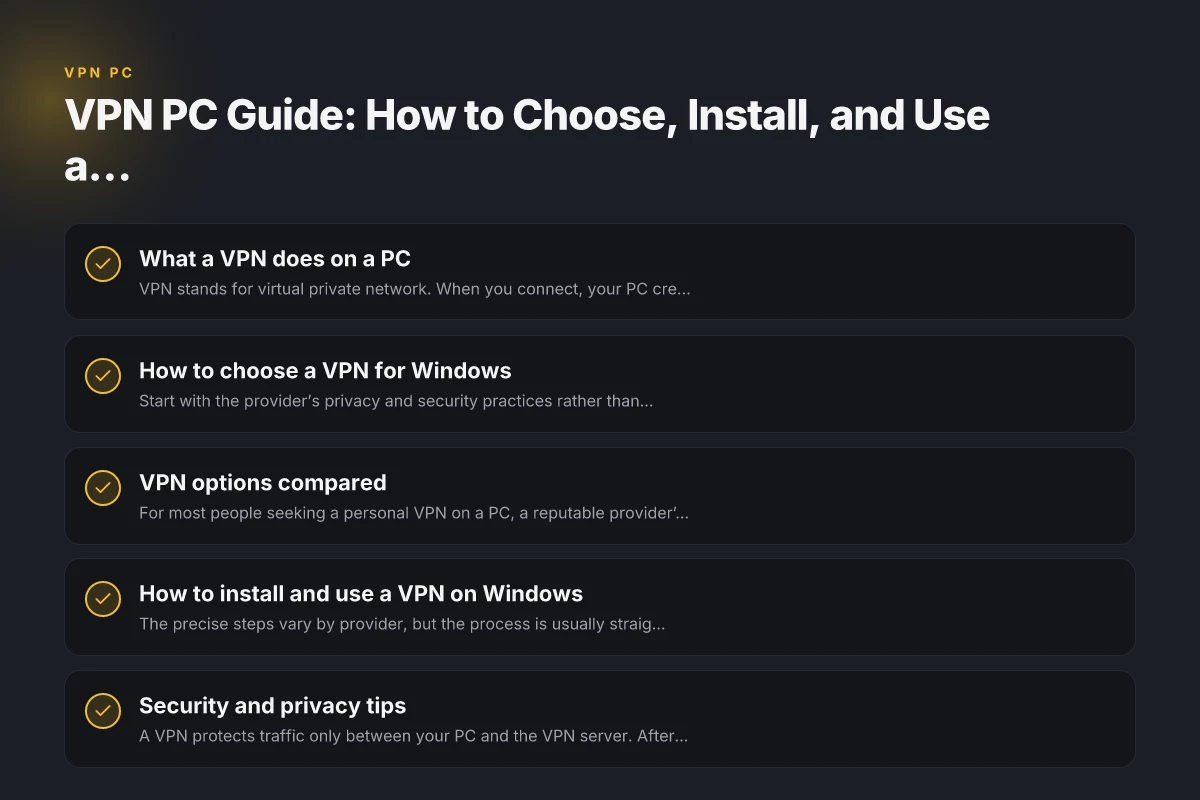
How to choose a VPN for Windows
Start with the provider’s privacy and security practices rather than focusing only on speed or price. Read its privacy policy to understand what connection or activity data it collects, how long it keeps that information, and whether it shares data with third parties. Independent security audits can offer additional reassurance, but check what the audit covered and when it took place. FortiClient VPN in Japan: Setup, Servers, and Troubleshooting
Consider these features:
- A clear privacy policy: Look for plain explanations of data collection and retention.
- Strong encryption and modern protocols: Reputable VPNs commonly offer protocols such as WireGuard or OpenVPN.
- A Windows app with useful controls: A kill switch and automatic startup options can be helpful.
- Servers where you need them: Nearby servers are often best for everyday speed. Other locations may suit travel or specific services.
- Transparent pricing and support: Check renewal prices, subscription terms, and cancellation policies before paying.
- A credible business: Research the company’s ownership, security history, and reputation.
Free VPNs vary widely. Some are legitimate, but a free plan may limit data, speed, server choice, or support. Be wary of apps with unclear ownership, intrusive permissions, or vague claims about privacy. A VPN must operate its servers and business somehow, so understand how a provider is funded.
VPN options compared
| Option | Best suited for | What to consider |
|---|---|---|
| Commercial VPN app | Personal browsing and travel | Provider trust, subscription terms, privacy policy |
| Workplace or school VPN | Accessing an organization’s internal resources | Follow your organization’s setup and security instructions |
| Built-in Windows VPN settings | Connecting to a compatible VPN service | Usually requires server details and account information from the provider |
| Free VPN plan | Occasional or limited use | Data caps, fewer servers, and the provider’s business model |
For most people seeking a personal VPN on a PC, a reputable provider’s Windows app is the simplest choice. Built-in Windows settings can work well too, but they are not a VPN service on their own: you still need an account and compatible connection details from a provider or organization.
What to compare when choosing a VPN for Windows Forticlientvpninstaller.exe: Safe Download and Installation Guide
| Factor | What to look for | Why it matters | Quick check |
|---|---|---|---|
| Privacy policy | Clear data-collection details | Shows what activity may be recorded | Read the policy |
| Kill switch | Yes | Helps prevent traffic leaks if VPN disconnects | Check app settings |
| Leak protection | DNS and IP protection | Helps keep identifying details private | Test the connection |
| Windows app | Supported | Makes setup and controls easier | Check system requirements |
| Server locations | Locations that suit your needs | Affects access and connection choices | Review server list |
| Performance | Stable speeds | Helps with calls, streaming, and downloads | Try a nearby server |
Compiled November 2026; check the provider's site for current details.
How to install and use a VPN on Windows
The precise steps vary by provider, but the process is usually straightforward:
- Choose a VPN provider and create an account if required.
- Download the Windows app from the provider’s official website or a trusted app store.
- Install the app and sign in.
- Review settings such as the kill switch, startup behavior, and protocol selection.
- Select a server and press Connect.
- Confirm that the app reports an active connection.
For everyday use, a nearby server usually gives a good balance of speed and reliability. If a connection feels slow, try another nearby server, change the VPN protocol in the app, or check whether your regular internet connection is also having problems. Some VPN apps include a speed test or server-load indicator.
A kill switch can block internet traffic if the VPN connection drops, helping prevent your PC from continuing online outside the tunnel. If you use one, learn how it behaves: it may temporarily disconnect your internet access until the VPN reconnects. VPN to Change Location Free: What Works and What to Check
Security and privacy tips
A VPN protects traffic only between your PC and the VPN server. After that, your provider’s network carries the traffic to its destination. This means you are shifting some trust from your internet provider or local network to the VPN provider, not removing the need to trust anyone.
To use a VPN more safely:
- Keep Windows, your browser, and the VPN app up to date.
- Download VPN software only from an official source.
- Use multifactor authentication for your VPN account when available.
- Avoid logging in to sensitive accounts on shared or unfamiliar PCs.
- Check the app’s connection status before sending sensitive information.
- Use HTTPS websites and a password manager alongside the VPN.
- Review app permissions and disable features you do not need.
A VPN may also affect video calls, online games, banking sites, or streaming services. Some services block VPN traffic or require a particular location. If an app stops working, disconnect temporarily or try a different server, while respecting the service’s rules and applicable laws.
Windows VPN setup and safety checklist FortiClient VPN Windows: Download, Install, and Connect
| Step | Action | What to check | If it fails |
|---|---|---|---|
| 1 | Choose a reputable VPN | Privacy policy and Windows support | Compare another provider |
| 2 | Download the official app | Provider’s official website | Avoid third-party installers |
| 3 | Install and sign in | App permissions and account details | Reinstall from the official source |
| 4 | Choose a protocol | Recommended or supported option | Try another supported protocol |
| 5 | Connect to a server | App shows an active connection | Select another server |
| 6 | Enable the kill switch | Setting is switched on | Check app help or support |
| 7 | Check for leaks | DNS and IP results | Reconnect and review settings |
| 8 | Disconnect when needed | VPN status in the app | Confirm traffic uses the intended connection |
Compiled November 2026; check the provider's site for current details.
Recommendation
For a personal VPN on a Windows PC, choose a reputable provider with a transparent privacy policy, a well-maintained Windows app, and a server network that fits your needs. Install it from an official source, enable useful protections such as a kill switch if appropriate, and connect to a nearby server for routine browsing. Treat the VPN as one layer of security, not as a guarantee of anonymity or complete protection online.