VPN for PC: How to Choose and Set Up the Right One

Learn what a VPN for PC does, which features matter, and how to install and use one safely.
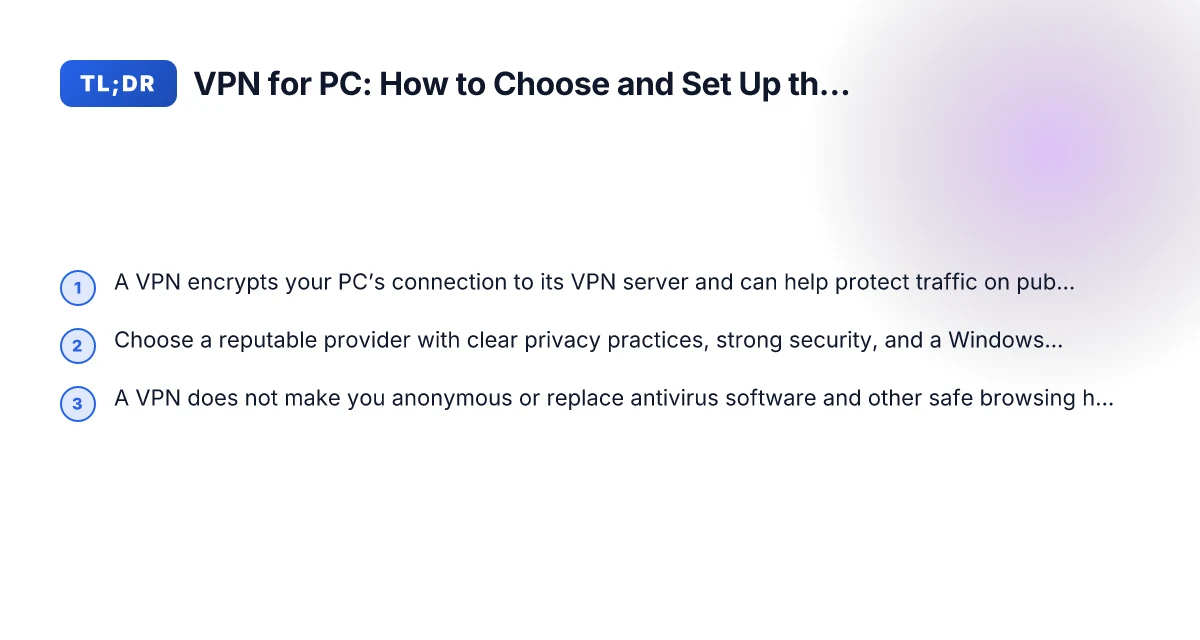
A VPN for PC is an app that routes your internet traffic through a VPN provider’s server, helping protect the connection between your computer and that server. It can be useful on public Wi-Fi, for privacy from your local network, or when you need to connect to a workplace network. To choose one, compare providers’ security features, privacy policies, speed, ease of use, and price, and remember that a VPN does not protect against every online threat.

Editor's pick: NordVPN — fast, secure VPN — Strong encryption, a no-logs policy and apps for every device. 30-day money-back guarantee. Get NordVPN →
VPN provider comparison checklist
| Criterion | What to look for | Why it matters | Warning sign |
|---|---|---|---|
| Privacy policy | Clear data-logging practices | Shows what activity the provider may retain | Vague or missing policy |
| Encryption | Strong, modern encryption | Helps protect data in transit | Unclear security details |
| Protocols | Reputable VPN protocols | Affects security and connection performance | No protocol information |
| Kill switch | Available for Windows | Can cut internet access if the VPN drops | No kill switch option |
| Leak protection | DNS and IP leak protection | Helps keep network details private | No leak safeguards |
| Server selection | Locations that suit your needs | Provides options for routing your connection | Few relevant locations |
| Speed | Reliable performance for your activities | Helps avoid slow browsing or streaming | No performance information |
| Windows support | Current Windows app and setup guidance | Makes installation and use easier | Limited or outdated support |
Compiled November 2026; check the provider's site for current details.
| VPN | Obfuscation | From / month | Plan | Free plan | Refund | Alipay | UnionPay | Crypto | Website opens in China | Trustpilot | |
|---|---|---|---|---|---|---|---|---|---|---|---|
 ZoogVPN | Turn on manually Shadow | $2.49/mo | 27 months: $59.99 | Yes | 7 days | ✓ | ✓ | ✓ | ✓ | Official site blocked; our special link opens (4.4 s) | 4.2/5 (195 reviews) |
 NordVPN | Turn on manually Obfuscated Servers / NordWhisper | $3.49/mo | 27 months: $94.23 | No | 30 days | ? | ✗ | ✓ | ✓ | ✗ Blocked | 4.2/5 (51,628 reviews) |
 ExpressVPN | ✓ On by default all servers | $3.00/mo | 28 months: $84 | No | 30 days | ✗ | ✗ | ✓ | ✗ | ✗ Blocked | 4.4/5 (29,706 reviews) |
 Surfshark | ✓ On by default Camouflage, with OpenVPN | See site | See site | No | 30 days | ✗ | ✗ | ✗ | ✓ | ✗ Blocked | 4.3/5 (31,823 reviews) |
 Proton VPN | Turn on manually Stealth, free plan too | $2.99/mo | 12 months: $35.88 | Yes | 30 days | ✗ | ✗ | ✗ | ✓ | ✗ Blocked | 2.1/5 (1,040 reviews) |
 Astrill VPN | Turn on manually StealthVPN / OpenWeb | $12.50/mo | 24 months: $300 | No | See site | ✗ | ✗ | ✗ | ✓ | ✗ Blocked | 1.3/5 (110 reviews) |
 Private Internet Access | Turn on manually Shadowsocks, OpenVPN only | $2.03/mo | 40 months: $81.2 | No | 30 days | ✗ | ✗ | ✗ | ✗ | ✗ Blocked | 4.2/5 (11,033 reviews) |
 CyberGhost | Turn on manually selected servers | $2.19/mo | 28 months: $61.32 | No | 45 days | ✗ | ✗ | ✗ | ✓ | ✗ Blocked | 4.0/5 (24,178 reviews) |
 PureVPN | Turn on manually switch to OpenVPN | $1.69/mo | 60 months: $101.55 | No | 31 days | ? | ? | ✗ | ✓ | ✗ Blocked | 4.4/5 (17,994 reviews) |
 AdGuard VPN | ✓ On by default TrustTunnel | $2.99/mo | 24 months: $71.76 | Yes | 30 days | ✓ | ✗ | ✓ | ✓ | Official site blocked; our special link opens (3.7 s) | 4.3/5 (290 reviews) |
 Mullvad | Turn on manually QUIC / Shadowsocks / LWO | $5.61/mo | €5/mo | No | 14 days | ✗ | ✗ | ✗ | ✓ | ✗ Blocked | 3.2/5 (192 reviews) |
 Windscribe | Turn on manually Stealth / WStunnel | $5.75/mo | 12 months: $69 | Yes | See site | ✗ | ✗ | ✗ | ✓ | ✗ Blocked | 4.7/5 (13,355 reviews) |
 StrongVPN | Turn on manually Scramble, OpenVPN TCP | See site | See site | No | 30 days | ✓ | ✗ | ✗ | ✗ | ✗ Blocked | 4.4/5 (2,695 reviews) |
 LightXtreme 闪连 | Not listed | $7.08/mo | 12 months: $84.99 | Yes | 30 days | ✓ | ✓ | ✓ | ✓ | ✓ Yes (3.5 s) | No page |
Prices checked 2026-11-10 on each vendor's pricing page (cheapest long plan, USD). Check the vendor's checkout for the final price.
Obfuscation checked 2026-11-14 on each vendor's site and help center: "on by default" = nothing to set; "turn on manually" = switch protocol or mode in settings; "not listed" = the vendor describes no obfuscation.
Payment methods checked 2026-11-10 on each vendor's payment pages: all 14 take cards and PayPal; ✗ = not listed, ? = the vendor's own pages disagree.
China access: whether the official website opens from mainland China networks (tests the website only, not the VPN connection). Last checked 2026-11-18 01:02 Beijing time.
Trustpilot score and review count checked 2026-11-10.
What a VPN for PC does
When you connect to a VPN, the app creates an encrypted tunnel between your PC and a VPN server. Websites and online services generally see the server’s IP address instead of your home IP address. Your internet provider can usually tell that you are connected to a VPN, but encryption helps keep it from seeing the contents of your traffic within the tunnel.
A VPN may help when you use public Wi-Fi at a hotel, airport, or café, especially if you need to access sensitive accounts. It can also provide a more private connection from your local network. If your employer or school provides a VPN, it may be required to access internal services securely.
A VPN does not erase your online identity. Websites can still recognize you through account sign-ins, cookies, browser fingerprinting, and other signals. It also does not automatically block malware, prevent phishing, or make unsafe downloads safe.
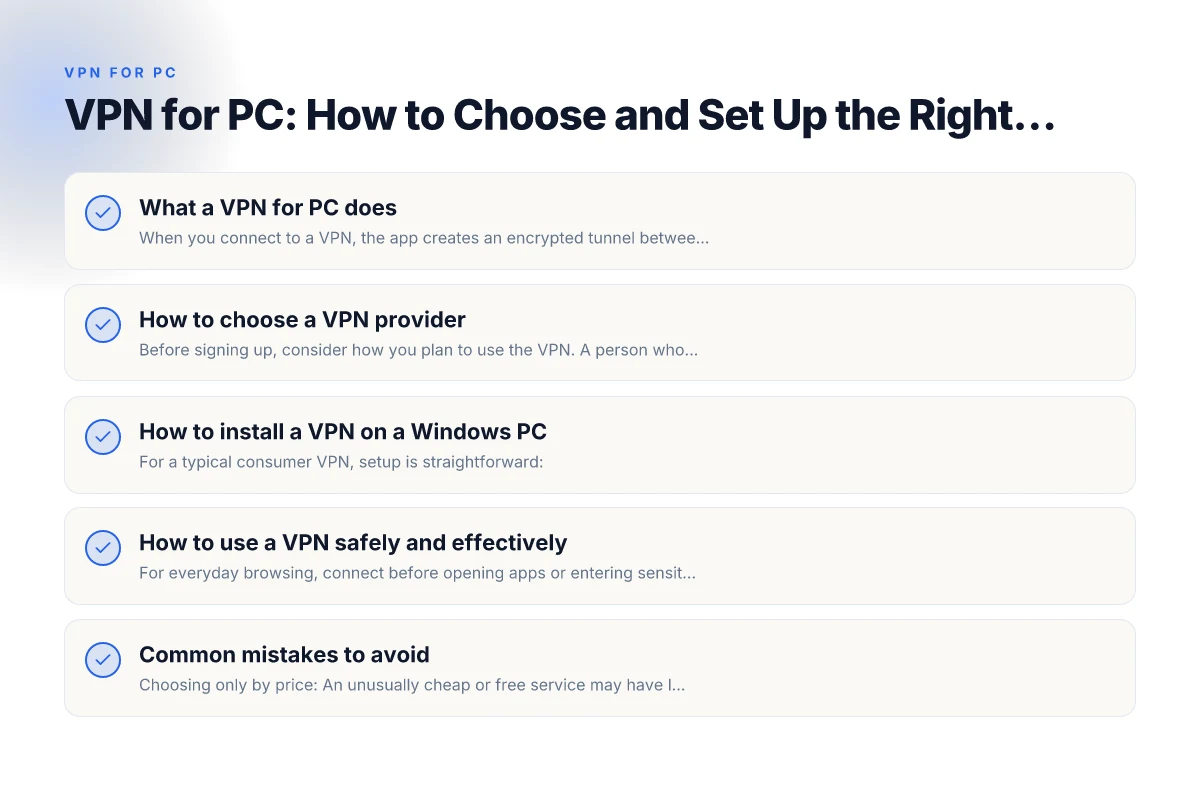
How to choose a VPN provider
Before signing up, consider how you plan to use the VPN. A person who mainly wants protection on public Wi-Fi may value a simple, reliable app. Someone connecting to a company network should follow their organization’s instructions instead of choosing a consumer service. OpenVPN Connect Windows: Install, Import a Profile, and Connect
Look for these features:
- Clear privacy policy: Check what data the provider collects, how long it keeps it, and whether it shares data with third parties.
- Strong encryption and current protocols: Reputable services commonly support modern options such as WireGuard or OpenVPN. Avoid providers that make vague security claims without explaining their technology.
- Kill switch: This feature can block internet access if the VPN connection drops, reducing the chance that traffic continues outside the tunnel.
- DNS leak protection: This helps ensure that DNS requests use the VPN connection rather than being sent through another resolver.
- Independent checks: Security audits or transparency reports can offer useful evidence, though they are not a guarantee of perfect privacy.
- Reliable support and updates: A maintained Windows app and accessible help resources matter if you run into connection problems.
A free VPN may be enough for occasional use, but free plans often have limits on data, speed, server locations, or features. Some free services may rely on advertising or collect more data than you expect. Read the privacy policy and terms before installing any VPN, whether free or paid.
| What to compare | Why it matters |
|---|---|
| Privacy practices | Helps you understand what information the provider may retain |
| Connection speed | Affects browsing, calls, downloads, and streaming |
| Server locations | Gives you options for connection reliability and location |
| Data limits | Determines whether the plan suits regular use |
| Price and renewal terms | Helps avoid unexpected costs after an introductory offer |
| Windows app quality | Makes setup and everyday use easier |
How to install a VPN on a Windows PC
For a typical consumer VPN, setup is straightforward:
- Choose a provider and review its plan, privacy policy, and cancellation terms.
- Download the Windows app from the provider’s official website or a trusted app store.
- Install the app and sign in. Avoid installers from pop-up ads or unfamiliar download sites.
- Select a server, or use the app’s recommended option for a fast, stable connection.
- Connect and check the app’s status before using the internet.
- Turn on the kill switch and automatic connection features if they fit your needs, especially for public Wi-Fi.
You can also configure a VPN manually through Windows settings if your provider or workplace supplies the required server address and login details. Manual setup may offer fewer features than the provider’s app, so follow the service’s official instructions. Proton VPN Free: What You Get and Whether It’s Worth Using
Windows VPN setup decision guide
| Step | What to do | Check before continuing | If something goes wrong |
|---|---|---|---|
| Choose a provider | Compare privacy, security, and Windows support | Review its policy and features | Reconsider unclear claims |
| Create an account | Sign up through the provider | Confirm the plan and terms | Contact provider support |
| Get the app | Use the provider’s official download | Check that it is for Windows | Avoid third-party downloads |
| Install the app | Follow the Windows installer prompts | Review requested permissions | Use official setup guidance |
| Sign in | Open the app and enter your account details | Confirm you are in the correct account | Reset credentials through the provider |
| Select a server | Choose a suitable location | Check the app’s connection status | Try another available server |
| Connect | Start the VPN connection | Confirm the app reports a secure connection | Check settings or contact support |
| Verify | Check for connection or leak warnings | Ensure protection is active | Disconnect and troubleshoot first |
Compiled November 2026; check the provider's site for current details.
How to use a VPN safely and effectively
For everyday browsing, connect before opening apps or entering sensitive information on an unfamiliar network. If you travel often, set the VPN to launch automatically or connect on untrusted Wi-Fi. At home, you may choose to leave it on, but test key services first: some banking, work, or streaming sites may flag VPN connections or behave differently.
If a connection is slow, try a nearby server, switch to another supported protocol, or temporarily disconnect to identify whether the VPN is causing the issue. Avoid repeatedly changing servers to bypass a service’s rules. Providers and websites may restrict certain uses. VPN Extension Free Edge Download: A Safe Setup Guide
Keep the VPN app and Windows updated. Use a unique password and multi-factor authentication for your VPN account where available. Continue to use antivirus protection, install security updates, and be cautious with links and attachments. A VPN is one part of a broader security setup, not a substitute for it.
Common mistakes to avoid
- Choosing only by price: An unusually cheap or free service may have limits or unclear data practices.
- Assuming a VPN guarantees anonymity: Your accounts and browser activity can still identify you.
- Installing from an unofficial source: Fake apps can contain unwanted or harmful software.
- Ignoring renewal terms: Check the ongoing price, trial conditions, and cancellation process.
- Forgetting to verify the connection: Confirm the app shows that you are connected, particularly before using public Wi-Fi.
VPN use cases and safer choices
| Situation | Useful VPN feature | Safer practice | Common mistake |
|---|---|---|---|
| Public Wi-Fi | Encryption and leak protection | Connect before sensitive activity | Assuming Wi-Fi is safe |
| Everyday browsing | Reliable connection and privacy controls | Keep the app updated | Leaving outdated software installed |
| Sensitive accounts | Kill switch and strong security settings | Verify the VPN is connected | Logging in after a dropped connection |
| Streaming or downloads | Suitable server options and performance | Check provider terms and service rules | Expecting every server to work |
| Changing networks | Automatic connection options | Confirm protection after switching | Assuming the VPN reconnects |
| Troubleshooting | Clear connection status and support | Test settings one at a time | Disabling safeguards without restoring them |
Compiled November 2026; check the provider's site for current details.
Recommendation
For most people, the best VPN for PC is a well-reviewed provider with a transparent privacy policy, a maintained Windows app, strong security features, and a plan that fits their budget and data needs. Download it only from an official source, enable protections such as the kill switch when appropriate, and treat it as an extra layer of privacy, not a guarantee of anonymity or complete security. VPN for Edge Free Download: Safe Options and Setup Guide