VPN for Mint Linux: How to Choose and Set One Up

Find a VPN that works with Linux Mint, compare setup options, and learn how to check your connection.
A VPN for Mint Linux should provide a reliable Linux client or clear instructions for setting up a supported protocol such as OpenVPN or WireGuard. Linux Mint is based on Ubuntu, so many Ubuntu-compatible VPN packages and configuration guides work, but compatibility can vary by Mint release and desktop environment. Before subscribing, check the provider’s Linux support, available features, and installation instructions for your version of Mint.

Editor's pick: NordVPN — fast, secure VPN — Strong encryption, a no-logs policy and apps for every device. 30-day money-back guarantee. Get NordVPN →
Compare the main ways to set up a VPN on Linux Mint
| Setup method | Best for | How it works | Main advantage | Main trade-off |
|---|---|---|---|---|
| Linux app | Simple setup | Install and use the provider’s app | Convenient controls | Depends on app support |
| NetworkManager | Desktop integration | Import or enter VPN settings | Manage connections in system settings | May require manual configuration |
| Terminal | Advanced users | Configure and connect with commands | Flexible and scriptable | Less beginner-friendly |
| OpenVPN | Broad compatibility | Connect with OpenVPN configuration files | Widely supported | Can require more setup |
| WireGuard | A modern protocol | Connect with WireGuard configuration files | Straightforward protocol setup | Provider must support it |
| Provider configuration files | Manual connections | Download files from the VPN provider | Useful without a dedicated app | Files may need updates |
| Linux support documentation | Troubleshooting | Follow the provider’s Mint or Linux guide | Helps avoid setup mistakes | Quality varies by provider |
Compiled November 2026; check the provider's site for current details.
| VPN | Obfuscation | From / month | Plan | Free plan | Refund | Alipay | UnionPay | Crypto | Website opens in China | Trustpilot | |
|---|---|---|---|---|---|---|---|---|---|---|---|
 ZoogVPN | Turn on manually Shadow | $2.49/mo | 27 months: $59.99 | Yes | 7 days | ✓ | ✓ | ✓ | ✓ | Official site blocked; our special link opens (4.4 s) | 4.2/5 (195 reviews) |
 NordVPN | Turn on manually Obfuscated Servers / NordWhisper | $3.49/mo | 27 months: $94.23 | No | 30 days | ? | ✗ | ✓ | ✓ | ✗ Blocked | 4.2/5 (51,628 reviews) |
 ExpressVPN | ✓ On by default all servers | $3.00/mo | 28 months: $84 | No | 30 days | ✗ | ✗ | ✓ | ✗ | ✗ Blocked | 4.4/5 (29,706 reviews) |
 Surfshark | ✓ On by default Camouflage, with OpenVPN | See site | See site | No | 30 days | ✗ | ✗ | ✗ | ✓ | ✗ Blocked | 4.3/5 (31,823 reviews) |
 Proton VPN | Turn on manually Stealth, free plan too | $2.99/mo | 12 months: $35.88 | Yes | 30 days | ✗ | ✗ | ✗ | ✓ | ✗ Blocked | 2.1/5 (1,040 reviews) |
 Astrill VPN | Turn on manually StealthVPN / OpenWeb | $12.50/mo | 24 months: $300 | No | See site | ✗ | ✗ | ✗ | ✓ | ✗ Blocked | 1.3/5 (110 reviews) |
 Private Internet Access | Turn on manually Shadowsocks, OpenVPN only | $2.03/mo | 40 months: $81.2 | No | 30 days | ✗ | ✗ | ✗ | ✗ | ✗ Blocked | 4.2/5 (11,033 reviews) |
 CyberGhost | Turn on manually selected servers | $2.19/mo | 28 months: $61.32 | No | 45 days | ✗ | ✗ | ✗ | ✓ | ✗ Blocked | 4.0/5 (24,178 reviews) |
 PureVPN | Turn on manually switch to OpenVPN | $1.69/mo | 60 months: $101.55 | No | 31 days | ? | ? | ✗ | ✓ | ✗ Blocked | 4.4/5 (17,994 reviews) |
 AdGuard VPN | ✓ On by default TrustTunnel | $2.99/mo | 24 months: $71.76 | Yes | 30 days | ✓ | ✗ | ✓ | ✓ | Official site blocked; our special link opens (3.7 s) | 4.3/5 (290 reviews) |
 Mullvad | Turn on manually QUIC / Shadowsocks / LWO | $5.61/mo | €5/mo | No | 14 days | ✗ | ✗ | ✗ | ✓ | ✗ Blocked | 3.2/5 (192 reviews) |
 Windscribe | Turn on manually Stealth / WStunnel | $5.75/mo | 12 months: $69 | Yes | See site | ✗ | ✗ | ✗ | ✓ | ✗ Blocked | 4.7/5 (13,355 reviews) |
 StrongVPN | Turn on manually Scramble, OpenVPN TCP | See site | See site | No | 30 days | ✓ | ✗ | ✗ | ✗ | ✗ Blocked | 4.4/5 (2,695 reviews) |
 LightXtreme 闪连 | Not listed | $7.08/mo | 12 months: $84.99 | Yes | 30 days | ✓ | ✓ | ✓ | ✓ | ✓ Yes (3.5 s) | No page |
Prices checked 2026-11-10 on each vendor's pricing page (cheapest long plan, USD). Check the vendor's checkout for the final price.
Obfuscation checked 2026-11-14 on each vendor's site and help center: "on by default" = nothing to set; "turn on manually" = switch protocol or mode in settings; "not listed" = the vendor describes no obfuscation.
Payment methods checked 2026-11-10 on each vendor's payment pages: all 14 take cards and PayPal; ✗ = not listed, ? = the vendor's own pages disagree.
China access: whether the official website opens from mainland China networks (tests the website only, not the VPN connection). Last checked 2026-11-18 01:02 Beijing time.
Trustpilot score and review count checked 2026-11-10.
What to look for in a Mint Linux VPN
A good VPN service should make it practical to connect, disconnect, and troubleshoot from Linux. Some providers offer a graphical app. Others rely on NetworkManager or terminal commands. Either approach can work, but an app is often easier for everyday server switching, while manual configuration gives you more control.
Check for these features:
- Compatibility: Instructions or packages for Ubuntu-based distributions, ideally with specific guidance for Linux Mint.
- Modern protocols: Support for WireGuard, OpenVPN, or both.
- Privacy information: A clear privacy policy and an explanation of what connection data the provider retains.
- Leak protection: DNS leak protection and a kill switch, with details about how these features work on Linux.
- Practical support: Documentation for installation, updates, and common Linux connection problems.
- Suitable server locations: Locations and performance that meet your needs, such as remote work, travel, or general privacy.
A feature advertised for Windows or macOS may not be available in a provider’s Linux app. Confirm Linux-specific support before choosing a plan.
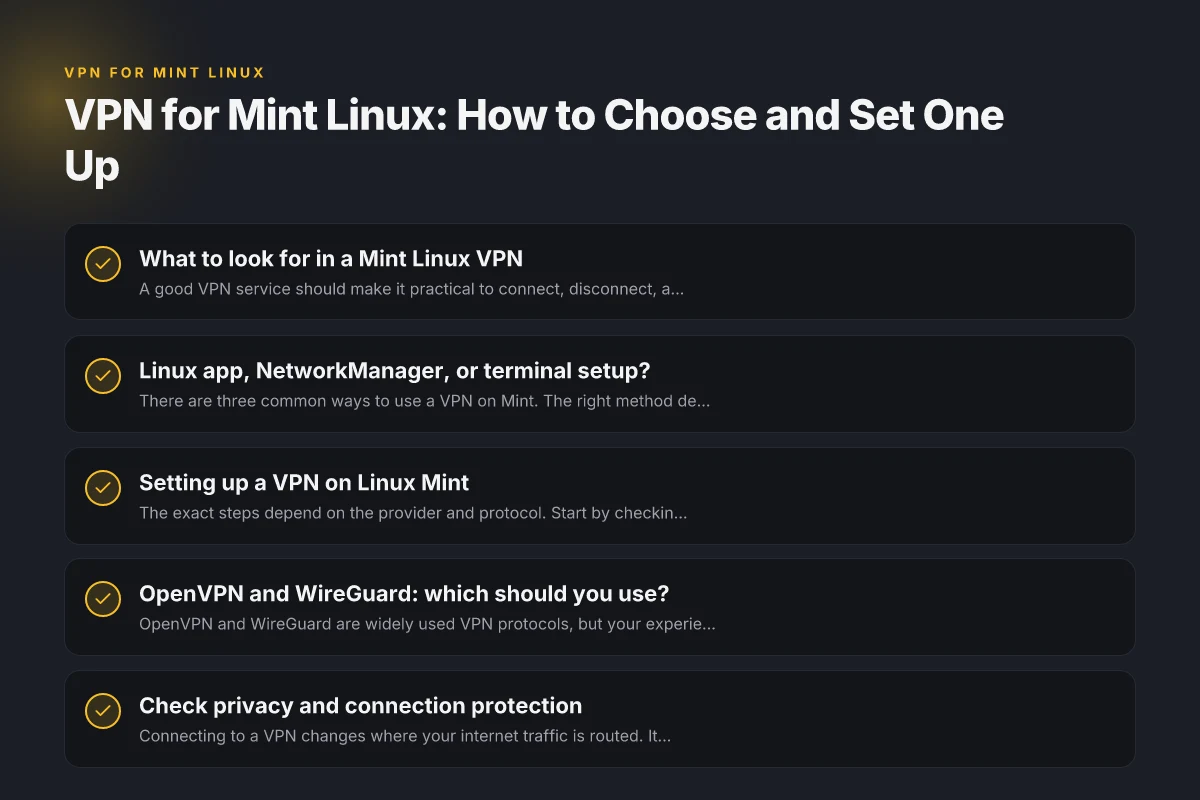
Linux app, NetworkManager, or terminal setup?
There are three common ways to use a VPN on Mint. The right method depends on whether you value convenience, integration with the desktop, or hands-on control. Free Any Country VPN: What to Know Before You Choose
| Setup method | Best for | What to check |
|---|---|---|
| Provider’s Linux app | Easy connections and server switching | Mint compatibility, update method, and Linux feature availability |
| NetworkManager | Managing a VPN through Mint’s network settings | Required OpenVPN or WireGuard plugins and provider configuration files |
| Terminal configuration | Users who want direct control or scripting | Accurate commands, key handling, and clear instructions for reconnecting |
A provider’s official app is usually the simplest starting point if it supports your Mint release. NetworkManager can be a convenient alternative, especially when the provider supplies standard configuration files. Terminal setup may suit experienced users, but it is less forgiving of errors and can require more maintenance.
Only download software or configuration files from the VPN provider’s official website or a trusted software repository. Avoid unofficial packages and guides that ask you to run commands you do not understand.
Choose between OpenVPN and WireGuard on Linux Mint
| Comparison point | OpenVPN | WireGuard | What to consider |
|---|---|---|---|
| Protocol support | Commonly supported | Provider support required | Check the provider’s Linux options |
| Setup route | App, NetworkManager, or terminal | App, NetworkManager, or terminal | Availability depends on provider files |
| Configuration files | OpenVPN files | WireGuard files | Use files intended for your account |
| NetworkManager use | Supported when configured | Supported when configured | Import settings or enter them manually |
| Provider app use | Depends on app | Depends on app | Confirm Linux app protocol choices |
| Privacy protection | Depends on VPN provider and settings | Depends on VPN provider and settings | Protocol alone does not establish privacy |
| Best fit | Compatibility-focused setup | WireGuard-compatible setup | Choose based on support and preference |
Compiled November 2026; check the provider's site for current details. VPN for MacBook: How to Choose and Set One Up
Setting up a VPN on Linux Mint
The exact steps depend on the provider and protocol. Start by checking the provider’s current Mint or Ubuntu instructions. Package names and installation methods can change.
For a typical setup:
- Confirm your Mint version. Check that the provider supports the Ubuntu base used by your release.
- Choose a setup method. Install the official Linux app, or follow the provider’s instructions for NetworkManager or a manual configuration.
- Install the required software. Use the provider’s documented method or Mint’s Software Manager where applicable. Some manual setups require a NetworkManager plugin.
- Sign in or import a configuration. Follow the provider’s steps to add an account, server, or connection profile.
- Connect to a server. Choose a nearby location for general use, or select another location when you have a specific reason.
- Check the connection. Use the provider’s status indicator and a reputable IP or DNS leak test.
If a connection fails, confirm that your credentials and configuration file are current. Also check that the relevant protocol plugin is installed and that your provider’s instructions match your Mint version. Restarting the network connection can help, but avoid changing firewall settings without understanding their effect.
OpenVPN and WireGuard: which should you use?
OpenVPN and WireGuard are widely used VPN protocols, but your experience depends on the provider’s implementation and Linux support. Free Region Choose VPN: How to Pick a Location Without Paying
WireGuard is designed to be lightweight and can offer fast connections. It is often a good choice when your provider supports it well and supplies an easy Mint-compatible setup.
OpenVPN is mature and widely supported. It can be useful when a provider offers more extensive OpenVPN documentation or when you need compatibility with an existing configuration.
Neither protocol is automatically the best option in every situation. Consider how easy the provider makes setup and whether the protocol works reliably on your network. If one protocol has connection trouble, trying the other may help.
Check privacy and connection protection
Connecting to a VPN changes where your internet traffic is routed. It does not make you anonymous or protect you from every online risk. You still need to use secure websites, keep Mint updated, and be cautious with downloads and links. VPN for Linux Mint: How to Choose and Set One Up
After connecting, check that:
- Your public IP address reflects the VPN connection.
- DNS requests are not going to an unexpected provider.
- The app or network settings show that the VPN is active.
- The kill switch behaves as described if the connection drops.
A kill switch is especially important if you need traffic to stop when the VPN disconnects. Do not assume a kill switch is enabled by default or works identically across operating systems. Read the provider’s Linux documentation and test the feature carefully without exposing sensitive activity.
For better day-to-day reliability, keep the VPN app or configuration files updated and review any provider notices about protocol or server changes. If you use public Wi-Fi, connect before accessing sensitive accounts.
Check a VPN’s privacy and connection protection before choosing Free VPN That I Can Change Location: What to Look For
| Check | What to look for | Why it matters | How to verify |
|---|---|---|---|
| Linux Mint support | Clear Linux setup guidance | Reduces installation guesswork | Read the provider’s Linux documentation |
| Connection controls | Easy connect and disconnect options | Makes daily use simpler | Review the Linux app or setup guide |
| Kill switch | Available protection setting | Can help prevent unprotected traffic if a VPN drops | Check app settings and provider documentation |
| DNS protection | Clear DNS handling information | Helps assess how DNS requests are managed | Check provider documentation and settings |
| Privacy policy | Plain-language data practices | Shows what the provider says it collects | Read the current policy |
| Protocol choices | OpenVPN or WireGuard support | Lets you select a compatible connection method | Check Linux app and configuration options |
| Configuration guidance | Instructions for NetworkManager or terminal | Helps with manual setup | Follow the provider’s Linux-specific steps |
| Recommendation fit | Setup, privacy, and support match your needs | Avoids choosing on one feature alone | Compare the checks before subscribing |
Compiled November 2026; check the provider's site for current details.
Recommendation
For most Linux Mint users, the best VPN is one with explicit Ubuntu-based Linux support, straightforward setup instructions, and reliable DNS and kill-switch options on Linux. Start with the provider’s official app if it supports your Mint release. Otherwise, use documented NetworkManager instructions. Choose WireGuard or OpenVPN based on provider support, then verify your IP, DNS behavior, and disconnect protection before relying on the setup.