Surfshark Won’t Connect? Try These Fixes

Learn why Surfshark won’t connect and how to troubleshoot the app, network, VPN protocol, and server settings.
If Surfshark won’t connect, first check that your internet works without the VPN, then restart Surfshark and try a different server. If that does not help, update the app, switch VPN protocols, and temporarily check whether a firewall or network restriction is blocking the connection. Work through these steps one at a time so you can identify the cause.

Editor's pick: NordVPN — fast, secure VPN — Strong encryption, a no-logs policy and apps for every device. 30-day money-back guarantee. Get NordVPN →
Compare connection checks before changing settings
| Check | What to do | What it can reveal | Next step |
|---|---|---|---|
| Internet connection | Open a website without Surfshark | Whether the internet works | Restore internet access first |
| Surfshark account | Check that your subscription is active | Whether account access is the issue | Resolve account or sign-in problems |
| Surfshark app | Update or reopen the app | Whether the app needs attention | Try connecting again |
| VPN server | Choose a different server location | Whether one server is unavailable | Test another location |
| VPN protocol | Switch to another available protocol | Whether the current protocol is blocked | Retry the connection |
| Restricted network | Try a different network if available | Whether the network blocks VPN traffic | Check network rules |
| Connection settings | Restart the app or device | Whether a temporary connection issue clears | Reconnect to Surfshark |
Compiled November 2026; check the provider's site for current details.
1. Check your internet, account, and app
A VPN needs a working internet connection to establish its own secure tunnel. Disconnect from Surfshark and open a few websites or run a quick connection test. If the internet still fails, restart your router or contact your internet provider before troubleshooting the VPN.
Next, check that you are signed in to the correct Surfshark account and that your subscription is active. Sign out and back in if the account status looks correct but the app is not recognizing it.
Then restart the app and your device. A full restart can clear a stuck connection attempt or temporary network issue. Also check for an update in the official app store or on Surfshark’s website. If the app is outdated, install the latest version and try connecting again.
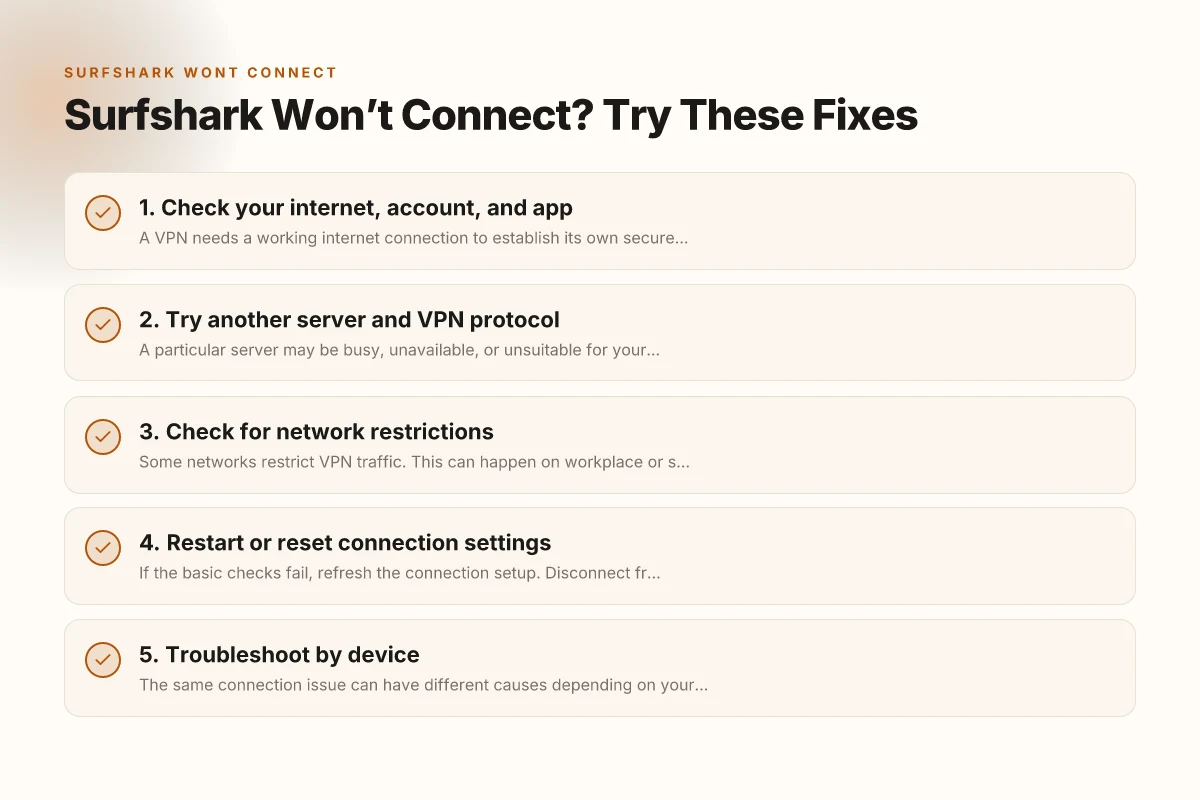
2. Try another server and VPN protocol
A particular server may be busy, unavailable, or unsuitable for your current network. Disconnect, choose a different location, and try again. If you are connecting to a specific country, test another server in that location before switching countries. Find My VPN Location: Check Your Public IP and DNS
If changing servers does not work, change the connection protocol in Surfshark’s settings. Protocol names and menu locations can vary by device and app version, but you will generally find the option under VPN or connection settings.
| What to try | When it may help |
|---|---|
| Select another server | The current server is unavailable or having a temporary issue |
| Switch VPN protocol | Your network blocks or struggles with the current protocol |
| Use the automatic protocol option | You are unsure which protocol works best on your network |
| Try a nearby location | A distant or overloaded server may be slow or unreliable |
After changing a setting, reconnect and give the app a few moments to establish the connection. Avoid changing several options at once. Testing one at a time makes it easier to see what fixed the problem.
3. Check for network restrictions
Some networks restrict VPN traffic. This can happen on workplace or school Wi-Fi, public hotspots, or networks with strict firewall settings. If possible, switch to a different connection, such as mobile data or another Wi-Fi network, and try Surfshark again.
If Surfshark connects on one network but not another, the issue is likely related to the network rather than your account or device. You may need to ask the network administrator whether VPN connections are permitted. Do not try to bypass rules on a network you are not authorized to use. VPN for Windows: How to Choose, Set Up, and Use One
Security software can also interfere with VPN connections. Check whether a firewall, antivirus app, or device security setting is blocking Surfshark. If you temporarily disable a security feature for testing, turn it back on immediately afterward. Where available, add Surfshark as an allowed app rather than leaving protection disabled.
4. Restart or reset connection settings
If the basic checks fail, refresh the connection setup. Disconnect from Surfshark, close the app completely, and reopen it. On a computer, you can also restart the device’s network connection by turning Wi-Fi off and back on or reconnecting to the network.
Some Surfshark apps offer a feature to reset connection settings or reinstall VPN configuration files. Use the option provided in the app if it is available. Otherwise, uninstall Surfshark, restart your device, and reinstall the latest version from an official source. Before uninstalling, make sure you know your account login details.
If you use a manual VPN setup rather than the Surfshark app, confirm that the server address, username, password, and connection type are current. Manual configurations may require different troubleshooting steps from the app, so check Surfshark’s instructions for your device. VPN Nord Price: NordVPN Plans, Costs, and How to Choose
Choose a troubleshooting route by network symptom
| Situation | First option to try | Another option | What to check |
|---|---|---|---|
| Internet does not work without VPN | Restore the internet connection | Restart the router | Confirm websites load |
| Only one Surfshark server fails | Select another server | Try a different location | See whether connection succeeds |
| Connection fails on one protocol | Switch protocol in the app | Try another server | Check whether the network restricts VPN traffic |
| VPN fails on public Wi-Fi | Try a different protocol | Use another network | Ask whether VPN use is restricted |
| VPN fails on a work or school network | Check network restrictions | Try a permitted network | Contact the network administrator |
| App appears unresponsive | Close and reopen Surfshark | Restart the device | Check for an app update |
| Connection settings may be stale | Restart the connection | Reset connection settings | Reconnect and test |
Compiled November 2026; check the provider's site for current details.
5. Troubleshoot by device
The same connection issue can have different causes depending on your device.
- Windows or Mac: Restart the computer, update Surfshark, and check firewall or antivirus permissions. If you recently installed another VPN or network utility, temporarily close it to see whether it is conflicting.
- Android or iPhone: Update the app and operating system, then restart the phone. If the app requests permission to add VPN configurations, approve the request.
- Smart TV or streaming device: Restart the device and router, check that the Surfshark app is supported and up to date, and test a different server. Some devices may use a router setup or another supported connection method instead of a native VPN app.
- Router: Check the router’s VPN configuration and firmware, and confirm that your model supports the setup you are using. Router VPN troubleshooting differs from troubleshooting the Surfshark app on a phone or computer.
If Surfshark connects but websites still do not load, disconnect and reconnect once, then test a different server. If the problem affects only one website or app, the service itself may be temporarily unavailable or may restrict VPN traffic. VPN for VR: What It Does, How to Choose One, and How to Set It Up
When to contact Surfshark Support
Contact Surfshark Support if you have tried a different server and protocol, confirmed that your internet works, and restarted or updated the app without success. Share your device model and operating system, Surfshark app version, the server and protocol you tested, and any exact error message. Also mention whether the problem happens on every network or only one.
Do not send your password or payment details in a support request. If the app provides diagnostic logs, follow Surfshark’s instructions for sharing them securely.
Decide when to contact Surfshark Support
| Situation | Try first | Contact Support? | Useful details to share |
|---|---|---|---|
| Internet is unavailable without VPN | Restore internet access | Not yet | Whether other websites load |
| One server will not connect | Try another server | Not yet | Server location and result |
| One protocol will not connect | Switch protocols | Not yet | Protocols tested |
| Network may restrict VPNs | Try a different network | If the issue persists | Network type and restrictions |
| App connection remains broken | Restart the app and device | If unresolved | Device and app version |
| Reset settings does not help | Reconnect after the reset | Yes, if still unable to connect | Steps already tried |
| Problem persists across networks | Test another network and server | Yes | Network, server, and protocol tested |
Compiled November 2026; check the provider's site for current details. Change Country VPN Free Online: A Practical Guide
Recommendation
When Surfshark won’t connect, begin with the simplest checks: confirm internet access, verify your account, restart the app, and try another server. If needed, switch protocols and test a different network. Update or reinstall the app only after those steps, and contact Surfshark Support with the error details if the connection still fails.