Surfshark Is Making My Connection So Slow: Causes and Fixes

Find out why Surfshark may slow your connection and how to improve VPN speed with practical troubleshooting steps.


If you’re thinking, “Surfshark is making my connection so slow,” the VPN may be adding latency or limiting throughput, but that doesn’t necessarily mean something is wrong with your subscription. Distance to the VPN server, network congestion, VPN protocol, Wi-Fi quality, and the activity you’re doing can all affect speed. Test your connection with Surfshark off and on, then work through the fixes below to find the cause.

Editor's pick: NordVPN — fast, secure VPN — Strong encryption, a no-logs policy and apps for every device. 30-day money-back guarantee. Get NordVPN →
Compare Surfshark speed causes and diagnostic clues
| Possible cause | What may happen | Clue to check | What to try |
|---|---|---|---|
| Distant VPN server | Longer route can slow traffic | A nearby server performs better | Connect to a closer location |
| Busy server | Congestion may reduce speed | Results vary by server | Try another server |
| VPN encryption | Added processing can affect speed | Speed improves without VPN | Compare with VPN off |
| Wi-Fi problems | Weak signal can slow all traffic | Other devices are also slow | Move closer to the router |
| ISP or network congestion | Connection slows outside Surfshark | Slowness persists with VPN off | Test at another time or network |
| Device or app load | Background activity can use resources | Other apps are sluggish too | Close unneeded apps |
| VPN protocol choice | Different protocols may perform differently | Speed changes after switching | Test another available protocol |
Compiled November 2026; check the provider's site for current details.
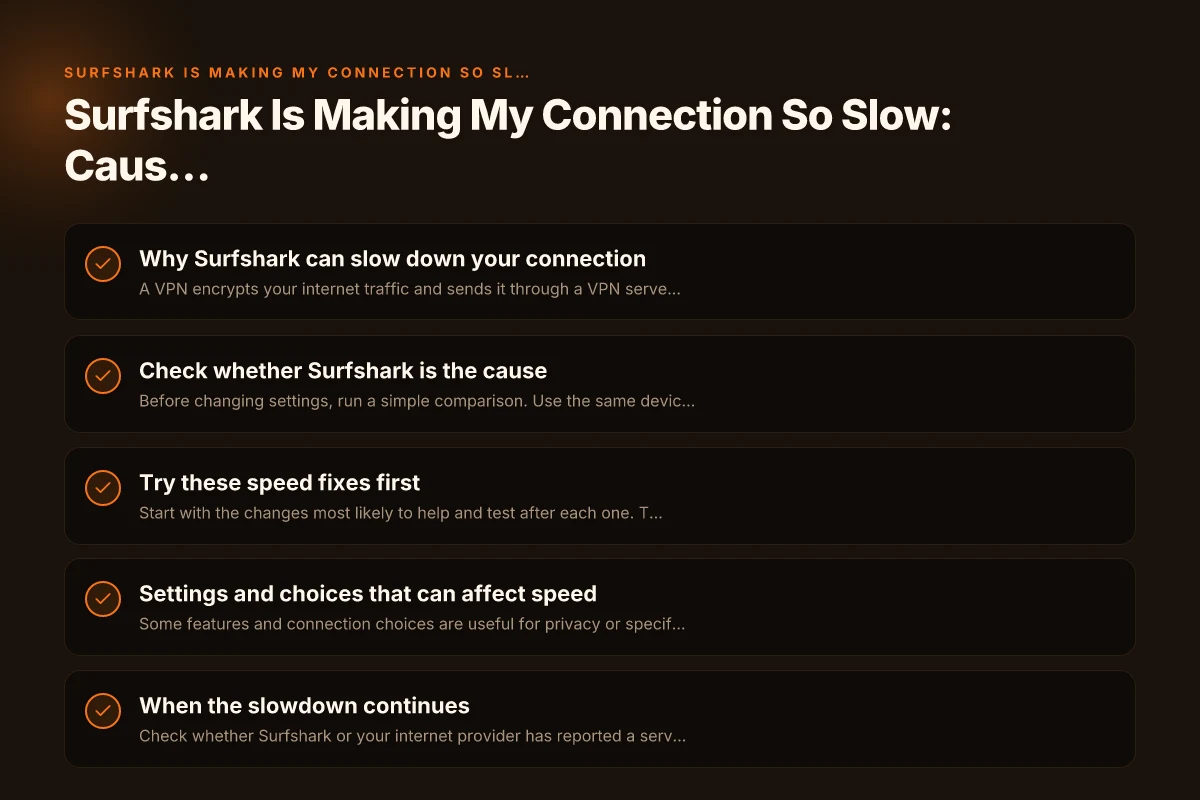
Why Surfshark can slow down your connection
A VPN encrypts your internet traffic and sends it through a VPN server before it reaches its destination. That extra route and processing can make a connection slower than it would be without a VPN. Some speed reduction is normal, though the amount varies based on your device, internet provider, location, and server conditions.
The most common causes are:
- A distant server: Traffic may travel much farther than usual, increasing latency and sometimes reducing download speed.
- A busy server: Many people sharing the same server can affect performance.
- An unsuitable protocol: VPN protocols balance speed, compatibility, and security differently.
- Weak Wi-Fi or mobile reception: Surfshark cannot fix a poor connection between your device and router.
- Background activity: Downloads, cloud backups, streaming, or updates may use bandwidth.
- A specific website or service: The destination itself may be slow or may behave differently when it detects a VPN.
A slow connection can also feel different depending on what you’re doing. High latency can make gaming or video calls feel sluggish even when download speeds seem reasonable. Large downloads, meanwhile, are more directly affected by available throughput.
Check whether Surfshark is the cause
Before changing settings, run a simple comparison. Use the same device, location, and speed-test service to check your connection with Surfshark disconnected and connected. Repeat each test a couple of times. Temporary network fluctuations can distort a single result. Hkmc rndvpn hyundai net: Access, Purpose, and Troubleshooting
For a useful comparison:
- Pause downloads, streaming, and other bandwidth-heavy activity.
- Run a speed test with Surfshark off.
- Connect Surfshark to a nearby server and repeat the test.
- Note download speed, upload speed, and latency.
- If possible, test another device on the same network.
If speeds are poor both with and without the VPN, focus on your router, Wi-Fi, device, or internet service. If the slowdown happens only with Surfshark, try the steps below. If only one app or website is affected, the issue may be specific to that destination rather than your whole connection.
Try speed fixes and compare what they address
| Fix | How to try it | Best for | Check the result |
|---|---|---|---|
| Choose a nearby server | Connect to a closer location | Long-distance routing | Run the same speed test |
| Switch servers | Select a different server in the same region | Possible server congestion | Compare several connections |
| Change protocol | Try another protocol offered in the app | Protocol-related slowdowns | Keep the faster stable option |
| Restart Surfshark | Disconnect, close, and reopen the app | Temporary app issues | Test again after reconnecting |
| Restart your router | Power-cycle the router, then reconnect | Home network problems | Compare with other devices |
| Use wired internet | Connect through Ethernet if available | Weak or unstable Wi-Fi | Check whether speed improves |
| Pause background downloads | Stop other heavy network activity | Competing traffic | Retest while the network is idle |
| Update the app | Install the latest Surfshark version | App bugs or outdated software | Test after updating |
Compiled November 2026; check the provider's site for current details. Microsoft Edge Menu > Settings > Show Advanced Settings > Change Proxy Settings > LAN Settings: Complete Guide
Try these speed fixes first
Start with the changes most likely to help and test after each one. This makes it easier to tell what actually improves your connection.
Choose a nearby server
Connect to a server in your country or a nearby region. A closer server usually means a shorter route and lower latency. If your current location is crowded, try a few nearby alternatives rather than assuming the first server is the fastest.
For everyday browsing, video calls, or gaming, proximity is often more useful than selecting a faraway location. For access to a particular region, choose the closest available server that meets that need.
Switch to WireGuard
In Surfshark’s connection settings, try WireGuard if it’s available on your device. It is designed for efficient connections and may perform better than another protocol on your network. If it causes connection problems or is unavailable, test another protocol offered by the app, such as OpenVPN. The best option can vary by device and network. IPVanish Login: How to Sign In and Fix Common Problems
Restart the connection
Disconnect and reconnect to Surfshark. If that does not help, close and reopen the app, then restart your device and router. These basic steps can resolve a temporary app, router, or network issue.
Improve your local network
Move closer to your Wi-Fi router, switch to a less congested Wi-Fi band if available, or connect using Ethernet. If possible, pause other devices’ downloads and streaming while testing. These steps help determine whether the slowdown is caused by local network conditions rather than the VPN.
Settings and choices that can affect speed
Some features and connection choices are useful for privacy or specific tasks but may not be necessary for every session. Test changes one at a time, and keep the features you need.
| Option or factor | Possible effect | What to try |
|---|---|---|
| Distant server | Higher latency and slower speeds | Choose a closer location |
| Busy server | Inconsistent performance | Try another nearby server |
| VPN protocol | Speed and stability can vary | Test WireGuard, then another available protocol |
| MultiHop connection | Traffic passes through more than one VPN server | Use a standard connection when MultiHop is not needed |
| Security or filtering features | May affect certain sites or connections | Temporarily test with optional features off, then restore what you need |
| Weak Wi-Fi | Slow speeds with or without the VPN | Test near the router or use Ethernet |
If you use a multi-server or extra-routing feature, switch to a standard VPN connection for a comparison. You can also temporarily disable optional filtering features to see whether a particular site loads faster. Change only settings you understand, and turn privacy or security protections back on if they are important to you. Free VPN: What to Know Before You Choose One
When the slowdown continues
Check whether Surfshark or your internet provider has reported a service issue, and make sure you’re using the latest version of the Surfshark app. If the problem started after an update, changing devices, or changing networks, note that detail, it can help narrow down the cause.
Contact Surfshark support if the slowdown persists across multiple nearby servers and protocols but your connection is fast without the VPN. Share your device and operating system, approximate location, the server locations tested, the protocols tried, and speed-test results with and without Surfshark. Avoid including passwords or other sensitive account information.
If your connection is slow even when Surfshark is disconnected, contact your internet provider or troubleshoot your router and device instead. A VPN is only one part of the route your data takes, so the cause may be outside Surfshark.
Decide what to do based on your test results Sslvpn poscoenc.com: How to Find and Use the POSCO E&C VPN
| Test result | Likely explanation | Next step | What it tells you |
|---|---|---|---|
| VPN off is faster | Surfark connection may be affecting speed | Try a nearby or different server | The slowdown may be VPN-related |
| VPN on and off are both slow | Network, ISP, or device issue may be involved | Test another network or device | Surfshark may not be the cause |
| One server is slow, another is faster | Server route or load may differ | Use the better-performing server | The issue may be server-specific |
| Nearby server is faster | Distance may be contributing | Prefer a closer location | A shorter route may help |
| Speed varies between tests | Network conditions may be changing | Repeat tests under similar conditions | One result may not be conclusive |
| Other devices are also slow | Router or internet service may be involved | Restart the router or contact your ISP | The problem may affect the whole network |
| Slowness continues after fixes | The cause may need further diagnosis | Contact Surfshark support with test results | Support can help investigate |
Compiled November 2026; check the provider's site for current details.
Recommendation
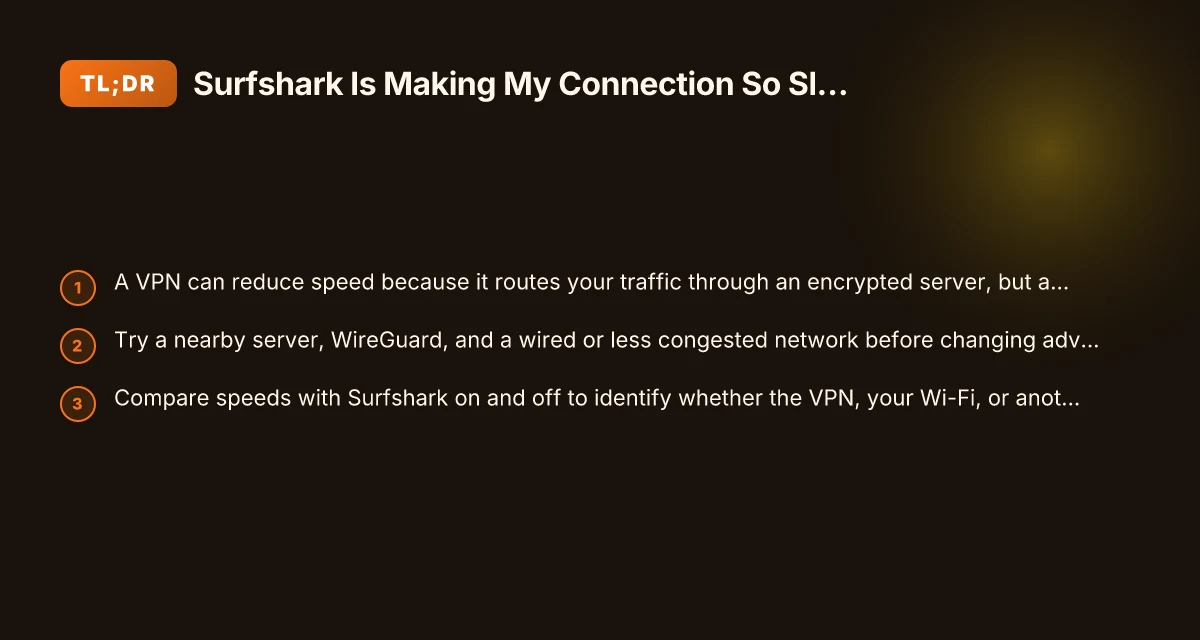
If Surfshark is making your connection so slow, first compare speeds with the VPN on and off. Then test a nearby server, switch to WireGuard, and check your Wi-Fi or Ethernet connection. These steps usually reveal whether the slowdown is caused by server distance, network conditions, or a wider internet issue.