Why Sites Are Blocked When Using a VPN, and How to Fix It
Learn why websites block VPN users and how to troubleshoot access safely and legally.
Websites block users when they detect a VPN connection because VPNs can make many people appear to come from the same IP address, conceal a visitor’s approximate location, or resemble automated or suspicious traffic. If a site is blocked while you’re using a VPN, first check whether the VPN is connected properly, reload the page, and try basic browser troubleshooting. If the block remains, the site may intentionally restrict VPN access, and its support team is the safest route to an explanation.
The right fix depends on the message you see. A temporary error may point to a network or browser problem, while a notice about proxies, unusual traffic, or regional availability may reflect the site’s access rules. Don’t assume every block is caused by the VPN, and don’t try to circumvent restrictions that protect accounts, comply with laws, or enforce workplace policies.
| VPN | Obfuscation | From / month | Plan | Free plan | Refund | Alipay | UnionPay | Crypto | Website opens in China | Trustpilot | |
|---|---|---|---|---|---|---|---|---|---|---|---|
 ZoogVPN | Turn on manually Shadow | $2.49/mo | 27 months: $59.99 | Yes | 7 days | ✓ | ✓ | ✓ | ✓ | Official site blocked; our special link opens (4.4 s) | 4.2/5 (195 reviews) |
 NordVPN | Turn on manually Obfuscated Servers / NordWhisper | $3.49/mo | 27 months: $94.23 | No | 30 days | ? | ✗ | ✓ | ✓ | ✗ Blocked | 4.2/5 (51,628 reviews) |
 ExpressVPN | ✓ On by default all servers | $3.00/mo | 28 months: $84 | No | 30 days | ✗ | ✗ | ✓ | ✗ | ✗ Blocked | 4.4/5 (29,706 reviews) |
 Surfshark | ✓ On by default Camouflage, with OpenVPN | See site | See site | No | 30 days | ✗ | ✗ | ✗ | ✓ | ✗ Blocked | 4.3/5 (31,823 reviews) |
 Proton VPN | Turn on manually Stealth, free plan too | $2.99/mo | 12 months: $35.88 | Yes | 30 days | ✗ | ✗ | ✗ | ✓ | ✗ Blocked | 2.1/5 (1,040 reviews) |
 Astrill VPN | Turn on manually StealthVPN / OpenWeb | $12.50/mo | 24 months: $300 | No | See site | ✗ | ✗ | ✗ | ✓ | ✗ Blocked | 1.3/5 (110 reviews) |
 Private Internet Access | Turn on manually Shadowsocks, OpenVPN only | $2.03/mo | 40 months: $81.2 | No | 30 days | ✗ | ✗ | ✗ | ✗ | ✗ Blocked | 4.2/5 (11,033 reviews) |
 CyberGhost | Turn on manually selected servers | $2.19/mo | 28 months: $61.32 | No | 45 days | ✗ | ✗ | ✗ | ✓ | ✗ Blocked | 4.0/5 (24,178 reviews) |
 PureVPN | Turn on manually switch to OpenVPN | $1.69/mo | 60 months: $101.55 | No | 31 days | ? | ? | ✗ | ✓ | ✗ Blocked | 4.4/5 (17,994 reviews) |
 AdGuard VPN | ✓ On by default TrustTunnel | $2.99/mo | 24 months: $71.76 | Yes | 30 days | ✓ | ✗ | ✓ | ✓ | Official site blocked; our special link opens (3.7 s) | 4.3/5 (290 reviews) |
 Mullvad | Turn on manually QUIC / Shadowsocks / LWO | $5.61/mo | €5/mo | No | 14 days | ✗ | ✗ | ✗ | ✓ | ✗ Blocked | 3.2/5 (192 reviews) |
 Windscribe | Turn on manually Stealth / WStunnel | $5.75/mo | 12 months: $69 | Yes | See site | ✗ | ✗ | ✗ | ✓ | ✗ Blocked | 4.7/5 (13,355 reviews) |
 StrongVPN | Turn on manually Scramble, OpenVPN TCP | See site | See site | No | 30 days | ✓ | ✗ | ✗ | ✗ | ✗ Blocked | 4.4/5 (2,695 reviews) |
 LightXtreme 闪连 | Not listed | $7.08/mo | 12 months: $84.99 | Yes | 30 days | ✓ | ✓ | ✓ | ✓ | ✓ Yes (3.5 s) | No page |
Prices checked 2026-11-10 on each vendor's pricing page (cheapest long plan, USD). Check the vendor's checkout for the final price.
Obfuscation checked 2026-11-14 on each vendor's site and help center: "on by default" = nothing to set; "turn on manually" = switch protocol or mode in settings; "not listed" = the vendor describes no obfuscation.
Payment methods checked 2026-11-10 on each vendor's payment pages: all 14 take cards and PayPal; ✗ = not listed, ? = the vendor's own pages disagree.
China access: whether the official website opens from mainland China networks (tests the website only, not the VPN connection). Last checked 2026-11-18 01:02 Beijing time.
Trustpilot score and review count checked 2026-11-10.

Editor's pick: NordVPN — fast, secure VPN — Strong encryption, a no-logs policy and apps for every device. 30-day money-back guarantee. Get NordVPN →
Compare common reasons sites block VPN connections
| Block trigger | What the site detects | Typical effect | What to check |
|---|---|---|---|
| Shared VPN IP | Many users share one address | CAPTCHA or access denied | Try a different server |
| IP reputation | Address has a history of abuse | Block or extra verification | Check whether the issue is server-specific |
| Data-center IP | Traffic comes from hosting infrastructure | Some services refuse access | Check the site’s VPN policy |
| Unusual location | Login location changes suddenly | Security challenge or login hold | Review recent location changes |
| Automated traffic signals | Requests look unusually frequent | CAPTCHA or temporary limit | Pause and retry normally |
| DNS or IP mismatch | Network signals point to different locations | Access denied or error page | Check DNS and VPN settings |
| Regional restrictions | Content is limited by location | Content unavailable | Check the service’s terms and availability |
Compiled November 2026; check the provider's site for current details.
Why sites block VPN connections
VPN services route traffic through servers that are used by multiple customers. As a result, a website may see a server’s shared IP address rather than an address associated with one household or mobile connection. If that IP has generated a high volume of requests or past abuse, a site’s security system may restrict it.
Other common reasons include:
- Fraud and account security: A sign-in from an unfamiliar location may trigger extra checks or a temporary lock.
- Automated traffic detection: Shared VPN addresses can resemble bots or other high-volume activity.
- Regional licensing: Streaming, shopping, and news services may limit content or offers by location.
- Compliance requirements: Financial or government services may restrict connections from certain regions or networks.
- Network policies: Schools and employers may block VPNs or particular websites, while some sites block traffic from known VPN providers.
A block does not necessarily mean you have done anything wrong. It may be an automatic response to the network address or location the site detects.
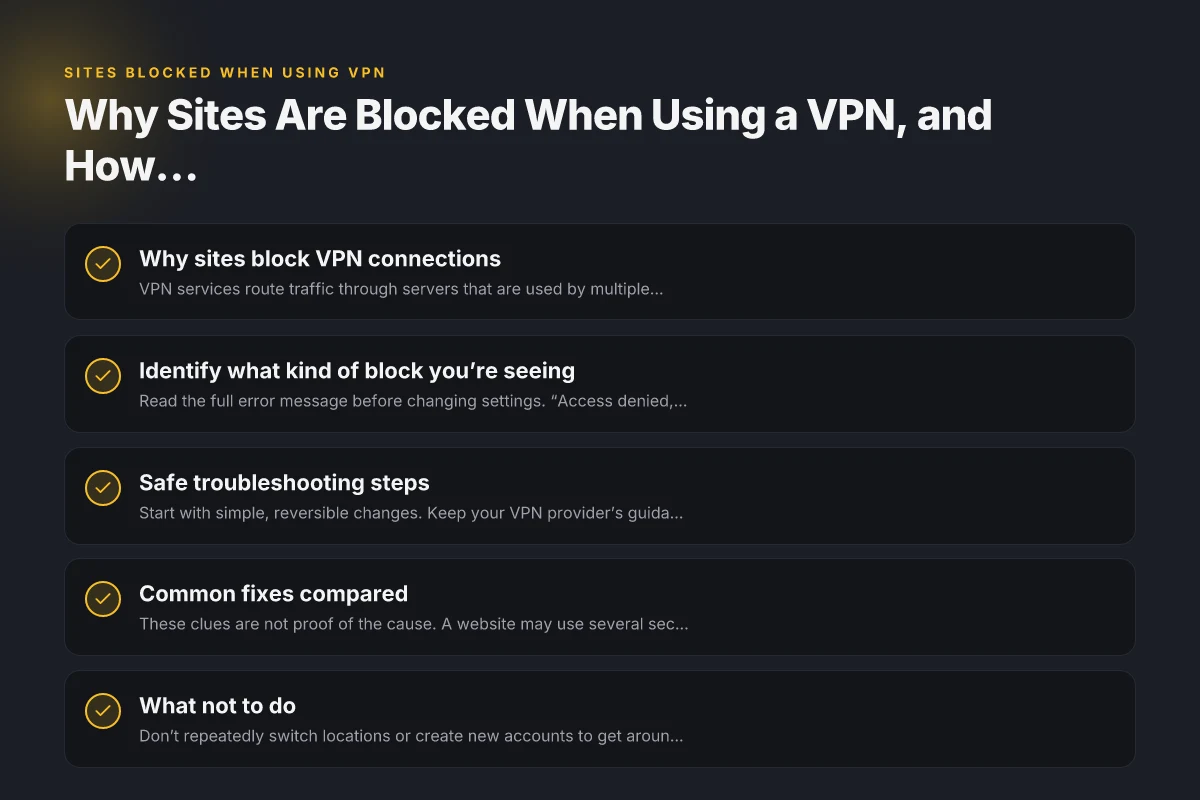
Identify what kind of block you’re seeing
Read the full error message before changing settings. “Access denied,” “unusual traffic,” “proxy detected,” and “content unavailable in your region” can indicate different problems. A CAPTCHA or extra identity check may be a security challenge, not a permanent ban. Axgate VPN Download: How to Find and Install the Right Client
Try these checks:
- Open another website. If other sites also fail, the VPN connection or internet service may be the issue.
- Try the site without the VPN, if appropriate. If it works, the VPN’s IP address or detected location may be involved. Don’t do this if a VPN is required by your employer, school, or local policy.
- Check the site’s status and your account. Service outages, account restrictions, or billing issues can look like connection problems.
- Note whether the issue affects one page or the whole site. A single page may have its own security or regional rules.
Avoid repeated sign-in attempts if you see an account-security warning. Too many attempts can trigger additional protections.
Safe troubleshooting steps
Start with simple, reversible changes. Keep your VPN provider’s guidance in mind, and follow the website’s terms and any network rules that apply to you.
- Reconnect to the VPN. A fresh connection may resolve a temporary routing or server problem.
- Check the selected location. A VPN server may appear to be in a different region than expected. If the site requires a specific location for legitimate access, confirm that you are permitted to use it.
- Update the VPN app and browser. Outdated software can cause connection or compatibility errors.
- Clear the site’s cookies and cache. Stale location or session data can conflict with a new connection. You may need to sign in again.
- Try a private window or another browser. This helps identify extensions, stored data, or browser settings that may be interfering.
- Check your device’s date and time. Incorrect settings can disrupt secure connections and account verification.
- Review DNS settings and browser security features. Custom DNS, proxy settings, or privacy tools may conflict with the VPN. Change settings only if you understand the effect or can restore the original configuration.
If the VPN itself will not connect, check your internet connection first, then consult the provider’s support documentation. Avoid downloading unofficial VPN apps or configuration files offered by unknown websites. Free VPNs That Change Location: What to Know Before You Connect
Identify the block and choose a safe first step
| What you see | Likely issue | First safe step | If it continues |
|---|---|---|---|
| CAPTCHA loop | Shared or flagged IP | Complete the challenge once | Try another VPN server |
| “VPN/proxy detected” message | VPN traffic is blocked | Check the service’s policy | Contact the service’s support |
| Access denied page | IP reputation or site rules | Reload after a short pause | Test without the VPN if safe |
| Login verification prompt | Location change triggered security | Verify through the official site or app | Review account security settings |
| Content unavailable by region | Regional availability limit | Check where the content is offered | Follow the service’s terms |
| Connection error only on VPN | VPN, DNS, or network issue | Check VPN and DNS settings | Ask the VPN provider for help |
| Temporary rate-limit notice | Too many requests | Stop repeated attempts | Wait, then retry normally |
Compiled November 2026; check the provider's site for current details.
Common fixes compared
| What you see | Possible cause | Safe next step |
|---|---|---|
| A CAPTCHA or “unusual traffic” notice | Shared IP reputation or rapid requests | Pause, complete the site’s verification, and contact support if it continues |
| A regional availability message | Location-based licensing or policy | Check the service’s availability rules and your account region |
| A login warning or temporary lock | Sign-in location or security checks | Use the site’s official account-recovery process |
| The site fails only in one browser | Cookies, extensions, or browser settings | Test a private window or another browser |
| Several sites fail at once | VPN, device, or internet connection issue | Check connectivity, reconnect, and contact the VPN provider |
These clues are not proof of the cause. A website may use several security checks at once, and its error message may be intentionally broad.
What not to do
Don’t repeatedly switch locations or create new accounts to get around a block. That can make security systems more suspicious and may violate a site’s terms. Never provide passwords, payment details, or verification codes to a page you reached through an unfamiliar link. Use the site’s official address or app. How to Open an OVPN File on Windows, Mac, Linux, Android, and iPhone
If you’re on a work or school network, ask the administrator whether VPN use or the site is restricted. If the site is a bank, government service, or other sensitive account, use its official support channel and follow its recommended connection method. For streaming or other licensed content, follow the service’s regional rules rather than trying to defeat its location checks.
Compare safe troubleshooting options
| Option | Best for | What to do | Limitation |
|---|---|---|---|
| Retry after a pause | Temporary limits | Wait before trying again | Does not fix a lasting block |
| Switch VPN server | Server-specific IP blocks | Choose another server in the same region | Another IP may also be flagged |
| Check VPN settings | DNS or connection mismatch | Review the provider’s recommended settings | Menu steps vary by provider |
| Update the VPN app | Outdated or faulty app behavior | Install updates from the official source | May not change site policy |
| Test with VPN off | Diagnosing whether VPN is involved | Disconnect only if the network is safe | Exposes your regular IP to the site |
| Contact site support | Account or policy blocks | Ask about the specific error | Support may not allow VPN use |
| Contact VPN support | Persistent VPN connection issues | Share the error and server details | They cannot override site rules |
Compiled November 2026; check the provider's site for current details.
Recommended next step
Confirm whether the problem affects one site or your whole connection, then try a browser refresh, a clean session, and a VPN reconnect. If the site still blocks access, check its terms and contact its support team with the error message and the time it occurred. Use a different connection only when permitted, and don’t bypass security or regional restrictions. Best Free Edge VPN Extension for UK Users: What to Choose