How to Replace VPN: Safe Steps to Switch Providers
Learn how to replace a VPN safely, choose a suitable provider, and avoid gaps in privacy or connectivity.
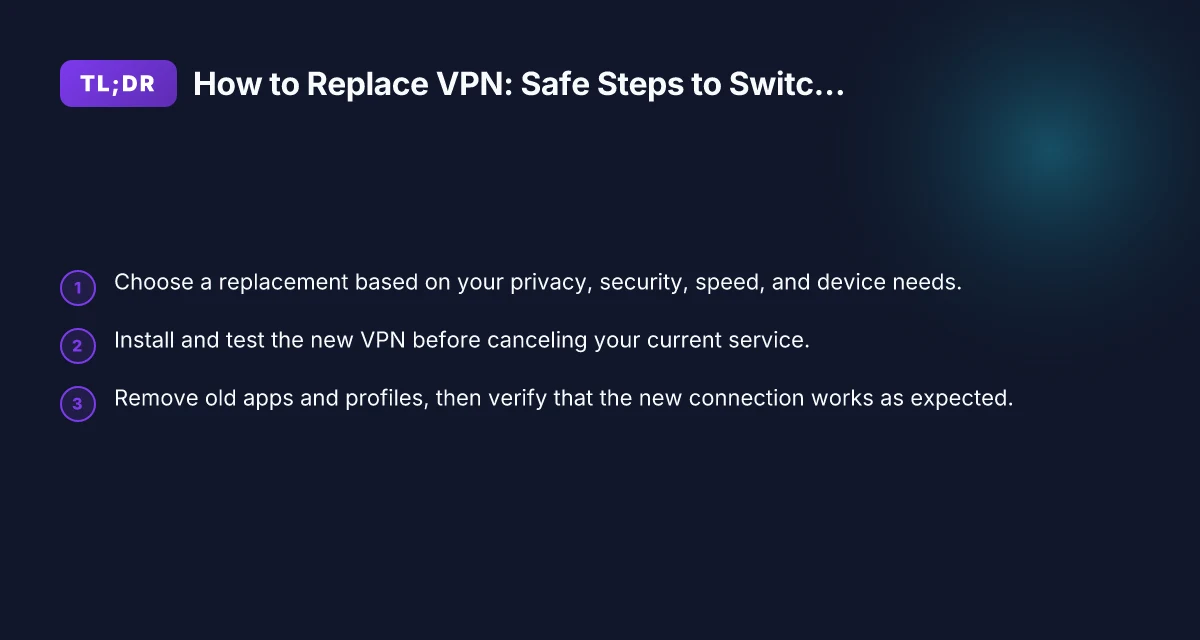
To replace a VPN, choose a trusted alternative, install it on your devices, test its connection and settings, and then cancel and remove the old service. If you use a VPN for work or school, check with your administrator before making changes. Moving carefully helps prevent connection problems and reduces the chance that your traffic will be exposed while you switch.

Editor's pick: NordVPN — fast, secure VPN — Strong encryption, a no-logs policy and apps for every device. 30-day money-back guarantee. Get NordVPN →
Switching readiness checklist
| Check | Ready | Not ready | Why it matters |
|---|---|---|---|
| New provider selected | Yes / No | Yes / No | Confirms your replacement meets your needs |
| Account created | Yes / No | Yes / No | Lets you install and sign in |
| Login details saved | Yes / No | Yes / No | Prevents access problems |
| New VPN installed | Yes / No | Yes / No | Enables testing before the switch |
| Connection tested | Yes / No | Yes / No | Confirms the service works |
| Leak protection checked | Yes / No | Yes / No | Helps verify traffic is protected |
| Old subscription terms reviewed | Yes / No | Yes / No | Avoids unexpected renewal charges |
| Devices and profiles listed | Yes / No | Yes / No | Helps ensure nothing is missed |
Compiled November 2026; check the provider's site for current details.
| VPN | Obfuscation | From / month | Plan | Free plan | Refund | Alipay | UnionPay | Crypto | Website opens in China | Trustpilot | |
|---|---|---|---|---|---|---|---|---|---|---|---|
 ZoogVPN | Turn on manually Shadow | $2.49/mo | 27 months: $59.99 | Yes | 7 days | ✓ | ✓ | ✓ | ✓ | Official site blocked; our special link opens (4.4 s) | 4.2/5 (195 reviews) |
 NordVPN | Turn on manually Obfuscated Servers / NordWhisper | $3.49/mo | 27 months: $94.23 | No | 30 days | ? | ✗ | ✓ | ✓ | ✗ Blocked | 4.2/5 (51,628 reviews) |
 ExpressVPN | ✓ On by default all servers | $3.00/mo | 28 months: $84 | No | 30 days | ✗ | ✗ | ✓ | ✗ | ✗ Blocked | 4.4/5 (29,706 reviews) |
 Surfshark | ✓ On by default Camouflage, with OpenVPN | See site | See site | No | 30 days | ✗ | ✗ | ✗ | ✓ | ✗ Blocked | 4.3/5 (31,823 reviews) |
 Proton VPN | Turn on manually Stealth, free plan too | $2.99/mo | 12 months: $35.88 | Yes | 30 days | ✗ | ✗ | ✗ | ✓ | ✗ Blocked | 2.1/5 (1,040 reviews) |
 Astrill VPN | Turn on manually StealthVPN / OpenWeb | $12.50/mo | 24 months: $300 | No | See site | ✗ | ✗ | ✗ | ✓ | ✗ Blocked | 1.3/5 (110 reviews) |
 Private Internet Access | Turn on manually Shadowsocks, OpenVPN only | $2.03/mo | 40 months: $81.2 | No | 30 days | ✗ | ✗ | ✗ | ✗ | ✗ Blocked | 4.2/5 (11,033 reviews) |
 CyberGhost | Turn on manually selected servers | $2.19/mo | 28 months: $61.32 | No | 45 days | ✗ | ✗ | ✗ | ✓ | ✗ Blocked | 4.0/5 (24,178 reviews) |
 PureVPN | Turn on manually switch to OpenVPN | $1.69/mo | 60 months: $101.55 | No | 31 days | ? | ? | ✗ | ✓ | ✗ Blocked | 4.4/5 (17,994 reviews) |
 AdGuard VPN | ✓ On by default TrustTunnel | $2.99/mo | 24 months: $71.76 | Yes | 30 days | ✓ | ✗ | ✓ | ✓ | Official site blocked; our special link opens (3.7 s) | 4.3/5 (290 reviews) |
 Mullvad | Turn on manually QUIC / Shadowsocks / LWO | $5.61/mo | €5/mo | No | 14 days | ✗ | ✗ | ✗ | ✓ | ✗ Blocked | 3.2/5 (192 reviews) |
 Windscribe | Turn on manually Stealth / WStunnel | $5.75/mo | 12 months: $69 | Yes | See site | ✗ | ✗ | ✗ | ✓ | ✗ Blocked | 4.7/5 (13,355 reviews) |
 StrongVPN | Turn on manually Scramble, OpenVPN TCP | See site | See site | No | 30 days | ✓ | ✗ | ✗ | ✗ | ✗ Blocked | 4.4/5 (2,695 reviews) |
 LightXtreme 闪连 | Not listed | $7.08/mo | 12 months: $84.99 | Yes | 30 days | ✓ | ✓ | ✓ | ✓ | ✓ Yes (3.5 s) | No page |
Prices checked 2026-11-10 on each vendor's pricing page (cheapest long plan, USD). Check the vendor's checkout for the final price.
Obfuscation checked 2026-11-14 on each vendor's site and help center: "on by default" = nothing to set; "turn on manually" = switch protocol or mode in settings; "not listed" = the vendor describes no obfuscation.
Payment methods checked 2026-11-10 on each vendor's payment pages: all 14 take cards and PayPal; ✗ = not listed, ? = the vendor's own pages disagree.
China access: whether the official website opens from mainland China networks (tests the website only, not the VPN connection). Last checked 2026-11-18 01:02 Beijing time.
Trustpilot score and review count checked 2026-11-10.
1. Decide what you need from a replacement
Start by identifying why you want to switch. You may be looking for better speeds, a lower price, reliable access while traveling, coverage for more devices, or clearer privacy terms. Your reason should guide your choice. The most expensive VPN is not automatically the best fit.
Before subscribing, check these points:
- Privacy policy: Look for a clear explanation of what information the provider collects and how long it keeps it. Claims such as “no logs” should be supported by meaningful details or independent assessments.
- Security features: Check for modern protocols, strong encryption, DNS leak protection, and a kill switch. A kill switch is designed to block internet traffic if the VPN connection drops.
- Performance and locations: Consider whether the provider has servers near the places where you need them. Performance varies by network, device, and location, so look for a trial or money-back period.
- Device support: Confirm that it supports your operating systems and the number of simultaneous connections you need.
- Price and terms: Review renewal rates, refund rules, and how cancellation works before paying.
Avoid choosing a provider solely because it promises complete anonymity or guarantees access to every service. VPNs can improve privacy on network connections, but they do not make you invisible online or replace safe browsing practices.
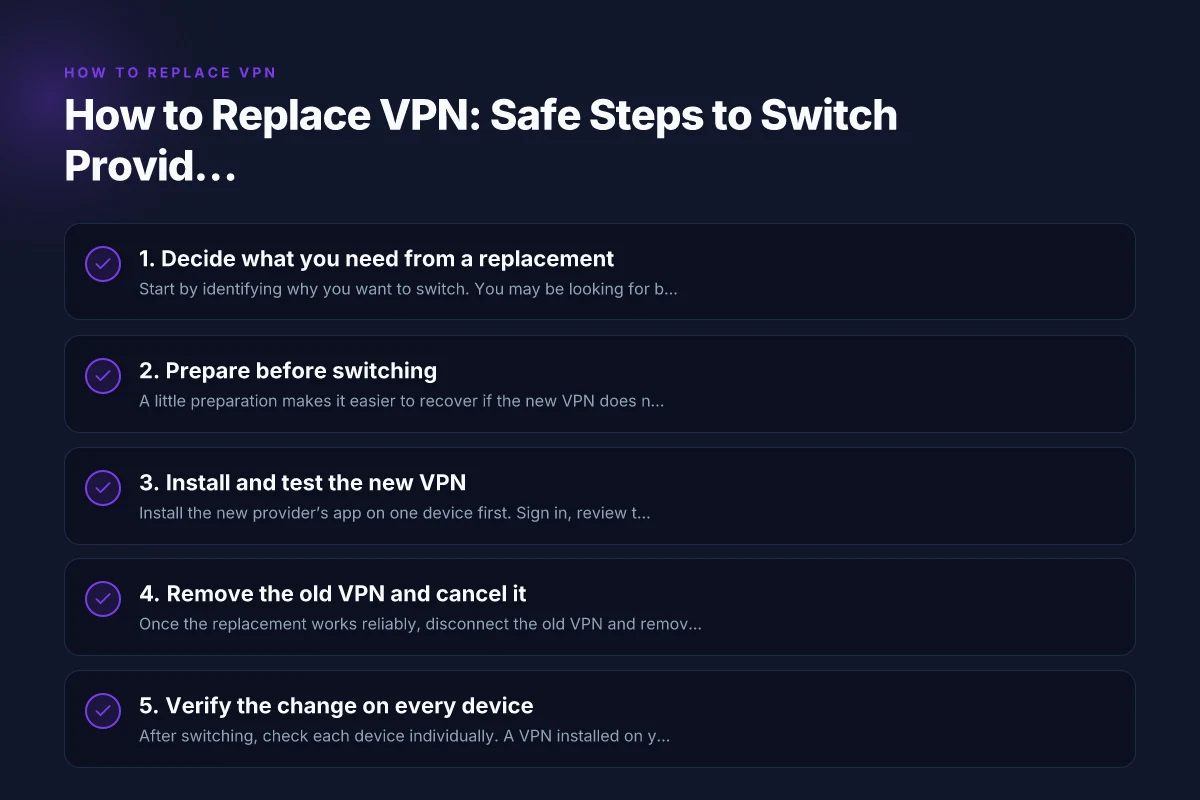
2. Prepare before switching
A little preparation makes it easier to recover if the new VPN does not work as expected. Keep access to your current account until you have tested the replacement. VPN Free to Change Location: How to Pick and Use One
Before installing anything:
- Record which devices use the existing VPN, including phones, computers, tablets, and routers.
- Note any custom settings, such as a preferred protocol, server location, split tunneling, or a work network configuration.
- Save your current account details and check how to cancel its subscription.
- Download the replacement only from the provider’s official website or your device’s trusted app store.
- If you rely on the VPN for work, school, or access to a private network, ask the relevant administrator for the approved setup.
Do not install multiple VPN apps and leave them running at the same time. They can compete to control the network connection or install conflicting profiles. If you use a router-based VPN, follow the router provider’s instructions rather than assuming the phone or computer app will replace it.
Verify the switch on each device
| Device | New VPN installed | Connection works | IP or leak check passed | Old VPN removed | Subscription status checked |
|---|---|---|---|---|---|
| Computer | Yes / No | Yes / No | Yes / No | Yes / No | Yes / No |
| Phone | Yes / No | Yes / No | Yes / No | Yes / No | Yes / No |
| Tablet | Yes / No | Yes / No | Yes / No | Yes / No | Yes / No |
| Router | Yes / No | Yes / No | Yes / No | Yes / No | Yes / No |
| Streaming device | Yes / No | Yes / No | Yes / No | Yes / No | Yes / No |
| Work device | Yes / No | Yes / No | Yes / No | Yes / No | Yes / No |
Compiled November 2026; check the provider's site for current details. VPN Cisco: How It Works, Setup, and Alternatives
3. Install and test the new VPN
Install the new provider’s app on one device first. Sign in, review the privacy and connection settings, and connect to a nearby server. A nearby server is often a practical starting point for testing speed, although the best choice depends on your location and needs.
Check that:
- The app reports an active VPN connection.
- Websites and apps you use regularly still work.
- Video calls, downloads, and other important tasks perform acceptably.
- The kill switch and DNS protection settings are enabled if available and appropriate.
- The connection reconnects after you briefly switch networks or restart the device.
For a basic leak check, use a reputable IP-address or DNS test site while connected, then compare the results with your normal connection. The test should not reveal your regular public IP address while the VPN is active. These checks are useful, but they are not a complete security audit.
If something fails, try a different server or protocol, restart the app, and check the provider’s troubleshooting guidance. Some websites block VPN traffic, and a VPN can occasionally interfere with local devices such as printers. Do not disable security features without understanding the trade-off. Working VPN: How to Find One That Meets Your Needs
4. Remove the old VPN and cancel it
Once the replacement works reliably, disconnect the old VPN and remove its app or configuration from each device you no longer use with it. Uninstalling an app does not always remove every network profile, so check your device’s VPN settings afterward.
Typical cleanup includes:
- Signing out of the old app.
- Deleting the old VPN configuration or profile from the operating system.
- Removing old browser extensions, if you installed any.
- Checking router settings if the old VPN was configured there.
- Canceling the subscription through the original billing source.
If you subscribed through an app store, you may need to cancel in that store’s subscription settings rather than through the VPN provider’s website. Keep the confirmation email or screenshot and check for a renewal date. Deleting the app alone usually does not cancel a subscription.
| Switching approach | Best for | Main consideration |
|---|---|---|
| Install the replacement before canceling | Most users | May briefly mean paying for both services |
| Cancel first, then choose a replacement | Users who want to stop renewal immediately | You may have no VPN coverage during the gap |
| Replace a work or school VPN | Managed devices and private networks | Get administrator approval and configuration details |
For personal use, installing and testing first is generally the least disruptive option. If the current service is unsafe or no longer trustworthy, stop using it and prioritize a reputable replacement instead. VPN Online: What It Is, How to Use One, and How to Choose Safely
5. Verify the change on every device
After switching, check each device individually. A VPN installed on your laptop does not automatically protect your phone, and a browser extension may cover only browser traffic rather than all device traffic.
Review the following:
- The new VPN is installed and signed in on each intended device.
- The correct connection settings are enabled.
- Old profiles and apps are no longer active.
- The service is not set to disconnect automatically when you change networks, unless that is intentional.
- Your account’s device limit and subscription status are clear.
If the VPN is meant to protect a whole home network, test devices connected through the router as well. Keep in mind that a VPN generally shifts trust from your internet provider to the VPN provider. It does not prevent malware, phishing, account tracking, or data collection by websites.
Final recommendation
Choose a replacement based on transparent privacy practices, reliable security features, and compatibility with your devices. Install and test it before canceling your current personal VPN, then remove old profiles and confirm the subscription is canceled. For a work or school VPN, follow the organization’s instructions rather than substituting a personal service. VPN No Download: How to Browse More Privately Without Installing an App