How Can I Tell If a VPN Is Blocking My Internet?
Learn how to check whether your VPN is interrupting internet access and how to troubleshoot without compromising your privacy.


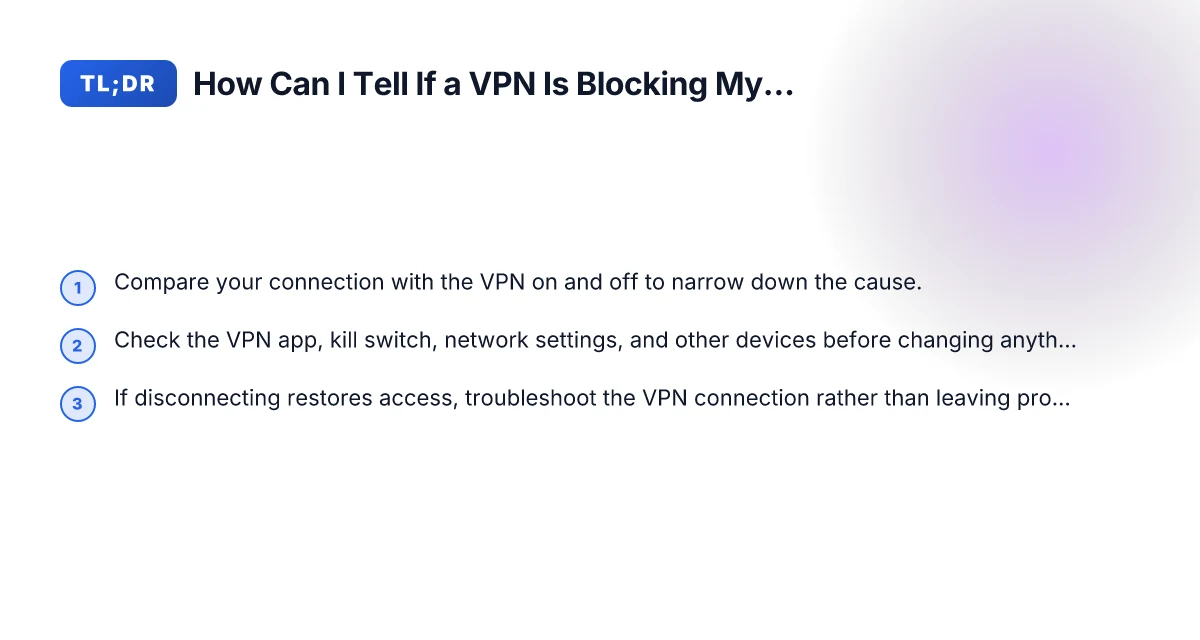
If you’re asking, “How can I tell if a VPN is blocking my internet?”, compare your connection with the VPN on and off. If websites and apps fail while the VPN is connected but work again after you disconnect, the VPN connection or one of its settings may be interrupting traffic. If they still fail with the VPN off, the cause is more likely your Wi-Fi, device, router, or internet provider.
Use the checks below to identify the problem safely. A single failed website does not necessarily mean your VPN is blocking all internet access.
| VPN | Obfuscation | From / month | Plan | Free plan | Refund | Alipay | UnionPay | Crypto | Website opens in China | Trustpilot | |
|---|---|---|---|---|---|---|---|---|---|---|---|
 ZoogVPN | Turn on manually Shadow | $2.49/mo | 27 months: $59.99 | Yes | 7 days | ✓ | ✓ | ✓ | ✓ | Official site blocked; our special link opens (4.4 s) | 4.2/5 (195 reviews) |
 NordVPN | Turn on manually Obfuscated Servers / NordWhisper | $3.49/mo | 27 months: $94.23 | No | 30 days | ? | ✗ | ✓ | ✓ | ✗ Blocked | 4.2/5 (51,628 reviews) |
 ExpressVPN | ✓ On by default all servers | $3.00/mo | 28 months: $84 | No | 30 days | ✗ | ✗ | ✓ | ✗ | ✗ Blocked | 4.4/5 (29,706 reviews) |
 Surfshark | ✓ On by default Camouflage, with OpenVPN | See site | See site | No | 30 days | ✗ | ✗ | ✗ | ✓ | ✗ Blocked | 4.3/5 (31,823 reviews) |
 Proton VPN | Turn on manually Stealth, free plan too | $2.99/mo | 12 months: $35.88 | Yes | 30 days | ✗ | ✗ | ✗ | ✓ | ✗ Blocked | 2.1/5 (1,040 reviews) |
 Astrill VPN | Turn on manually StealthVPN / OpenWeb | $12.50/mo | 24 months: $300 | No | See site | ✗ | ✗ | ✗ | ✓ | ✗ Blocked | 1.3/5 (110 reviews) |
 Private Internet Access | Turn on manually Shadowsocks, OpenVPN only | $2.03/mo | 40 months: $81.2 | No | 30 days | ✗ | ✗ | ✗ | ✗ | ✗ Blocked | 4.2/5 (11,033 reviews) |
 CyberGhost | Turn on manually selected servers | $2.19/mo | 28 months: $61.32 | No | 45 days | ✗ | ✗ | ✗ | ✓ | ✗ Blocked | 4.0/5 (24,178 reviews) |
 PureVPN | Turn on manually switch to OpenVPN | $1.69/mo | 60 months: $101.55 | No | 31 days | ? | ? | ✗ | ✓ | ✗ Blocked | 4.4/5 (17,994 reviews) |
 AdGuard VPN | ✓ On by default TrustTunnel | $2.99/mo | 24 months: $71.76 | Yes | 30 days | ✓ | ✗ | ✓ | ✓ | Official site blocked; our special link opens (3.7 s) | 4.3/5 (290 reviews) |
 Mullvad | Turn on manually QUIC / Shadowsocks / LWO | $5.61/mo | €5/mo | No | 14 days | ✗ | ✗ | ✗ | ✓ | ✗ Blocked | 3.2/5 (192 reviews) |
 Windscribe | Turn on manually Stealth / WStunnel | $5.75/mo | 12 months: $69 | Yes | See site | ✗ | ✗ | ✗ | ✓ | ✗ Blocked | 4.7/5 (13,355 reviews) |
 StrongVPN | Turn on manually Scramble, OpenVPN TCP | See site | See site | No | 30 days | ✓ | ✗ | ✗ | ✗ | ✗ Blocked | 4.4/5 (2,695 reviews) |
 LightXtreme 闪连 | Not listed | $7.08/mo | 12 months: $84.99 | Yes | 30 days | ✓ | ✓ | ✓ | ✓ | ✓ Yes (3.5 s) | No page |
Prices checked 2026-11-10 on each vendor's pricing page (cheapest long plan, USD). Check the vendor's checkout for the final price.
Obfuscation checked 2026-11-14 on each vendor's site and help center: "on by default" = nothing to set; "turn on manually" = switch protocol or mode in settings; "not listed" = the vendor describes no obfuscation.
Payment methods checked 2026-11-10 on each vendor's payment pages: all 14 take cards and PayPal; ✗ = not listed, ? = the vendor's own pages disagree.
China access: whether the official website opens from mainland China networks (tests the website only, not the VPN connection). Last checked 2026-11-18 01:02 Beijing time.
Trustpilot score and review count checked 2026-11-10.

Editor's pick: NordVPN — fast, secure VPN — Strong encryption, a no-logs policy and apps for every device. 30-day money-back guarantee. Get NordVPN →
Signs that point to a VPN-related connection problem
| What you notice | VPN on | VPN off | What it may suggest |
|---|---|---|---|
| Websites stop loading | Fails | Works | VPN connection or server issue |
| VPN app says “connected,” but nothing loads | Fails | Works | Tunnel or routing problem |
| Only some sites fail | Fails on selected sites | Same sites work | VPN server or site restrictions |
| Connection is unusually slow | Slow | Faster | VPN server, distance, or network load |
| Apps lose access after VPN connects | Fails | Works | App or VPN traffic settings |
| Problem continues with VPN off | Fails | Fails | Look beyond the VPN |
| Connection returns after switching servers | Fails on one server | Works | Likely server-specific issue |
Compiled November 2026; check the provider's site for current details.
Look for signs of a VPN-related connection problem
A VPN may prevent internet access when its connection drops, its server is unavailable, or a setting such as a kill switch blocks traffic. You might see pages that never load, apps that say they are offline, or a message that the VPN cannot connect.
Start with a few different services. Try opening a familiar website and using an app that needs an internet connection. If only one site fails, it may be the site itself or a block on VPN traffic, not a complete loss of internet access.
| What you notice | What it may suggest |
|---|---|
| Several websites and apps fail with the VPN on, then work with it off | The VPN connection or settings may be involved |
| Only one website fails | The site may be unavailable or may restrict VPN connections |
| The VPN says “connected,” but nothing loads | A server, route, DNS, or kill-switch issue is possible |
| The same problems continue with the VPN off | Check your device, Wi-Fi, router, or provider |
These clues help narrow down the cause. They don’t prove it. A VPN indicator alone does not confirm that your internet is working normally.
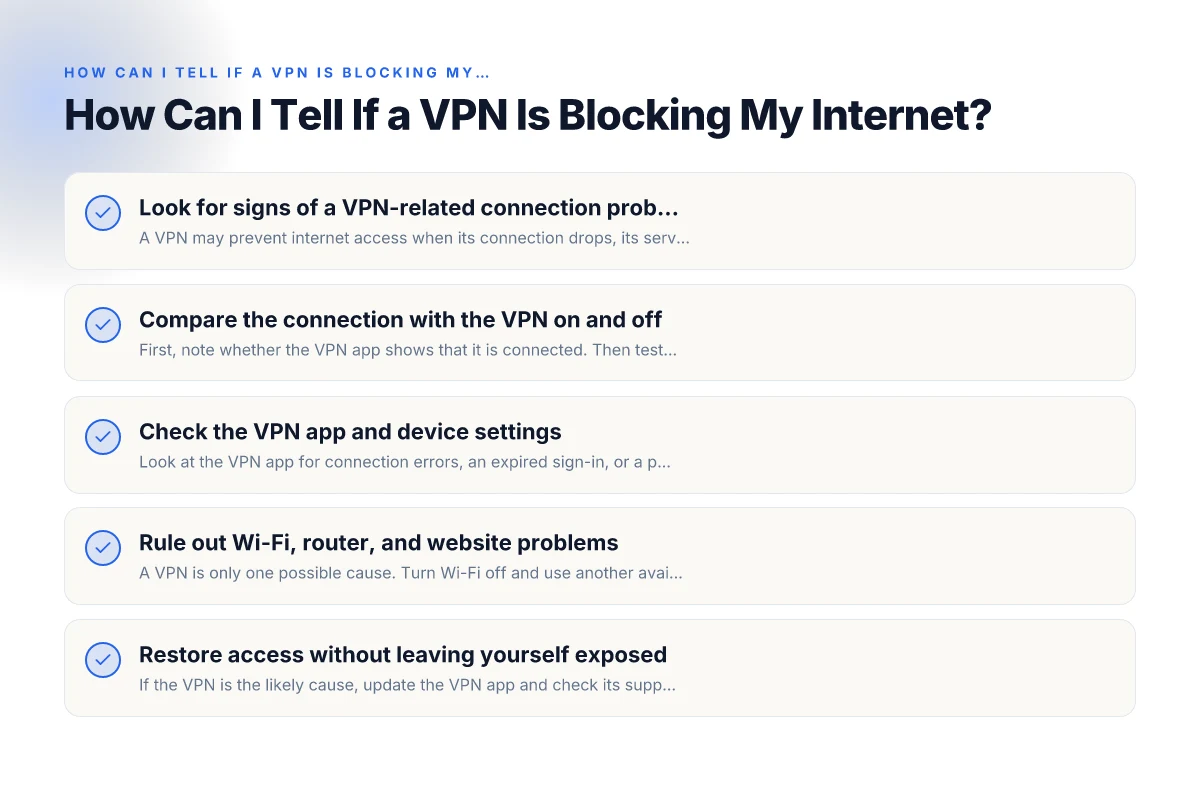
Compare the connection with the VPN on and off
First, note whether the VPN app shows that it is connected. Then test more than one website or app. If the VPN is on and nothing loads, disconnect it briefly and repeat the same tests. NordVPN Windows: How to Download, Install, and Use It
If access returns, reconnect to the VPN and try a different server or location. If the new connection works, the first server may have been the issue. If every VPN server fails but ordinary internet access works, the VPN app, settings, or network compatibility may need attention.
Disconnecting briefly is a diagnostic step, not a recommended long-term fix. Disconnected. Your traffic may not receive the privacy protection provided by the VPN. Avoid sensitive activity until you have restored the connection you intend to use.
Compare checks for isolating the connection problem
| Check | What to do | If it works | If it does not |
|---|---|---|---|
| VPN off versus on | Test the same site both ways | VPN may be involved | Check Wi-Fi or the site |
| Different VPN server | Choose another location | Original server may be the issue | Check app and device settings |
| Different website | Try a few unrelated sites | Problem may be site-specific | Broader connection issue is more likely |
| Another device on Wi-Fi | Test the same network | Problem may be device-specific | Router or internet service may be involved |
| Mobile data | Try without Wi-Fi | Wi-Fi or router may be involved | Check VPN, device, or website |
| VPN app status | Check for errors or a stalled connection | Follow the app’s indicated fix | Restart the app or continue checks |
| Device date and time | Confirm automatic settings are enabled | Incorrect time may have affected access | Check other device settings |
Compiled November 2026; check the provider's site for current details. Free VPN Extension for Microsoft Edge: What to Know Before You Install
Check the VPN app and device settings
Look at the VPN app for connection errors, an expired sign-in, or a prompt to reconnect. If the app includes a kill switch, check whether it is enabled. A kill switch is designed to block internet traffic if the VPN connection drops. That can look like the internet has stopped working, even though the setting is doing what it is meant to do.
You can also check whether your device has a VPN or proxy configured:
- Windows: Review the VPN and proxy options in network settings, and check whether the VPN app is active.
- Mac: Look for the VPN status in the menu bar or network settings.
- Android or iPhone: Check the VPN app and your device’s VPN settings. Menu names can vary by version.
If you see a VPN or proxy you do not recognize, do not remove it automatically. It may belong to a work, school, or security setup. Confirm what it is before changing the configuration.
Rule out Wi-Fi, router, and website problems
A VPN is only one possible cause. Turn Wi-Fi off and use another available connection, such as mobile data, if your device and plan support it. You can also check whether another device on the same Wi-Fi can get online. These tests help separate a VPN problem from a broader network outage. Microsoft Edge Secure Network VPN Reviews: Is It Safe and Worth Using?
Try these steps in order:
- Confirm that Wi-Fi or mobile data is connected.
- Open several sites rather than relying on just one.
- Test another device on the same network.
- Restart the VPN app and reconnect.
- Restart your device or router if the connection is failing across devices.
- Try another VPN server or connection option in the app.
If a specific website works without the VPN but not with it, the website may be blocking or limiting VPN traffic. That is different from the VPN blocking your entire internet connection. If a site fails both ways, its own availability or another network issue may be responsible.
Safer ways to restore access
| Option | When to try it | Exposure while testing | Good practice |
|---|---|---|---|
| Reconnect the VPN | Connection appears stuck | VPN remains on if connected | Confirm the app shows connected |
| Switch VPN servers | One server seems affected | VPN remains on if connected | Try a different available server |
| Restart the VPN app | App is unresponsive | Avoid sensitive activity until connected | Reopen and check connection status |
| Restart the device | App or network settings seem stuck | Verify VPN status after restart | Reconnect before browsing |
| Check Wi-Fi or router | Other devices also have trouble | VPN protection depends on its status | Keep VPN on when possible |
| Briefly test with VPN off | You need to confirm whether it is the cause | Internet traffic may be unprotected | Avoid sensitive sites and reconnect promptly |
| Contact VPN support | Problem persists across checks | Use the VPN’s stated connection guidance | Share error details, not passwords |
Compiled November 2026; check the provider's site for current details. GlobalProtect VPN Not Connecting? How to Troubleshoot It
Restore access without leaving yourself exposed
If the VPN is the likely cause, update the VPN app and check its support guidance for your device. Try reconnecting, choosing another server, or reviewing any kill-switch or network settings. If the problem began after a settings change, undo that change only if you understand what it does.
For a work or school VPN, contact the organization’s IT support before removing profiles or changing managed settings. For a personal VPN, contact the provider if no server works while your regular connection does. Include the device type, the error message, whether other networks work, and the result of the VPN-on versus VPN-off test.
Recommendation
The quickest check is to test several sites and apps with the VPN on, then briefly repeat the test with it off. If access returns only when the VPN is disconnected, troubleshoot the app, server, and kill-switch settings, and reconnect when possible. If access fails either way, investigate your device or network instead of assuming the VPN is responsible.