Clash for iPad: How to Install, Set Up, and Use It
Learn how to download Clash for iPad, check compatibility, configure a profile, and troubleshoot common connection issues.
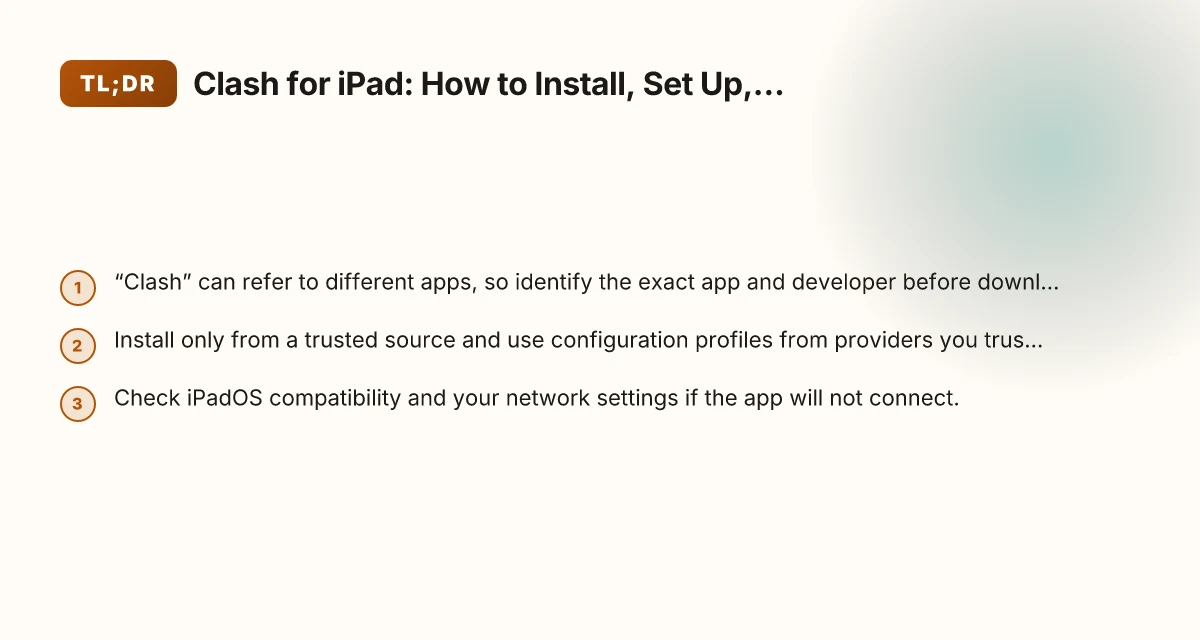
If you’re looking for Clash for iPad, first confirm which Clash app you mean. The name is used by multiple products, including network proxy and VPN clients as well as games. For a proxy client, check the App Store for an iPad-compatible listing or consult the app developer’s official instructions. Availability and supported features can vary by region and iPadOS version. Avoid unofficial download sites, and don’t install a configuration profile unless you understand who provided it and what traffic it routes.

Compare iPad app options by what they do
| Option | Main purpose | What you need | Setup approach | Best fit |
|---|---|---|---|---|
| Clash network client | Connect through a Clash-compatible proxy configuration | Compatible client and configuration | Import or add a configuration | Users with a Clash profile |
| VPN app | Route traffic through a VPN service | VPN provider account or profile | Install the provider’s app and sign in | Users who want a managed VPN |
| Browser proxy setting | Proxy traffic from a browser | Proxy server details | Enter settings in the browser, if available | Browser-only use |
| Remote desktop app | Access another device remotely | Remote device and account | Install and pair devices | Remote access, not proxy routing |
| App Store listing | Find an iPad app | App Store access | Check the app’s details and compatibility | Verifying an app before installing |
| Configuration file | Supply proxy rules and server details | A trusted file and compatible client | Import it into the client | Users given a ready-made profile |
Compiled November 2026; check the provider's site for current details.
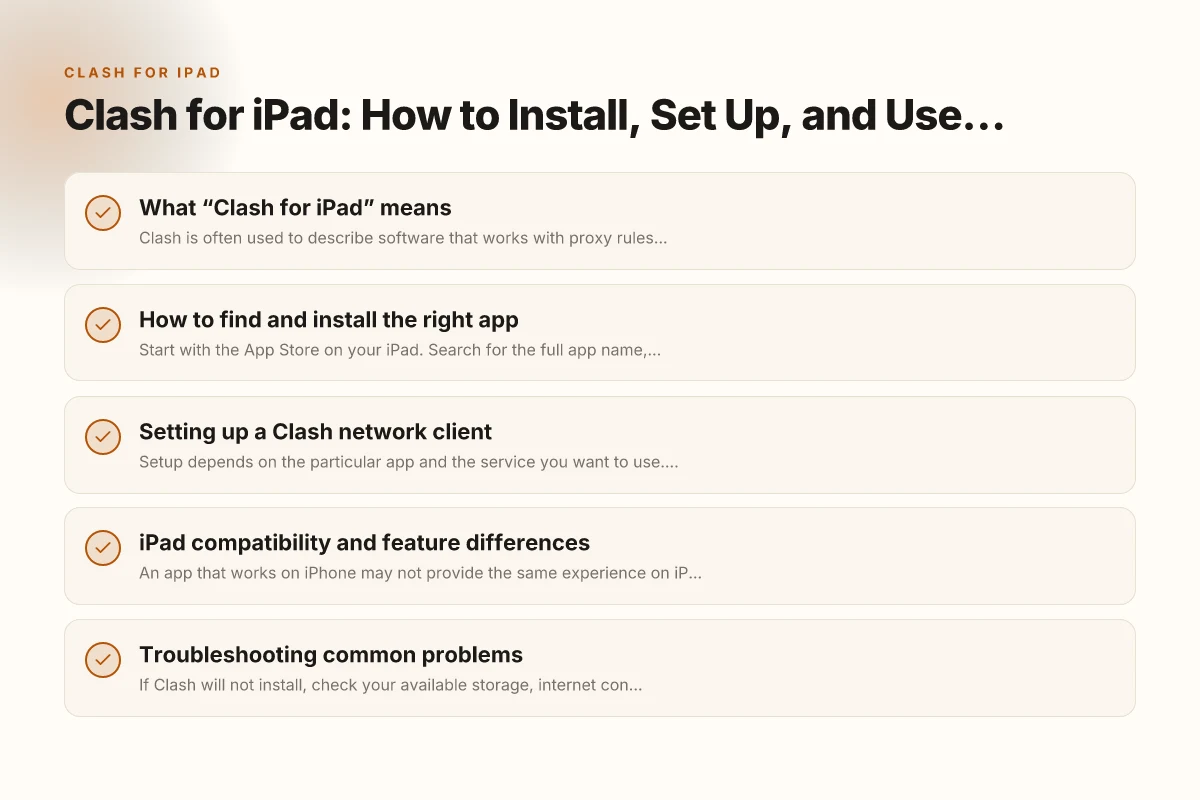
What “Clash for iPad” means
Clash is often used to describe software that works with proxy rules and configuration files. Depending on the specific app, it may help route selected internet traffic through a proxy server, apply network rules, or connect to a service supplied by a provider. It is not necessarily a VPN service by itself: you may need a separate, trusted provider and a valid configuration.
The name can also point to unrelated apps, including games. Before searching or installing, decide what you need:
- A network client: Look for details about proxy protocols, configuration support, and the app’s developer.
- A game or other app: Search for its full title and verify that it supports iPad.
- A specific app called Clash: Confirm the exact product name, developer, and official distribution channel.
This distinction matters because instructions for one Clash app will not necessarily work for another.
How to find and install the right app
Start with the App Store on your iPad. Search for the full app name, then check the developer, description, supported devices, recent update history, and privacy information. If the app is not listed, visit the developer’s official website to see whether it offers an iPad version or explains regional availability. OVPN File: What It Is, How to Open It, and How to Use It
Do not assume that an app is legitimate just because its name or icon resembles another product. Be cautious of download pages that ask you to install an unknown enterprise certificate, management profile, or configuration file. Such items can change how your device is managed or how network traffic is handled.
Before installing, check:
- Your iPad’s iPadOS version and the app’s minimum requirements.
- Whether the app is designed for iPad or only runs as an iPhone app.
- The developer’s identity and official support information.
- Whether the app requires a paid subscription, provider account, or configuration.
- The permissions and privacy disclosures relevant to its features.
If the app is unavailable in your region, use only distribution options explicitly documented by its developer. Changing regions or installing files from third-party sites may create account, security, or compatibility problems.
Check an app before installing it on iPad FortiClient VPN Setup: A Step-by-Step Guide
| Check | What to look for | Why it matters | If unclear |
|---|---|---|---|
| App identity | Exact name and developer | Avoids similarly named apps | Check the developer’s official site |
| iPad compatibility | iPad support in the listing | An iPhone app may not suit iPad use | Review device requirements |
| iPadOS requirements | Supported iPadOS version | Older iPads may not run newer apps | Check the installed iPadOS version |
| App purpose | Proxy client, VPN, or another tool | Names alone do not confirm function | Read the description |
| Configuration support | Import or add a compatible profile | A client needs usable settings | Check help pages or documentation |
| Privacy information | Data practices and permissions | Helps assess what the app collects | Review the privacy details |
| Availability | Current App Store listing | Availability can change by region or over time | Search the App Store directly |
Compiled November 2026; check the provider's site for current details.
Setting up a Clash network client
Setup depends on the particular app and the service you want to use. In general, a network client needs a configuration supplied by a provider or created by someone who administers the proxy. The configuration may contain server details, routing rules, and credentials. Without valid information, installing the client alone usually will not provide a working connection.
A typical setup looks like this:
- Install the verified app and open it.
- Obtain setup instructions or a configuration from a provider you trust.
- Add the configuration using the method supported by that app, such as importing a file or entering a provider link.
- Review the configuration source and the routes or services it controls.
- Connect using the app’s controls and approve an iPadOS network or VPN permission request only if you intended to enable the service.
- Test a few websites or apps, then disconnect and confirm that your normal connection works as expected.
Menu names and supported configuration formats vary. Follow the instructions for your exact app rather than importing files intended for a different Clash client. Never share configuration links, passwords, or access tokens publicly. They may grant access to your service. .Ovpn File: What It Is and How to Open It
iPad compatibility and feature differences
An app that works on iPhone may not provide the same experience on iPad. Some apps run in a scaled phone layout, while others offer an interface designed for a larger screen. Features can also differ because of iPadOS restrictions, app updates, and the protocols supported by your service.
| What to check | Why it matters |
|---|---|
| App Store device support | Confirms whether the app can be installed on your iPad |
| Minimum iPadOS version | Older devices may not support the current release |
| Configuration formats | The client must understand the file or link your provider supplies |
| Protocol support | The app and provider need compatible connection methods |
| Background behavior | iPadOS may limit how network apps operate when not in use |
| Developer and update history | Helps you assess whether the app is maintained and authentic |
A configuration that works on a computer may not work unchanged on an iPad. Ask the provider whether it supports the exact client and iPadOS version you use.
Troubleshooting common problems
If Clash will not install, check your available storage, internet connection, iPadOS version, and the App Store listing’s compatibility details. Restarting the iPad and trying the download again may help with a temporary store issue.
If the app installs but does not connect, work through these checks: Best VPN Extension for Edge: How to Choose the Right One
- Confirm that the configuration is current and was created for your client.
- Check whether your provider account or subscription is active.
- Verify that the iPad has a stable Wi-Fi or cellular connection.
- Disconnect any other VPN or network-filtering app that could conflict.
- Review the app’s connection status and error message.
- Update the app and iPadOS when practical, then restart the device.
- Contact the app developer or service provider if the error persists.
Avoid repeatedly importing unknown configurations as a troubleshooting shortcut. A configuration controls network behavior, so use one only when you trust its source and understand the service behind it.
Troubleshoot common setup problems
| Problem | Possible cause | What to check | Next step |
|---|---|---|---|
| App does not install | Device or iPadOS incompatibility | App listing requirements | Update iPadOS if supported |
| App opens but will not connect | Missing or incorrect configuration | Profile details and server access | Re-import or verify the profile |
| Configuration will not import | Unsupported file format | Client documentation | Use a supported format |
| Connection stops working | Network or server change | Wi-Fi or cellular connection and profile | Try another network or contact the provider |
| Some sites do not load | Rules or routing behavior | Client rules and selected mode | Review the configuration source |
| App asks for network permission | iPadOS permission prompt | Prompt wording and app identity | Allow only if you trust the app |
| Unsure whether it is the right app | Similar names or unclear purpose | Developer and app description | Confirm with the official source |
Compiled November 2026; check the provider's site for current details.
Recommendation
For Clash on iPad, choose the exact app first, verify its developer and compatibility, and install it through the App Store or another channel the developer officially recommends. If you need a network client, use a configuration from a provider you trust and review its permissions before connecting. If you meant a game or a different Clash product, search by its full title instead, the name alone is not enough to identify the right app. VPN for Edge Extension: How to Choose and Use One