Android VPN Split Tunneling: How It Works and When to Use It
Learn how Android VPN split tunneling works, how to set it up, and how to use it safely.
Android VPN split tunneling lets you decide which apps send their internet traffic through a VPN and which connect directly. For example, you could route a browser through a VPN while allowing a banking app or local streaming service to use your regular connection. The feature is useful when you need both VPN privacy and access to services that work better with your usual network.
The exact controls depend on your VPN provider and Android version. Some apps let you select which apps use the VPN. Others let you exclude selected apps. Before enabling split tunneling, understand which traffic will bypass the VPN and test the setup with the apps you care about.
| VPN | Obfuscation | From / month | Plan | Free plan | Refund | Alipay | UnionPay | Crypto | Website opens in China | Trustpilot | |
|---|---|---|---|---|---|---|---|---|---|---|---|
 ZoogVPN | Turn on manually Shadow | $2.49/mo | 27 months: $59.99 | Yes | 7 days | ✓ | ✓ | ✓ | ✓ | Official site blocked; our special link opens (4.4 s) | 4.2/5 (195 reviews) |
 NordVPN | Turn on manually Obfuscated Servers / NordWhisper | $3.49/mo | 27 months: $94.23 | No | 30 days | ? | ✗ | ✓ | ✓ | ✗ Blocked | 4.2/5 (51,628 reviews) |
 ExpressVPN | ✓ On by default all servers | $3.00/mo | 28 months: $84 | No | 30 days | ✗ | ✗ | ✓ | ✗ | ✗ Blocked | 4.4/5 (29,706 reviews) |
 Surfshark | ✓ On by default Camouflage, with OpenVPN | See site | See site | No | 30 days | ✗ | ✗ | ✗ | ✓ | ✗ Blocked | 4.3/5 (31,823 reviews) |
 Proton VPN | Turn on manually Stealth, free plan too | $2.99/mo | 12 months: $35.88 | Yes | 30 days | ✗ | ✗ | ✗ | ✓ | ✗ Blocked | 2.1/5 (1,040 reviews) |
 Astrill VPN | Turn on manually StealthVPN / OpenWeb | $12.50/mo | 24 months: $300 | No | See site | ✗ | ✗ | ✗ | ✓ | ✗ Blocked | 1.3/5 (110 reviews) |
 Private Internet Access | Turn on manually Shadowsocks, OpenVPN only | $2.03/mo | 40 months: $81.2 | No | 30 days | ✗ | ✗ | ✗ | ✗ | ✗ Blocked | 4.2/5 (11,033 reviews) |
 CyberGhost | Turn on manually selected servers | $2.19/mo | 28 months: $61.32 | No | 45 days | ✗ | ✗ | ✗ | ✓ | ✗ Blocked | 4.0/5 (24,178 reviews) |
 PureVPN | Turn on manually switch to OpenVPN | $1.69/mo | 60 months: $101.55 | No | 31 days | ? | ? | ✗ | ✓ | ✗ Blocked | 4.4/5 (17,994 reviews) |
 AdGuard VPN | ✓ On by default TrustTunnel | $2.99/mo | 24 months: $71.76 | Yes | 30 days | ✓ | ✗ | ✓ | ✓ | Official site blocked; our special link opens (3.7 s) | 4.3/5 (290 reviews) |
 Mullvad | Turn on manually QUIC / Shadowsocks / LWO | $5.61/mo | €5/mo | No | 14 days | ✗ | ✗ | ✗ | ✓ | ✗ Blocked | 3.2/5 (192 reviews) |
 Windscribe | Turn on manually Stealth / WStunnel | $5.75/mo | 12 months: $69 | Yes | See site | ✗ | ✗ | ✗ | ✓ | ✗ Blocked | 4.7/5 (13,355 reviews) |
 StrongVPN | Turn on manually Scramble, OpenVPN TCP | See site | See site | No | 30 days | ✓ | ✗ | ✗ | ✗ | ✗ Blocked | 4.4/5 (2,695 reviews) |
 LightXtreme 闪连 | Not listed | $7.08/mo | 12 months: $84.99 | Yes | 30 days | ✓ | ✓ | ✓ | ✓ | ✓ Yes (3.5 s) | No page |
Prices checked 2026-11-10 on each vendor's pricing page (cheapest long plan, USD). Check the vendor's checkout for the final price.
Obfuscation checked 2026-11-14 on each vendor's site and help center: "on by default" = nothing to set; "turn on manually" = switch protocol or mode in settings; "not listed" = the vendor describes no obfuscation.
Payment methods checked 2026-11-10 on each vendor's payment pages: all 14 take cards and PayPal; ✗ = not listed, ? = the vendor's own pages disagree.
China access: whether the official website opens from mainland China networks (tests the website only, not the VPN connection). Last checked 2026-11-18 01:02 Beijing time.
Trustpilot score and review count checked 2026-11-10.

Editor's pick: NordVPN — fast, secure VPN — Strong encryption, a no-logs policy and apps for every device. 30-day money-back guarantee. Get NordVPN →
Split tunneling setup choices compared
| Setup choice | How traffic is selected | Best for | Main advantage | Main trade-off |
|---|---|---|---|---|
| Exclude selected apps | Chosen apps bypass the VPN | Apps that need a direct connection | Most apps stay protected by VPN | Excluded apps use your regular connection |
| Include selected apps | Only chosen apps use the VPN | Protecting a few specific apps | Clear control over VPN use | Other apps bypass the VPN |
| Route all apps through VPN | No app exceptions | General VPN protection | Simple, broad coverage | May affect apps that need a local connection |
| Use app-based settings | Select apps in the VPN app | Per-app control | Managed in one place | Options vary by VPN provider |
| Use Android system settings | Configure VPN behavior in Android | Device-level VPN controls | Uses built-in Android controls | Split tunneling may not be available |
| Choose by destination | Select sites or services, where supported | Routing specific online services | Can target traffic more precisely | Not offered by every VPN |
| Turn split tunneling off | All traffic follows the VPN connection | Avoiding routing exceptions | Easier to reason about coverage | May disrupt apps that need direct access |
Compiled November 2026; check the provider's site for current details.
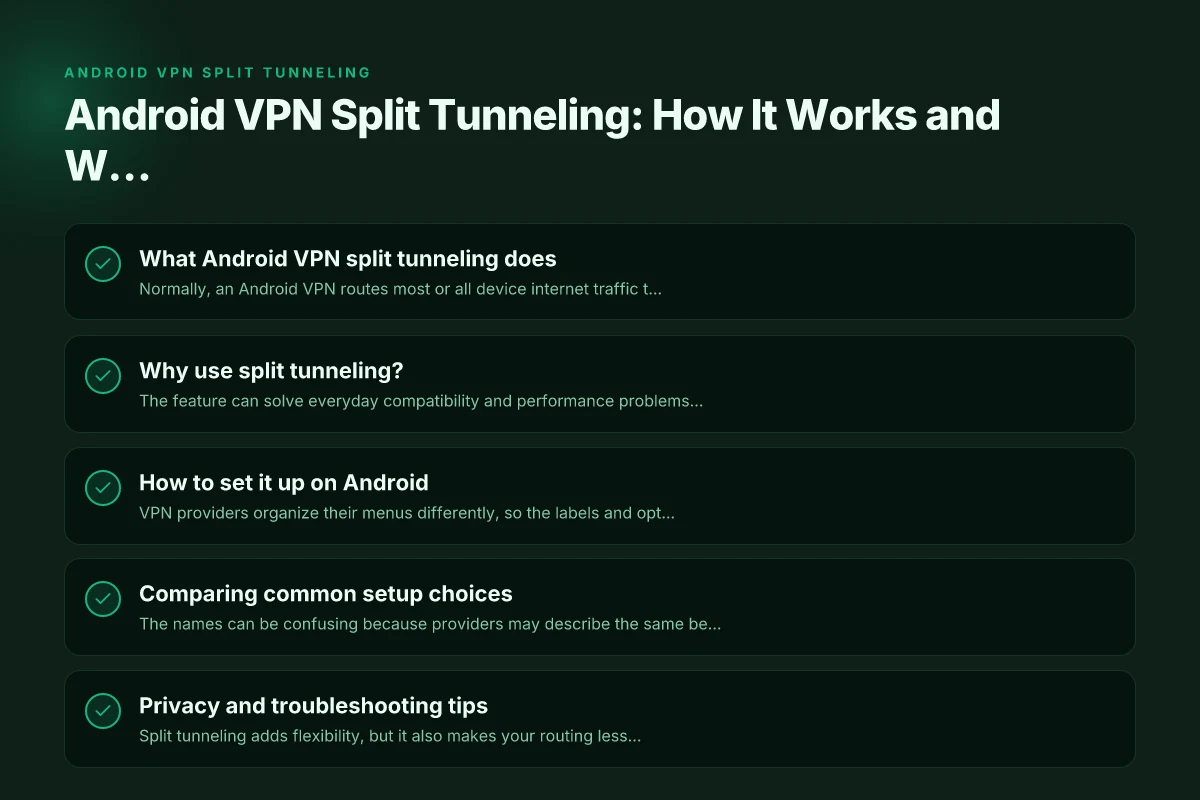
What Android VPN split tunneling does
Normally, an Android VPN routes most or all device internet traffic through an encrypted connection to a VPN server. Split tunneling creates exceptions to that route.
With app-based split tunneling, you choose apps to include in or exclude from the VPN. An included app sends its traffic through the VPN. An excluded app connects through your internet provider or mobile carrier instead.
This distinction matters: traffic that bypasses the VPN does not receive the VPN’s server location or VPN tunnel protection. Your network provider may be able to see that direct traffic, and websites may see your regular public IP address.
Split tunneling is not the same as split tunneling by website or IP address. Most Android VPN apps focus on app selection, while more advanced routing rules may be available only in particular apps or configurations. Get VPN IPsec Tunnel Summary: Commands, Output, and Troubleshooting
Why use split tunneling?
The feature can solve everyday compatibility and performance problems. Common reasons include:
- Accessing local services: Keep a smart-home, printer, or local network app on your home connection if it does not work through a remote VPN server.
- Using region-specific apps: Let an app use your usual connection when a VPN location causes a service to block access or show the wrong region.
- Improving performance: Route a latency-sensitive game or video call directly while keeping other apps on the VPN.
- Choosing what to protect: Keep sensitive browsing on the VPN without routing every app through it.
These benefits involve a trade-off. Excluded apps lose the VPN’s network-level privacy protections. Split tunneling is best used deliberately, rather than as a way to turn the VPN on while assuming every app is covered.
Decide whether to use split tunneling
| Situation | Split tunneling fit | Suggested choice | Why | Check before using |
|---|---|---|---|---|
| An app needs a local network connection | Often useful | Exclude that app | Lets it reach local devices directly | Its traffic will not use the VPN |
| Only one or two apps need VPN protection | Often useful | Include those apps | Limits VPN routing to selected apps | Unselected apps use the regular connection |
| You want broad VPN coverage | Usually unnecessary | Route all apps through VPN | Avoids app-specific bypasses | Check for app connectivity issues |
| A streaming app works poorly over VPN | May help | Exclude it, if appropriate | The app connects outside the VPN | Direct traffic may reveal your regular IP |
| You want to protect sensitive app traffic | Use with care | Include or retain that app on VPN | Keeps selected traffic on the VPN | Confirm the app is actually routed through it |
| You are unsure which apps need exceptions | Start without it | Turn split tunneling off | Fewer routing rules make behavior clearer | Add exceptions only to solve a specific issue |
| You use public Wi-Fi | Depends on your goal | Keep important apps on VPN | Bypassed apps do not get VPN protection | Avoid excluding apps that handle sensitive data |
Compiled November 2026; check the provider's site for current details. VPN That Lets You Choose Location Free: What to Know
How to set it up on Android
VPN providers organize their menus differently, so the labels and options may vary. A typical setup looks like this:
- Open your VPN app and connect to a VPN server.
- Open the app’s settings and look for Split tunneling, App exclusions, or Per-app VPN.
- Choose whether to include selected apps in the VPN or exclude them from it.
- Select the apps and save the changes.
- Disconnect and reconnect if the app requests it.
- Test each selected app to confirm its connection behaves as expected.
Pay close attention to the mode you select. In an include selected apps mode, only the apps you choose use the VPN. In an exclude selected apps mode, most apps use the VPN except those you list. Choosing the wrong mode can produce the opposite of what you intended.
Android’s built-in VPN settings can also offer per-app controls for some VPN configurations. However, many people use the controls in their VPN provider’s app, which may be simpler and may include provider-specific features. If you cannot find the option, check the provider’s help pages or app version requirements.
Comparing common setup choices
| Setup | What happens | Best suited to | Main consideration |
|---|---|---|---|
| All apps through VPN | Most device traffic uses the VPN | Broad, straightforward VPN coverage | Some services may not work properly |
| Selected apps through VPN | Only chosen apps use the VPN | Protecting a small number of apps | Other apps connect directly |
| Selected apps bypass VPN | Most apps use the VPN, with exceptions | Keeping specific services on the usual network | Excluded apps do not use the VPN tunnel |
The names can be confusing because providers may describe the same behavior as “include” or “exclude.” Check the app’s explanation of each mode before saving your settings. Urban VPN Edge Extension: How It Works, Features, and What to Know
Privacy and troubleshooting checks
| Check | What to do | What it helps with | Risk or limitation | When to revisit |
|---|---|---|---|---|
| Confirm selected apps | Review the VPN app’s split tunneling list | Finds unintended bypasses | App lists can change | After changing VPN settings |
| Test app connectivity | Open each app after applying rules | Identifies routing problems | One successful test is not a guarantee | After app or VPN updates |
| Check local access | Try the device or service on your local network | Shows whether an exception is needed | Local access may require direct traffic | When local devices stop working |
| Verify VPN status | Check the VPN app while using a routed app | Helps confirm VPN use | Status indicators may not show every route | When protection matters |
| Review excluded apps | Remove exceptions you no longer need | Reduces traffic outside the VPN | Some apps may stop working as expected | Periodically |
| Update the VPN app | Install available updates | May resolve bugs or add controls | Updates can change settings | When options behave unexpectedly |
| Simplify rules | Disable split tunneling to compare behavior | Helps isolate routing issues | All apps may then use the VPN | During troubleshooting |
| Check provider support | Consult the VPN’s Android guidance | Clarifies supported controls | Features vary by provider and device | Before setup or after an update |
Compiled November 2026; check the provider's site for current details.
Privacy and troubleshooting tips
Split tunneling adds flexibility, but it also makes your routing less uniform. Review your choices whenever you install a new app or change how you use your phone.
For a safer setup: V2Ray iPhone: How to Choose and Set Up a Client
- Keep browsers, messaging apps, and other privacy-sensitive apps on the VPN if that is your goal.
- Exclude only apps that genuinely need direct access.
- Avoid using direct connections for sensitive activity on untrusted public Wi-Fi.
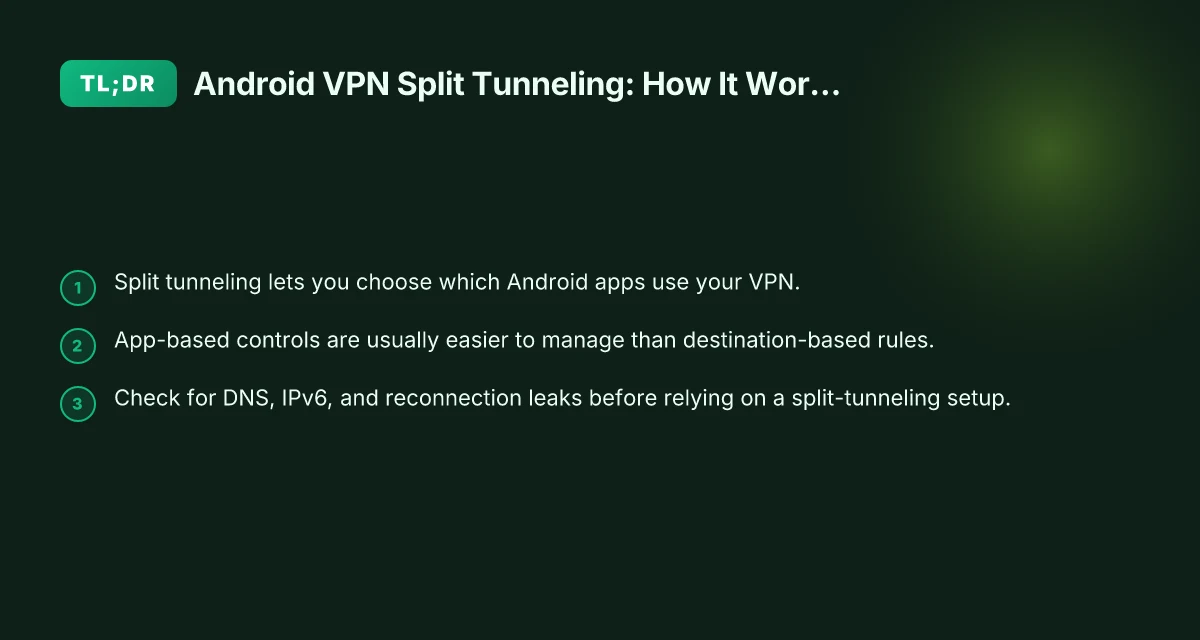
- Check whether the VPN app protects against DNS or IPv6 leaks when split tunneling is enabled.
- Confirm that the VPN reconnects as expected after switching networks or restarting your phone.
If an app stops working, first change that app’s routing rule and reconnect to the VPN. You can also try a different VPN server or update the VPN app. If performance remains poor, compare the app’s behavior with the VPN temporarily disconnected, but avoid assuming that a successful connection means the VPN is protecting that app.
A VPN’s kill switch or “block connections without VPN” setting may affect split tunneling. Depending on the provider and Android version, it might block excluded apps from connecting directly, or it might behave differently when the VPN drops. Read the provider’s documentation and test the result rather than relying on the setting’s name alone.
Recommendation
Use Android VPN split tunneling when a particular app needs direct access or performs poorly through a VPN. For a simple, privacy-conscious setup, keep the VPN enabled for the apps you want protected and create only the exceptions you need. Test those exceptions, review them periodically, and remember that bypassed traffic is not routed through the VPN.